Why Closed Captions Matter: Access, Focus and Reach
Why closed captions help accessibility, comprehension and reach, and how they differ from subtitles. See the rules, data and when captions are required.
5 min read
November 27, 2026

Use a YouTube Shorts caption generator the right way: extract, condense, style, keyword-fit, then QA before publishing. A practical 2026 workflow for creators.
Written by:


Captions can increase online video viewing duration by as much as 40%, according to research compiled in the 3Play Media accessibility and online video report. That single number reframes how you should look at a YouTube Shorts caption generator. Most creators treat automated subtitles as an annoying transcription step right before upload, when they function as a core publishing layer that determines whether a viewer stops scrolling or swipes away in silence.
When you ship vertical clips week after week, you quickly realize one block of auto-generated text can't do every job well. A serious caption workflow has to produce three separate assets from the same spoken audio: condensed on-screen copy built for muted phones, faithful closed captions for accessibility, and clean search copy that helps YouTube classify your clip. Mixing those three jobs into one sloppy transcript is where good Shorts lose watch time and leads.
Most creators ask a YouTube Shorts caption generator to spit out one text file, slap it over the video, and call the edit done. That shortcut fails because on-screen text, accessibility captions, and search metadata serve completely different readers and follow conflicting editing rules.
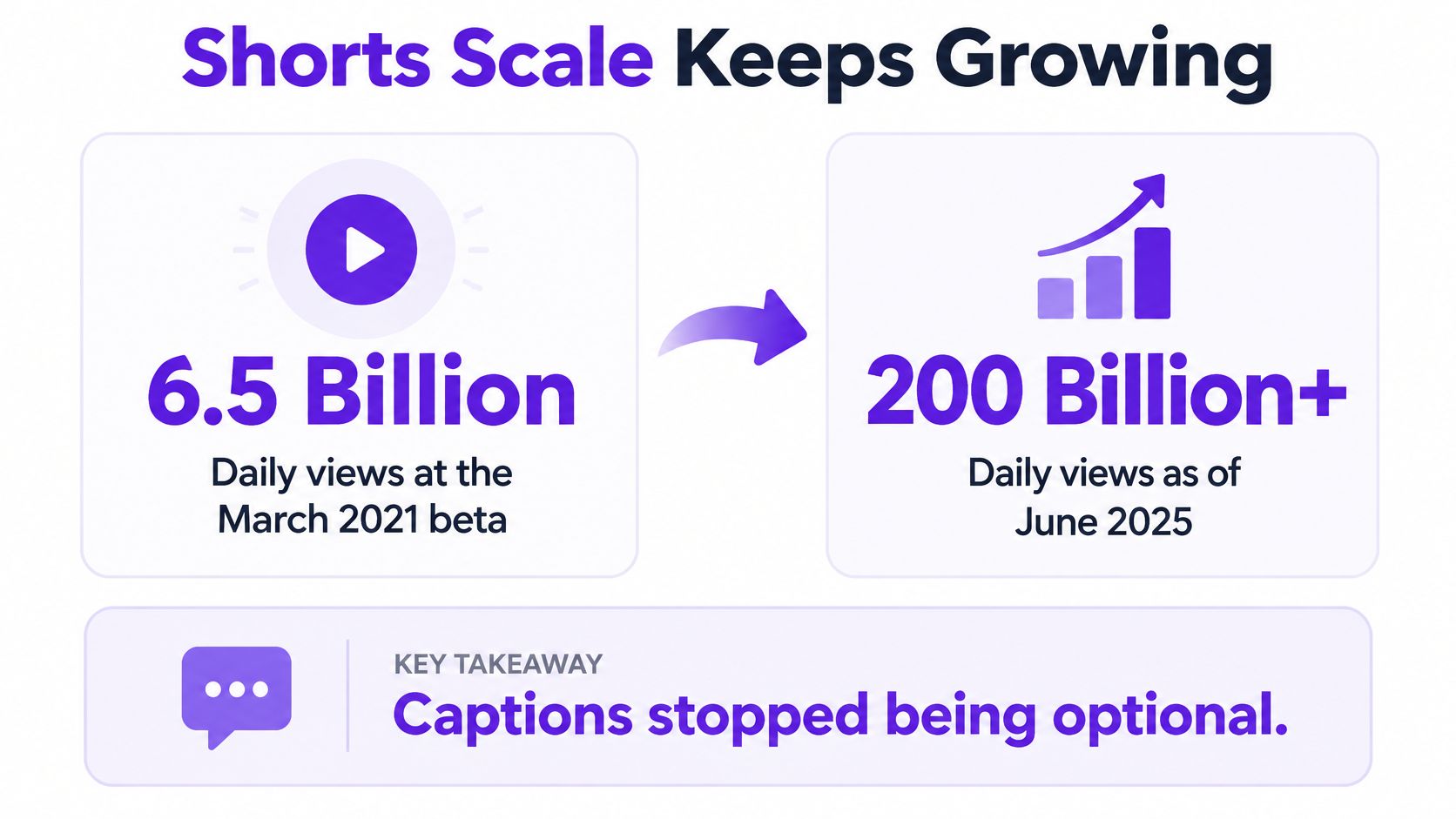
The stakes behind that text layer are massive. Shorts grew from roughly 6.5 billion daily views at its March 2021 beta to more than 200 billion daily views by June 2025, a milestone announced by YouTube CEO Neal Mohan and tracked in the Mark Studios short-form video statistics compilation. Those numbers track daily views rather than unique viewers, yet the jump confirms that vertical clips are a primary discovery surface where viewers meet your brand mid-scroll without any long-form context.
The visual below captures how fast that short-form viewing surface expanded between beta launch and 2025.
Before touching a font menu or animation preset, separate the three text outputs every Short requires. Treating them as distinct deliverables prevents your visual edits from wrecking your accessibility or search relevance.
Operational mindset: A reliable caption workflow isn't a one-off polish pass for a single clip. It's a saved template and review habit that survives your next hundred uploads across YouTube Shorts, Instagram Reels, and TikTok without forcing you to rewrite every line three times.
Guides love telling creators to "caption everything," yet they rarely answer the layout questions that trip people up in an edit. A directional estimate cited in the Virvid Shorts retention guide suggests roughly 80% of short-video viewers watch without sound. Even though that figure isn't an official YouTube platform benchmark, designing for a muted phone screen first protects your opening three seconds from an immediate swipe.
Here is the six-step sequence that turns raw spoken audio into readable vertical captions without burying the footage.
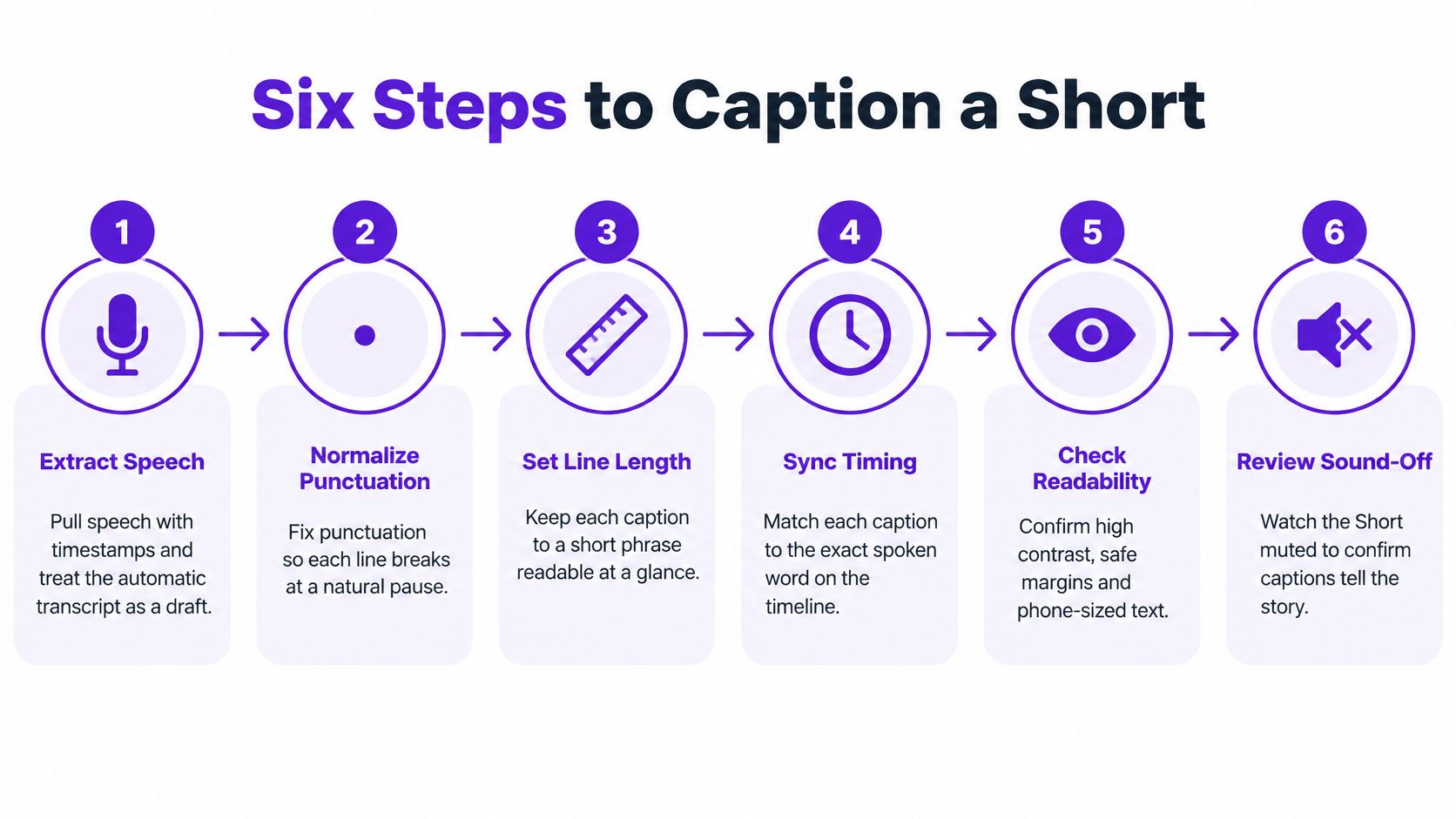
If you want to see how safe zones and word-synced pacing look in practice on a live timeline, this walkthrough demonstrates the layout mechanics step by step.
Creators often stop once the burned-in captions look crisp. That leaves a hidden gap: condensed on-screen cards are built for fast visual scanning, not full accessibility. Once you've reviewed your clean transcript, export a verbatim SRT file (preserving full sentences and speaker labels) and upload it to YouTube Studio as your closed caption track. Deaf and hard-of-hearing viewers can toggle on the complete, faithful record, while casual silent scrollers get the tight, scannable burned-in version.
The table below separates every text layer on a Short so you never confuse one editing rule for another.
| Output | Viewer purpose | Editing priority | Length norm | Typical mistake |
|---|---|---|---|---|
| Burned-in captions (on-screen) | Silent viewing and retention; clarifies the hook | Readability and sync; cut filler, keep key numbers | 3 to 6 words per line, split at clause edges | Dense verbatim text that covers faces or product labels |
| Verbatim or accessibility captions | Deaf and hard-of-hearing viewers following full speech | Faithfulness; do not paraphrase away meaning | Full sentences, speaker labels preserved | Paraphrasing that quietly changes the claim |
| Title, description and hashtag text | Search and discovery inside and outside YouTube | Keyword fit; one clear topic per Short | Title front-loads keyword; description 1 to 3 sentences | Keyword stuffing that reads as spam |
| Thumbnail or hook text overlay | First-frame stop-scroll | Contrast and one idea per frame | 3 to 6 words, high contrast | Competing with burned-in captions for the same space |
Plenty of creators assume that burning a keyword onto the screen helps a Short rank in YouTube search. It doesn't work that way. Search discovery comes primarily from the structured text around your video and the spoken transcript YouTube indexes, while burned-in words confirm to a human viewer that they clicked the right clip.
To make your Shorts discoverable without sounding robotic, connect your spoken script, your captions, and your metadata into a single chain. This checklist breaks down the four pieces that need to align on every upload.
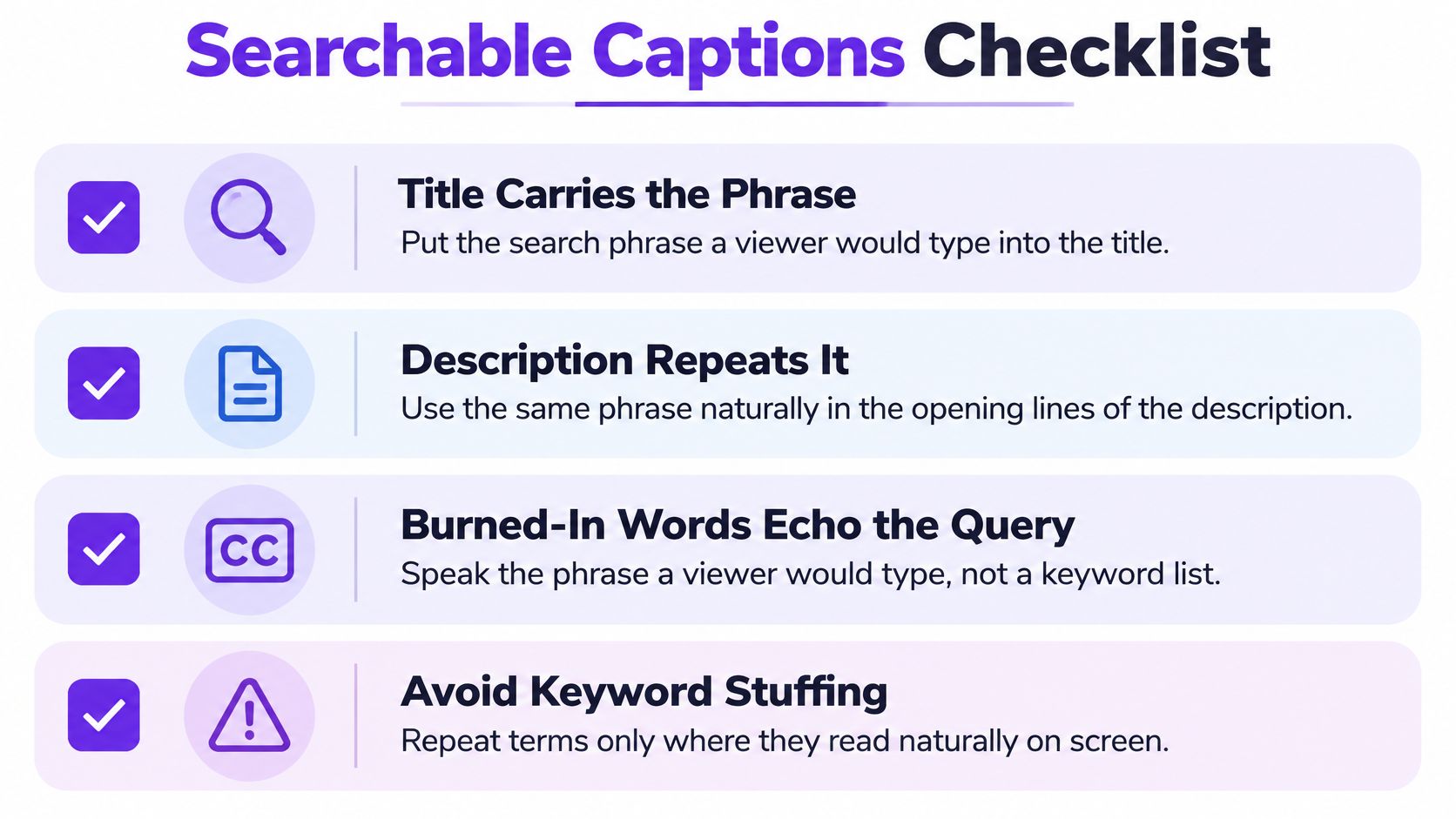
Start by front-loading your primary search phrase in the title within the first 40 to 50 characters so mobile feeds never cut off the core topic. Follow that with a 1 to 3 sentence description built from three concrete inputs: what the clip's transcript says, who your channel's target audience is, and the phrasing of your strongest title. Include one or two natural wording variants in that description, then finish with 3 to 5 tightly relevant hashtags rather than ten broad, disconnected tags.
There is also a spoken-keyword layer most creators miss. Say your main topic phrase out loud within the first three seconds of the clip. That ensures the exact term lands inside YouTube's indexed transcript and matches your opening caption card instead of drifting into vague synonyms that weaken topical clarity.
Over-optimization hurts both human retention and search trust. If you repeat the same clunky search phrase in every subtitle card, paste unrelated trending hashtags into the description, or target one keyword in the title while talking about something completely different on camera, viewers bounce and discovery stalls.
When you're unsure whether your descriptions read naturally or cross into repetition, reviewing keyword usage audits for content marketers from SemDash gives you a clean benchmark for balancing topical focus with plain English. Pair that restraint with disciplined video metadata optimization across your titles and tags so every Short reinforces a clear subject.
Before hitting publish, run a ten-second alignment check: read your title, your opening burned-in caption card, and the first sentence of your description back to back. All three should describe the exact same moment in the clip using the language a real viewer would type into the search bar.
Treating an automatic transcript as publish-ready copy introduces predictable, uneven accuracy failures across speakers. Published research in Interspeech 2017 by Rachael Tatman documented statistically significant differences in YouTube automatic-caption error rates across speaker dialects, gender, and race, with General American speakers seeing the lowest average error rates. If your Shorts feature guests, co-hosts, or clients with varied accents, you can't assume uniform transcription quality from one voice to the next.
YouTube's automatic captioning documentation reinforces that point directly, warning creators that machine-generated captions can misrepresent speech due to mispronunciations, accents, dialects, and background noise, and advising manual review before relying on them. The same review trap hits anyone cross-posting vertical clips, so whether you're editing for Shorts or looking to generate captions on TikTok using native auto-subtitles, human QA stays mandatory.
The strongest YouTube Shorts caption generator isn't the one claiming the highest raw transcription accuracy. It's the one that exposes uncertainty clearly so you catch high-stakes mistakes before a single viewer sees them.
Stop proofreading captions like a high school English teacher hunting for stray commas. Rank errors by what they cost your business when they slip into a live Short, because the three jobs captions perform (accessibility text, silent-viewing visual layer, and searchable SEO copy) each break in different ways.
Homophones, rapid speech, overlapping voices, accented speech, and loud background music are common triggers for Tier 1 and Tier 2 failures. Whenever a clip includes two or more of those conditions, slow down and scrub the timeline word by word rather than trusting a skim.
Sample every single generated Short rather than spot-checking one clip out of five. Run this quick pass before you schedule the batch:
Sixty seconds per clip is cheaper than one public correction.
Most creators pick the wrong caption software because they compare shiny animation styles instead of starting from their actual workflow. If you film straight to your phone once a week, you don't need an enterprise repurposing suite. If you publish a 45-minute podcast or client webinar and need twelve vertical assets by Friday, hand-typing captions in a timeline editor will burn out your team in two weeks.

Look closely at three criteria when evaluating any YouTube Shorts caption generator: how clearly it lets you edit uncertain words, whether it previews YouTube's vertical safe zones, and whether it enforces character or word limits per card instead of dumping raw transcript walls onto the screen.
| Tool category | Best fit | Transcription QA | Safe zones and line limits |
|---|---|---|---|
| Built-in YouTube editing | Quick closed caption fixes | Basic text-box editing inside YouTube Studio; no confidence flagging | Manual eyeballing on phone; no automated line-length caps |
| Standalone caption and subtitle app | Burned-in caption styling | Word-level timeline editing in apps like Clipchamp, Canva, or dedicated formatters | Custom presets available, though you set safe margins and character rules manually |
| Full repurposing platform | Many Shorts from one long-form upload | Transcript-synced editors in clippers like OpusClip, Vizard, or Vmaker speed up bulk review | Built-in vertical framing, safe-zone templates, and preset word-per-line controls |
If you're still deciding which workflow fits your upload cadence, our breakdown of ways to auto-generate captions for video walks through how automated transcript-to-subtitle pipelines compare across common creator setups.
Never standardize a caption template based on someone else's viral screenshot. Directional figures summarized in the QuickReel caption retention analysis show why testing matters: a survey of 5,616 U.S. adults reported 80% were more likely to watch a video to completion when captions were available, while an independently reported A/B test found captioned videos generated more than 7% additional views. Treat those numbers as a reason to test, not a guaranteed lift on your specific channel.
Set up a controlled comparison across at least several uploads per variant. Publish two otherwise equivalent Shorts batches: one using accurately edited, high-contrast burned-in captions, and a control batch with no burned-in captions (or a materially different styling treatment). Hold your opening hook structure, clip length, thumbnail frame, upload window, and audience targeting constant.
Compare six metrics inside YouTube Studio once the clips settle: viewed-versus-swiped-away rate, average percentage viewed, completion rate, rewatches, shares, and comments. Judge your results on both retention lift and error-free readability, keeping clear of the classic traps like overlong lines, delayed sync, excessive bounce animations, or text sitting under platform controls.
Everything in this workflow comes down to turning guesswork into a repeatable channel standard. Grab the next long-form recording sitting in your production queue, run one clip through the six-step silent-viewing pass, upload the matching verbatim SRT file, and align your title, opening card, and description around one clear search phrase. Once those layout settings (word count per card, font contrast, safe-zone height, and your one-minute acceptance check) feel dialed in, save them as your default template so you never build a Short from scratch again.
If you're turning podcasts, interviews, sermons, or client webinars into a steady stream of vertical posts, handling clipping, captioning, and metadata in separate apps slows everything down. With Taja AI, you upload one long-form video to create shorts, clips with captions, thumbnails, and platform-ready posts, then auto-schedule them across your channels. Taja AI builds SEO descriptions from three inputs: the video's transcript, the channel's target audience, and the highest ranking title. Because thumbnails and captions are included and remain editable before posting, you still run your one-minute QA check on names, numbers, and links right inside the editor before anything goes live.
Your next batch test: Run an A/B check across your next four Shorts, pairing two clips built with your edited safe-zone caption template against two uncaptioned clips, and let your viewed-versus-swiped-away and completion metrics decide your permanent house style.
Ready to turn your next long-form video into accurately captioned Shorts, custom thumbnails, and search-ready posts without juggling four editing apps? Upload one recording to Taja AI to generate editable captions and platform-specific clips in minutes, run your quick QA pass, and schedule weeks of consistent vertical content from a single dashboard.


We are blessed to work with leading brands & Companies


We try to make easy and simple for every professionals. Get 30 days free trial - No credit card required.


© 2025 Taja AI. All rights reserved.