.jpeg)
YouTube Shorts vs TikTok: Which Wins for Creators in 2026
YouTube Shorts vs TikTok compared on specs, reach, algorithms and monetization, with a clear platform pick for creators and brands in 2026.
5 min read
October 27, 2026

Seven real closed caption fails, from Netflix and edX lawsuits to garbled auto-captions, plus before/after fixes and quick quality checks.
Written by:


A Deaf student opens a recorded lecture five minutes before class. The video plays, the instructor explains the assignment, and the caption track is missing. In another video, captions appear but change “do not submit” to “now submit.” The player works. The words on screen don't.
These are different kinds of closed caption fails. Some leave viewers without access; others show inaccurate, delayed, or poorly placed text that makes information hard to follow. In some cases, inaccessible video has led to legal complaints and agreements to add captions. In everyday publishing, a single uncorrected term can still derail a lesson or misstate a safety instruction.
The fixes are usually practical: publish captions with the video, check them against the audio, and review timing and placement in the final format. Below are seven failures, the consequences they can bring, and a repeatable fix and pre-publish check for each.
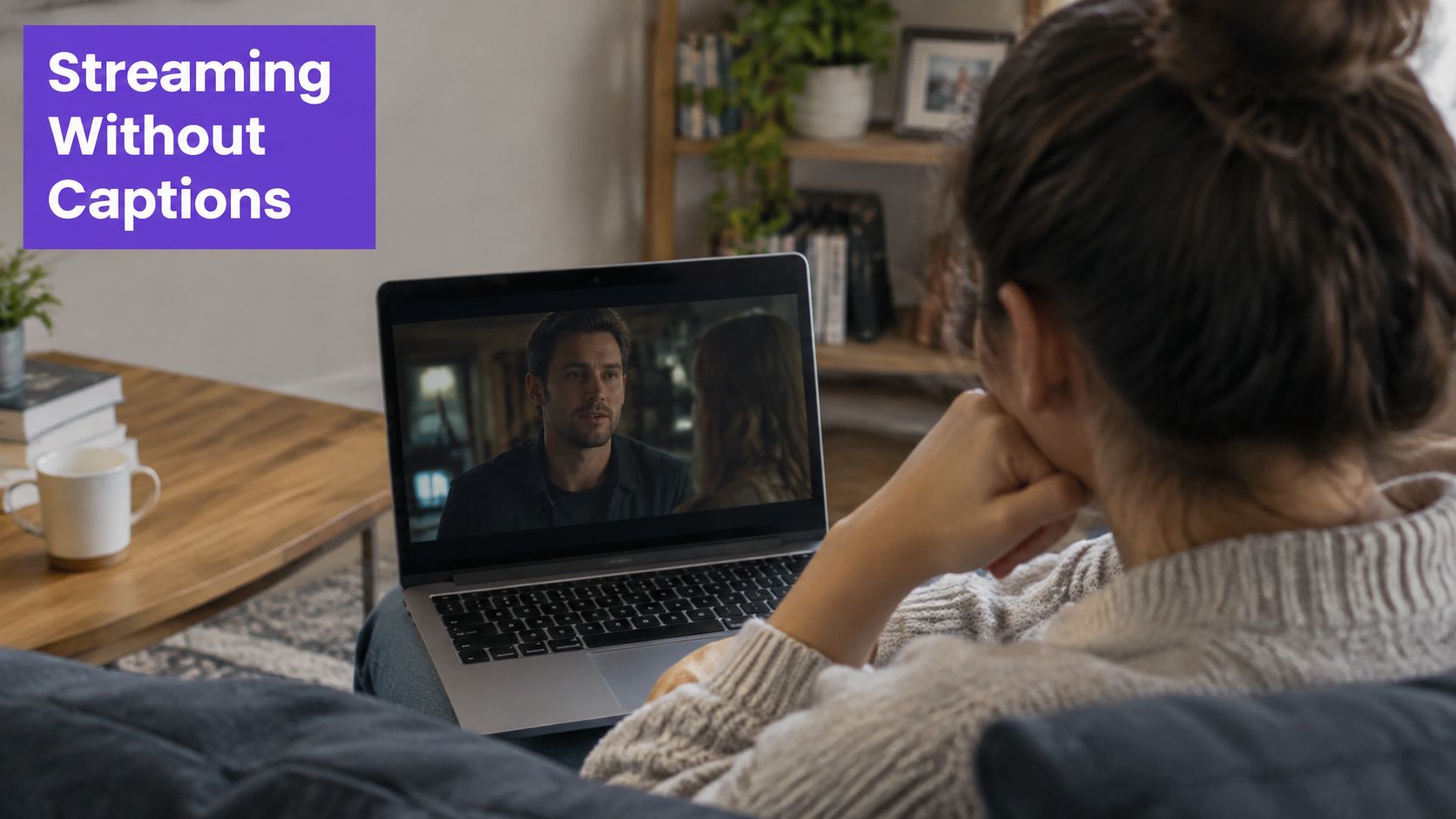
A streaming library can look complete to a hearing viewer while remaining unusable to someone who relies on captions. That access gap drove the National Association of the Deaf to file a complaint against Netflix in 2011, arguing that much of its streaming content lacked captions and violated the Americans with Disabilities Act. The dispute was resolved in 2012, with Netflix agreeing to caption its streaming content.
The case made a practical point for anyone publishing video online: captions can't be treated as a later enhancement. A course platform, membership library, or business video archive still needs a plan for people who can't hear the audio. A viewer who can't follow the video may miss its instruction, entertainment, or essential information entirely.
For a small business, the same failure might be a product walkthrough that's promoted to customers but published without a caption track. Add caption creation and review to the release checklist, alongside the thumbnail and description. If the library is already large, audit it and prioritize videos with the most views or the greatest value to users.
Practical rule: Don't publish the video first and promise captions later. Make the caption track part of the deliverable.
Before publishing, test the video with captions enabled, then confirm they're complete from opening to end card. For a website accessibility plan that considers video alongside other site features, see Blu Dragonfly's website accessibility guide.
A lecture can be free and still be inaccessible. In 2015, the National Association of the Deaf filed a complaint alleging that online courses offered through edX, a platform created by Harvard and MIT, lacked adequate captions and transcripts. The complaint said that many lectures had no captions, preventing Deaf learners from fully participating. Harvard and MIT agreed to caption their online course content.
For educators, the failure isn't limited to a missing text track. A caption that garbles a technical term, a person's name, or a formula can make a lesson confusing even when every other sentence reads smoothly. A downloadable transcript also helps learners review the material, but it doesn't replace timed captions for following a video as it plays.
Say an instructor explains how to solve an equation while writing it on screen. If an automatic caption mangles the key term or changes a number, a learner may get the wrong instruction. The production team should check captions against the lecture recording and on-screen material, particularly where a spoken phrase explains a formula or demonstration.
Build a caption review into course production, not into a last-minute accessibility cleanup. Include the transcript in the course materials, and check that it matches the final edited video.
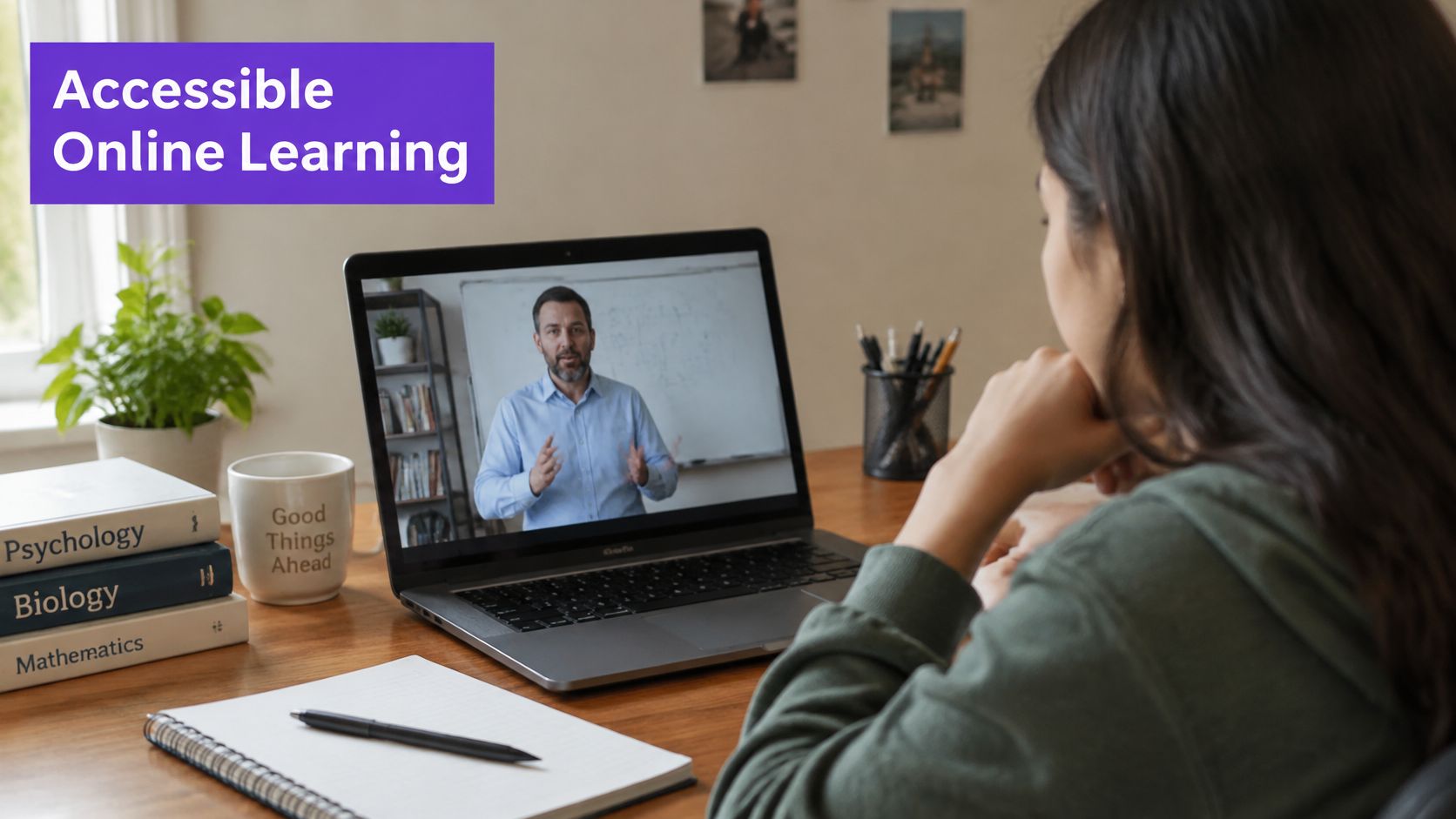
Before publishing a lesson, verify names, specialist vocabulary, formulas, and speaker changes. Educators developing inclusive classroom materials can also explore classroom strategies for children with hearing loss.
Public access doesn't automatically mean equal access. In 2010, the National Association of the Deaf and the Disability Rights Education and Defense Fund sued UC Berkeley over publicly available online course videos that weren't captioned. The complaint argued that the university was excluding Deaf students and members of the public from educational material. The university committed to captioning its online materials.
A common version of this failure happens when an organization uploads a lecture or public webinar to a video channel and assumes somebody else will handle captions. Months later, the recording is still available, but a viewer who needs captions can't use it. A caption policy only works when staff can see which videos have been processed and which remain incomplete.
Use a central video inventory with fields for the title, owner, publication status, caption status, and review date. Give each video a clear status, such as “needs captions,” “in review,” or “ready.” Include captioning in the production budget so staff aren't forced to choose between captions and other basic publishing tasks.
Don't rely on memory to find gaps. Keep one list that shows which videos still need a caption track.
Before each upload, check the publishing checklist and confirm the caption file is attached to the final video, not an earlier cut. For older material, start with public-facing lectures, tutorials, and recordings that continue to help learners.
A tutorial can give a clear instruction in the audio and a different one in its captions. Automatic speech recognition speeds up drafting, but errors in names, technical terms, accents, cross-talk, or noisy audio can change what a viewer understands.
A study comparing live captioning systems reported 95.7% average accuracy for automatic captions, below the 98% benchmark cited for acceptable caption quality. The study examined live captioning, not recorded lecture or tutorial videos, so its result should not be treated as a measure of accuracy for prerecorded content (comparative live-captioning study). The practical risk is still clear: a fluent-looking caption can misstate an instruction, number, or term.
Start with a clean recording. Use a dedicated microphone, reduce room noise, and keep music from competing with speech. If the captioning tool supports a custom vocabulary, add product names, people, and technical terms before generating captions. Then listen while reading the captions, checking numbers, dates, negation, and calls to action against the audio.
Automatic captions are a first draft, not a finished track. For a practical subtitle workflow, follow this guide to add subtitles to video.
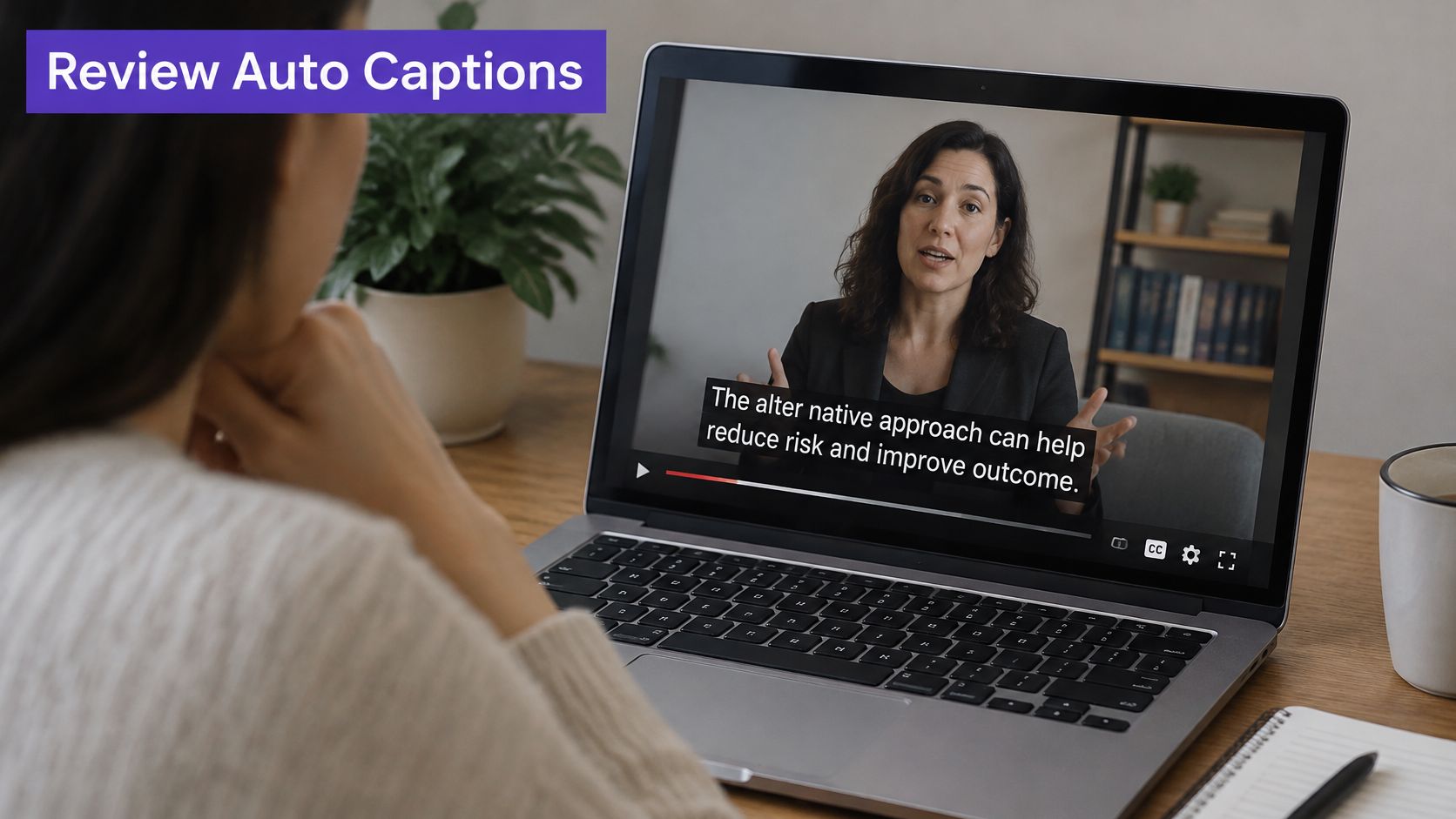
Before publishing, review a passage from the opening, middle, and end. Verify every proper noun and instruction against the source audio. For a short tutorial, check the entire clip. One incorrect word can reverse the instruction and leave a viewer following the wrong steps.
In a live broadcast, correct captions that arrive too late can still fail the viewer. News, sports, and emergency coverage may use real-time transcription by stenographers or automatic systems. Speech can be captioned with a delay, omitted, or displayed out of sync. During a breaking update, that lag can leave viewers without the information they need as events unfold.
The Federal Communications Commission adopted caption quality standards in 2014 covering accuracy, synchronicity, completeness, and placement. Those dimensions are useful well beyond broadcast news: a team running a live webinar or stream also needs to know whether captions match the speaker, include the important content, and appear where viewers can read them.
Before a town hall or live product demonstration, provide the captioning team with names, place names, product terms, and the agenda. Assign someone to monitor the caption feed and alert the producer if it falls behind or drops important content. For a recurring event, record the broadcast and publish a corrected caption track afterward when the live feed contained errors.
Live captions serve the moment. A reviewed recording serves the next viewer.
Pre-publish checks can't fix a live error after it happens, but a rehearsal can reveal a laggy feed or a poor audio setup before the audience arrives. Test the stream with captions on, ask a reviewer to follow along, and confirm the recorded version retains a usable caption track.
Captions can be word-perfect and still block the information a viewer needs. A lower third may identify an interview guest, while captions appear in the same part of the screen. A slide may show a formula behind the text. In both cases, the viewer has to choose which information to read.
This often happens when an editor makes one video and then crops it for vertical or square platforms. Captions that sat below a speaker in the original frame may cover a name, score, demonstration, or interface after the crop. Platform controls can also occupy part of the screen, so a position that works in an editing preview may not work in the published player.
Plan captions and graphics together in the edit. Keep captions in a safe zone that avoids names, titles, slides, and the platform's interface, and adjust their position when the frame changes. If the video includes a lower third, check that the caption track doesn't obscure it during the full time it's on screen.
For a short refresher on the graphic element, see what a lower third is.
Before publishing each format, preview it on the actual platform or in a realistic player view. Check the beginning, any section with an on-screen label, and the end. A quick review of the original wide version isn't enough if viewers will also see a cropped clip.
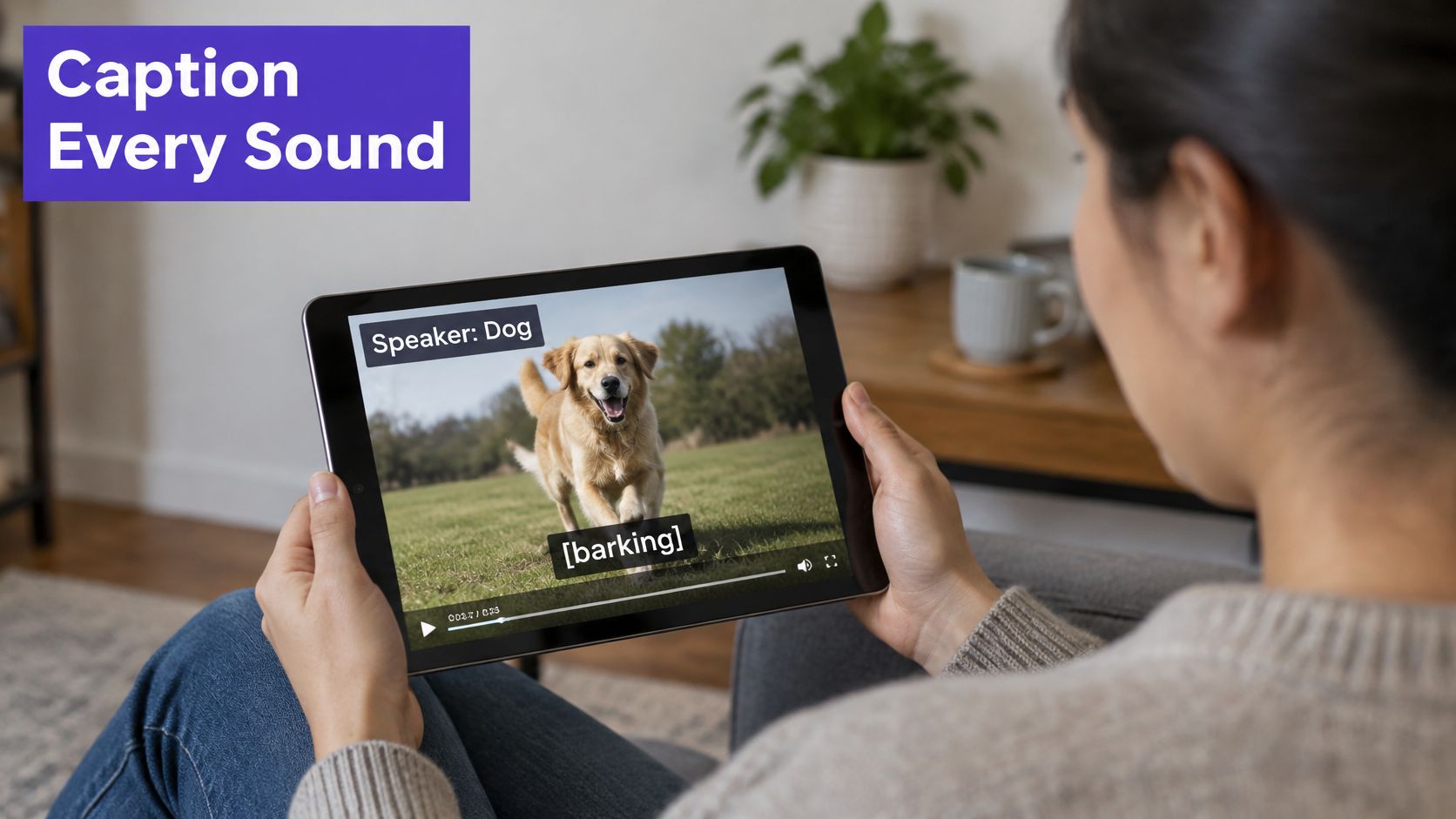
A doorbell rings, someone reacts, and the video cuts to the next shot. If captions show only dialogue, viewers may miss why the person turned around. Alarms, laughter, music, and other meaningful sounds can change how a scene is understood. Unlabeled dialogue can also be difficult to follow when a video cuts between speakers.
A 2025 study reviewed 36 papers, surveyed 168 Deaf and hard-of-hearing caption users, and interviewed viewers and professionals. Participants identified missing non-speech information as the most prominent caption problem they raised. They also reported concerns about insufficient detail and timing (study of caption users' experiences).
Identify speakers when the picture or conversation does not make clear who is talking. This matters in interviews, panel discussions, and scenes with off-screen voices. Add sound cues when they affect meaning or explain an action, such as “[doorbell rings]” before someone answers. Skip sounds that add no useful context. Too many labels can crowd the screen and make the dialogue harder to read.
Use consistent caption conventions across videos. Review the captions with the picture and check that each cue appears at the right moment. For practical guidance on preparing a caption track, see how to add captions. For material about classroom strategies for children with hearing loss, consider how clearly identified speakers and meaningful sound cues support access to spoken content.
Before publishing, check scenes with speaker changes, off-screen dialogue, and sounds that signal a warning or explain a reaction. Confirm that each speaker is identifiable and every meaningful cue is represented. That check catches omissions that can leave viewers without the context needed to follow the scene.
| Item | Failure Type | Main Audience Affected | Primary Fix |
|---|---|---|---|
| National Association of the Deaf v. Netflix (2011) | Missing captions on streaming content | Deaf and hard-of-hearing viewers | Caption all videos at publication and audit existing content |
| NAD Complaint Against Harvard and MIT Over edX Course Captions (2015) | Missing or inadequate captions and transcripts | Deaf learners | Caption lectures, provide transcripts, and review technical terms |
| UC Berkeley Online Lecture Captioning Lawsuit (2010) | Public lecture videos without captions | Deaf students and the public | Require captions for all public videos |
| Inaccurate Automatic Captions on Lecture and Tutorial Videos | Unreviewed speech-recognition errors | Viewers who rely on captions | Review and correct auto-generated captions before publishing |
| Delayed and Incomplete Live Captions During Breaking News | Caption delays, omissions, and synchronization errors | Viewers relying on live captions, especially during emergencies | Monitor live caption quality and correct recordings afterward |
| Captions Covering On-Screen Text and Lower Thirds | Captions obscure important visual information | All viewers, especially those relying on captions or graphics | Plan caption placement with graphics and keep captions in a safe zone |
| Missing Non-Speech Information and Speaker Identification | Missing sound cues and speaker labels | Deaf and hard-of-hearing viewers | Add speaker labels and captions for meaningful sounds |
Caption failures have different consequences, so assign an owner and match the check to the risk. Missing captions can leave viewers without access to a video. Wrong words can change instructions or meaning. Poor placement can hide lower thirds or slides. Dialogue-only captions can miss speaker identity and sounds that help viewers understand what is happening.
Before upload, run this check:
Treat caption review as a production step. A simple owner-and-status tracker can show whether captions were created, reviewed, and attached to the correct edit. Educators building video into varied learning experiences can explore differentiated teaching strategies.
Automation can create a first draft, but a person still needs to check the words, timing, and presentation. Recheck captions after cropping, editing, or repurposing a clip. The original track may no longer match the finished version.
Taja AI can generate captions for long-form videos and clips. If you repurpose long videos, review each finished clip for accuracy, placement, and sound cues, then visit Taja AI to explore its video workflow.


We are blessed to work with leading brands & Companies


We try to make easy and simple for every professionals. Get 30 days free trial - No credit card required.


© 2025 Taja AI. All rights reserved.