.jpeg)
TikTok Content Strategy: A Step-by-Step Playbook
Build a TikTok content strategy in seven steps: set goals, pick pillars, batch production, repurpose videos, post consistently and measure what works.
5 min read
October 25, 2026

Add subtitles to video free with YouTube, TikTok and free editors. Step-by-step captions, SRT export, timing rules and fixes for auto-caption errors.
Written by:


You've finished editing a video, and you're ready to post. Then you watch it with the sound off. The introduction makes no sense, the demonstration loses its explanation, and the automatic captions turn your business name into something you'd never say.
You can add subtitles to video free, but getting text onto the screen is only part of the job. The practical approach is to choose a free route, correct the words that matter most, and check that viewers can read them without missing the action.
In 2024, 50% of Americans reported turning on subtitles most of the time, according to Kapwing's compilation of subtitle-viewing research.
That makes captions useful even when viewers can hear the audio. Someone watching your property tour on a train or following a cooking demonstration in a noisy kitchen shouldn't have to guess what you're saying.
The main difference between free tools is what you get at the end. A transcript is a document containing words. A subtitle file contains words and the timing instructions needed to display them alongside a video.
| Route | Cost | Best for | Output | Main catch |
|---|---|---|---|---|
| YouTube automatic captions | Free | Long uploads with clear speech | Downloadable caption track | Names, jargon and numbers need checking |
| TikTok auto captions | Free | Short vertical clips | In-app captions or text rendered into an exported video | Don't expect a separate subtitle file to reuse |
| Google Docs voice typing | Free | Drafting your own narration | Plain text, no timestamps | Works with microphone input, not uploaded files |
| Otter free tier | Free with a monthly processing cap | Uploaded interviews and recordings | Timestamped transcript | Processing and export limits apply |
| Subtitle Edit | Free, open source | Timing lines and exporting caption files | SRT, VTT and other formats | Windows-focused interface |
| Aegisub | Free, open source | Styled subtitles with precise timing | ASS and SRT | Steeper learning curve |
| Amara | Free plan | Collaborative subtitles and translation | SRT and VTT | Check sharing and privacy settings |
| Kapwing free plan | Free with limits | Quick browser edits of short clips | Burned-in captions and subtitle exports | Check watermark and export restrictions |
| Taja AI free start | Free start, no credit card required | Captioned clips from long videos | Captioned short clips | Free usage limits apply |
Free-plan limits change. Before uploading a long recording, check the current processing allowance, export options, watermark policy and privacy settings. Test an export before spending time correcting an entire transcript.
Think of these as five practical methods, rather than nine unrelated products: platform automation, browser captioning, transcript-first editing, manual subtitle authoring and long-video repurposing.
Most tools either generate words or produce timed captions. Some do both, so you don't always need to move between applications.
The fastest starting point is usually the platform where you'll publish. Automatic captioning needs detectable speech, though. Don't expect a silent demonstration or music-only clip to produce descriptions of what viewers need to hear.
Menu labels change between devices and account versions. Follow the function, such as subtitles, captions or language settings, rather than expecting every button to match a tutorial.
YouTube doesn't necessarily offer a button that instantly creates automatic captions on demand. If no track appears, confirm the language and audio, allow more processing time, or use the transcript-first method instead.
This visual summarizes the publishing sequence.

A caption layout that looks fine inside TikTok may need repositioning on Instagram. The guide to adding captions to Instagram Reels is useful when preparing a separate version.
For a local service demonstration, start with audio that clearly explains the work. Boocoo's resource on affordable videos for local trades can help you think through the underlying production before captioning it.
Publishing rule: A generated track is a draft. Saving it successfully doesn't mean someone has checked what it says.
Use the quality checks below before treating either platform's output as publishable.
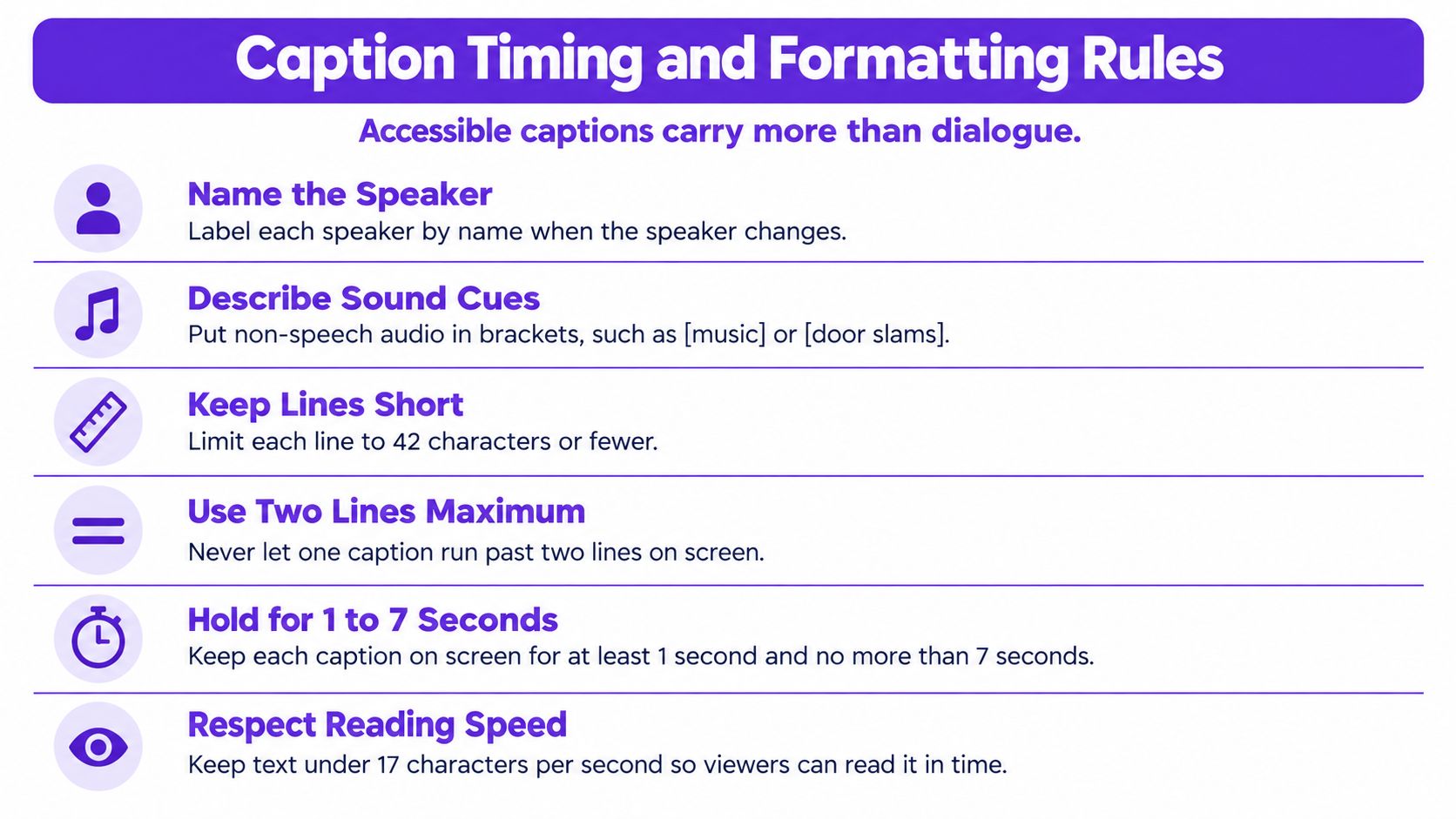
A caption such as [door slams] Mara: Who left the gate open? communicates something that dialogue alone misses. The sound explains why Mara reacts.
The World Wide Web Consortium's caption guidance distinguishes accessibility captions, which include relevant speech and non-speech audio, from translated subtitles, which generally carry dialogue in another language. A translated transcript isn't automatically a complete accessibility track.
Use these as working settings, then adjust them to the destination player and actual footage. They're editing targets, not a universal compliance specification.
| Setting | Common target | Why it matters |
|---|---|---|
| Characters per line | A short phrase that fits without automatic wrapping | Avoids unexpected wrapping on phones |
| Lines per caption | A compact block, not a paragraph | Keeps the frame clear |
| Reading speed | Comfortable at normal playback speed | Lets viewers finish reading |
| Minimum duration | Long enough to recognize and read the whole cue | Prevents flashing text |
| Maximum duration | End with the associated speech or sound | Prevents text lingering |
| Gap between captions | A visible separation where the player supports it | Makes changes easier to follow |
| Placement | Lower third unless important visuals occupy it | Protects faces and on-screen information |
Don't shrink the font to rescue an overloaded caption. Split the sentence at a natural phrase boundary instead. A phone viewer shouldn't have to choose between reading tiny text and watching the demonstration.
The visual below provides starter settings to test in your editor, rather than a substitute for checking your finished video.
A useful test is whether you can follow the scene with the sound muted. If a speaker reacts to an unheard event and the captions give no explanation, the track is missing information.
When automatic captions are unavailable or unusable, separate the work: get the words, clean the words, then time the words. Correcting a product name in a document is easier than fixing it across a collection of carefully timed cues.
Manual review isn't busywork. A study of YouTube auto-captioned instructional video found 525 phrase-level errors across 68 minutes, illustrating why generated text needs checking before publication.
Keep the video, transcript and caption project together while you work.
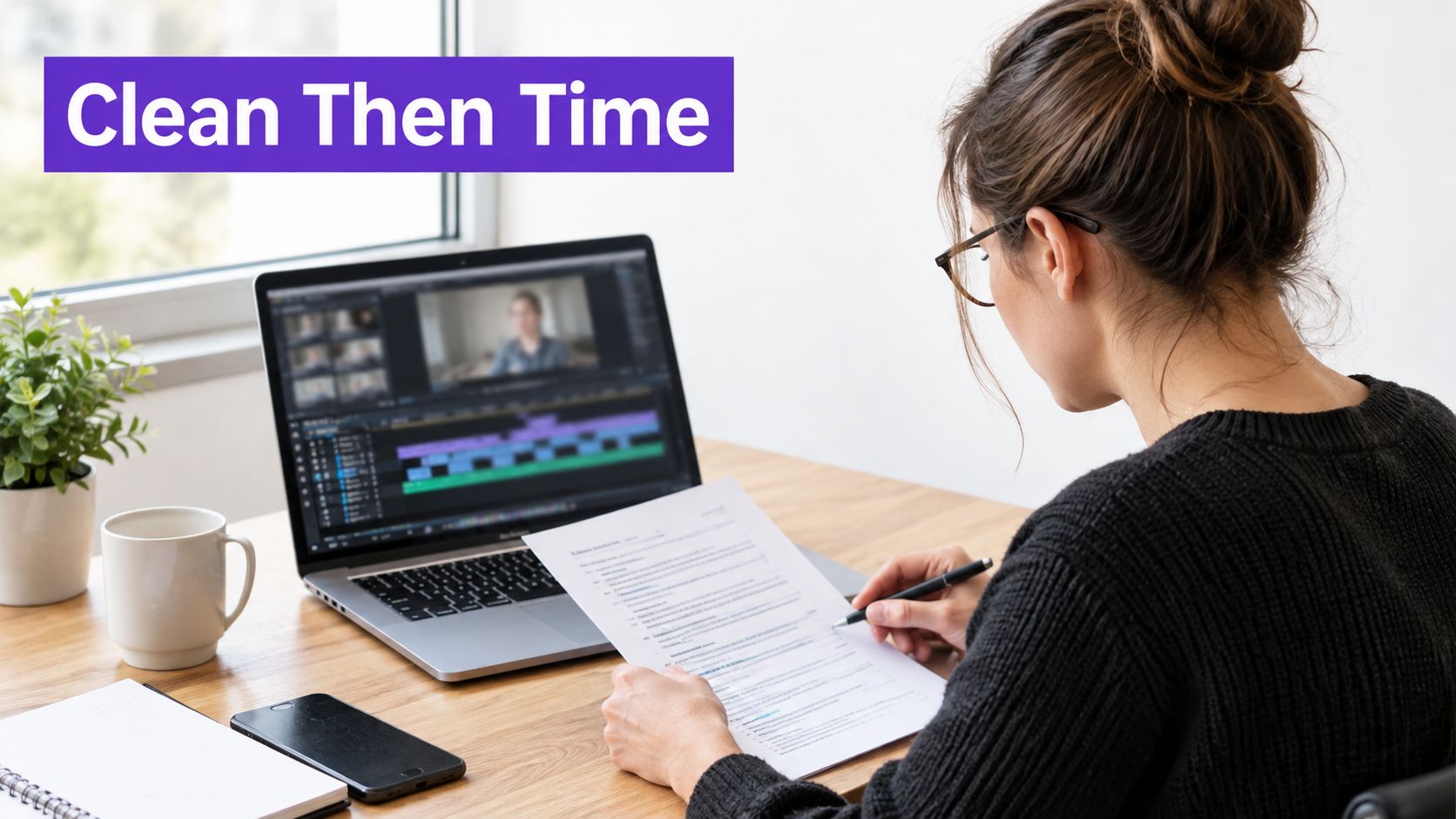
Google Docs voice typing doesn't supply subtitle timestamps. It's useful for drafting narration, but it won't turn an uploaded interview into a synchronized caption track by itself.
Subtitle Edit's waveform helps you locate speech, but a visible peak isn't proof of a particular word. Listen while moving cue boundaries, especially around breaths, pauses and overlapping voices.
For help deciding which transcription approach suits your recording, compare the options in this video-to-text converter guide. Choose based on input support, export access and privacy, not just how quickly the first draft appears.
Aegisub suits captions that need detailed positioning, fonts and colour, while Amara is useful when collaborators or translators need to edit a shared project. You don't need either to produce a readable SRT file.
This accompanying video offers another way to follow the workflow.
Keep an untouched copy of the transcript. It gives you something to compare against when an edit accidentally removes a phrase.
For an ordinary talking-head video, automation can handle the initial transcription. For specialized training or sensitive instructions, plan for someone who understands the subject to review the finished file.
Should every viewer see the captions, or should viewers choose whether to display them? That decision determines whether you need burned-in text or a separate caption track.
Burned-in captions become part of the picture. A sidecar file travels alongside the video and supplies text to a compatible player.
| Delivery method | Viewer can turn off? | Works on short-video apps? | Editable after export? | Best for |
|---|---|---|---|---|
| SRT sidecar upload | Yes, in a compatible player | Only where subtitle-file uploads are supported | Yes | Long YouTube videos |
| WebVTT track on your own site | Yes | Not as a standalone app upload | Yes | Embedded players, courses and websites |
| Burned-in captions | No | Yes | Requires a new video render | TikTok, Reels and Shorts |
| Platform CC button with uploaded file | Yes | Only where the platform accepts caption files | Yes, through platform controls | Long-form uploads on YouTube and Vimeo |
For a website player, WebVTT is designed for browser-based timed text through the HTML track element, as explained in the Federal Agencies Digital Guidelines Initiative's WebVTT guidance. SRT is a practical choice when a platform or editing application asks you to upload a subtitle file.
Export the format your destination accepts. Name it with the video title and a language code, such as boiler-maintenance.en.srt, so you can distinguish it from translated versions.
Open the platform's subtitle or caption menu, upload the file, and select the matching language. Preview the uploaded result because the platform may render line breaks or positioning differently from your editor.
For a burned-in Kapwing clip, upload the finished video, open its subtitle tool, generate the draft and correct the text before exporting with captions visible. Check the free export conditions before investing in detailed styling.
The choice between a subtitle track and designed on-screen text is also useful when comparing text-in-video software. Animated headlines can emphasize a message, but they shouldn't replace the complete spoken content when you need captions.
Keep a master: Save the editable caption file even when your final delivery is burned into the video.
Once text is rendered into the picture, changing a spelling mistake requires another render. Also recheck synchronization after trimming the footage or changing the video's playback timing.
Add a cleaned transcript or a useful summary to the description where appropriate. That gives viewers readable context without forcing them to hunt through the video for a service detail or instruction.
A wrong address or missing not can cause more trouble than an awkward line break. Start with mistakes that could change what someone does, buys or believes.
YouTube's automatic-caption guidance warns that accents, dialects, mispronunciations and background noise can cause speech to be misrepresented, and recommends reviewing the generated captions. Clear-looking sentences still need checking because a plausible word can be completely wrong.
Search the transcript for names, addresses, prices, technical terms and calls to action. Check each occurrence against the audio, including repeated mentions where the recognizer may have made different guesses.
Then inspect difficult passages: background music, interruptions, speakers talking over each other and quiet speech. Finish by checking readability on a phone, including the beginning, transitions and ending.
Risk-based review helps you prioritize; it doesn't certify unchecked passages. For high-stakes material or a complete accessibility deliverable, verify the full track against the recording.
| Symptom | Likely cause | Fix |
|---|---|---|
| Names and product terms are wrong | Recognition without the right vocabulary | Search for each name and correct all occurrences |
| Captions drift after an edit | Timing belongs to the earlier cut | Re-sync from the cut and check the ending |
| Text covers a slide or face | Default placement conflicts with the picture | Move it to an empty area or shorten the block |
| Captions appear late | Automatic timing starts after the speech | Shift the cue earlier and check adjacent cues |
| Negations or numbers are reversed | Short words or figures were misheard | Verify them directly against the audio |
| The speaker is unidentified | Missing labels during unclear turns | Add consistent speaker identification |
| A translated line sounds odd | Literal treatment of idioms or slang | Ask a fluent reviewer to rewrite it in context |
Say a property video captions an agent's statement as “parking is included” when the audio says it isn't. The grammar looks fine, so a spelling check won't flag it. Only comparison with the recording catches the changed meaning.
Music-led clips deserve a separate listening pass because a caption generator may confuse lyrics, narration and background voices. If that's your format, AIMVG's overview of Veed Io for short-form music content can help you assess a music-oriented editing workflow, but the final text still needs human checking.
A free route is workable when you can access the full output, edit it, export the required format and complete an appropriate review. It stops being enough when limits prevent you from checking the whole recording, protecting confidential material or delivering what the audience needs.
Don't solve a review problem by buying another generator and assuming its output will be correct. If a wrong word could change a decision, price or diagnosis, a human checks that line before publication.
General commentary and high-stakes instructions need different translation checks. A fluent reviewer can prioritize titles and key messages in low-risk content, but legal, health, financial, religious, technical or location-specific claims need a full contextual review.
Choose languages from your actual audience needs rather than publishing every available option. Cisdem's comparison of automatic-caption accuracy describes differences across speech samples, a reminder that translation may begin with an imperfect source transcript.
A reviewer needs the video, not just isolated sentences. A phrase that sounds natural on its own may identify the wrong object or describe an action happening off-screen.
Give translation review a dedicated place in your editing workflow.

Test a complete video before scaling. Generate its captions, fix the consequential errors, check the exported result and approve any translated tracks. That gives you a repeatable process, not just a larger collection of unchecked files.
Taja AI turns long-form videos into captioned short clips and other repurposed content. Visit Taja AI to start free without a credit card, then use a video you already have to test the captioning and review process before preparing your next batch.


We are blessed to work with leading brands & Companies


We try to make easy and simple for every professionals. Get 30 days free trial - No credit card required.


© 2025 Taja AI. All rights reserved.