.jpeg)
Create Youtube Shorts from Youtube Video
Create youtube shorts from youtube video. Create YouTube Shorts from a YouTube video with this practical 2026 guide. Learn clipping, captions, thumbnails
5 min read
October 17, 2026

Find the best text in video software for your workflow. We review 10 top tools for captions, animated titles, and AI-powered text, from Premiere to Taja AI.
Written by:


Stop scrolling through feature grids. Start choosing a workflow.
Most advice on text in video software is backwards. It treats every buyer like they need the same stack, then ranks tools by how many buttons they have. That's how people end up paying for motion graphics software when they really need fast caption publishing, or forcing a social manager into a pro editor built for broadcast timelines.
The better question is simple. Where does text sit in your workflow? If text is your final polish, you need one kind of tool. If text is the edit itself, you need another. If text is the engine for clipping, repurposing, publishing, and SEO, a traditional editor is often the wrong starting point.
That distinction matters more now because the category is growing fast. The global text-to-video AI market was valued at USD 122.5 million in 2022 and is projected to reach USD 2 billion by 2032, a 35% CAGR from 2023 to 2032, according to Global Market Insights on text-to-video AI. Teams aren't just adding subtitles anymore. They're investing in software that turns scripts, prompts, captions, and transcripts into scalable video workflows.
If you want a bigger-picture view of how these tools fit into content operations, explore marketing workflows.
Premiere Pro is the right choice for the Pro Editor lane. Use it when text supports a serious edit, not when text is the whole workflow.
That distinction matters. A lot of teams buy Premiere because it is famous, then use it for work that should live in a faster social tool or an AI repurposing system. Premiere earns its cost when your project has real editorial complexity: multiple cuts, layered storytelling, review rounds, versioning, brand standards, and text that keeps changing as the story changes.
Premiere handles text inside the timeline, where professional editing decisions happen. You can transcribe footage, search spoken lines, build rough cuts from dialogue, generate captions, restyle them, fix timing, export subtitle files, and manage titles and lower thirds without breaking the edit into separate steps. If the client trims a scene late, your text workflow stays attached to the project instead of turning into cleanup work.
Premiere is strongest when text is one part of a larger post-production system.
Use Premiere when timing is editorial, not just cosmetic.
That is the real decision rule. If your text needs to react to pacing, scene changes, music, cutaways, and client feedback, Premiere is a smart system. If your goal is to turn one long video into ten captioned clips by Friday, it is often the wrong starting point. In that case, a tool like Taja AI makes more sense because the job is repurposing and distribution, not handcrafted post-production.
Premiere also makes more sense than transcript-first editors when visuals carry equal weight with the spoken words. Product explainers, YouTube shows with heavy b-roll, webinars that need cleanup plus branded overlays, and broadcast-style packages all benefit from that control.
The tradeoff is simple. Premiere asks for training, process, and a real editor behind the keyboard. That is a strength for production teams. It is wasted overhead for a social manager who just needs speed.
Choose Premiere Pro if you are building polished videos with text woven through the edit. Skip it if you mainly publish fast clips and captions at scale.
Descript changed the buying criteria for this category because it made one thing clear. A lot of people don't want to edit video. They want to edit words and have the video follow.
That's why Descript is so effective for podcasters, educators, coaches, internal comms teams, and anyone producing talking-head content. You upload footage, get a transcript, and start cutting by deleting text. For that kind of content, it feels natural fast in a way traditional editors rarely do.
Descript is the right call when spoken language drives the video.
The big advantage isn't novelty. It's speed without much training. A founder who would never open Resolve or After Effects can be productive in Descript quickly.
Edit in Descript when the transcript is the project. Don't use it as your main tool for graphics-heavy edits, dense multicam productions, or fine motion design.
That's the catch. Once a project gets visually complex, Descript starts to feel like it wants help from another app. But for interviews, podcasts with video, lessons, webinars, and creator content built around spoken delivery, Descript is one of the smartest workflow shortcuts in the market.
CapCut is the appropriate choice before individuals determine a need for a more extensive tool.
For short-form social, speed beats elegance. You need auto-captions, animated text, vertical presets, quick exports, and enough templates to make the post feel current without spending all afternoon animating words by hand. CapCut delivers that better than most traditional editors because it was built around platform-native output, not retrofitted for it.
CapCut is best for social managers, creators posting daily, and anyone living in Shorts, Reels, and TikTok.
If you're trying to sharpen that kind of workflow, this guide on social video editing workflows is worth your time. For voice features specifically, this walkthrough on using Capcut's text to speech is useful.
CapCut's limit is that it rewards speed over depth. That isn't a criticism. It's the point. If you need long-form narrative control, serious finishing, or complex team review, move up to a full editor. If you need high-volume short-form with text doing half the communication, CapCut is hard to beat.
Buying another editor will not fix a distribution bottleneck. Taja AI belongs in the AI-first creator lane because its real job is content repurposing, not timeline craftsmanship.
That distinction matters. Premiere Pro, Final Cut, and Resolve help you shape a finished piece with precision. Taja helps you turn one recorded asset into a usable publishing system. If your team already has podcasts, webinars, interviews, sermons, trainings, or market updates sitting in a folder, the better question is not "How do we edit faster?" It's "How do we get more outputs from what we already made?"
Taja's text-in-video value comes from what happens after the upload. It identifies clip opportunities, creates captioned short-form assets, generates supporting text, suggests titles and thumbnails, and helps schedule content for different platforms. That makes it a stronger fit for operators who care more about throughput than frame-level control.
Start with Taja when your workflow breaks after recording.
This is the decision framework I use. If quality depends on story structure, pacing, sound design, and precise visual choices, use a real editor first. If growth depends on turning every long video into a week or month of channel-ready assets, use Taja first.
That is why Taja deserves its own category in this workflow map.
There is a catch. AI repurposing speeds up output, but it does not remove the need for review. A human still needs to check clip context, caption accuracy, brand tone, and whether on-screen text covers key information clearly enough for viewers. Adobe makes that point well in its video accessibility guide.
If transcript extraction and text reuse sit near the center of your process, this guide to the best video to text converter options is a useful next read.
Choose Taja AI when your problem is scale. Choose a traditional editor when your problem is craft.
VEED.IO is for the team that wants results before IT has time to approve software installs.
Open a browser, upload a file, generate subtitles, clean up the text, style it, and export. That's the appeal. VEED.IO doesn't try to be the deepest editor in the room. It tries to remove friction for social teams, marketers, recruiters, trainers, and small agencies that need captioned videos moving fast.
VEED.IO makes sense when collaboration and convenience matter more than editing muscle.
The upside is obvious. It's easy to hand off. A marketer can make changes without touching a pro timeline. A reviewer can focus on messaging and text accuracy instead of learning editing software.
The downside is also obvious. Browser tools can bog down on heavier projects, and VEED.IO won't replace a serious finishing editor. That's fine. It shouldn't try to.
Choose VEED.IO when speed, browser access, and team usability outrank precision editing.
DaVinci Resolve is the best option for people who want a real editor without being trapped in a subscription-first mindset.
It handles subtitles, polished titles, color, audio, and finishing in one place. That matters if your text work sits inside a broader post pipeline. If you're producing branded content, documentaries, courses, interviews, or client work where the visuals matter, Resolve gives you more room to grow than most lightweight tools.
The appeal isn't just price structure. It's depth.
Here's the tradeoff. Resolve can do a lot, but it doesn't flatter beginners. Fusion especially has a learning curve, and social-first caption presets aren't as turnkey as the browser crowd.
Still, if you want one serious environment for editing and finishing, DaVinci Resolve is one of the strongest choices available. It's especially compelling in a market increasingly centered on cloud software and organizational use, which broader AI-video adoption trends have helped accelerate, as noted earlier.
Canva Video is what happens when design people finally admit that most business video isn't cinema. It's communication.
That makes Canva much better than editors often give it credit for. If your videos lean on bold headlines, explainer text, lower thirds, quote slides, promo graphics, listicle visuals, or event announcements, Canva is one of the fastest tools for getting polished on-brand text into motion.
Canva is strongest when visual consistency matters more than edit complexity.
This is also a smart bridge tool for people just starting out. If your team needs clean text overlays more than advanced cuts, Canva gets you moving faster than a full NLE. For a practical stepping stone, see this guide to a video editing app for beginners.
Canva's weakness is precision. Fine-cut editing, nuanced audio work, and advanced caption automation aren't its strong suit. But if your workflow starts with branding, not post-production, Canva is a very smart pick.
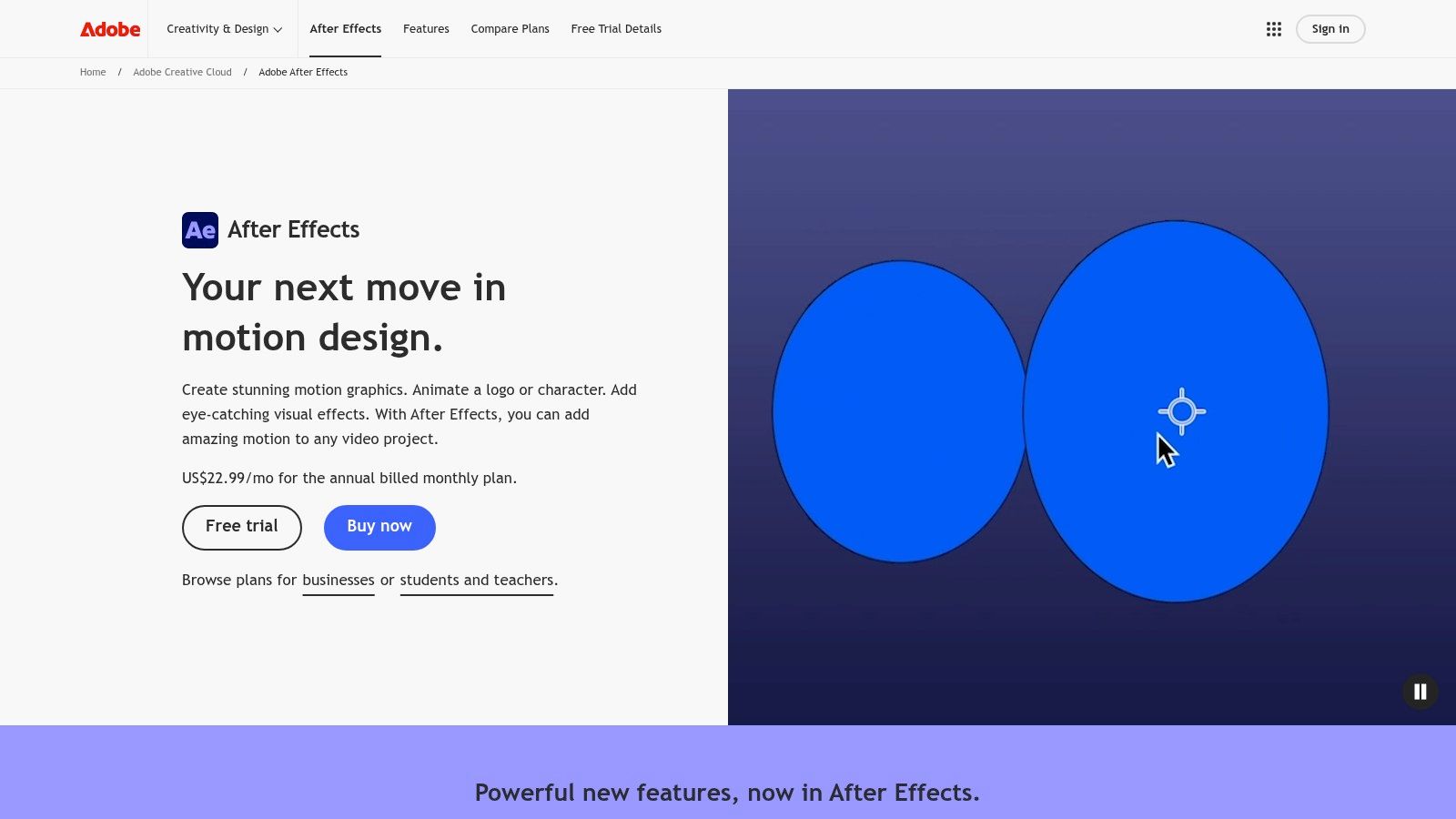
If you need animated text that feels designed, use After Effects.
Not for subtitles. Not for fast social clipping. For motion design. This is the tool for launch videos, title sequences, lyric videos, kinetic typography, animated explainers, branded lower third systems, and reusable graphic packages that need real control.
After Effects wins when typography is part of the storytelling itself.
Great text animation isn't decoration. It directs attention, controls pacing, and tells the viewer what matters first.
The catch is time. After Effects is not the efficient answer for everyday captioning or social clip churn. It's easy to overuse it on jobs that don't justify the production overhead.
Use Adobe After Effects when your text needs to perform, not just appear.
Final Cut Pro is still one of the best solo-editor choices if you live inside Apple's world.
It runs fast, feels responsive, and handles titles, captions, and polished long-form editing without the drag some editors feel elsewhere. For Mac-based YouTubers, educators, agencies, and in-house teams, that performance advantage matters because text revisions are often constant. You want an editor that stays quick while the client changes the open, swaps quote cards, and tweaks captions again.
Final Cut is a workflow bet on speed and Apple hardware.
Its limitation is ecosystem lock-in. If your team spans Windows and Mac, or if you need browser-based review habits from non-editors, that can become friction.
But if you're a Mac-first editor and want a serious timeline with dependable text tools, Apple Final Cut Pro remains a sharp choice.
Kapwing is one of the better browser editors for teams that repurpose constantly but don't need a heavyweight post stack.
It sits in a useful middle ground. More structured and collaborative than a simple subtitle app, less intimidating than a pro NLE, and more publishing-oriented than many traditional editors. That's a good combination for agencies, startup teams, community managers, and creators pushing out frequent platform-specific cuts.
Kapwing works well when text and repurposing are tied together.
One thing I like about Kapwing is that it respects how modern content teams work. The same video might become a square teaser, a vertical clip, a captioned quote post, and a subtitled cut for another channel. Kapwing supports that style of production without demanding editor-level skill.
The limitation is scale and project weight. Very large files and heavier browser sessions can still get annoying. But if your day is built around fast platform-ready assets, Kapwing is a practical choice.
| Tool | Core features ✨ | UX/Quality ★ | Value / Pricing 💰 | Target audience 👥 | Top USP 🏆 |
|---|---|---|---|---|---|
| Adobe Premiere Pro | ✨ Auto transcription, caption styling, MOGRTs, Adobe integrations | ★★★★, Professional, full-featured; steeper learning curve | 💰 Subscription (Creative Cloud) | 👥 Professional editors, teams, broadcasters | End-to-end caption workflow + mature plugin ecosystem |
| Descript | ✨ Transcript-first editing, editable captions, templates, AI cleanup | ★★★★, Extremely fast for talking-heads; low learning curve | 💰 Freemium → paid tiers for higher limits | 👥 Podcasters, creators, educators | Edit video by editing text for rapid cuts |
| CapCut | ✨ One-click auto-captions, karaoke text, social templates, cloud sync | ★★★★, Very fast for mobile short-form workflows | 💰 Mostly free; regional entitlements vary | 👥 Short-form creators, mobile editors | Quick subtitle-first short video production |
| Taja AI 🏆 | ✨ Auto-generates ~27 short assets per upload, SEO optimize, thumbnails, brand templates, auto-scheduling, Next Video Idea, Backlog Boost | ★★★★★, Major time-saver; auto + quick human polish | 💰 Start free (no CC); paid tiers for scale | 👥 Solopreneurs, SMBs, social managers, podcasters | 🏆 Automates repurposing long videos into weeks of platform-ready content + multi-channel scheduling |
| VEED.IO | ✨ Browser-based auto-subtitles (multi-language), templates, team features | ★★★, Fast for captions; heavy projects may strain browser | 💰 Freemium; free adds watermark & limits | 👥 Social teams, marketers, remote collaborators | Quick browser collaboration with multi-language subtitles |
| DaVinci Resolve | ✨ Subtitle tracks, Fusion titles, color/audio/VFX finishing, transcript tools | ★★★★, Pro finishing suite; steeper learning curve for Fusion | 💰 Powerful free edition; Studio = one-time purchase | 👥 Colorists, finishing editors, pros | All-in-one finishing (color, audio, VFX) with caption tools |
| Canva (Video) | ✨ Animated text templates, Brand Kit, aspect presets, simple timeline | ★★★★, Design-first, very accessible for non-editors | 💰 Freemium; Pro unlocks Brand Kit & assets | 👥 Marketers, small businesses, non-designers | Fast on-brand motion graphics and templates |
| Adobe After Effects | ✨ Per-character text animator, expressions, templates, deep motion tools | ★★★★, Unmatched typographic control; time-intensive | 💰 Subscription (Creative Cloud) | 👥 Motion designers, studios, advanced animators | Advanced kinetic typography and reusable motion packs |
| Apple Final Cut Pro | ✨ Native titles/captions, Motion integration, transcript search, Apple-optimized | ★★★★, Very fast on macOS/iPadOS; Apple-only | 💰 One-time purchase (Mac/iPad) | 👥 Mac users, solo editors, small studios | Optimized Apple performance + one-time buy option |
| Kapwing | ✨ Auto-subtitles, translations/dubbing, templates, brand kit on paid plans | ★★★, Quick browser repurposing; free limits/watermarks | 💰 Freemium with credits; paid tiers remove limits | 👥 Social publishers, teams, creators | Browser-first repurposing with translation & dubbing tools |
Stop shopping for a winner. Build around your bottleneck.
The right text-in-video tool depends on the job you repeat every week, not the feature list that looked good in a comparison table. Teams waste money when they stack three or four apps that all handle captions, basic titles, and exports, yet none of them fix the actual slowdown in production.
For pro editors, the decision is simple. Choose Premiere Pro, DaVinci Resolve, or Final Cut Pro when text sits inside a full edit that includes pacing, sound design, revisions, brand graphics, and final delivery. In that workflow, your text tool has to live inside the timeline because every wording change affects timing, shots, and audio. Descript can still help with transcript-led rough cuts, but it should not replace your finishing editor if client polish is the standard.
Social managers need a different system. CapCut, VEED.IO, Canva Video, and Kapwing make more sense when the primary requirement is volume, speed, and easy handoff across a team. These tools win when your videos are short, caption-heavy, and built for fast publishing instead of frame-level control.
AI-first creators should make a harder distinction. Editing and repurposing are not the same job.
If you already have webinars, podcasts, interviews, demos, or talking-head videos, your bottleneck usually is not title animation. It is turning one source file into enough usable clips, captions, posts, thumbnails, and publish-ready assets to keep channels active. That is the point where an AI repurposing tool like Taja AI is the smarter first buy. Use a traditional editor after that for cleanup and brand-level refinements, not for brute-force content multiplication.
Analysts at Meticulous Research on AI video generation and editing software expect strong growth in AI video generation and editing. Market.us coverage of text-to-video AI forecasts also shows how broad this category has become. Buyers keep grouping very different products together. That confusion leads to bad purchases. A repurposing engine, a browser editor, and a pro finishing suite solve different problems and should not be judged by the same standard.
Here is the setup I recommend for growing teams. Start with the tool that removes the biggest production constraint. If that constraint is edit quality, buy a pro editor. If it is daily publishing speed, buy a fast browser tool. If it is turning long-form content into a repeatable distribution pipeline, start with an AI repurposing platform, then add a lightweight editor for final adjustments.
Keep one rule in place. Text still has to be readable. Strong contrast, sane font sizes, and accurate captions matter more than flashy motion. If viewers cannot process the words quickly, the workflow failed no matter how fast the software felt.
Buy for the repeated job. Build the rest around it.
If you're tired of manually chopping long videos into clips, captions, posts, and thumbnails, Taja AI is the fastest way to turn one upload into a real content system. It's built for creators, small businesses, podcasters, real estate pros, and teams that need consistent output without becoming full-time editors. Start free, generate platform-ready assets, and turn your backlog into publishable content from one dashboard.


We are blessed to work with leading brands & Companies


We try to make easy and simple for every professionals. Get 30 days free trial - No credit card required.


© 2025 Taja AI. All rights reserved.