.jpeg)
Content Calendar Creation for Small Teams
Master content calendar creation without burnout. Learn to map platforms, set realistic cadences, and automate repurposing with AI tools like Taja AI.
5 min read
October 14, 2026

Compare 10 Instagram Reels Maker tools for editing, vertical templates, captions, and publishing, with honest limits and use cases for 2026.
Written by:


A long recording is sitting on your drive, and you need three vertical clips by Friday. You could open a full editor, cut the footage manually, reframe every shot, fix the captions, and export each version. Or you could choose an Instagram Reels maker that matches the actual bottleneck.
That choice matters. A native editor is often best for one quick post and a trending sound. A template tool makes more sense when every Reel needs the same fonts, colors, and structure. A repurposing platform earns its place when your raw material is a podcast, webinar, interview, or long YouTube recording.
Reels also reward more than fast clipping. Instagram says distribution is influenced by watch time, shares, follows, likes, comments, and profile visits, along with the predicted likelihood that someone will watch and engage with a Reel. The tool should help you shape a clear opening, readable context, and useful payoff, not just find any segment that can be cut.
This list is organized by workflow stage, from on-platform editing to batch production, long-to-short repurposing, and multi-channel scheduling. If you're comparing this category with broader social design software, this guide to the best social media post maker tools is a useful companion.
Instagram's own editor is the right starting point when the post needs to go live quickly and stay native to the platform. You can combine clips, trim footage, add text and stickers, choose licensed music, use trending audio, save drafts, and publish without moving files between apps.
That last step matters more than it sounds. Native audio and templates are easiest to use inside the app where the Reel will be published. You also avoid compatibility surprises caused by exporting from a third-party editor and then uploading a file with missing audio or misplaced interface-safe text.
The trade-off is control. Instagram's editor is less comfortable for detailed sound mixing, complex motion graphics, repeatable brand systems, or large batches of nearly identical videos. Reusing the same visual treatment across several platforms is also harder because the workflow is tied to Instagram.
Use it when the source footage is already short, the post needs a current sound, or speed matters more than a polished production system. Before publishing, check the opening frame, caption placement, and final call to action. Instagram's creator guidance makes viewer-level signals more important than upload volume, so one deliberately structured Reel is more useful than several generic cuts.
For a repeatable publishing process, pair the editor with a documented scheduling workflow such as this guide to scheduling Instagram Reels. Keep the edit native when possible, but maintain a separate clean master if the video may later go to TikTok, Shorts, or LinkedIn.
Best use: Make one timely Reel on your phone, use native audio, and publish without building a larger editing pipeline.
Visit Instagram if your main need is direct creation inside the platform.
CapCut is the practical middle ground between a native editor and a professional desktop timeline. It works on mobile and desktop, offers 9:16 templates, auto-captions, overlays, effects, AI-assisted tools, and cloud syncing, and gives creators enough manual control to correct an automated draft.
That combination makes it useful for batch production. Build a reusable structure with an opening text treatment, caption style, logo position, and end card. Then duplicate the project and swap the source footage. You'll still need to review every version, but you won't rebuild the visual system from scratch.
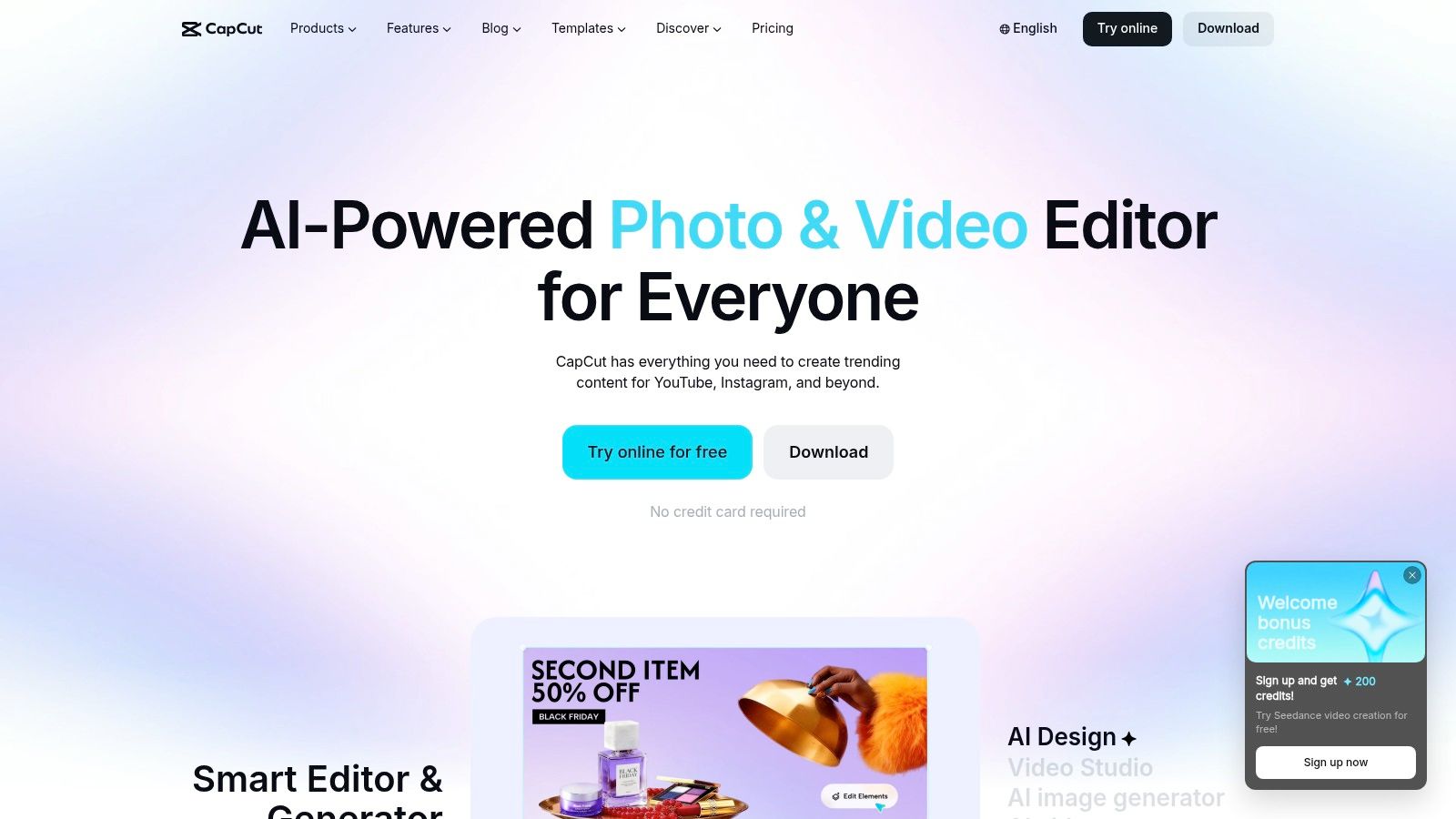
The free tier covers many everyday Reels tasks, which lowers the cost of testing a workflow. Templates and effects also make it easy to create a faster visual rhythm than you might manage in Instagram's editor.
The limitation is restraint. A template can make a Reel look finished while still leaving the opening weak, the captions inaccurate, or the payoff unclear. Premium AI features and some export options may require a paid plan, and regional pricing can vary. Check the current plan inside the app before designing a process around a locked feature.
CapCut is also better for hands-on editing than for deciding which moments from a long interview deserve to become clips. Use it after selection, or use it when you already know the story you want to tell. For small visual adjustments, this walkthrough on zooming in a video covers a useful technique.
Visit CapCut when you want a capable editor for repeatable, brandable vertical videos without committing to a full professional NLE.
Canva is strongest when the hard part isn't cutting footage. It's keeping every Reel recognizable as belonging to the same business.
The drag-and-drop editor, Reels templates, Brand Kits, Magic Resize, captions, effects, stock assets, and social scheduler create a fast route from concept to publishable asset. A local service business can build a branded tip format, a product business can create a recurring demonstration layout, and an educator can keep lesson clips visually consistent without learning a complex timeline.
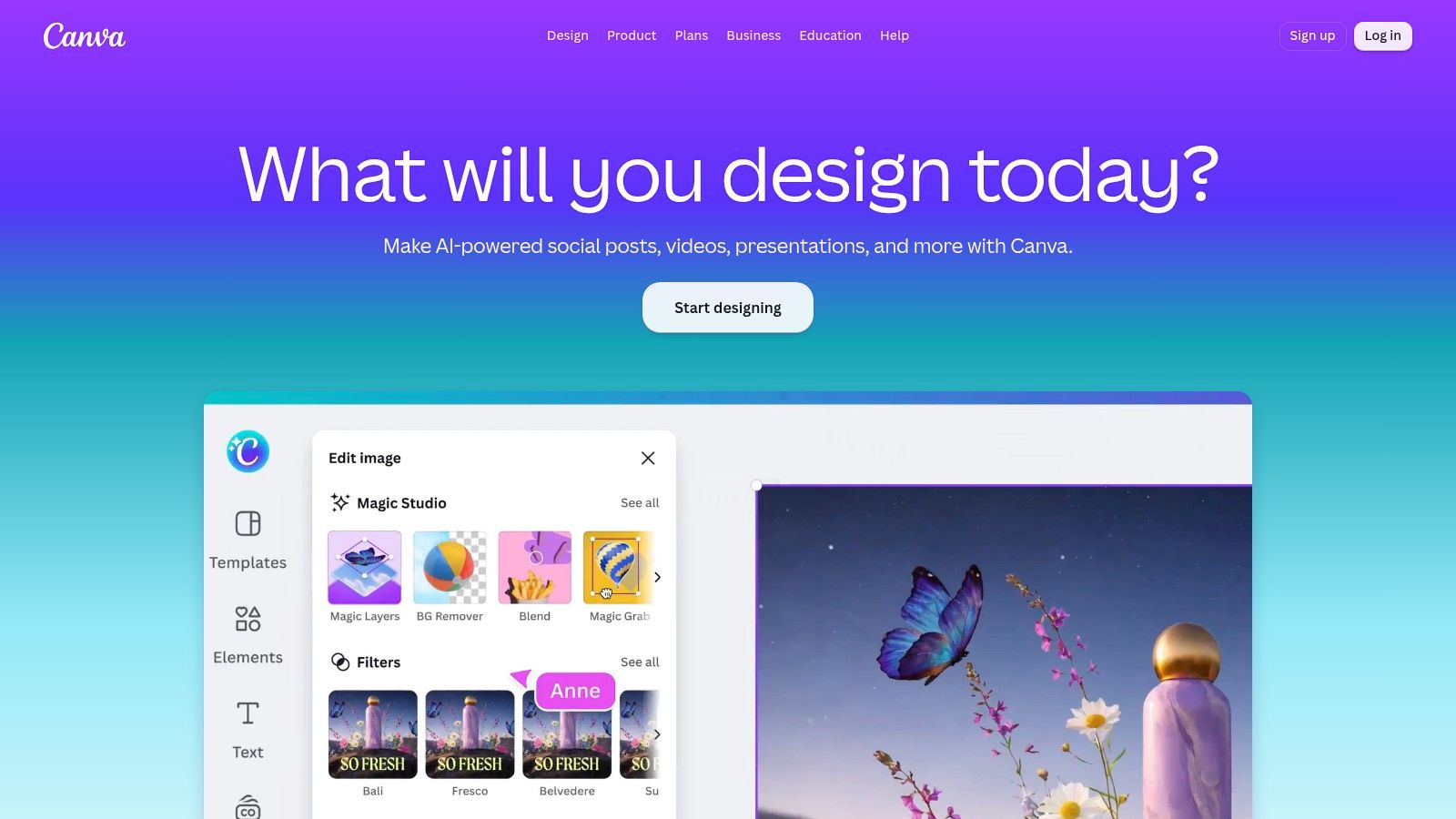
Canva's advantage is speed at the design layer. Fonts, colors, logos, covers, and reusable layouts are easier to manage than in many mobile-first editors. That helps when several people create content and the brand can't afford inconsistent text treatments or random colors.
It isn't a replacement for a professional video editor. Timeline controls are less granular, and some AI functions and stock assets require a paid plan. Fine audio edits, detailed pacing work, and complex multi-layer compositions can become awkward.
Use Canva when your footage is simple and your brand system matters more than cinematic editing. Create the visual shell first, then place one idea inside it. Don't let the template dictate the message. A clean layout won't compensate for a slow opening or captions that obscure the speaker.
Canva is a sensible Instagram Reels maker for teams that want consistent production without making every contributor a video specialist.
VEED.IO is built for browser-based workflows where captions, translations, and collaboration matter more than local desktop editing. You can upload footage, create subtitles, translate them, reframe clips for vertical viewing, and share work with teammates without asking everyone to install the same software.
That makes it useful for distributed marketing teams. A producer can prepare the cut, a subject-matter expert can review the transcript, and a social manager can check the final vertical composition. Team workspaces and an automation API also give larger workflows room to grow.
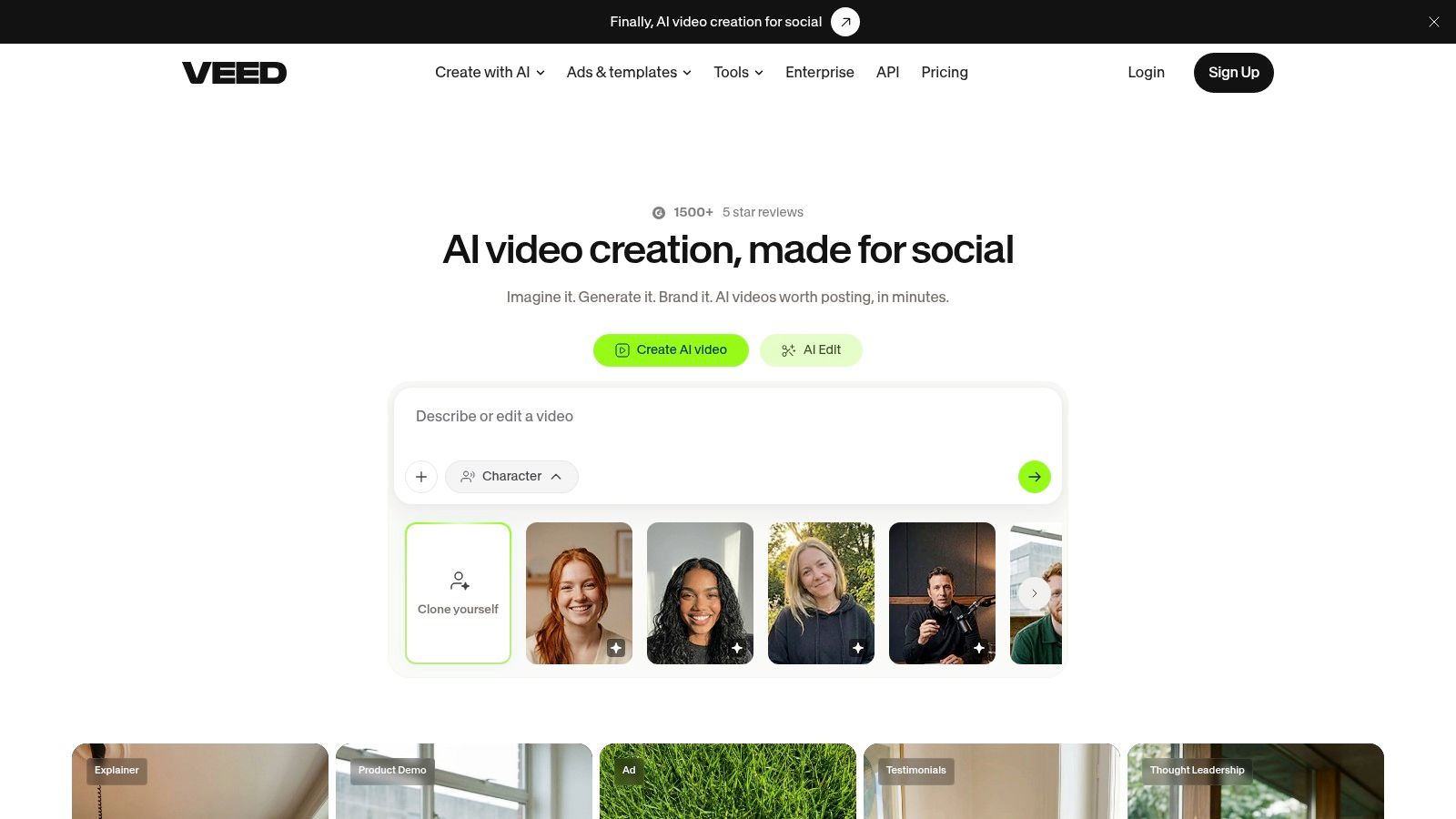
VEED's auto-subtitles, translation, dubbing, and AI clip tools are valuable when the spoken content carries the Reel. The practical work is still in review. Names, product terms, overlapping speakers, punctuation, and culturally specific phrases can all need correction.
Captions aren't merely decorative. They support people who can't hear the audio and people watching without sound. Keep key text inside safe margins, check contrast, and review translated hooks rather than publishing machine output blindly. This guide to adding captions to Instagram Reels is useful when you're setting that standard.
Pricing details and higher-tier AI usage are shown in-app, so heavy automation may require a higher plan or credits. VEED.IO is a strong fit when several people need access to one browser workflow. It's less compelling if you want deep frame-by-frame control or a completely offline process.
Visit VEED.IO for collaborative captioning, translation, and quick vertical exports.
Adobe Express serves marketers who want template speed but also need Adobe's broader ecosystem. It combines template-based video creation with captions, animations, brand kits, Adobe Stock assets, background removal, and social-friendly exports.
The workflow feels closer to a brand production desk than a specialist clip extractor. Start with a Reels template, apply approved fonts and colors, add footage, animate a product or headline, and prepare a version that fits the rest of the campaign. Adobe Stock integration is useful when a Reel needs supporting visuals and the team already works with Adobe assets.
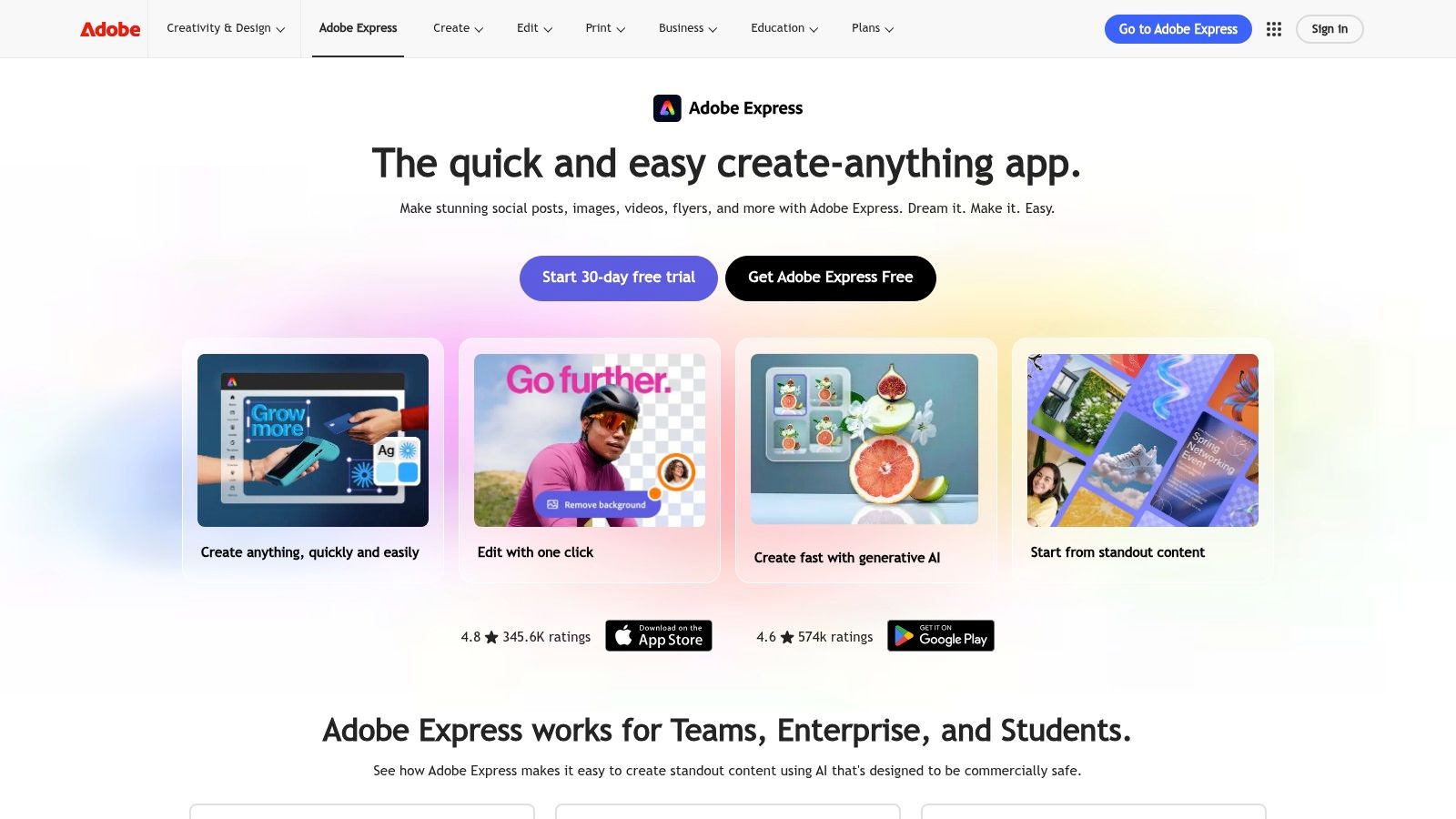
Adobe Express is a good choice for solo marketers who want more design depth than a basic social template app. It also suits teams that already manage brand files, fonts, and stock content in Adobe's environment. Paid tiers support higher-end export needs, including 4K export support.
The limitation is the timeline. Premiere Pro offers deeper editing control, while Express favors speed and accessible design. If you're cutting a long interview into precise beats, you may spend more time fighting the simplified interface than you would in Descript or CapCut.
Generative AI features on paid plans use a credit system, so heavy experimentation can affect the plan's practical value. Test your most common workflow before upgrading. If your output is mostly product clips, text-led explainers, and branded announcements, Adobe Express can reduce design friction without forcing a full professional editing setup.
Use Adobe Express when brand governance and Adobe asset access matter as much as editing speed.
Descript is the clearest choice when your source footage is a podcast, interview, lesson, or presentation. Instead of starting with a visual timeline, you work from the transcript. Delete a sentence from the text, and the corresponding video section disappears. Remove filler words, tighten a response, correct the transcript, and then turn the strongest passage into a vertical clip.
That workflow protects meaning better than blind automatic clipping. You can read the entire exchange, keep the necessary setup, and remove a distracting detour before exporting. Descript also includes transcription, auto-captions, remote recording, screen capture, multicam support, and an AI Create Clips workflow.
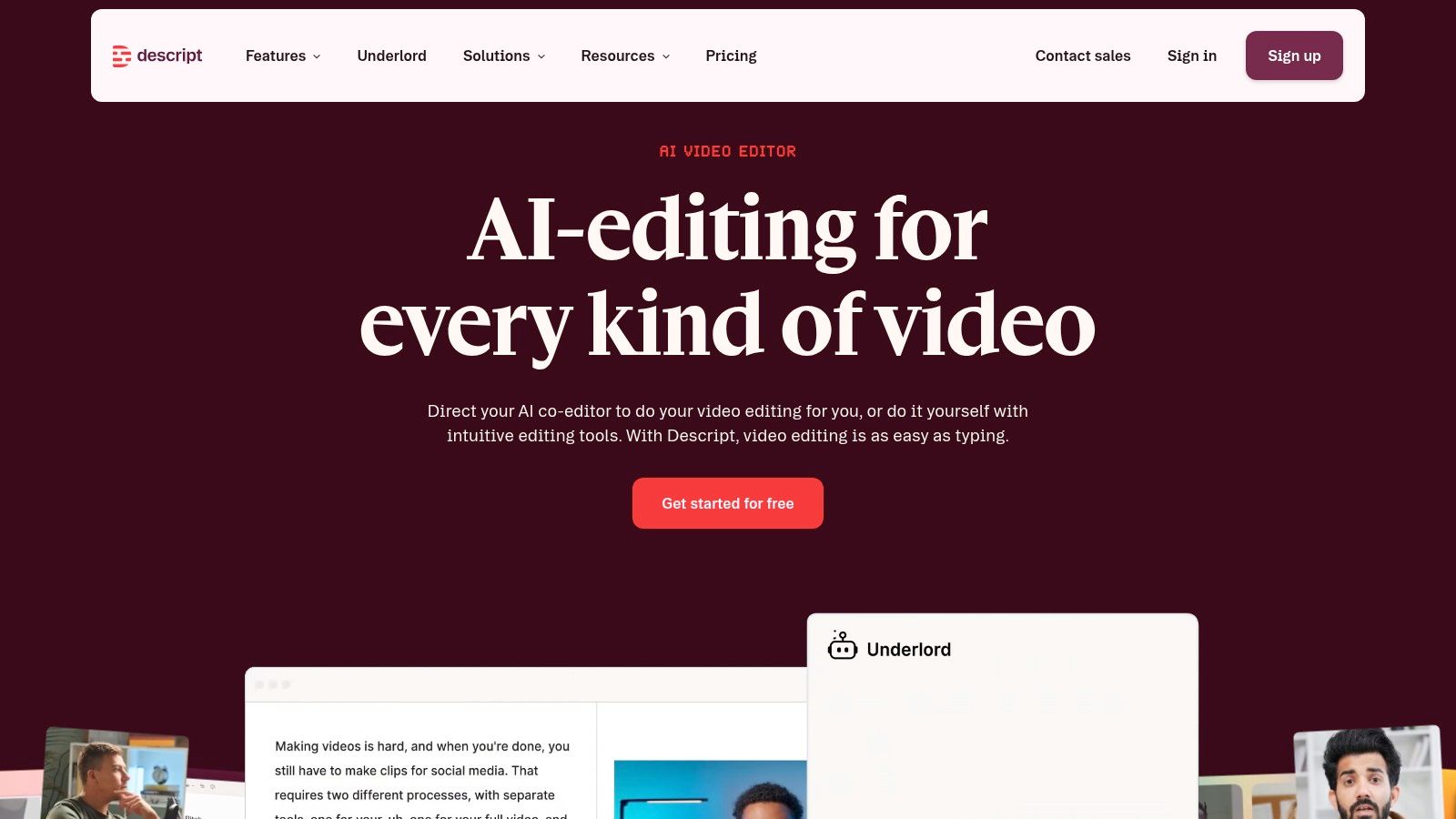
Descript's weakness is visual variety. It isn't as template-heavy as Canva or CapCut, so you may need another tool for elaborate motion graphics, highly animated captions, or design-led product content.
AI features may consume credits or require a higher tier for frequent use. That matters if your process involves repeated transcript revisions, multiple clip suggestions, or frequent regeneration. Still, the review process is efficient because you can judge the idea while reading it.
Use Descript when the source is spoken content and the business risk sits in context. A real estate explanation, educational claim, or customer interview shouldn't be cut into a misleading sound bite because an algorithm found a dramatic sentence. Descript gives you a better chance to preserve the argument while still producing short clips.
Visit Descript when long-form speech is the raw material and clean editorial judgment matters more than flashy effects.
Opus Clip is designed for the moment after a long video has already been recorded. Upload a podcast, webinar, interview, or other long-form source, and the tool identifies candidate moments, reframes them for 9:16, adds animated captions, and prepares multiple short assets.
Its strongest workflow feature is clip ranking. Opus Clip uses a “Virality Score” to help you sort suggested moments, which is useful when a single recording produces more options than you can review manually. It also supports captions in multiple languages, multi-aspect exports, a scheduler, and team workspaces.
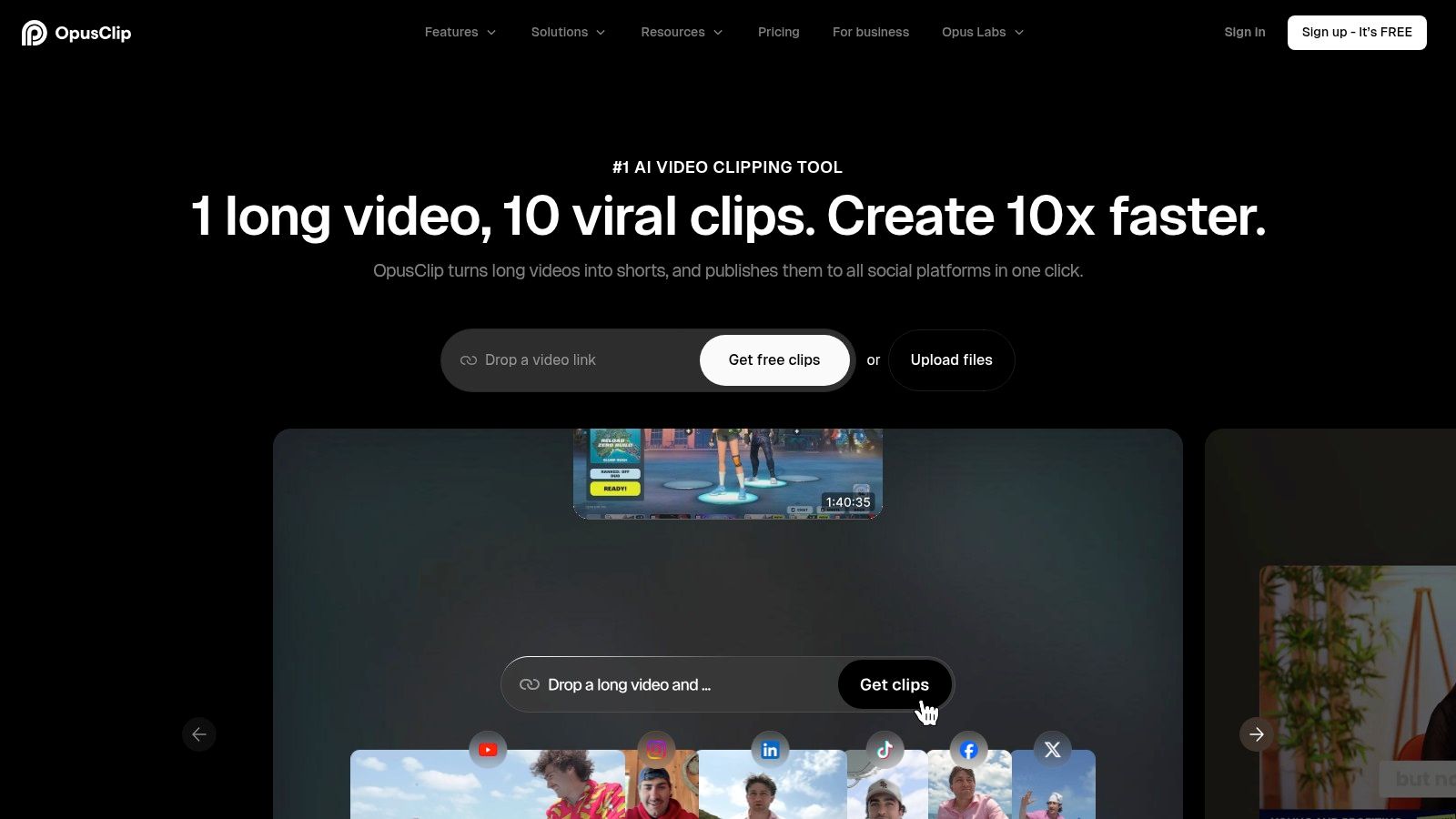
Opus Clip is excellent at reducing the first-pass workload. It isn't a substitute for deciding whether a clip makes sense to someone who hasn't watched the original recording. Check the first sentence, the visual crop, the caption timing, and the final context before scheduling.
That review matters because Instagram emphasizes signals such as watch time, shares, profile visits, follows, and other viewer-level engagement. A high score inside a tool isn't proof that a clip will produce those outcomes. Treat it as a sorting aid, not a publishing verdict.
The credit system can limit high-volume use, and free-tier watermarks or export limits can interfere with a serious workflow. The best outputs usually benefit from manual polishing, especially when a speaker changes direction mid-sentence or a key visual falls outside the crop.
Choose Opus Clip when your main problem is finding usable moments quickly across a growing archive of long videos.
A podcast episode can become several Reels, captions, thumbnails, blog content, and scheduled posts without moving between separate tools. Taja AI is built for that repurposing stage, starting with a long-form video or video link and extending beyond the edit itself.
Taja AI is most useful when distribution is part of the production job.
For a small team, the workflow reduces handoffs. The platform supports vertical reframing, transcription, caption templates, brand templates, a content calendar, and scheduling across channels. That makes it a better fit for regular publishing than for creating one casual Reel.
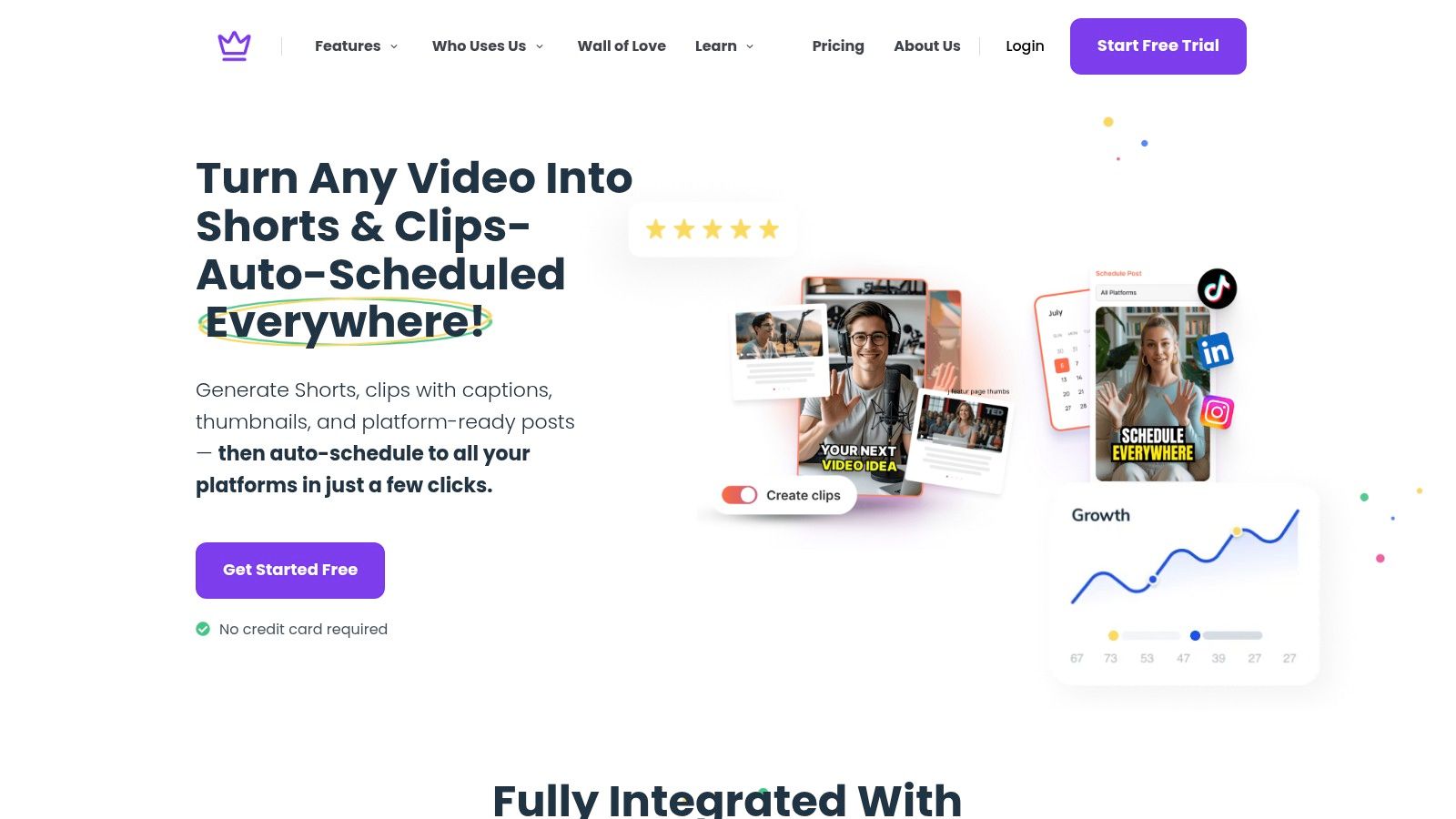
Start with one recorded episode. Taja AI can identify usable moments, turn them into vertical clips, add captions and thumbnail text, then prepare related assets for Instagram and other channels. The time saving comes from keeping clipping, packaging, and scheduling in one web workspace.
The human review still matters. Check whether each clip makes sense without the full episode, whether the crop keeps the speaker or key visual in frame, and whether captions handle qualifications and brand-sensitive claims correctly. Automated selection can find a strong statement, but it cannot judge every legal nuance or local reference.
The trade-off is access. Paid plans provide the broader feature set, and some generated outputs need editing before publication. Taja AI suits a repeatable repurposing workflow more than a single quick edit.
Choose Taja AI when one upload needs to become coordinated Instagram and multi-channel assets, with scheduling included in the same job.
Microsoft Clipchamp is a practical option for creators and small teams already using Windows and Microsoft 365. It runs in the browser, connects with OneDrive, includes a timeline editor, offers 9:16 templates and auto-captions, and gives users a familiar place to assemble vertical video.
The appeal isn't novelty. It's proximity to the files and tools you already use. A team can pull a recording from OneDrive, make a clean vertical cut, add captions, and share the draft without introducing a separate production system.
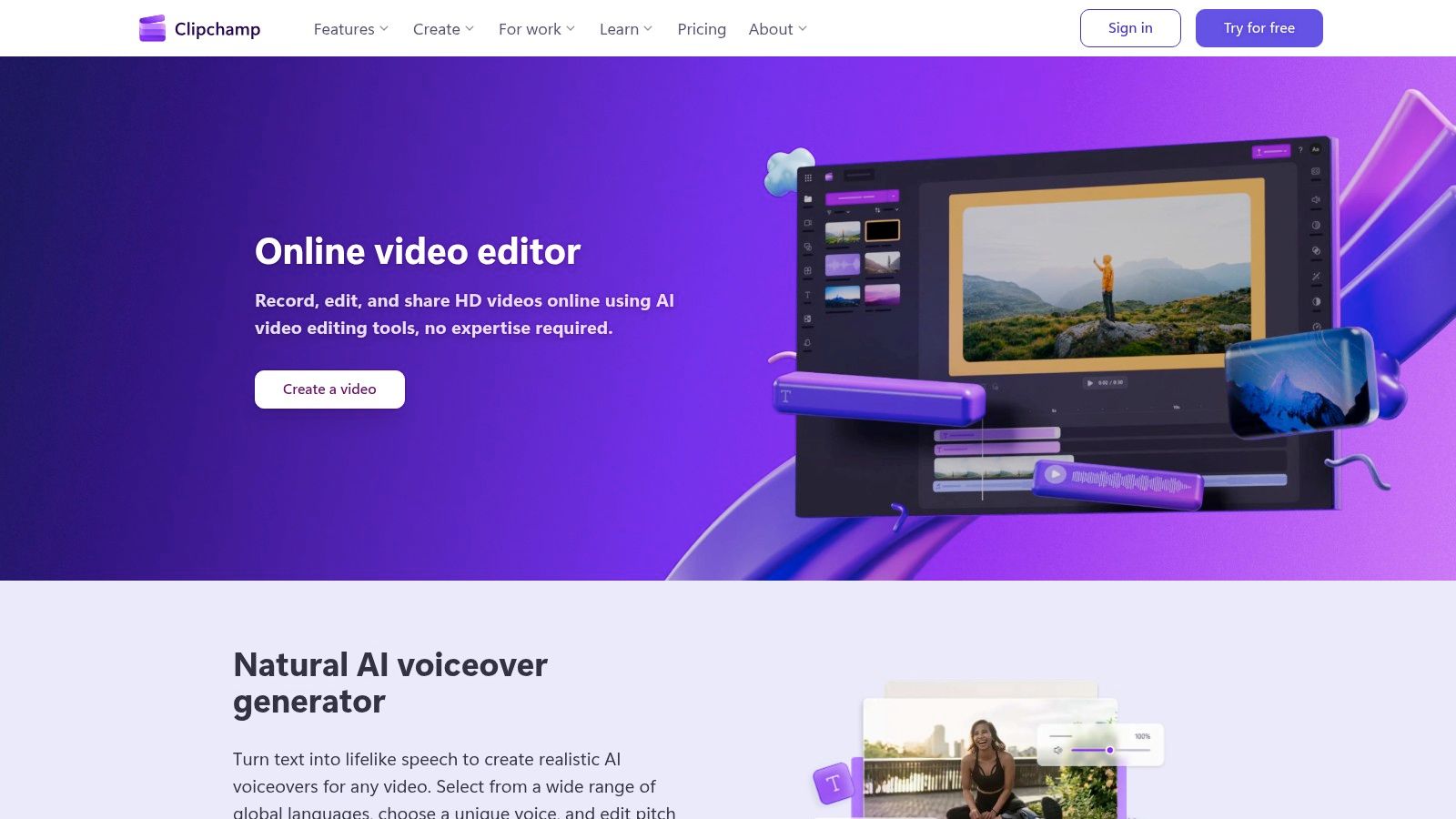
Clipchamp is easier to understand than a professional NLE and gives you more timeline control than a template-only tool. Microsoft 365 users can access premium features, stock assets, brand-kit functions, and higher-end export support depending on their plan.
It doesn't specialize in AI discovery from long videos. If you need an algorithm to find the best moments in a podcast or schedule a large set of clips across platforms, Opus Clip or Taja AI is better suited. Clipchamp expects you to make more of the editorial decisions yourself.
That's a benefit when accuracy matters. You can trim the exact sentence, position captions where they remain readable, and keep the edit simple. It's less efficient when the source recording is long and you don't know which sections deserve attention.
Use Microsoft Clipchamp for accessible timeline editing inside a Microsoft-centered workflow, especially when you're making clean, uncomplicated Reels.
A campaign brief can become a rough Reel before a camera is available. InVideo combines prompt-assisted generation with a hands-on timeline, so marketers can start with a script, stock assets, or existing footage. Reels-sized templates, captions, collaboration tools, and manual edits sit in the same online workspace.
Best use: Build script-led marketing videos when you need a draft quickly, then refine it before publication.
The AI workflow helps fill production gaps. Start with an idea, generate a visual sequence, and replace generic elements with approved brand assets. The Studio editor gives reviewers control over pacing, wording, captions, and compliance. That makes InVideo more useful for explainers, launch content, and scripted social posts than for finding the strongest moments in a nuanced interview.
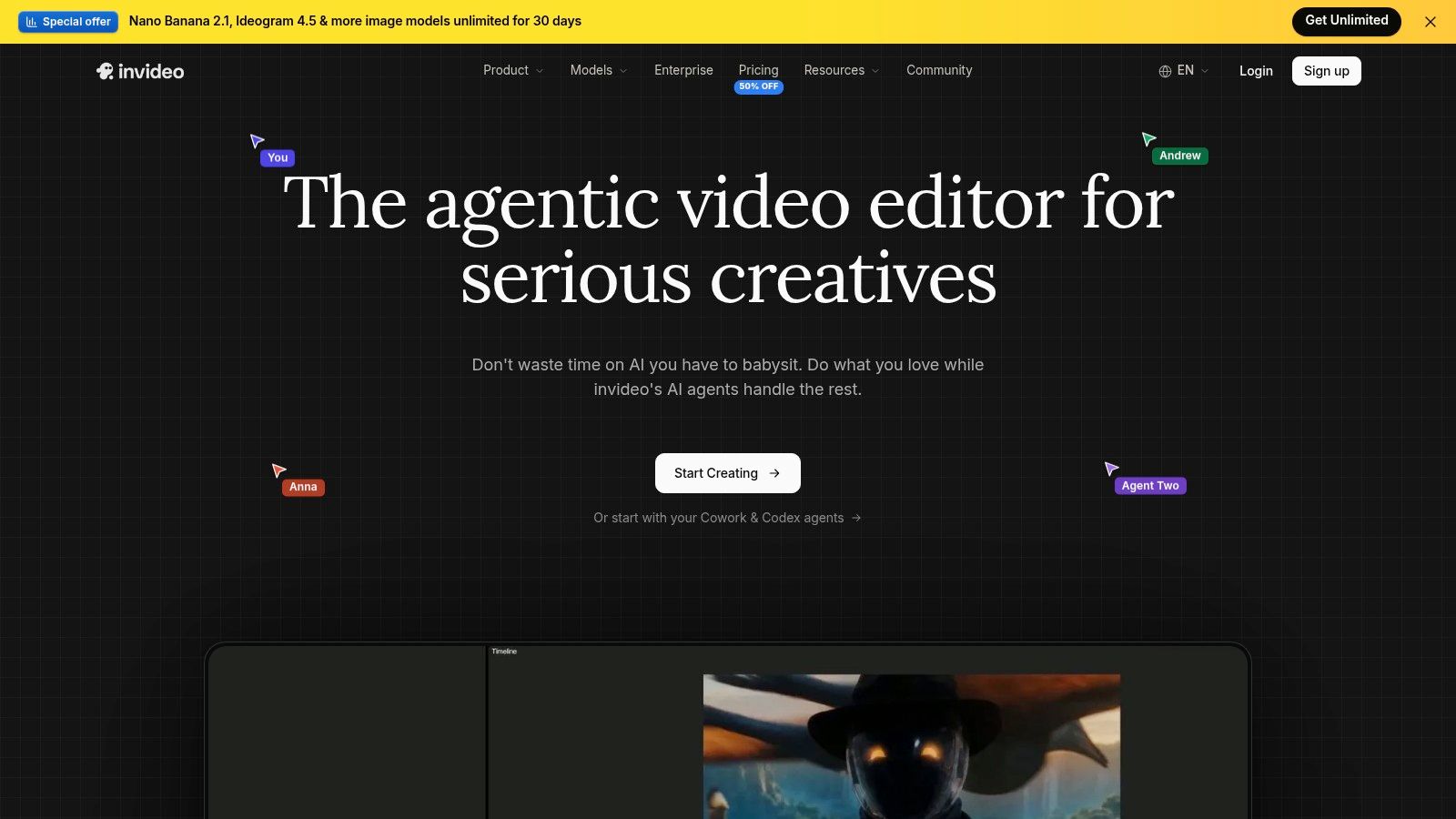
Stock footage and generated sequences can keep a campaign moving, but repeated library visuals may make a Reel feel generic. Review the first frame, factual wording, stock relevance, caption accuracy, and call to action before publishing. Generated footage should support the message rather than compete with it.
Unused generation credits don't roll over and advanced AI access sits behind higher tiers, so the model suits planned campaigns more than heavy experimentation. If account verification blocks your publishing setup, this Instagram verification number guide covers the workaround.
For teams producing planned batches, InVideo offers a practical mix of automation and manual control. It is less suitable when each edit requires extensive variation or when the main task is extracting clips from long-form recordings. Use InVideo when the source is a script or campaign concept, not when discovery is the hardest part.
| Tool | Core capability | UX (quality) | Best for | Price / value | Unique win |
|---|---|---|---|---|---|
| Instagram (built-in Reels editor) | Native Reels editor, licensed music, templates | ★★★★☆ | 👥 Quick on-platform creators & trend-first posts | 💰 Free, native publishing | ✨ Direct access to trending audio & templates |
| CapCut | Mobile & desktop editor; 9:16 templates, auto-captions | ★★★★☆ | 👥 Creators needing fast batch edits | 💰 Free tier; paid for advanced AI | ✨ Cloud sync + large effects library |
| Canva | Template-driven video, Brand Kits & Magic Resize | ★★★★☆ | 👥 Non-designers wanting on-brand Reels fast | 💰💰 Free + Pro assets | ✨ Magic Resize + brand consistency |
| VEED.IO | Browser-based auto-subtitles, translations, AI clips | ★★★★☆ | 👥 Remote teams needing accurate captions & collaboration | 💰💰 Paid tiers for heavy AI | ✨ Best-in-class captions & translations |
| Adobe Express | Template-first videos, Adobe Stock & animations | ★★★★☆ | 👥 Marketers wanting Adobe ecosystem speed | 💰💰 Affordable Premium; stock access | ✨ Adobe Stock + brand kit integration |
| Descript | Text-based editing, filler removal, transcription | ★★★★☆ | 👥 Podcasters & interviewers repurposing long-form | 💰💰 Tiered plans; AI credits for heavy use | ✨ Text-first edit + remote recording |
| Opus Clip | AI clipping with Virality Score, animated captions | ★★★★☆ | 👥 High-volume creators posting daily | 💰💰 Credits/free limits; paid for scale | ✨ Auto 'Virality Score' for clip selection |
| Taja AI 🏆 | End-to-end repurposing: auto-clips, thumbnails, captions, scheduling | ★★★★★ | 👥 SMBs & creators needing multi-channel scale | 💰💰 Free start; paid for large volume | ✨ Auto-generates ~27 assets + Idea & Backlog Boost |
| Microsoft Clipchamp | Browser timeline editor, OneDrive & brand kit | ★★★☆☆ | 👥 Microsoft 365 users & small teams | 💰 Free + M365 premium features | ✨ Tight OneDrive / Windows integration |
| InVideo (invideo AI + Studio) | AI prompt-to-video + timeline editor & templates | ★★★★☆ | 👥 Marketers who want AI generation + manual control | 💰💰 Credit-based tiers | ✨ Mix of AI generation and hands-on editing |
The best Instagram Reels maker depends on where your footage starts and how often you publish. If you have a short phone recording and one account, begin with Instagram's native editor. It gives you direct access to platform features, native publishing, licensed audio, templates, and drafts without adding an export step.
Add a template-focused tool when consistency becomes the bottleneck. Canva works well when brand kits, covers, layouts, and scheduling matter. Adobe Express is a natural alternative for teams already working in Adobe's ecosystem. CapCut is the stronger choice when you want reusable templates but still need hands-on control over cuts, overlays, captions, and effects.
Long-form footage changes the decision. If the source is a podcast or interview, Descript lets you select clips through the transcript and preserve context while editing. Opus Clip is better when you want automated candidate selection, vertical reframing, captioning, and ranking across a large archive. VEED.IO is a strong fit when the team needs browser collaboration, subtitle review, translation, or dubbing.
Choose a repurposing platform when publishing is as important as editing. Taja AI connects clipping with captions, thumbnails, platform-specific posts, calendars, and scheduling. InVideo fits a different starting point, namely scripts, prompts, stock media, and AI-assisted production. Microsoft Clipchamp remains a sensible option for straightforward timeline edits inside a Windows and OneDrive workflow.
Don't judge a tool by the number of buttons it displays. Test the full path from source footage to published Reel. A polished editor that takes too long will lose to a simpler tool your team uses. An AI clip generator that selects misleading moments will create more review work, not less.
Instagram's own guidance makes the evaluation criteria clear. Watch time, shares, follows, likes, comments, and profile visits matter more than upload volume by itself. Length should also be tested rather than treated as a universal rule. A Socialinsider analysis of business videos found that Instagram Reels in the 45 to 60 second and 120 to 180 second ranges performed comparatively well, while videos longer than 180 seconds showed a sharp decline in engagement and views. The reported average engagement rates were about 0.35%, 0.33%, and 0.15% respectively, so use the Socialinsider video benchmark analysis as a testing reference, not a promise.
Pick two tools from this list. Produce one Reel with each from the same source footage. Compare export quality, caption accuracy, vertical framing, and the time you spend from upload to finished file. Only then decide whether a paid plan earns its place.
Taja AI turns long-form video into Instagram-ready shorts, clips, captions, thumbnails, blogs, and platform-specific posts from one upload. If your Reels workflow starts with podcasts, interviews, lessons, or recorded business content, visit Taja AI to test its clipping, editing, brand template, and scheduling workflow before committing to a larger production stack.


We are blessed to work with leading brands & Companies


We try to make easy and simple for every professionals. Get 30 days free trial - No credit card required.


© 2025 Taja AI. All rights reserved.