.jpeg)
How to Use Video for Blog Content the Right Way
Learn how to use video for blog content with proven types, SEO tips, and repurposing strategies that boost engagement, retention, and search rankings in 2026.
5 min read
October 21, 2026

Master how to add caption to Instagram Reels in 2026! Get clear, step-by-step instructions for auto-generated captions, manual editing, and readability best
Written by:


You've posted a Reel that looks polished, but the viewer is on a train, in a waiting room, or sharing a quiet office. The message is there, the sound isn't, and the person scrolls before understanding the point. That's the practical reason captions should be part of every Instagram Reels workflow, not a last-minute decoration.
Instagram introduced Reels in August 2020 as its short-form video format, and Instagram's own Reels product information documents caption entry and editing as part of the native publishing workflow. In other words, the caption field belongs to the standard process. It also gives creators another layer for accessibility, comprehension, and discoverability.
This guide explains how to add caption to Instagram Reels using Instagram's native tools and an external Taja AI workflow. You'll learn when auto-generated captions are enough, when manual editing or an SRT file makes more sense, and why embedded captions can be the better choice for brand consistency and cross-platform reuse.
A viewer can understand a talking-head Reel with the audio turned on. The same viewer may miss the hook entirely when the sound is off. Captions solve that immediate problem by putting the spoken message directly into the viewing experience, which helps people follow dialogue in public spaces, noisy environments, and situations where audio isn't practical.
The accessibility case is equally important. A widely cited survey of 5,616 U.S. adults found that 80% were more likely to watch a video to completion when captions were available, according to research summarized by QuickReel. The same source reports that captioned Facebook videos increased view time by 12% and organic reach by 135%. Those figures aren't Instagram-specific, so they shouldn't be treated as a guaranteed result for Reels, but they show why captioning matters across sound-off, mobile-first video environments.
Practical rule: If the spoken words carry the value, viewers should be able to access those words without relying on sound.
Instagram's built-in tools are useful for fast publishing, while external workflows offer more control over transcription, styling, timing, and reuse. The right method depends on whether you're posting a casual update, publishing branded educational content, or turning a longer recording into several platform-ready clips.
Before opening Instagram, decide whether your captions will be created inside the app, embedded into the video before upload, or prepared as a separate text asset for a broader editing workflow. These options aren't interchangeable.
Instagram's in-app Captions sticker is convenient for a quick Reel. Embedded captions are part of the video itself, so they travel with the file and preserve your chosen design when the video is reused elsewhere. An SRT file keeps caption text and timing separate, which is useful when an editor or another platform accepts subtitle files, but Instagram Reels shouldn't be treated as though it offers the same closed-caption workflow as every other video platform.
Prepare the following before you start:
For a practical explanation of caption workflows and video text tools, see text-in-video software for creator workflows. Also check Instagram on the device you'll use for publishing, because available editing controls can vary by app version and account experience.
Instagram's native caption workflow is the fastest option for a timely Reel, informal video, or post that does not need a custom subtitle system. It keeps the work inside the app, but the trade-off is limited styling and less control than an external editing workflow.
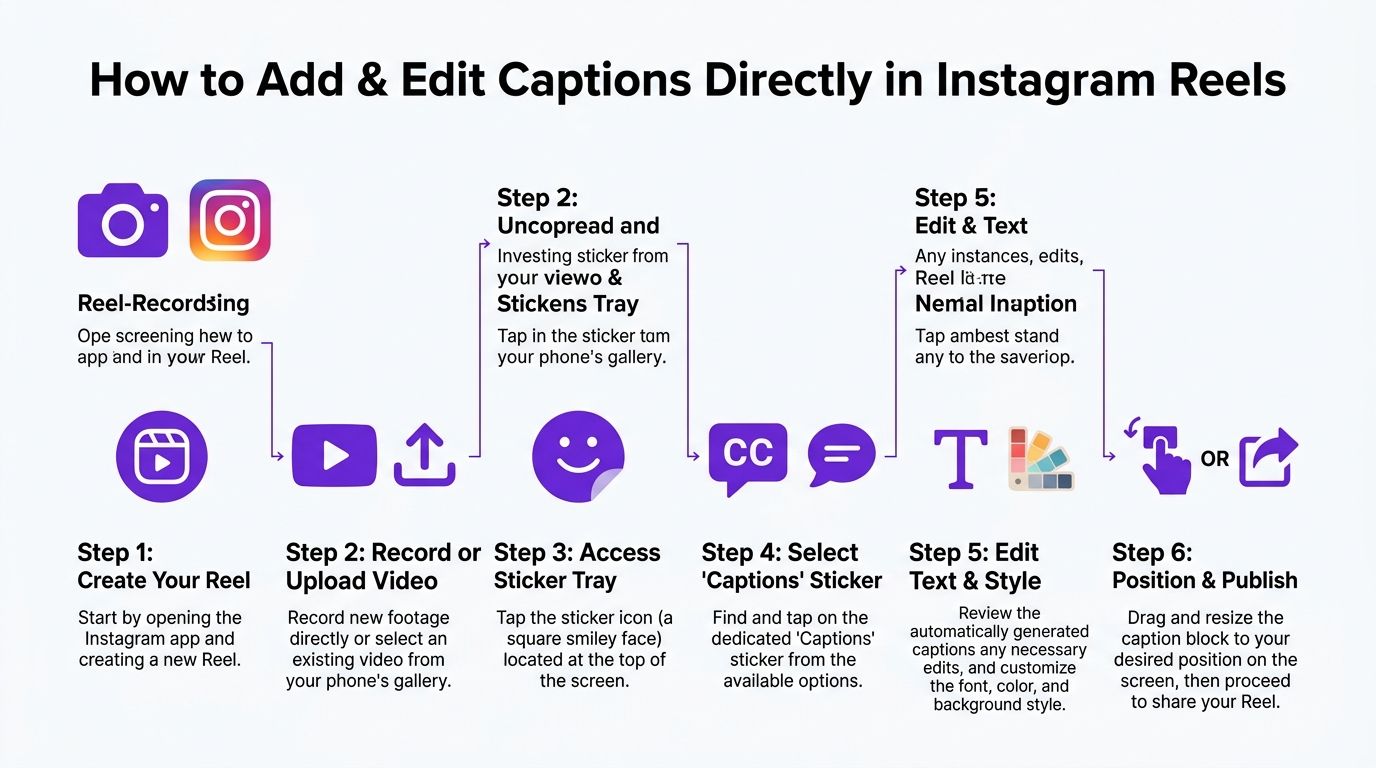
Open Instagram, start a new Reel, and either record in the app or select an existing video from your phone's gallery. Continue to the editing screen, then review the source before generating captions.
Listen for background noise, overlapping speakers, or music that competes with the voice. Fix the audio first when possible. Instagram's transcription can format clear speech, but it cannot reliably recover words hidden by poor recording conditions.
On the editing screen, tap the sticker icon, usually shown as a square smiley face. Select the Captions sticker. Instagram will process the audio and place a transcript over the video.
The interface can shift between app versions, but the workflow stays consistent: create or upload the Reel, open the sticker options, choose Captions, and review the generated text before publishing.
Treat the first transcript as a draft. Check every line, especially:
Tap the caption text to edit individual words, then scrub through the Reel while reading along with the audio. Check that each phrase appears as it is spoken and clears when the thought ends. For campaigns, read product names and calls to action aloud against the video, because a single transcription error can change the intended instruction.
Use Instagram's native controls to choose a type treatment and color combination with strong contrast. Keep captions clear of faces, product labels, and important graphics. Aim for no more than two lines on screen at once, and break lines at natural speaking pauses rather than splitting a phrase arbitrarily.
Place the caption block away from areas used by Instagram's interface. A position that looks fine in the editor can be covered after publishing, so preview the Reel as a viewer would see it.
Your job is not just to transcribe. It is to make the words readable. If captions disappear into the footage or cover the key visual, they have failed even when every word is correct.
Instagram's Reels guidance also explains that creators can add the Reel's written post caption after tapping Next, then edit that caption after creation, as described in Instagram's native Reels guidance. Keep that written caption separate from spoken-word subtitles over the video. Use the post caption for context, keywords, and a clear next step. Use on-screen captions for dialogue or narration.
Watch the finished Reel once with sound and once with sound off. With sound on, check synchronization and timing. With sound off, confirm that viewers can follow the main idea, identify the key point, and understand the call to action.
Instagram's accessibility-related settings may help where available, but a setting does not replace editorial review. Native automation saves time during transcription. It does not check brand terms, readability, placement, or whether the final Reel communicates clearly.
Auto-generated captions are a strong starting point, not a finished accessibility asset. A university accessibility guide notes that automated captions require human review, and that Instagram Reels supports open captions or auto-generated captions rather than true closed captions in the same way some platforms do. That distinction matters for organizations that need dependable accuracy, clear synchronization, and consistent presentation.
Manual captions can mean several things. You might edit Instagram's transcript word by word, prepare the text and timing yourself, or use an SRT file in an external editor before exporting the Reel. The more control you need, the more useful an external workflow becomes.
| Feature | Auto-generated | Manual |
|---|---|---|
| Speed | Fast for quick publishing | Slower because text and timing need review |
| Accuracy | Useful draft, but may misread names, brands, or homophones | Higher control when a person checks every line |
| Styling | Limited to native Instagram options | Brand fonts, colors, layouts, and emphasis can be prepared externally |
| Timing | Automatically estimated from speech | Deliberately adjusted to match dialogue and visual action |
| Cross-platform reuse | Usually tied to the native Reel workflow | Embedded video or an SRT asset can support broader reuse |
| Accessibility review | Still requires proofreading | Review is built into the production process |
Choose Instagram's auto-generated option when speed matters more than visual uniformity and the audio is simple. Choose manual editing when the Reel contains product names, legal language, educational instructions, multiple speakers, or a branded visual system.
An SRT file is especially useful when you want subtitles to remain separate from the video during editing or repurposing. Embedded captions are more practical when the final Instagram upload must display the text exactly as designed, regardless of how the destination platform handles subtitle files. For a deeper walkthrough of subtitle creation, use this guide to adding subtitles to videos.
An external workflow makes more sense when one recording needs to become several polished assets. Taja AI can accept a video or audio source, generate a caption draft, and support an editing process where you review the transcript before exporting the result. That approach separates transcription from Instagram's publishing screen, giving you more room to check accuracy and preserve a repeatable brand style.

Start with the original recording, whether it's a long-form interview, podcast segment, tutorial, or finished Reel. Upload the file or provide the available source link, then let the platform create a transcript and identify usable short-form material.
The first output is a draft. Treat it like an assistant's transcription, not a final script. Listen while reading and mark errors in proper nouns, acronyms, product names, and phrases that could change the meaning.
Use the editor to correct wording, adjust caption breaks, and refine timing. Keep each text segment short enough to scan without forcing the viewer to pause mentally. If your brand uses a specific color, type style, or emphasis pattern, apply those choices consistently instead of decorating every line differently.
This is also where you choose between the two main output types:
For creators comparing AI workflows with broader creator tooling, Practical AI and ML for creators provides useful context on how automation can support, rather than replace, editorial decisions.
Export the captioned video when Instagram needs a finished file with visible subtitles. Keep the SRT separately when you expect to reuse the transcript or adapt the content for other destinations. Then watch the export on a phone with the sound off.
Check the first frame, the final call to action, and any moment where the speaker talks quickly. A clean export can still fail if the caption block sits beneath Instagram's interface or hides a product demonstration.
For a dedicated workflow that turns video into captions and platform-specific content, see Taja AI's caption generator for videos. The practical benefit is workflow consistency. You can correct the source transcript once, then use the approved text and styling as the foundation for multiple short-form outputs.
Readable captions require more than accurate transcription. They must stay visible within Instagram's interface, follow the speaker's timing, and support the action on screen without covering a face, product, or key visual.
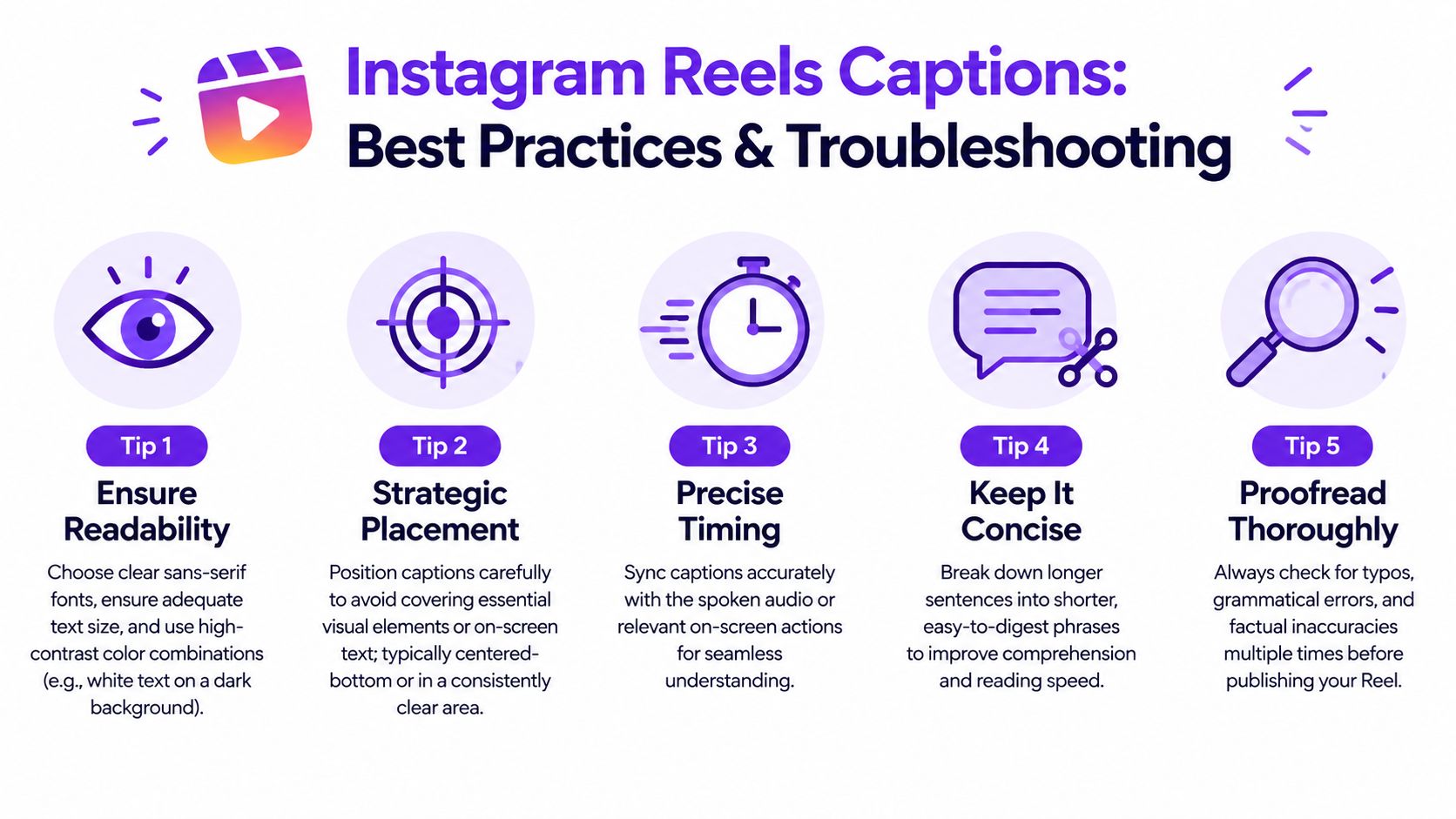
Use this production checklist before publishing:
Preview the finished Reel on a phone with the sound off. If captions sit beneath Instagram controls, compare the frame with the interface visible and move the text before export. Keep important words away from the lower and right edges, where platform controls and account elements commonly appear. A caption that looks safe in an editing timeline can still be hidden after upload.
If text overlaps a sticker, product, or face, adjust the caption position at that specific moment instead of applying one fixed placement to the entire video. For fast edits, divide captions into smaller blocks so they do not remain over a visual after the subject has moved.
SRT problems usually come from formatting or timing entries. Confirm that the external editor accepts the exported SRT, then inspect each sequence for missing timestamps, invalid time formatting, or overlapping segments. Keep the SRT for editable reuse, and use embedded captions when approved styling and placement must remain unchanged across publication.
Auto-generated captions become less reliable when speakers overlap or music competes with dialogue. Lower the background track in the source edit, regenerate the transcript when practical, and review every line. Delivvo's captioning research also supports treating caption review as part of accessibility and watchability work, rather than a final cosmetic check.
Adding captions to Reels is a small production step with broad practical value. Native Instagram captions suit fast, casual publishing, while manual editing and external workflows give you stronger control over accuracy, placement, brand consistency, and reuse.
Start with your next Reel rather than redesigning your entire content operation. Generate the captions, correct the transcript, watch the export with sound off, and compare how viewers respond to a clear, well-timed version. Keep the workflow that fits your content, your editing capacity, and the level of accessibility your audience deserves.
Taja AI can help you generate caption drafts, edit subtitle text, apply consistent styling, and prepare short-form video assets from a longer recording. Visit Taja AI to try a caption-focused repurposing workflow and turn your next video into a polished Instagram Reel.


We are blessed to work with leading brands & Companies


We try to make easy and simple for every professionals. Get 30 days free trial - No credit card required.


© 2025 Taja AI. All rights reserved.