.jpeg)
Facebook Video Upload Made Simple in 2026
Master Facebook video upload in 2026 with this step-by-step guide covering formats, resolutions, privacy, captions, and troubleshooting tips.
5 min read
October 7, 2026

Learn how to add subtitles to videos in 2026. Our guide covers AI auto-generation, manual SRT, & optimizing captions for YouTube, TikTok, & Reels.
Written by:


Most creators still treat subtitles as cleanup work. That costs them views.
A joint study by Verizon and Publicis Media found that up to 80% of viewers are more likely to finish a video when subtitles are present, and nearly four out of five users abandon content that lacks text overlays, as summarized by Kapwing's subtitle statistics roundup. If you're publishing without subtitles, you're not just missing an accessibility step. You're making retention harder before your content even has a chance to work.
That matters even more when you repurpose long videos into Shorts, TikToks, and Reels. People scroll in noisy places, keep phones muted, and decide fast whether a clip is worth watching. Good subtitles don't just transcribe speech. They carry the hook, pace the message, and turn a passive viewer into someone who stays.
That Verizon and Publicis Media finding mentioned earlier should change your editing priorities fast. If captions increase completion rates and missing text overlays cause viewers to drop, subtitles belong in the performance stack with the hook, pacing, framing, and opening line.
This matters most on short-form platforms. TikTok, Reels, and Shorts train people to decide in seconds, often with the sound off, half-on, or competing with background noise. A viewer who misses one key phrase in the opening usually keeps scrolling. A viewer who can read the point stays oriented, even if the audio environment is bad.
Subtitles also do more than mirror spoken words. Good captions help carry emphasis, clarify jargon, and keep the viewer locked to the message while your cuts, B-roll, and on-screen movement do their job. That is why basic SRT files are only part of the workflow. If you repurpose podcast episodes, webinars, interviews, or YouTube videos into vertical clips, platform-native, stylized, burned-in captions often outperform plain subtitle tracks because they are built for silent-first viewing and faster comprehension.
The practical gains show up in three places:
I see the same mistake constantly. A creator spends hours scripting, recording, and trimming, then treats captions like admin work at the end. That usually leads to auto-generated subtitles with no cleanup, weak line breaks, and text that lands too late to support the hook. The result is not just an accessibility miss. It is a distribution problem.
A simple rule helps here: if the first five seconds still make sense on mute, the clip has a better chance to hold attention.
Teams that use video to drive leads, trust, or conversion build subtitles into production from the start. They plan for transcription, editing, styling, and export based on where the clip will live. That sits next to broader strategy work like unlocking sales with video marketing, where format choices directly affect whether the message gets understood.
The key decision is operational. You need a subtitle workflow that matches your publishing volume, accuracy needs, and editing standards without turning every video into an extra hour of cleanup.
Your subtitle process should match your publishing volume, accuracy standard, and where the video will end up. A YouTube explainer, a client case study, and a batch of vertical clips for TikTok or Reels do not need the same caption workflow.
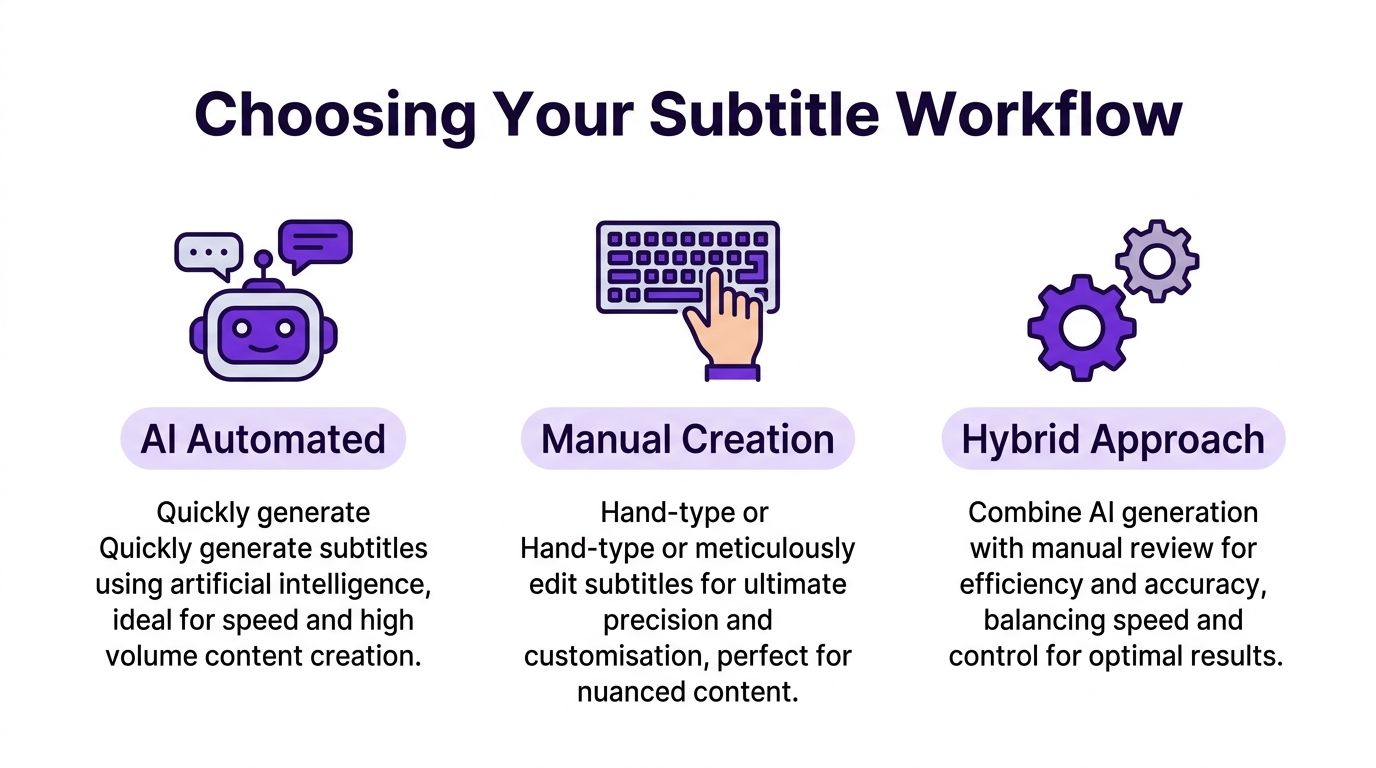
I usually sort subtitle workflows into three options: AI automated, manual, and hybrid. Each one solves a different production problem. The key is choosing the one that fits your content volume, not the one that sounds the most professional on paper.
| Workflow | Best for | Strength | Trade-off |
|---|---|---|---|
| AI automated | High-volume creators, podcasters, marketers | Fast transcript and timestamps | Needs review for errors and styling |
| Manual creation | Editors, compliance-sensitive teams, nuanced content | Maximum control | Slowest option |
| Hybrid approach | Most small teams and solopreneurs | Good balance of speed and accuracy | Requires a review habit |
AI subtitling is the fastest option when speed matters more than perfect text on the first pass. It works well for creators cutting podcasts into Shorts, teams repurposing webinars, and marketers turning one long recording into multiple social clips.
The upside is obvious. You get transcription, timestamps, and a usable draft quickly. The downside shows up in names, jargon, overlapping speech, and pacing. Auto-captions can be accurate enough for a first version while still being weak for on-screen readability.
If you are comparing tools for that first-pass transcript stage, this roundup of video to text converter options is a useful starting point.
Manual subtitling gives you full control over timing, line breaks, speaker changes, sound cues, and reading rhythm. That level of control matters for legal content, technical training, accessibility work, and any edit where one wrong word changes the meaning.
It also matters when you are not just exporting an SRT for YouTube. Burned-in captions for short-form platforms need tighter phrasing and cleaner visual timing than standard closed captions. Manual editing takes longer, but it gives you control over how the text performs on screen.
Manual work is slower, but it catches the details automation often misses.
For many, hybrid is the practical choice. Start with AI for the transcript and timing. Then review the text, fix brand terms and misheard phrases, tighten line breaks, and style the captions for the platform.
This is the workflow I recommend most often because it matches how content gets reused now. A single long-form video might need plain subtitle files for YouTube, then platform-native, burned-in captions for TikTok, Instagram Reels, and Shorts. Hybrid keeps that process fast without publishing sloppy text.
Use this filter:
A simple test helps. If subtitle cleanup regularly takes longer than cutting the clip itself, your workflow is misaligned with your content volume.
If you need speed, AI is the cleanest starting point. Upload the video, generate timed text, review it, and move on to styling or export.
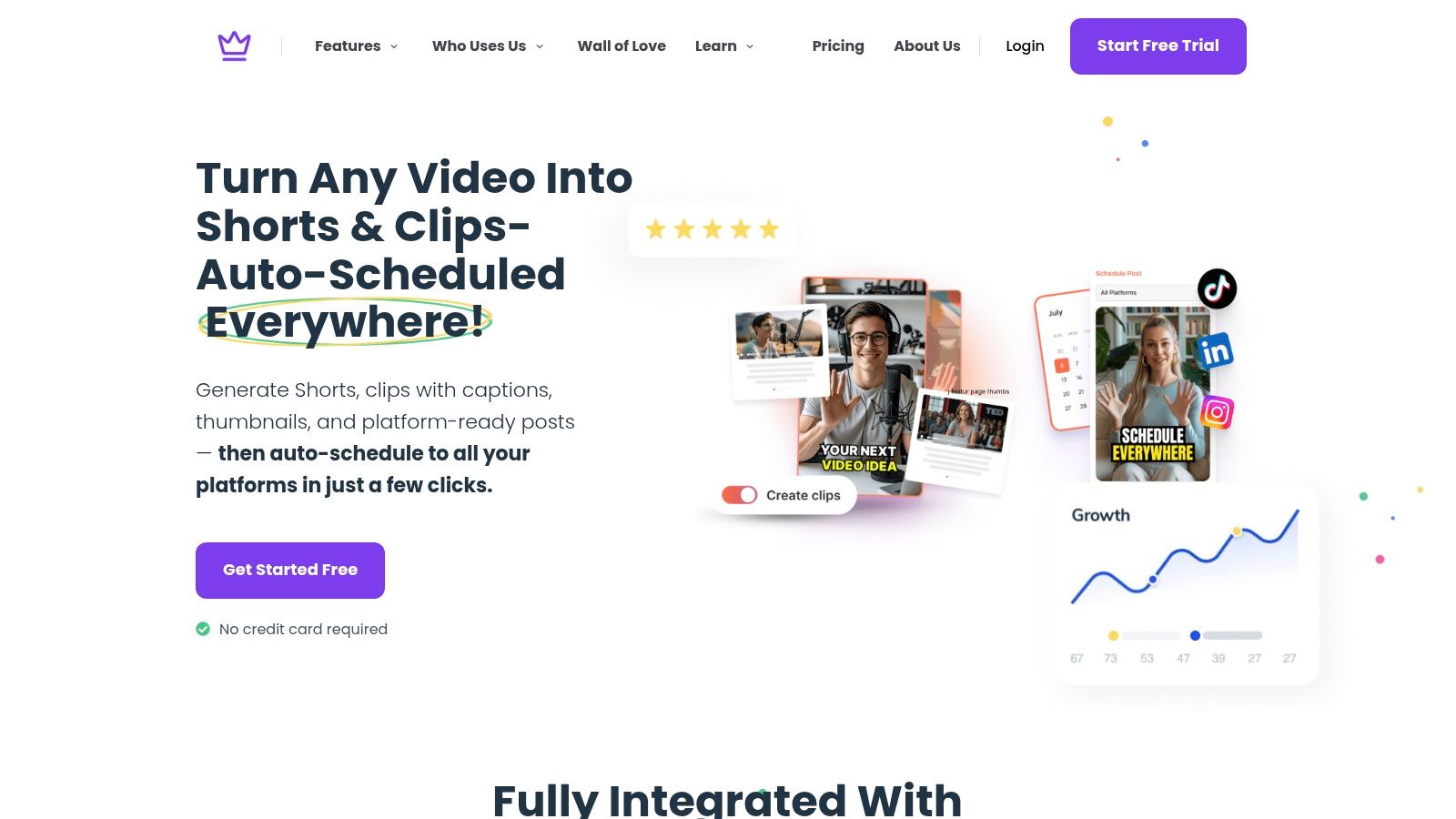
Tools in this category generally follow the same pattern. You import the source video, let the system transcribe the speech, then edit the transcript line by line. One example is Taja AI, which can generate captions as part of a broader repurposing workflow for long-form videos into short clips. If you're comparing caption tools and transcript-first workflows, this overview of video to text converters helps clarify what to look for.
Upload the source video
Use the cleanest master file you have. Clear audio makes everything easier downstream.
Generate subtitles automatically
Let the tool create the transcript and timestamps. This usually gets you a workable first draft quickly.
Review the transcript
Don't approve blindly. Scan for names, acronyms, technical terms, filler that should be removed, and punctuation that changes meaning.
Adjust subtitle grouping
Break long sentences into readable chunks. Short-form viewers don't read like webinar viewers. They skim while scrolling.
Export or burn in
Export an SRT when the platform supports sidecar captions, or render open captions into the video when platform-native viewing habits make that the better call.
The time savings are real, but raw output still needs supervision. YouTube's auto-generated captions show a 12 to 18% error rate on average, and accuracy can drop below 70% for videos with technical jargon or background noise, which is why human review is still necessary, according to Pope Tech's guide to adding captions on YouTube.
That lines up with what editors see in practice. AI usually handles plain speech well. It stumbles on:
Treat auto-generated subtitles as a strong first draft, not a finished deliverable.
A quick review beats a full rewrite. Most of the value comes from catching the few errors that make the content look careless or confusing.
Here's a useful walkthrough if you want to see an auto-captioning process in action:
Before publishing, check these fast:
If your goal is how to add subtitles to videos with the least manual labor, AI is usually the starting point. Just don't confuse speed with final accuracy.
Manual subtitling is slower, but it gives you complete control over language, timing, readability, and accessibility details. That matters when the content is nuanced or the final video needs to feel polished rather than merely functional.
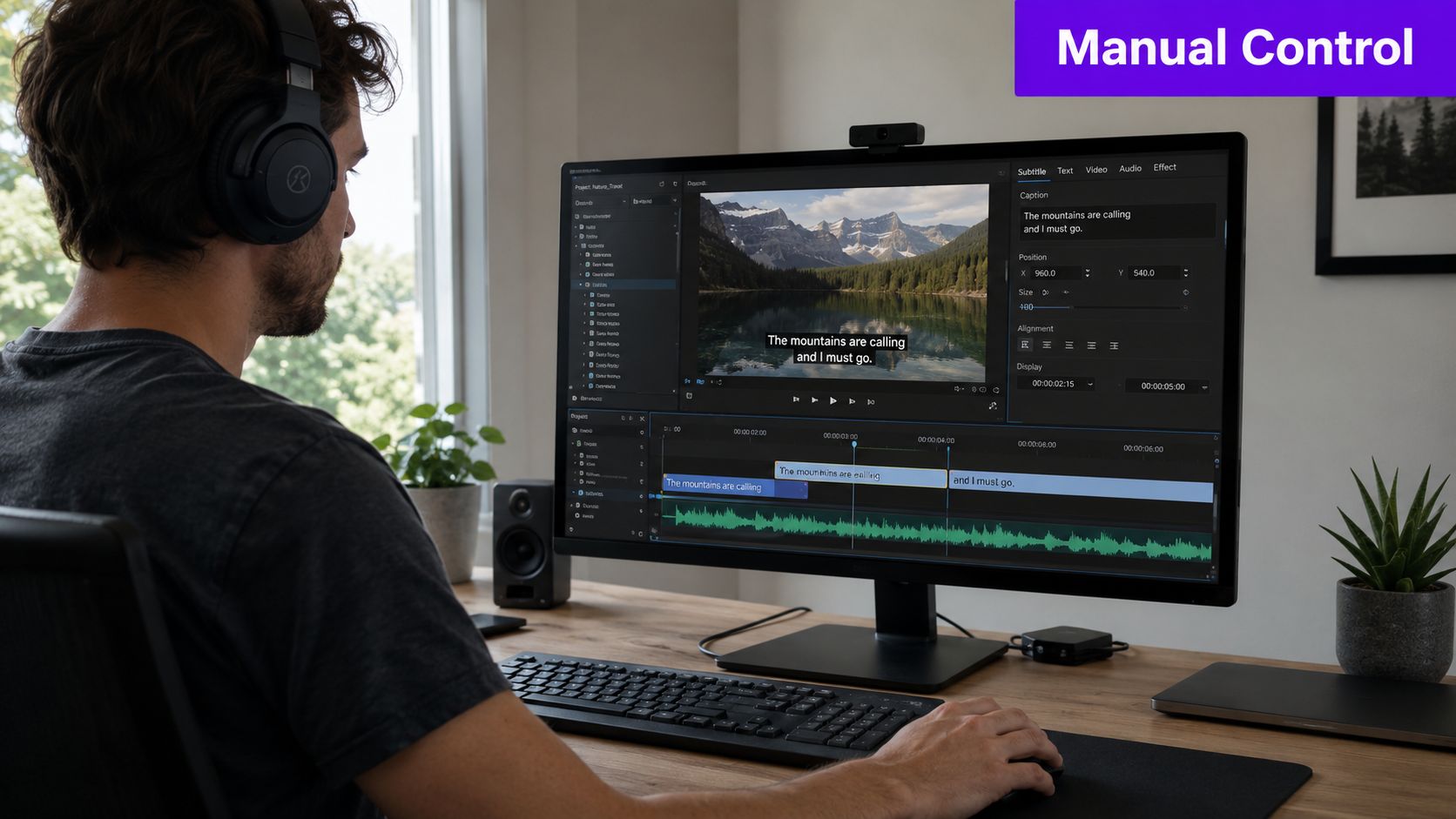
The simplest manual route is to create an SRT file from scratch or edit one that was generated automatically. An SRT is just a text file with numbered caption blocks, timecodes, and the subtitle text itself. If you're sorting through tool options for on-screen text work before you move into editing, this roundup of text in video software is a practical reference.
You can build subtitles manually in a plain text editor or inside a platform editor such as YouTube's caption tools. The process is straightforward:
This takes patience, but it forces precision. It also makes later revisions cleaner because you're not untangling messy AI guesses.
Professional editors usually don't stop at the text file. They import the SRT into Adobe Premiere Pro or a similar tool, then refine timing against the waveform. Adobe's documented workflow recommends aligning captions to spoken phrases within a ±50ms tolerance window for better comprehension, as described in Adobe's subtitle editing guide.
That kind of tightening separates amateur captions from subtitles that feel locked to the performance.
Good subtitles feel invisible. Bad subtitles draw attention to themselves because the timing is off.
Adobe's workflow also points editors toward readability standards such as using a clear font, enough line spacing, and strong contrast against changing backgrounds. In practice, that means avoiding thin fonts, weak outlines, and subtitle placement that fights with lower thirds or UI overlays.
Use these standards when polishing subtitles:
For creators who only know SRT exporting, the bigger leap is understanding how caption files behave once they enter an editor. File structure, compatibility, and styling limits matter. That's why resources on major subtitle formats explained can save time before you commit to a workflow.
Manual editing is the right choice when every word matters, when there are multiple speakers, or when the subtitles themselves are part of the perceived production quality.
A subtitle file that works on YouTube often underperforms on TikTok or Instagram Reels. That's where many creators lose momentum.
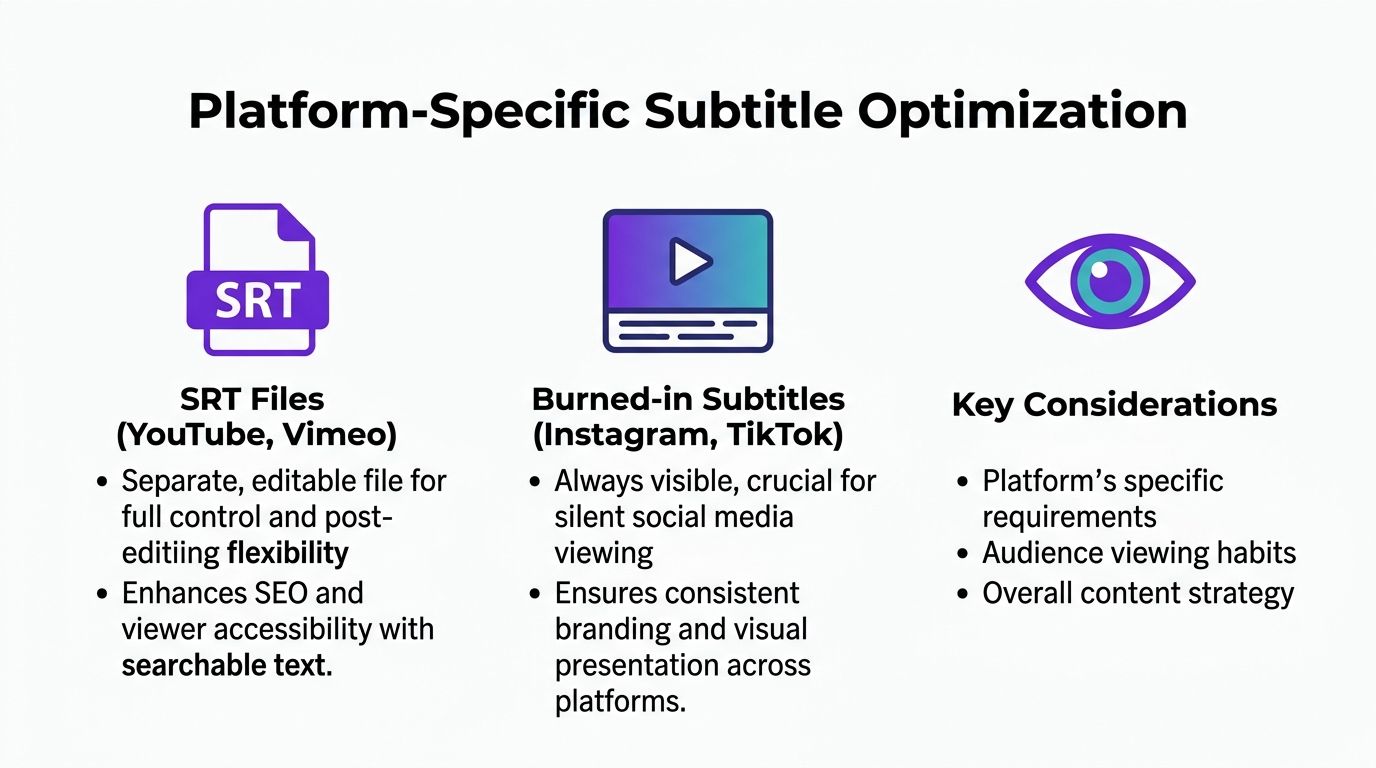
The core distinction is simple. SRT files are separate caption files. Burned-in subtitles are rendered into the video itself as visible text. Both have value, but they solve different problems.
On YouTube and Vimeo, sidecar subtitles make sense because viewers can toggle captions on and off, and you can revise the subtitle file without re-exporting the whole video. They're useful when you want editable captions and cleaner platform-native delivery.
This route is also easier for long-form content libraries where the same video may need future updates.
Short-form social behaves differently. Data cited in the research brief shows 65% of solopreneurs repurposing videos fail to embed stylized, burned-in captions for TikTok and Reels because most tutorials stop at YouTube-style SRT export, according to the referenced Reddit discussion on subtitle workflows. That gap matters because short-form captions often need to be part of the visual design, not an optional layer.
Burned-in captions help when you need:
A repurposed clip shouldn't look like a webinar export squeezed into a vertical frame.
When adapting long-form clips into Shorts, Reels, or TikToks, change more than the file format. Change the presentation.
Try these adjustments:
If you're troubleshooting subtitle behavior inside AI-generated video workflows, especially when platform-native captions need edits or removal, this guide on managing Veo 3 video subtitles is a helpful companion read.
For creators repurposing one source video into multiple shorts, a transcript-first workflow also helps. This walkthrough on how to transcribe a TikTok video is relevant if you're adapting speech into platform-ready on-screen text rather than stopping at a raw caption file.
Most subtitle tutorials stop too early. They teach speech transcription, then call it done.
That leaves out a critical difference between subtitles and true closed captions. Dialogue alone isn't enough for full accessibility. Captions also need non-speech audio cues when those sounds affect meaning, tone, or context.
According to VEED's subtitle guide, AI captions can achieve 99% accuracy on speech, but they miss 100% of environmental sounds such as [applause] or [phone rings]. The same source says 78% of small creators skip this step, which leaves captions short of FCC and ADA expectations for true closed captions.
If the sound matters to understanding, label it. That includes:
Readable subtitles usually follow a few consistent habits:
Accessibility isn't just about getting words on screen. It's about giving every viewer the full meaning of the video.
If you want to learn how to add subtitles to videos properly, this is the standard to aim for. Get the speech right. Then add the sound context that speech alone can't carry.
If you're repurposing long-form content regularly, Taja AI can handle caption generation as part of a broader workflow that turns one source video into clips, subtitles, and platform-ready assets. It's a practical option when you want fewer handoffs between transcription, clipping, and short-form publishing.


We are blessed to work with leading brands & Companies


We try to make easy and simple for every professionals. Get 30 days free trial - No credit card required.


© 2025 Taja AI. All rights reserved.