.jpeg)
How to Make Highlights Video
Learn how to make highlights video content from long footage with a retention-led workflow, captioning, export settings, and platform-ready exports.
5 min read
October 19, 2026

Learn how to auto generate captions on TikTok with this step-by-step guide. Master native tools, fix errors, and optimize for accessibility and SEO.
Written by:


You've finished editing your TikTok, the audio sounds clear, and you're ready to post. Then you watch the preview with your phone muted. Without the spoken explanation, the demonstration doesn't make much sense. Captions solve that problem, but only if they say what you said.
Learning how to auto generate captions on TikTok is straightforward. Getting those captions publish-ready takes more care: choose the spoken language, generate the text, correct the transcript, and check whether someone can comfortably follow it without sound.
A viewer shouldn't need to hear your voice to understand your video. If you publish a property walkthrough, product demonstration, or educational clip without captions, someone watching without sound may miss the explanation that makes the visuals useful. Treat that as a communication problem, not just an engagement problem.
Accessibility is the reason to get this right. TikTok introduced creator-side auto captions on April 6, 2021, specifically to help people who are Deaf or hard of hearing access video content. The launch supported American English and Japanese, with additional languages planned.
There's a difference between displaying a catchy headline and captioning a video. A headline can introduce the topic, but it doesn't replace the explanation, qualifications, or instructions in your speech.
For practical purposes, use this distinction:
You can use all of them, but don't mistake a prominent headline for a complete accessibility layer.
The visual below summarizes common arguments for captions. Its mute-viewing percentage and engagement claims shouldn't be treated as established benchmarks; the defensible reason to caption is to make your message available without relying on sound.
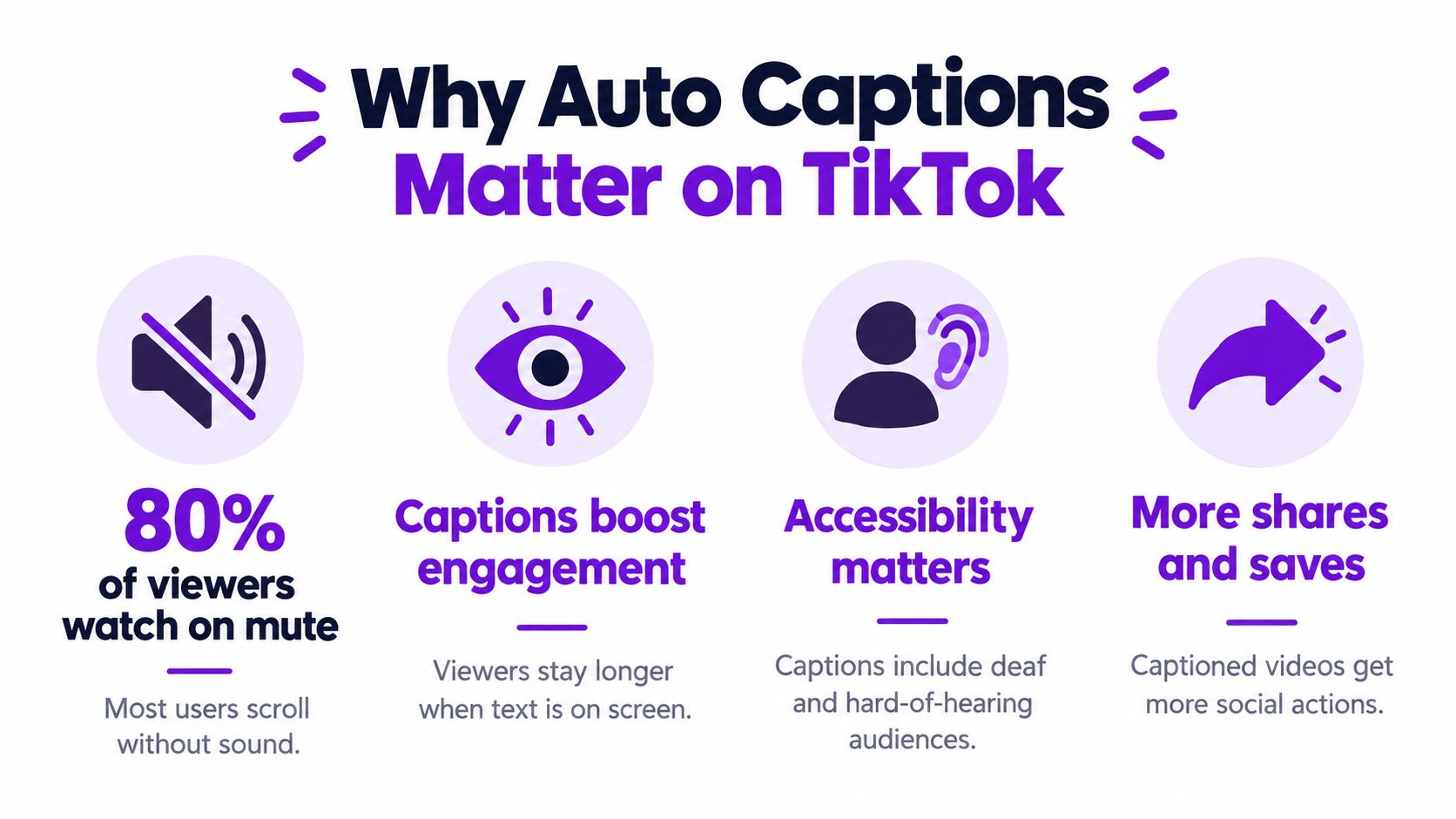
Captions are also useful when someone can hear but can't comfortably listen, such as in a noisy room or a shared workspace. You don't need a promised reach increase to justify making your instructions understandable.
Practical rule: Judge captions by whether someone can follow the message, not by how much movement or color you've added.
Automatic transcription removes much of the typing. It doesn't remove your responsibility to check the result.
Start with the finished video you intend to publish. If you're still cutting sentences or replacing voiceover, finish those changes before reviewing captions so you aren't correcting text for audio you'll later remove.
Use the posting settings as a checkpoint rather than assuming TikTok has identified everything correctly.

Record or upload your video in the TikTok mobile app, then open the editing screen. Look for Captions among the available tools and select it to let TikTok transcribe the speech.
Continue to the Post screen and open More options > Select video language when that setting is available. Choose the language spoken in the recording, not the language of your intended audience or your preferred interface.
TikTok's official captioning guidance describes speech-recognition captions for eligible uploaded videos and identifies this video-language setting. The controls may differ across formats, accounts, languages, and interface versions, so don't assume every screen will match a tutorial exactly.
Keep these decisions separate:
A visual walkthrough can help you orient yourself inside the app, although your controls may look different.
Once TikTok displays the captions, play the video from the beginning. Check that text appears throughout the spoken portions, including the opening line and the closing instruction.
Don't approve the transcript just because the opening sentence looks right. A clean introduction tells you nothing about whether TikTok recognized a business name, an address, or a technical explanation later in the recording.
For interviews, also watch the transitions between speakers. The transcript needs to remain understandable when the person talking changes, not merely contain a stream of recognizable words.
Tap the generated caption, choose Edit captions, correct the wording or timing, and tap Save. Then replay the corrected passage with the audio. Check the edit in context rather than trusting that a replacement word fixed the whole sentence.
There's evidence for making this a standard production task. A 2024 study of 300 TikTok videos found at least one captioning error in 19.7%, or 59 videos; among videos containing errors, the average word error rate was 7.9%, ranging from 0.5% to 35.7%.
The same study reported the following breakdown. These are observations from that sample, not predictions for your account.
| Content Type | Videos With at Least One Error |
|---|---|
| Disability- or Deafness-related videos | 24.0% |
| General-audience videos | 15.3% |
The important distinction is that the average word error rate applies to videos with errors, not to every video examined. Neither figure tells you whether your particular transcript is safe to publish.
Read every segment, but give extra attention to details a viewer might act on:
For a property video, a misspelled street name isn't just untidy. It could leave someone searching for the wrong location. In an educational clip, a missing negative can reverse the instruction.
Fix the sentence viewers will read, not just the word the software misheard.
If you also need a text version for notes or reuse, this guide to transcribing a TikTok video covers that related workflow. Keep the published caption track as the final checkpoint, even when you've already checked a separate transcript.
A fluent-looking transcript can still be wrong. Don't assume recognizable words mean TikTok understood the recording, especially when the speaker changes languages or uses specialized vocabulary.
TikTok's accessibility instructions confirm that auto-generated captions use speech recognition, depend on the selected video language, and can be edited or removed. Use that distinction to diagnose the problem before correcting individual words.
If the whole transcript is in the wrong language, return to the Post screen and check More options > Select video language. Select the spoken language, then regenerate captions if your available controls allow it. If they don't, edit the text or prepare captions outside TikTok.
If most of the transcript is right, keep the usable draft and correct the specific passages. Regenerating everything isn't necessarily helpful when the remaining problems are a surname, a homophone, or an unfamiliar product name.
If captions are missing, check the editing and posting screens, but remember the eligibility limitation described earlier. Don't spend the entire publishing session searching for a control your current workflow doesn't expose.
The troubleshooting visual provides a broad overview. For a language mismatch, use the video-language setting, rather than changing the app's display language.
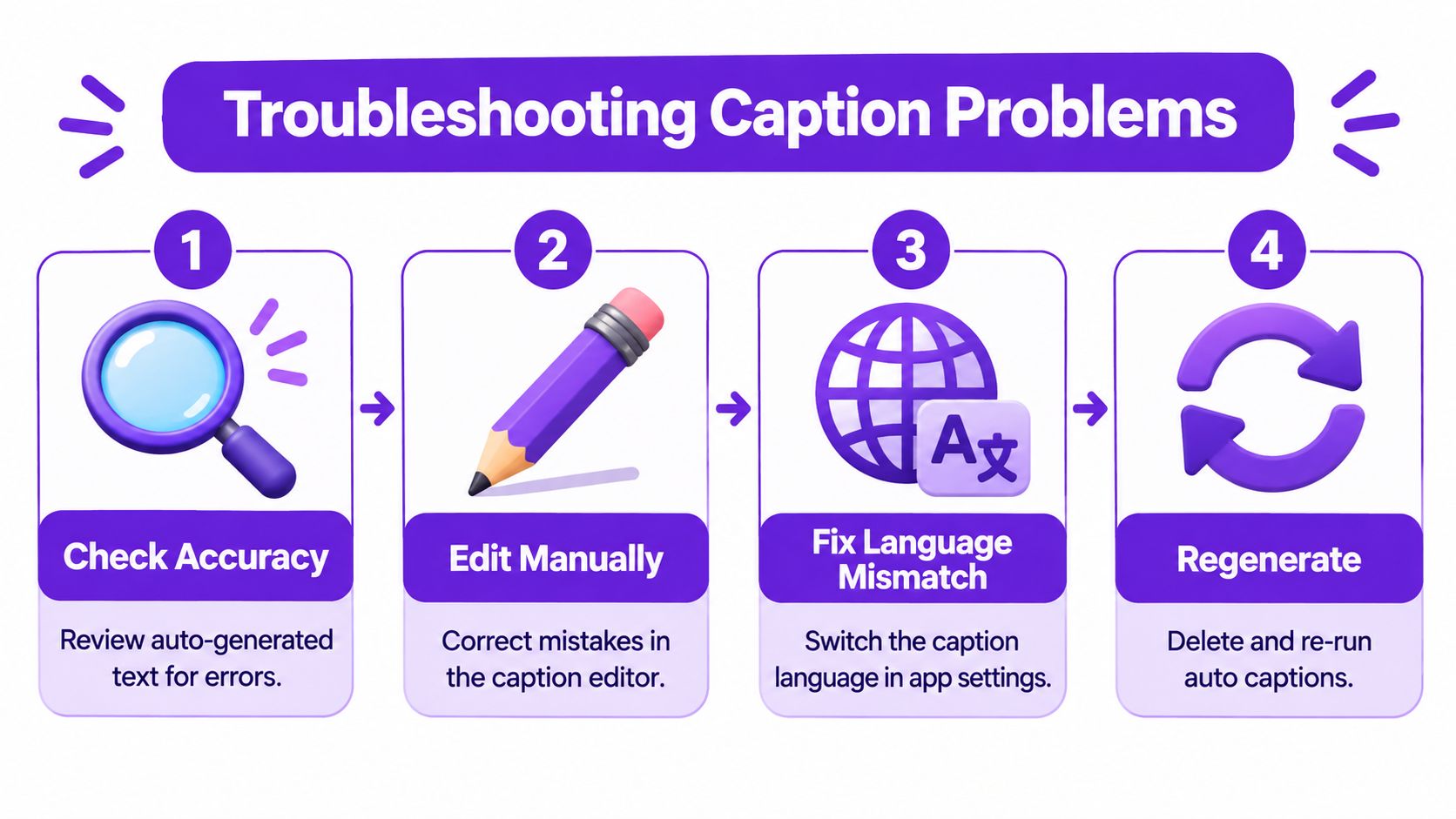
Unclear speech, overlapping speakers, background music, accents, technical terms, and rapid delivery can complicate recognition. Listen to the failed passage before deciding whether to edit the transcript or improve the recording.
Burned-in text offers an alternative when native captions can't be corrected reliably, but viewers can't switch that text off independently. Review it before export, and inspect the TikTok preview for overlapping caption layers.
Caption accuracy and caption usability aren't the same thing. You can transcribe every word correctly and still make the video difficult to follow if the text covers the demonstration or disappears before someone can read it.
TikTok's viewing-accessibility guidance describes captions as a way to help Deaf and hard-of-hearing viewers access content and explains that viewers can toggle captions on posts that contain them. That makes the viewing experience, not the editor preview alone, the right place to assess your work.
Watch the finished video without sound on a phone. Then check it with sound to confirm that your edits haven't changed the speaker's meaning.
This is a useful editorial standard for Deaf and hard-of-hearing viewers, neurodivergent viewers, multilingual audiences, and anyone trying to follow a complicated explanation. Don't assume that adding more visual emphasis makes the content easier to process.
Final check: Could someone understand the instruction without hearing the audio or guessing what the covered text says?
Use the correct subject terms because they make the content precise. If you name a service, product, or location aloud, preserve that wording in the captions and use consistent language in the accompanying post description.
That's a sensible approach to clear, search-oriented publishing. It isn't proof that captions produce a ranking boost, and there's no basis here for promising additional reach.
For more on presentation choices, use this guide to adding captions to videos. Prioritize accurate language and comprehension before keyword repetition or decorative styling.
TikTok's native workflow is a reasonable starting point when you're preparing an individual post. You stay inside the app, inspect the transcript, and publish without introducing another export step.
An external editor or repurposing platform becomes worth considering when captioning is part of a larger production job. A podcaster preparing interview excerpts, for example, should evaluate how the tool handles clip selection, transcript corrections, exports, and review together.
| Workflow | When to consider it | What to inspect |
|---|---|---|
| TikTok native captions | You're finishing a post inside TikTok | Available controls and transcript accuracy |
| External caption editor | You need captions rendered into the exported file | Editability, placement, and export readability |
| Repurposing platform | You're adapting long-form recordings into multiple outputs | Clip context, caption corrections, and publishing review |
Don't switch tools solely because another service also has a generate button. Test the passage your current workflow handles poorly, such as an interview exchange or a technical explanation.
For broader workflow planning, Legacy Builder's resource on AI-assisted content creation for brands is a related starting point. Keep your evaluation practical: who checks the output, where corrections happen, and whether the final export preserves them.
When comparing options in a video caption generator workflow, look beyond the initial transcript. You need to correct mistakes without fighting the editor and preview the result as viewers will see it.
Choose the simplest workflow that handles your actual publishing needs. More automation is useful only when you can still inspect and approve what goes out.
Taja AI offers long-form video repurposing into clips, captions, thumbnails, and platform-specific posts. If you're turning recordings into TikTok content, visit the platform to explore that workflow, then keep transcript correction and a sound-off preview in your publishing checklist.


We are blessed to work with leading brands & Companies


We try to make easy and simple for every professionals. Get 30 days free trial - No credit card required.


© 2025 Taja AI. All rights reserved.