.jpeg)
How to Make an Announcement That Gets Read and Shared
Learn how to make an announcement for a product, business update or event, with templates, clip repurposing, scheduling and CTA tips.
5 min read
October 29, 2026

Learn how to add captions to video across YouTube, TikTok, and Instagram. Master SRT files, styling, and automation to boost reach and accessibility.
Written by:


You've finished editing a strong video, exported the master file, and then discovered that every platform handles captions differently. You need an SRT for one upload, burned-in text for another, revised timing for a vertical cut, and a manual review because the automated transcript confused a product name. By the time the files are ready, captioning feels like a separate production job.
A reliable caption workflow removes that friction. The key is to separate accessibility-driven closed captions from engagement-driven on-screen text, then use automation for repetitive work and human review for meaning, timing, and presentation. This guide explains how to add captions that remain readable, portable, and useful across major video platforms.
A viewer starts your video on a train, in a quiet office, or beside someone who is sleeping. The audio stays off, yet the first seconds still need to communicate the topic and value. Captions keep that viewer oriented, whether the reason is convenience, hearing access, language support, an unfamiliar accent, or dense technical content.
That wider use has pushed captioning beyond a narrow accessibility task. The National Captioning Institute helped establish real-time closed captioning in the United States, supporting the shift from occasional broadcast assistance to a standard practice for television and online video. In the United Kingdom, Ofcom reported that 95.5% of access-service providers offered subtitles in 2024, compared with 89.1% in 2023 (captioning history and adoption context).
Consumer behavior reinforces the point. A UK and Europe study found that 79% of UK viewers use subtitles at least sometimes, while 81% reported no hearing difficulty. Viewers often choose captions because they make speech easier to follow and let them watch in situations where sound is unavailable, rather than because they identify with a particular accessibility group.
Captions help viewers follow interviews, tutorials, webinars, and educational videos when sound is off or attention is divided. They make spoken information easier to scan, help viewers catch a key phrase, and give people enough context to decide whether to keep watching.
They cannot repair a confusing edit, a slow introduction, or a poor audio mix. They remove one avoidable barrier between the message and anyone who cannot, or does not want to, listen at that moment.
Practical rule: Treat captions as part of the edit, not as metadata added after publishing.
The distinction between delivery methods also affects growth. Closed captions support accessibility and viewer control through a separate timed-text track. Burned-in text stays visible in the video and can strengthen comprehension in sound-off social feeds, though it cannot be disabled or repositioned. A multi-platform workflow needs both roles accounted for, rather than treating one caption file as suitable everywhere.
Captioning also improves production consistency. After the transcript, timing, speaker labels, and non-speech cues receive a human review, the same approved material can support short clips, accessibility files, descriptions, and translated versions. Automation handles transcription, timing, and repeated exports, while review protects names, meaning, and emphasis. Skipping that accurate source transcript usually creates more manual correction later because each platform interprets the same audio differently.
If a video depends on spoken information, publishing without captions limits where and how people can consume it. Accessibility provides the foundation. Reach, comprehension, and retention give teams practical reasons to include captions in every release.
A caption workflow can fail after the transcript is finished. A YouTube upload may need a selectable track, while a short vertical clip needs text visible before viewers decide whether to keep watching. Choose the delivery method before editing so one export does not create extra correction work.
Closed captions stay in a separate timed-text file, commonly SRT or VTT. The platform places them over the video, and viewers can usually turn them on or off. Open captions, also called burned-in captions, are embedded permanently in the exported video. They remain visible, but viewers cannot disable or reposition them.
| Feature | Closed Captions (SRT/VTT) | Burned-In (Open) Captions |
|---|---|---|
| Viewer control | Viewers can usually enable or disable them | Always visible |
| Accessibility support | Better suited to selectable caption tracks and platform controls | Useful visually, but less flexible |
| Platform portability | Requires a compatible upload field | Travels with the video file |
| Styling | Controlled partly by the platform | Fully controlled during editing |
| Best use | YouTube uploads, accessibility workflows, multilingual tracks | Reels, TikTok clips, ads, and sound-off social viewing |
| Main risk | Platform settings can affect appearance | Text can be cropped, obstruct visuals, or become unreadable |
An SRT file uses numbered entries, time ranges, and text. It is widely supported and easy to inspect in a text editor. A VTT file, or WebVTT, is designed for web-based timed text and can support cues and styling where the platform allows them.
A file opening correctly on your computer does not confirm that an upload will work. Check the platform's accepted format, timestamp syntax, character encoding, and naming conventions first. If the project also combines videos, images, documents, or other assets, a workflow to edit mixed file formats into one playlist can keep the surrounding media organized.
Use closed captions when accessibility, language choices, and viewer control matter. Use burned-in captions when the message must appear in a feed preview, the platform's caption-track support is unreliable, or visual emphasis is part of the edit. A practical caption generator for videos can produce the first draft, but review the transcript, timing, line breaks, and final export before publishing.
For a long-form YouTube tutorial, prepare an accurate closed-caption file and create a styled version for promotional clips when needed. For a short vertical video, burned-in captions usually put the message on screen immediately, while a separate caption file may not be available or useful in the same way.
The most efficient workflow builds both versions from one reviewed transcript. Automation can handle the first draft and repeated exports, while a human checks names, meaning, timing, and safe placement. That approach separates compliance-driven caption tracks from engagement-driven on-screen text without forcing the team through a manual export nightmare each time.
Each platform has its own caption controls, and interfaces change over time. The safest process is to keep a clean master video, a reviewed transcript, and an exported caption file ready before you open the publishing screen.
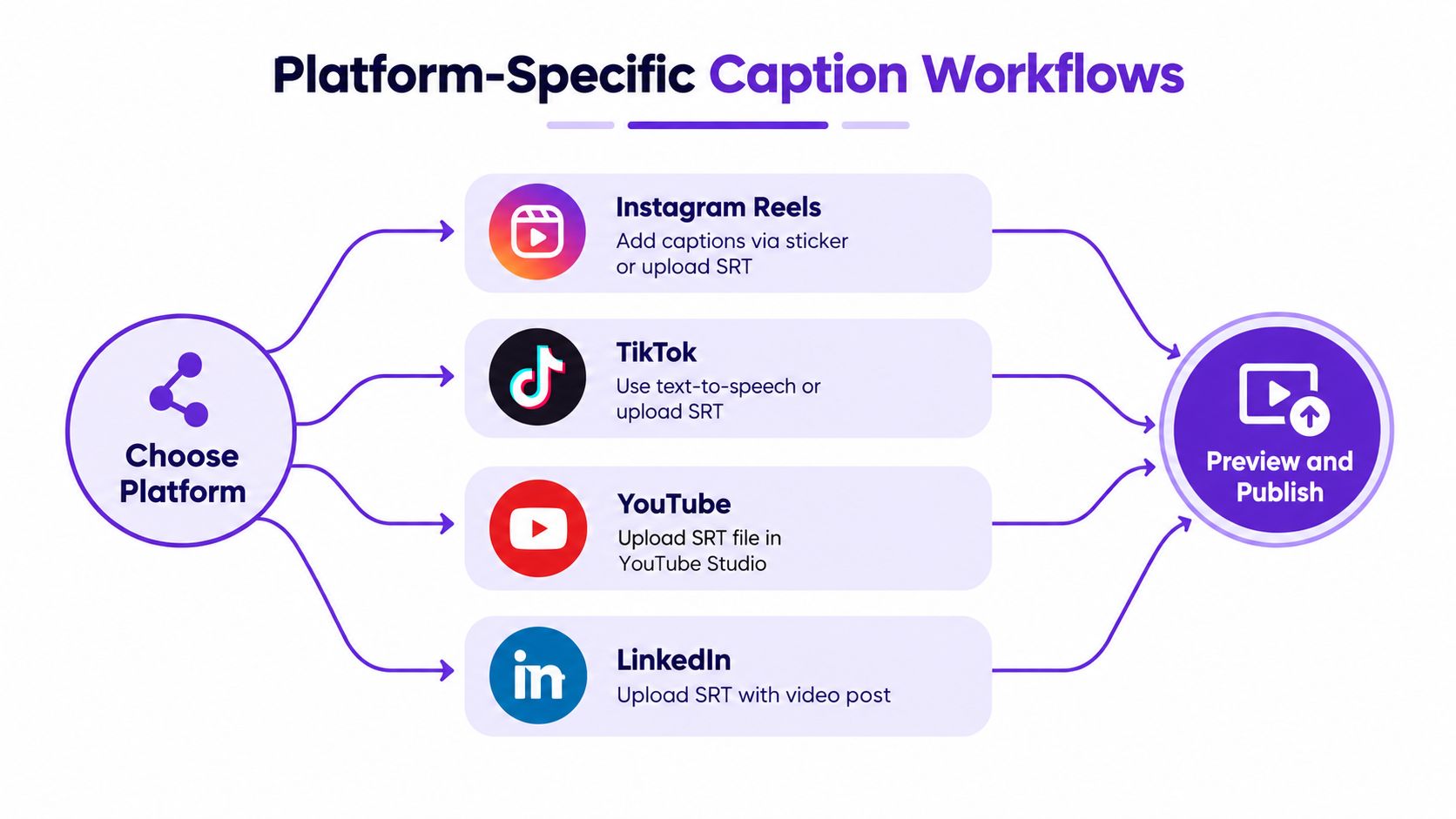
YouTube Studio generally gives creators the most complete caption workflow among the major networks.
YouTube's automatic captions can provide a useful starting point, especially for clean audio. They're not a substitute for review, particularly when the video includes names, acronyms, specialist terminology, overlapping speakers, or music that affects the transcript.
Instagram Reels commonly uses captions added through the in-app caption sticker or text tools. The exact options can vary by account, region, app version, and publishing surface, so check the preview before posting. For a detailed walkthrough of the editing process, use this guide on how to add captions to Instagram Reels.
For serious multi-platform production, don't rely on one Reel's automatic result as your master transcript. Create the reviewed text outside the app, then use it to build the visual caption version. Keep text inside the safe central area because interface elements and cropping can cover lower-screen captions.
TikTok provides automatic captions for eligible videos and lets creators review or edit the generated text within the publishing flow. Use the editing screen to correct obvious errors, then watch the entire video with captions visible. TikTok's fast pacing makes line breaks especially important. A caption that arrives late or displays too much text can compete with the visual hook.
If your workflow includes a pre-edited, burned-in version, disable or avoid duplicating platform captions unless you specifically want both layers. Duplicate text creates clutter and can make correction difficult after publishing.
Facebook supports caption workflows that can include automatic generation and external caption files, depending on the upload surface and account tools available. In the video editing or publishing settings, look for subtitle or caption controls, upload the reviewed file where available, and inspect the result on both desktop and mobile previews.
Facebook distribution often includes different placements, so a caption position that looks fine in the main video player may sit beneath interface controls elsewhere. Keep the visual version conservative and test the export rather than trusting the editing canvas alone.
LinkedIn video posts may support SRT upload during the publishing process. Add the video, locate the subtitle or caption upload control, select the reviewed file, and preview the post before publishing. Professional audiences may encounter your video in muted environments, so a strong opening text treatment matters even when a selectable caption track is available.
Publishing habit: Upload the reviewed caption file first, then check the burned-in version separately. Never assume one preview represents every placement.
Automatic captions are a first pass, not a finished asset. A study of AI-generated captions reported an average accuracy rate of 89.8%, below the 99% accuracy benchmark used in accessibility guidance (AI caption accuracy and review implications). The practical response is simple: automate transcription, then assign a human to review the result before publication.
Begin with meaning. Check proper names, brand terms, product features, technical vocabulary, numbers, negations, and phrases that sound alike. One mistranscribed word can reverse the meaning of a sentence, while a missing comma can make a speaker sound uncertain or misleading.
Captioning best-practice guidance recommends one to two lines, roughly 32 characters per line, and caption segments lasting about one to six seconds (captioning readability guidance). These are working constraints, not a reason to split every sentence mechanically.
Break captions at natural language boundaries. Keep a phrase together when separating it would force the viewer to reconstruct the meaning. Avoid placing a single short word on a new line, and don't make a viewer read a dense paragraph while the speaker has already moved to the next idea.
Synchronize the first visible word with the speech it represents. Remove captions promptly when the thought ends. If a speaker pauses for a meaningful beat, the timing can reflect that pause, but captions shouldn't linger because the editor forgot to adjust the endpoint.
Accessible captions describe relevant non-speech information, not just dialogue. Add cues such as [music], [applause], [door closes], or [laughter] when they help the viewer understand the scene or tone. Identify speakers when more than one person appears or speaks, especially when the camera cuts away from the active speaker.
Review captions in context rather than as a transcript alone. Ask whether the viewer can distinguish speakers, follow the rhythm, understand sound-dependent jokes, and identify important audio events without hearing them.
For burned-in captions, prioritize contrast and safe placement over decoration. Use a strong text-background relationship, a readable typeface, and enough padding to prevent letters from touching the frame edge. Brand colors can work for highlights or speaker names, but body text should remain legible over changing footage.
Quality check: Watch the video once with sound muted and once at normal volume. The first test reveals whether the captions carry enough meaning. The second exposes timing and wording errors that silent review can miss.
The manual export nightmare usually starts with a reasonable plan. You generate captions, export an SRT, resize the video, create a short clip, restyle the text, upload to several platforms, and then discover that one version has different timing. Repeating that process for every segment makes captioning the task most likely to be skipped.
A scalable workflow treats the reviewed transcript as a reusable source. Automation can identify clips, create platform-specific dimensions, apply caption templates, and prepare both visual and file-based caption outputs. You still need a human approval step, but you're reviewing one coherent system instead of rebuilding every asset from scratch.
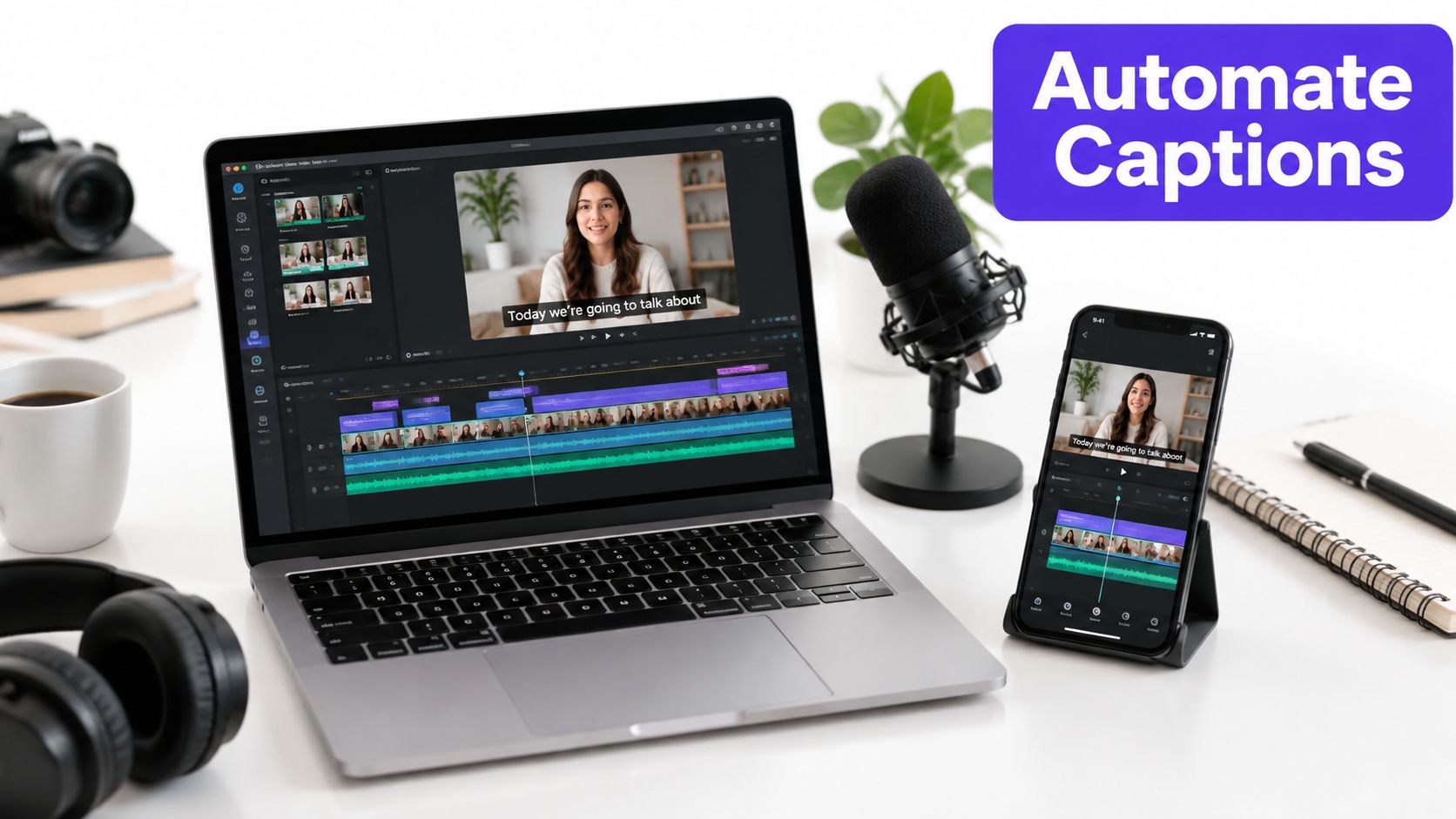
A practical sequence looks like this:
Taja AI is one option in this workflow. Its repurposing platform can generate short clips from long-form video, apply styled captions, create caption files, and support brand templates and platform-specific outputs. Its content repurposing workflow is relevant when caption production needs to sit inside a larger clipping and distribution process rather than operate as a standalone edit.
For visual experimentation, creators can also explore starriai for TikTok aesthetics when developing a consistent look for short-form assets. Keep the distinction clear, though. Styling tools can improve presentation, while transcription review protects accuracy and accessibility.
This short demonstration shows how automated caption features can fit into a broader editing process:
Automation works when it reduces repetition without hiding the approval step. Don't publish every generated clip untouched. Create a review queue, check the highest-risk moments first, and keep a final rendered preview beside the caption file so timing errors are easy to spot.
Most caption failures come from a small set of causes. Diagnose the source before rebuilding the entire file.
If captions begin correctly but gradually move ahead or behind the speaker, check whether the video and caption file use different frame rates or whether one file was trimmed after captions were created. Regenerate timing from the final video whenever possible. If only the beginning is offset, adjust the caption track's global timing rather than editing every cue individually.
Overlapping cues usually result from poorly generated time ranges or manual edits that extended one caption into the next. Make sure one cue ends before the next begins, then watch the transition. Captions that flash briefly may need to be merged with a neighboring cue or retimed to match a complete spoken phrase.
Check the file extension, timestamp format, cue numbering, blank lines, and text encoding. Open the file in a plain-text editor and look for unusual punctuation or formatting copied from a word processor. Export a fresh SRT from your captioning tool instead of repairing a damaged file manually.
Preview the finished video at its intended aspect ratio, not only in the desktop editor. Move captions away from the bottom and side edges, reduce line length, and test against platform interface areas. If the source was reframed after styling, reposition the captions after the crop, not before it.
Names, jargon, accents, background noise, and overlapping dialogue commonly produce errors. Replace the incorrect term in the master transcript, then regenerate platform versions from that corrected source. Fixing each exported clip separately creates inconsistent wording and guarantees repeated work.
The most dependable process is a final three-part check: read the caption file, watch the video muted, and watch it again with sound. That combination catches wording, accessibility, placement, and synchronization problems before your audience finds them.
Taja AI can turn long-form video into short clips with timed, styled captions and platform-ready outputs, helping you avoid repeated manual exports while keeping a human review step in place. Visit Taja AI to test a caption-centered repurposing workflow and prepare your next batch of videos from one source file.


We are blessed to work with leading brands & Companies


We try to make easy and simple for every professionals. Get 30 days free trial - No credit card required.


© 2025 Taja AI. All rights reserved.