.jpeg)
YouTube Shorts Format: A Complete 2026 Creator Guide
Master the YouTube Shorts format in 2026 with exact specs on duration, aspect ratio, resolution, and file types plus upload and discovery best practices.
5 min read
October 4, 2026

Find the best video editing app for beginners in 2026. Our guide reviews top software to help you create stunning videos easily. Start editing today!
Written by:


You recorded the video. It's sitting on your phone. You want it posted today. Then you open an editor and get hit with timelines, layers, codecs, proxies, color tools, and tabs you do not need for a first upload. That's where beginners waste time. They treat editing like a technical test instead of a publishing step.
Start simpler.
A beginner app should help you cut dead air, add captions, resize for the right platform, and export fast. That matters more than a long feature list. Simple tools won because they let regular creators finish the job, whether that means using iMovie on a Mac, Clipchamp in a browser, CapCut on a phone, or Resolve on a stronger desktop.
Pick based on your role, not hype. A solopreneur needs speed and repeatability. A podcaster needs transcript-driven editing and repurposing. A real estate agent needs quick walk-throughs, listing teasers, and social clips without a complicated setup.
This guide matches each app to that kind of use case. You'll get a quick-start path for each one so you can make the first edit today, not next week. If you need a simple effect for your first talking-head clip, this guide on how to zoom on a video covers one of the few edits beginners use.
One more point. Editing is only half the workflow. After the first cut, tools like Taja AI help turn one finished video into titles, clips, and platform-specific assets so you can publish in more than one place without starting over. If you need a broader creator stack beyond editing, this lnk.boo resource for creators is a useful place to expand from there.
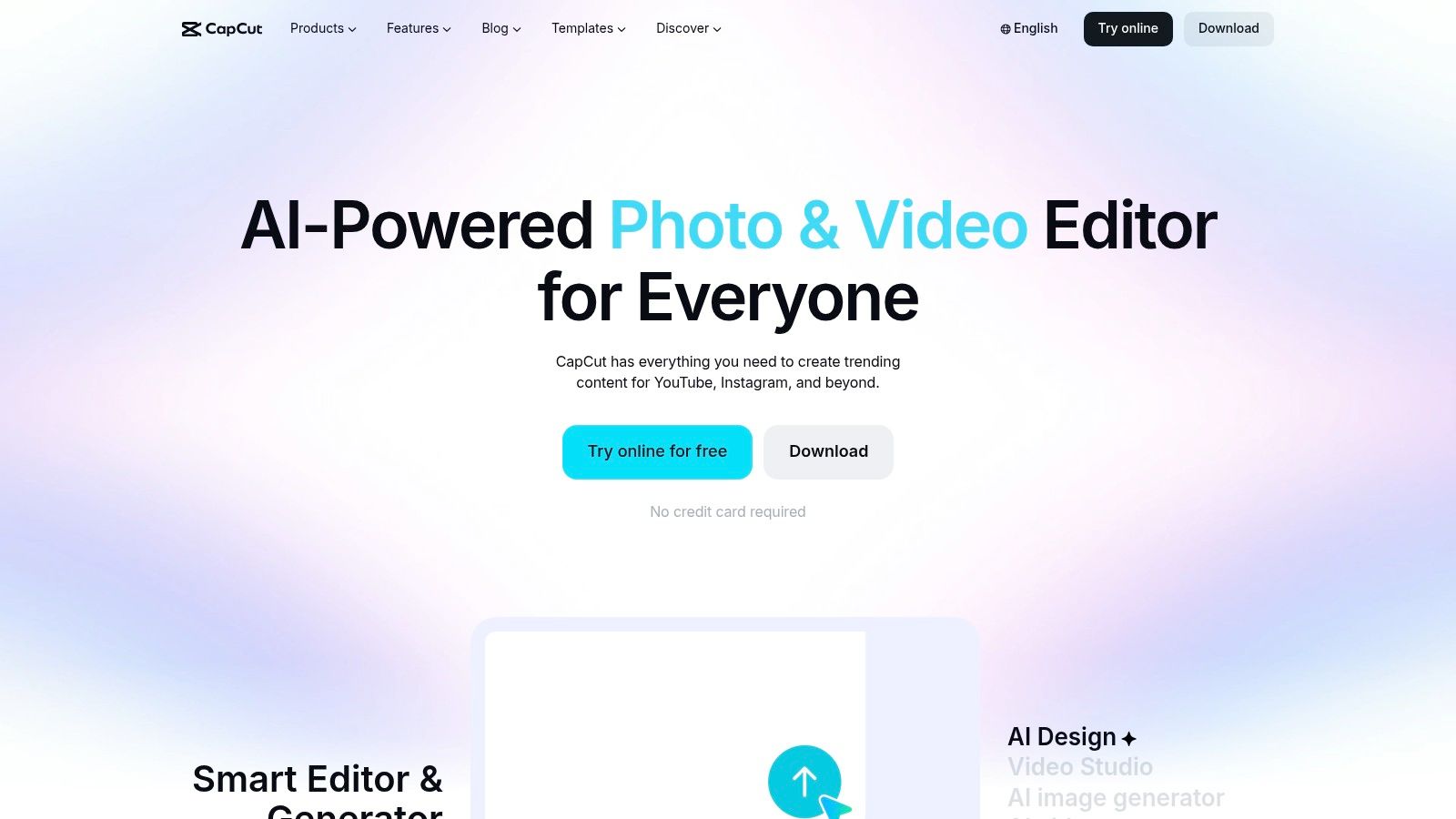
If your goal is short-form content, stop pretending you need a desktop-first workflow. You probably don't. CapCut is the best starting point for beginners who want to make Reels, Shorts, TikToks, promo clips, and quick talking-head videos from a phone.
It's easy to see why beginner-focused reviews keep pushing it toward mobile-first creators. One recent review highlighted CapCut as the best fit for beginners who value speed and make short vertical content, while framing DaVinci Resolve for users who want to grow into heavier editing on stronger computers, according to this creator review on YouTube. That split matters. Short-form and long-form beginners don't need the same app.
Open CapCut, drop in your clip, trim the dead air, add auto-captions, pick a vertical canvas, and export. That's enough for your first post. Don't touch every effect tab just because it's there.
For a solopreneur, CapCut works best when you need speed over polish. For a real estate agent, it's strong for listing teasers, neighborhood walkthrough snippets, and before-and-after edits. If you're shooting handheld phone video and publishing the same day, this is your lane.
Practical rule: If the video needs to be live today, use CapCut.
A good beginner move is learning one micro-skill at a time, like reframing or punch-in edits. This guide on how to zoom on a video fits well with CapCut's style of fast visual emphasis.
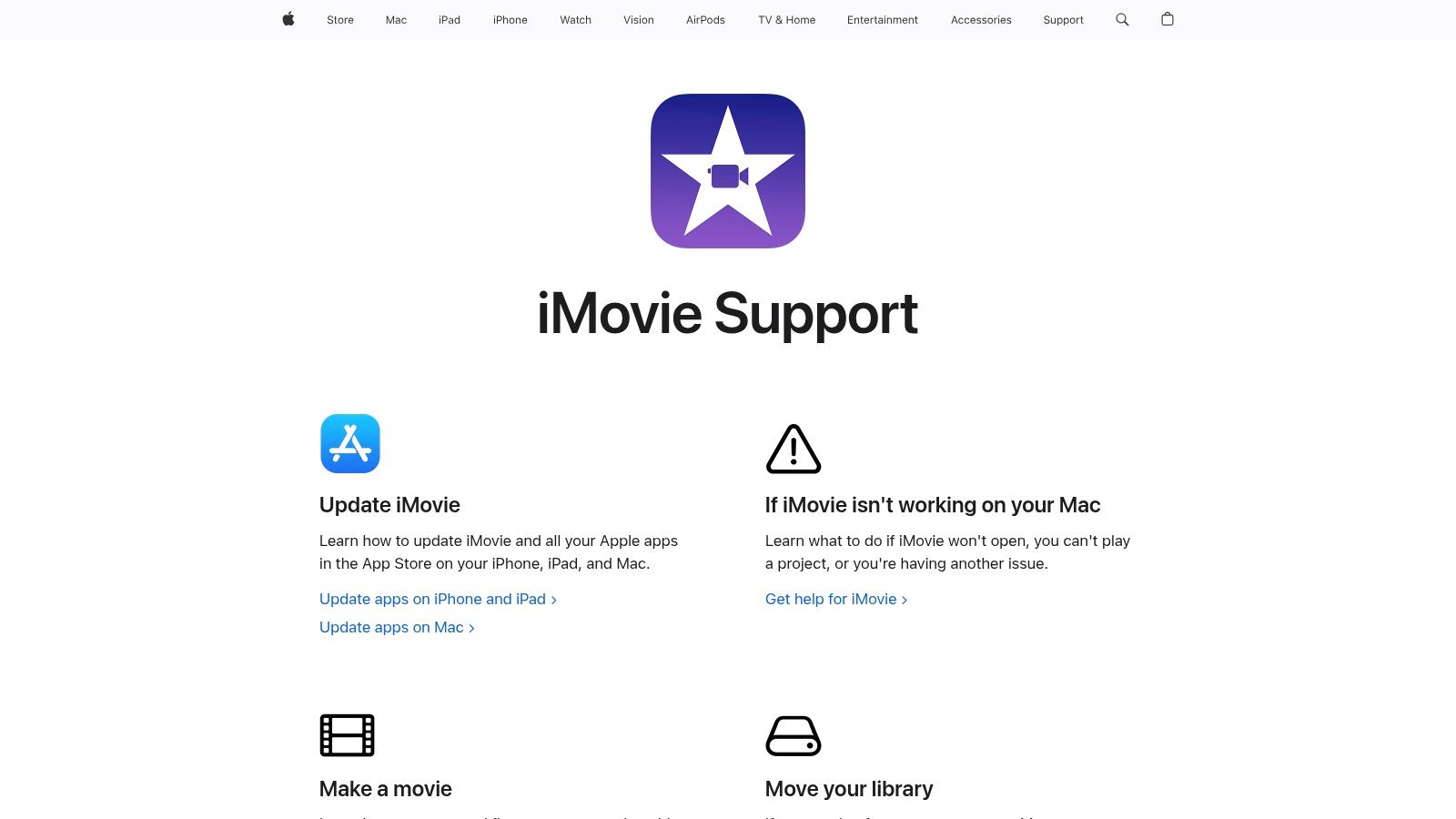
You recorded a solid video on your iPhone, opened three editing apps, and closed all three because the interface looked like cockpit software. Stop doing that. If you use a Mac, iPhone, or iPad, start with iMovie and finish a real project today.
iMovie earns its place because it removes the beginner excuses. No extra purchase. No ad-heavy interface. No cluttered panel maze. You get the core editing moves that matter for a first video: trim the bad start, cut mistakes, add a title, clean up pacing, drop in music, export.
iMovie is the right pick for podcasters on Mac, consultants recording talking-head videos, educators publishing lessons, and real estate agents cutting clean property walkthroughs without a full production setup. It also suits solopreneurs who need a dependable first editor before they hand clips off to a repurposing workflow in Taja AI.
The limitation is clear. iMovie is for learning the editing habit, not for chasing advanced control. That is a strength for beginners. Too many first-time editors waste hours testing effects instead of finishing one usable video.
Import one clip. Cut the first few seconds of setup noise. Remove any obvious mistakes. Add a simple title card. Export in the correct format and publish.
That workflow is enough for a first win.
For Apple users who want a practical walkthrough, this guide on how to use iMovie step by step is the right place to start. Edit one solid source video in iMovie, then use Taja AI to turn it into platform-specific titles, clips, and repurposed assets instead of rebuilding everything by hand.
Your first editing app should help you finish, not impress you with complexity.
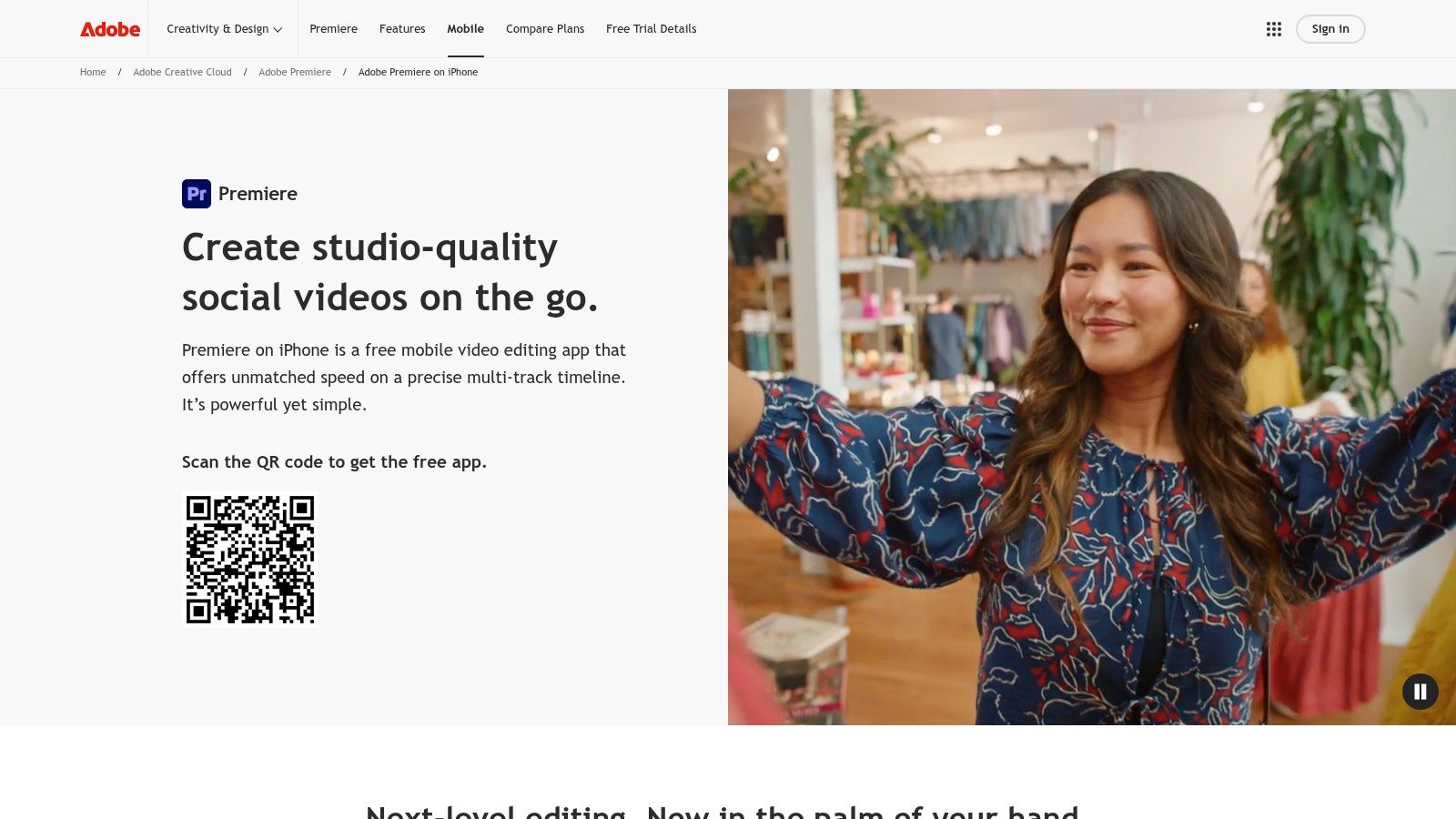
Premiere Rush is for the beginner who knows they may end up inside Adobe's world anyway. If you already use Adobe Express, Photoshop, or Creative Cloud, Rush makes sense. It gives you a cleaner on-ramp than jumping straight into Premiere Pro.
This app is built for continuity. Start on your phone, adjust on desktop, export for social, move on. That matters for business owners who record wherever they are and finish edits wherever they have time.
Rush is a smart pick for startup teams, social media managers, and solopreneurs who want motion templates, brand consistency, and a familiar Adobe-style interface without the overhead of a full production app.
It's less compelling if you're price-sensitive or if you hate ecosystem complexity. Adobe's product packaging can feel messier than the editing itself.
A simple workflow works best here. Bring in one main clip, add your logo or branded colors, generate a few social-ready cuts, and publish. Rush is less about learning editing craft from scratch and more about keeping content production moving.
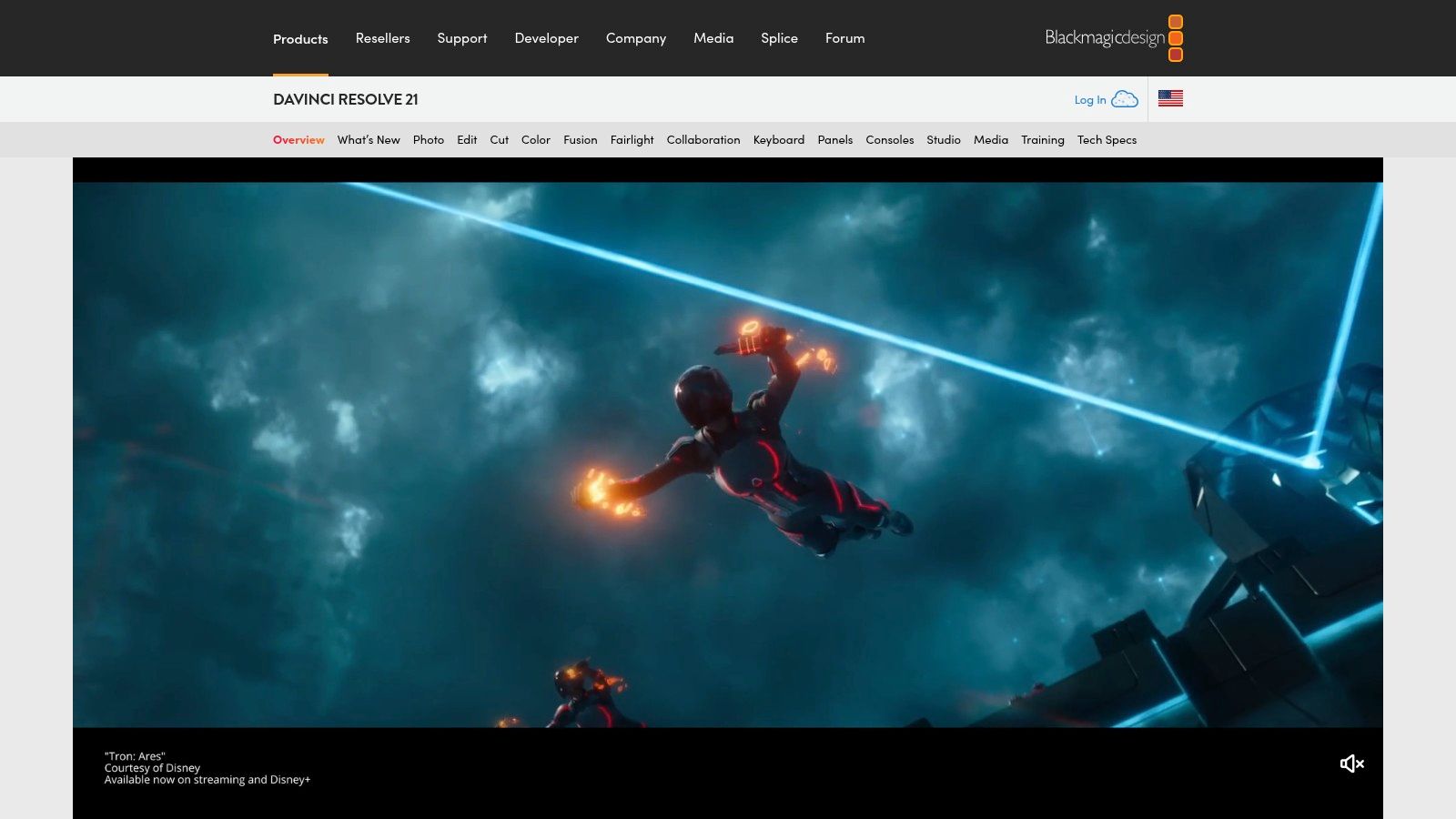
You recorded a solid interview, webinar, or property walkthrough. Now you need an editor that will not box you in three months from now. DaVinci Resolve is that app.
Resolve is the right pick for beginners who are serious about improving fast. It gives you room to start with basic cuts and exports, then grow into color correction, audio cleanup, and more advanced finishing in the same tool. You do not need to keep jumping to a new app every time your content gets better.
Start simple. Stay disciplined.
Open the Cut page first. Import your footage, trim the mistakes, place your clips in order, add simple titles, fix obvious audio problems, and export. Ignore Fusion. Ignore the deeper color tools. Ignore half the interface until you have published a few videos.
That approach makes Resolve far less intimidating than its reputation suggests.
Resolve works especially well for podcasters turning interviews into YouTube episodes, educators publishing lessons, and solopreneurs creating long-form authority content. It is also a smart choice for real estate agents who want cleaner walkthrough videos and enough control to fix lighting and sound problems instead of posting footage that looks rushed.
If your workflow includes repurposing, this is a practical setup. Cut the main video in Resolve, export the finished timeline, then use Taja AI to turn that core asset into platform-specific titles, clips, and post-ready variations. That gives you one serious edit first, then faster distribution after.
Resolve is not the easiest app on this list. It is the one with the highest ceiling. If you are willing to learn one good workflow now instead of relearning a new app later, choose it.
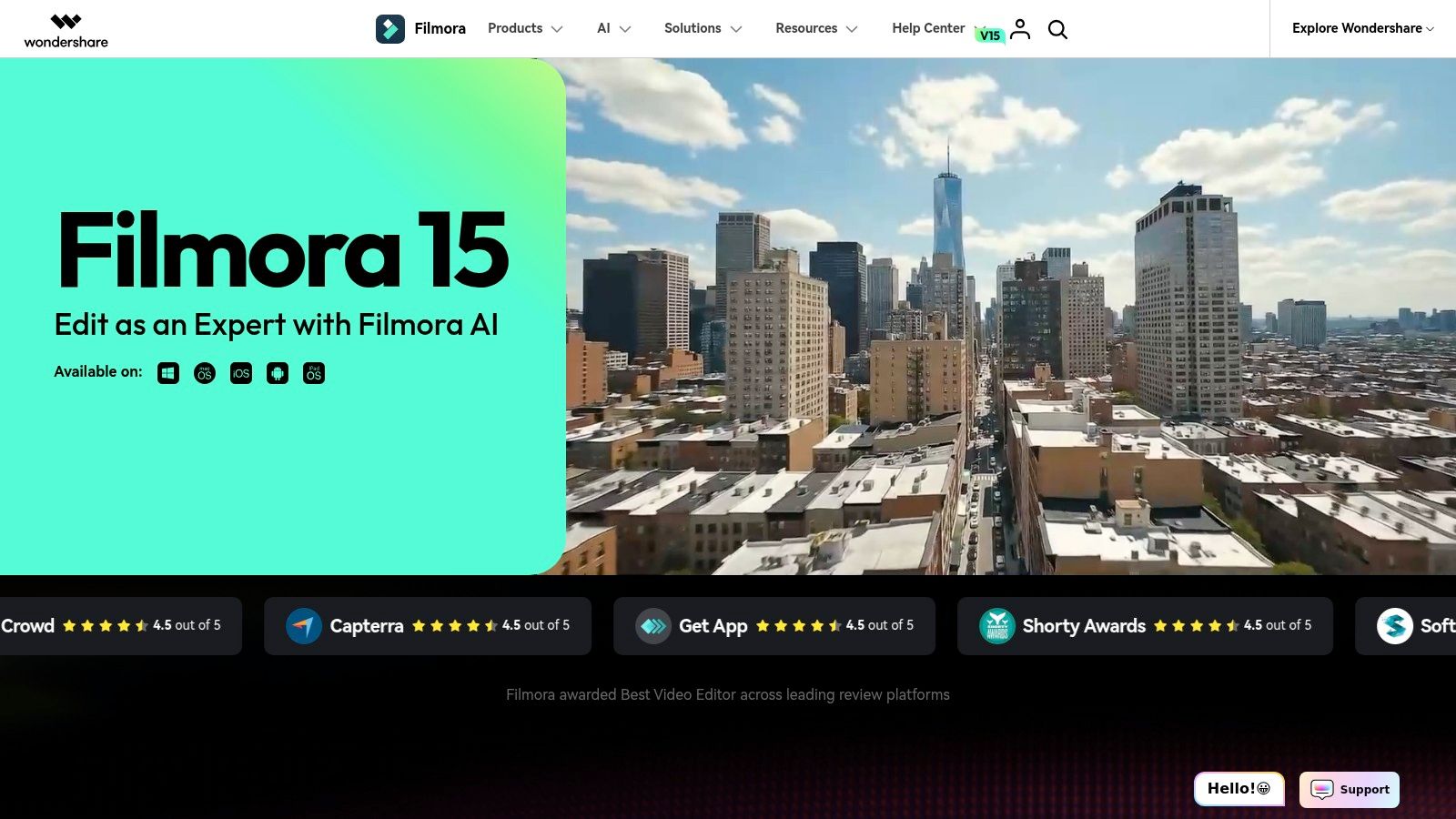
Filmora is what many beginners think they want when they say, “I need something easy.” And in fairness, they're usually right. Filmora has a gentle interface, lots of presets, and enough built-in visual assets to make raw footage look more finished without much effort.
That makes it attractive for small business owners who don't want to learn editing theory before they publish. Drag, drop, trim, add a title, pick a transition, export. You can get to a polished-enough result quickly.
Filmora is a strong fit for coaches, course creators, marketers, and local businesses making explainers, social promos, walkthroughs, and ad-style content. If your footage needs help looking more designed, Filmora gives you that boost fast.
The tradeoff is menu depth and plan complexity. Some users love the amount of built-in help. Others get frustrated once pricing tiers and extras enter the picture. That's why Filmora is best when you care more about output speed than long-term editing purity.
Filmora isn't the most disciplined teacher of editing fundamentals. It is, however, a very practical shortcut to videos that look more complete than your current skill level.
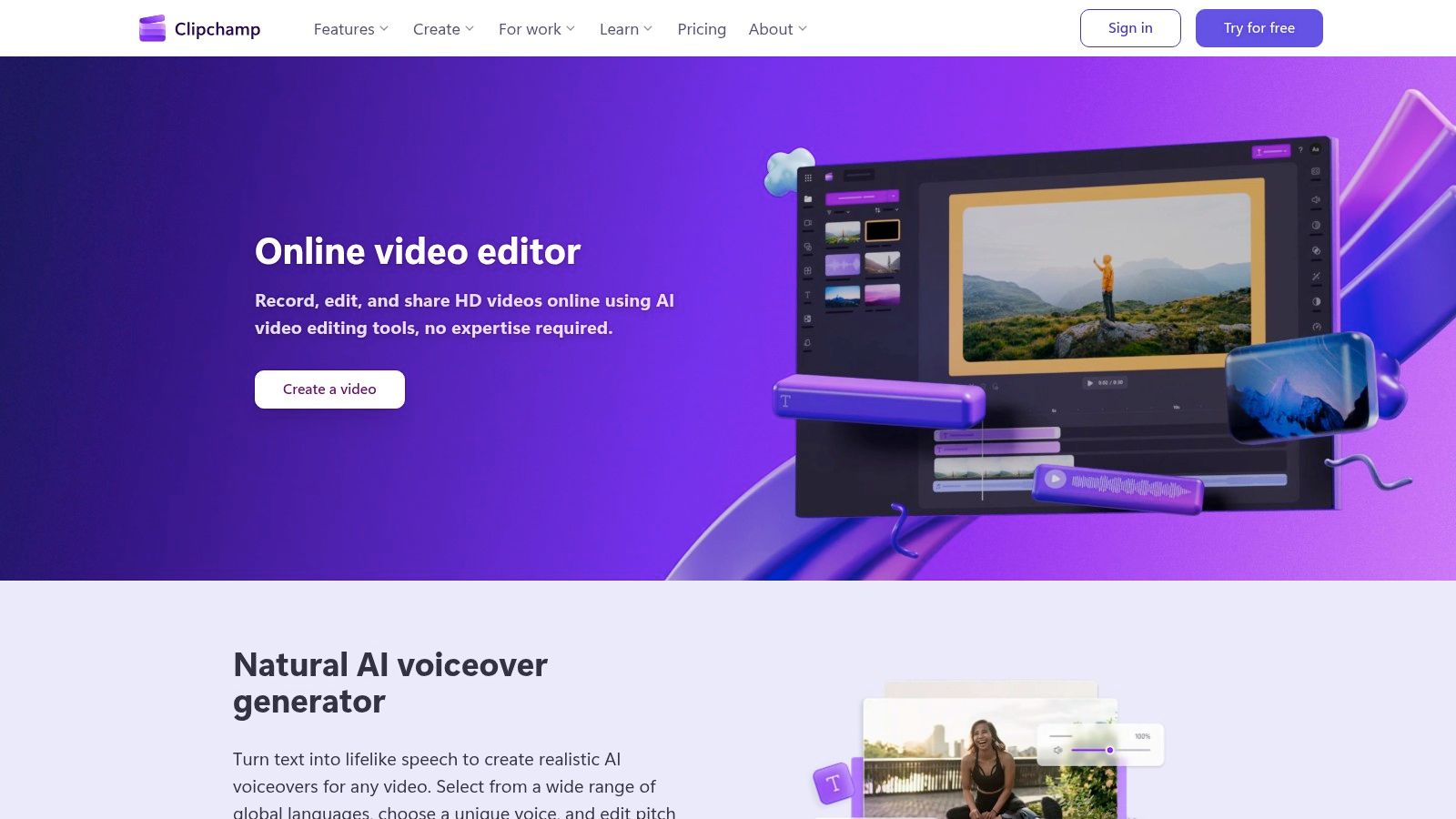
You recorded a quick update, a property walkthrough, or a client tip. Now it is sitting in a folder because opening full editing software feels like a project of its own. Clipchamp fixes that problem fast. You open it in a browser, cut the dead space, add captions, drop in a logo, and publish.
That is why Clipchamp works for beginners who keep overcomplicating editing. You do not need a pro setup to make usable video. You need a tool that removes excuses.
Clipchamp is a strong match for real estate agents, admin-led teams, solopreneurs on Windows, and small companies already living inside Microsoft's ecosystem. If your job is to get clear video out the door, not master editing theory, this is one of the smartest picks on the list.
It also fits collaborative workflows better than many beginner tools. A practical example: an agent records a listing tour, an assistant trims the pauses and adds branding, then the finished video moves into Taja AI for titles, clips, and repurposing across platforms. That is the full beginner workflow people need. First edit, then distribution.
Clipchamp is not the app for aspiring editors who want to grow into advanced post-production. It is the app for people who need to stop postponing and start publishing.
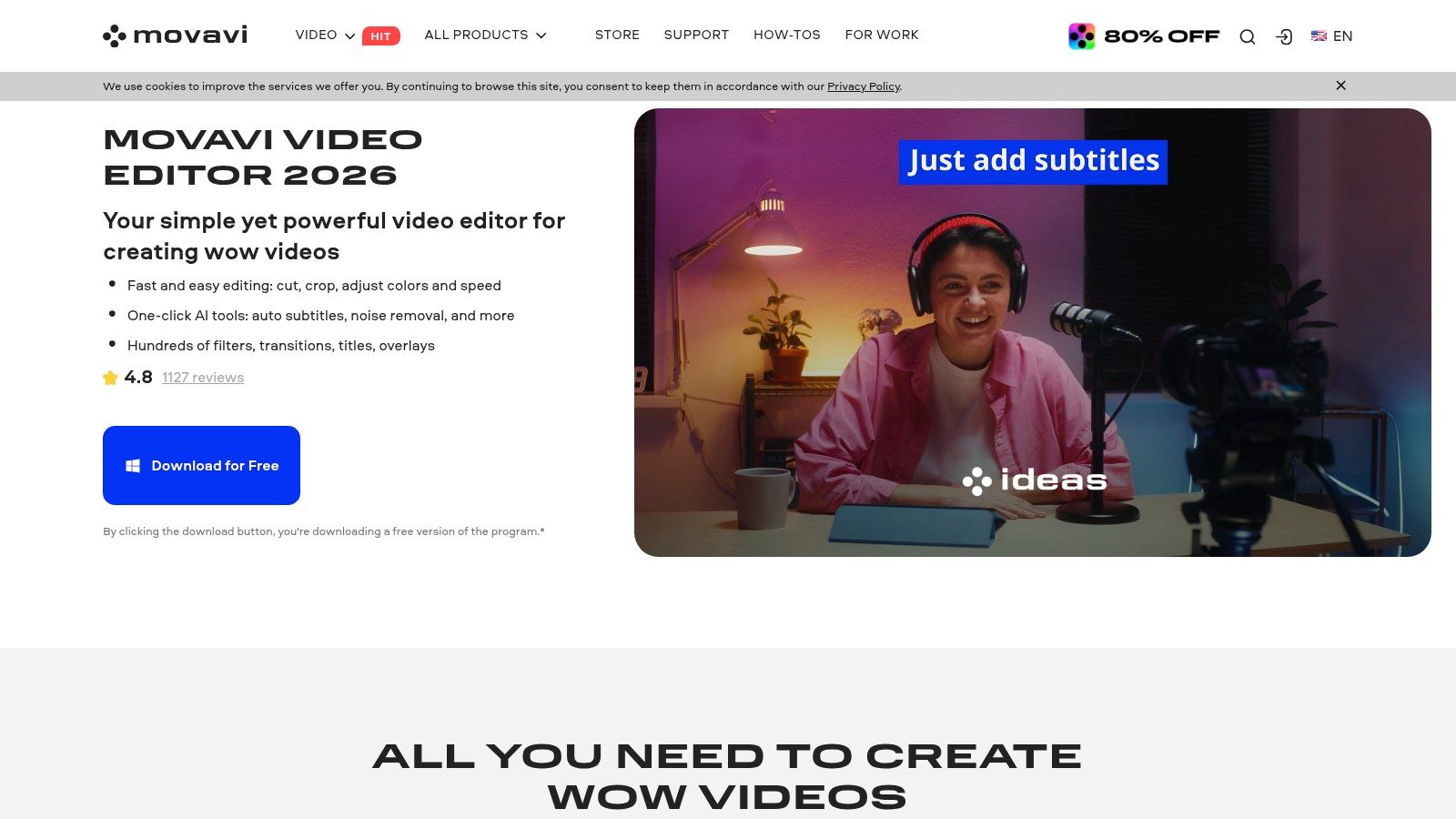
Movavi doesn't get the same hype as CapCut or DaVinci Resolve, but it solves a real beginner problem. Some people want a normal desktop app that feels simple, works offline, and doesn't pretend they're building a film studio.
That's where Movavi is useful. It gives you guided workflows, straightforward titles, intro and outro building, cleanup tools, and a lightweight feel that doesn't punish less powerful computers as quickly as heavier editors can.
Movavi works well for local service businesses, trainers, and office teams making practical content. Think appointment prep videos, simple tutorials, onboarding clips, or client explainers. If your edits are functional rather than cinematic, Movavi makes sense.
Its ceiling is lower than pro editors, but that's not a flaw for most beginners. A lot of users need clarity, not creative complexity.
This is a solid pick for the beginner who wants editing software to behave like office software. Open it, do the task, save the file, move on.
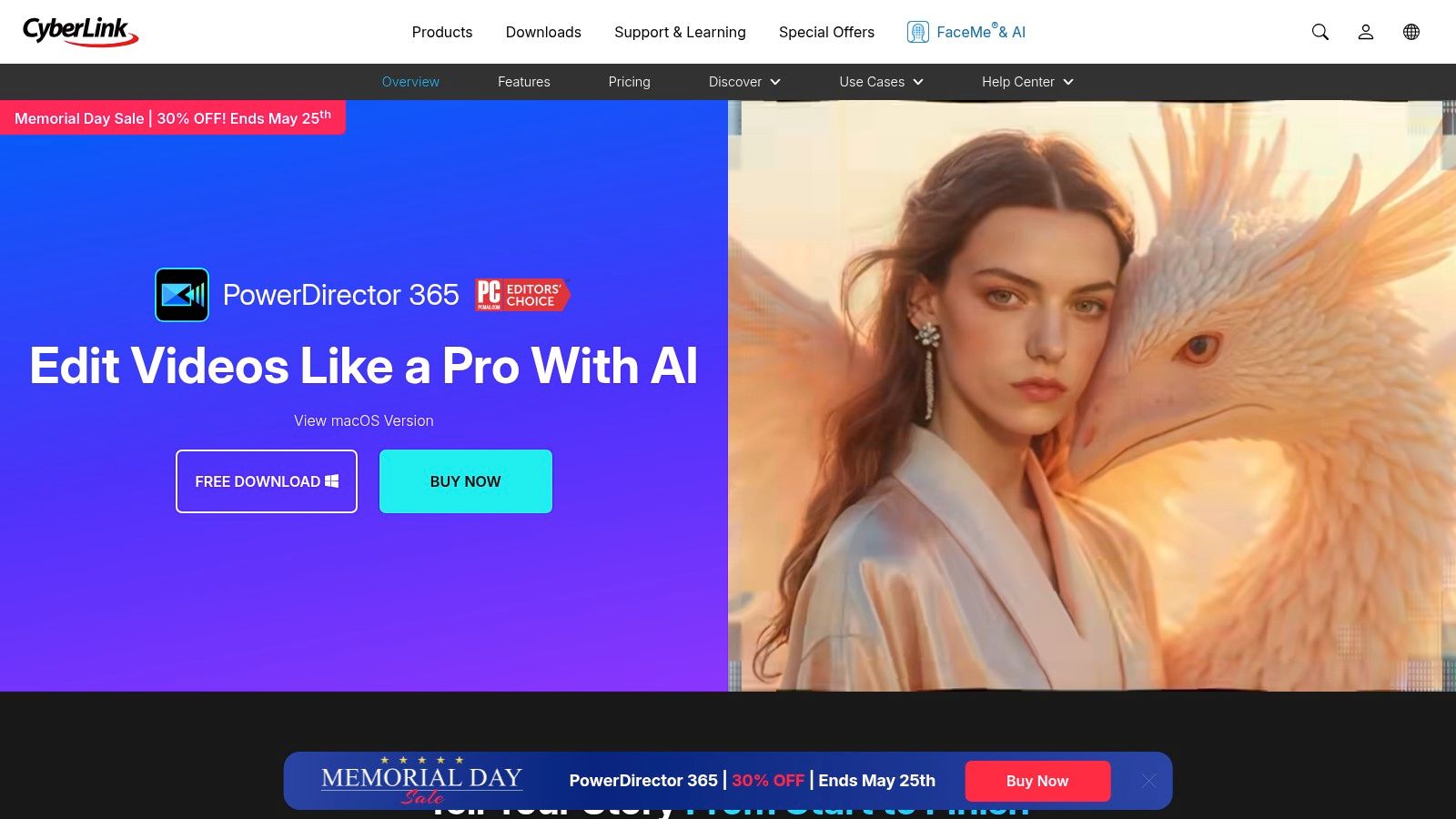
PowerDirector 365 sits in the middle ground between beginner-friendly and feature-heavy. That's exactly why some people should choose it. You get guided edits and approachable controls, but you're not boxed into a toy editor.
For creators and businesses that expect their needs to expand, PowerDirector offers room to grow without the full intimidation of a pro app like DaVinci Resolve. It handles templates, motion graphics, screen recording, and higher-end exports in one environment.
This one fits ambitious small businesses, educators, YouTube beginners, and marketing teams that produce a mix of tutorials, promos, slides, and talking-head videos. If your content is getting more frequent and more varied, PowerDirector can absorb that growth.
The catch is that plan details matter. Some advanced or AI-flavored features may be packaged differently than you expect. Read the plan pages before you commit.
PowerDirector is less elegant than the simplest tools, but more forgiving than the most advanced ones. For plenty of beginners, that middle ground is the right answer.
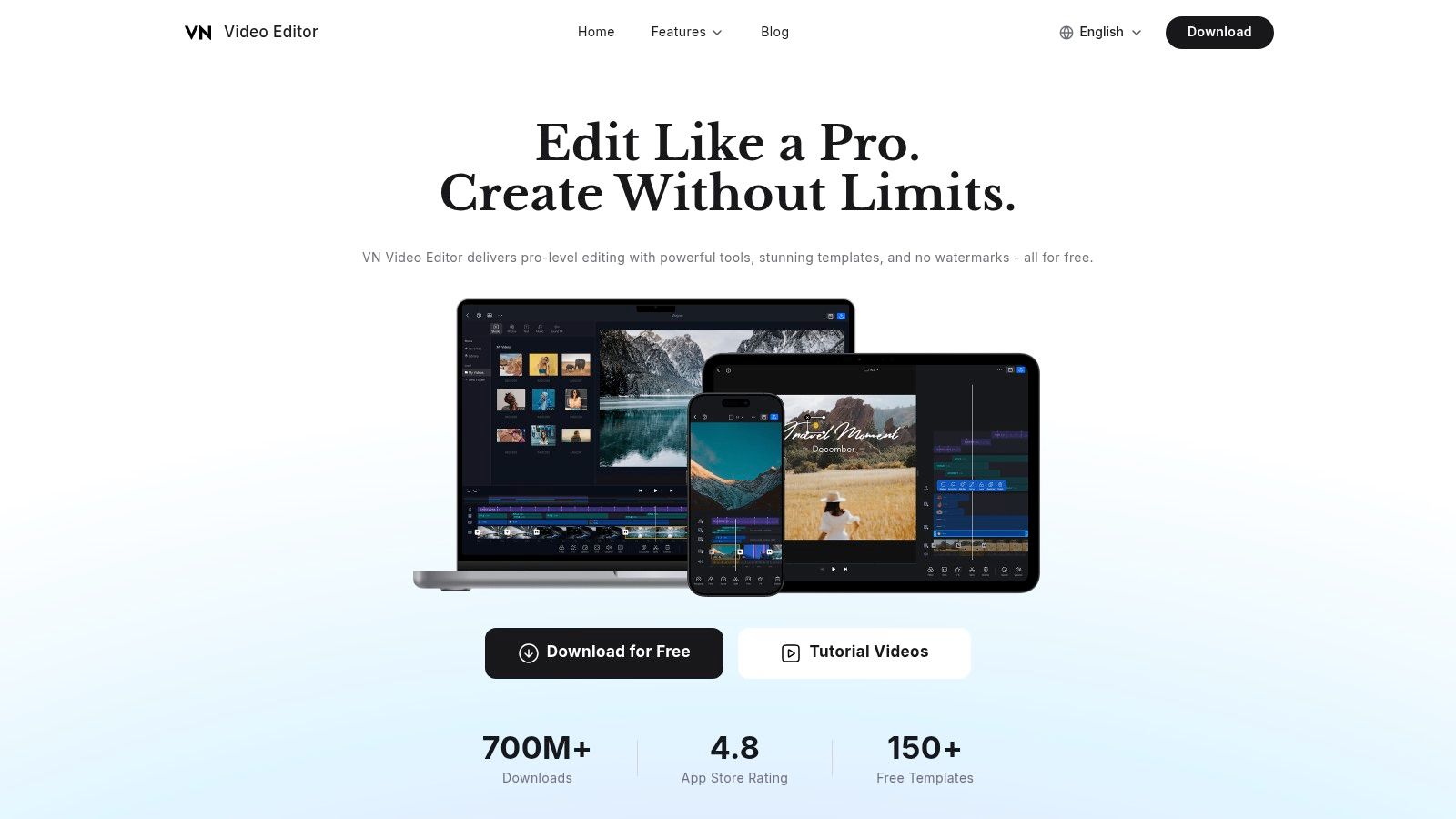
VN is what budget-conscious beginners should test before they assume free means weak. It gives you a stronger editing toolkit than is typically expected from a free mobile-first app, and it does it without pushing you into instant upgrade fatigue.
That makes VN especially useful for creators learning beyond the absolute basics. If you want to experiment with keyframes, speed changes, multi-track edits, and social formatting without paying up front, VN is a smart place to practice.
Social media managers, church teams, student creators, and small businesses can do a lot with VN. It's a good fit when the work is fast, repetitive, and format-driven. Trim clips, add captions, reshape for vertical, export, repeat.
If your whole goal is producing more social content from existing footage, pair your editing habits with a repurposing mindset. This guide to social video editing lines up well with how VN is typically used.
VN is a practical answer to a common beginner mistake. You don't need to spend money before you've built consistency.
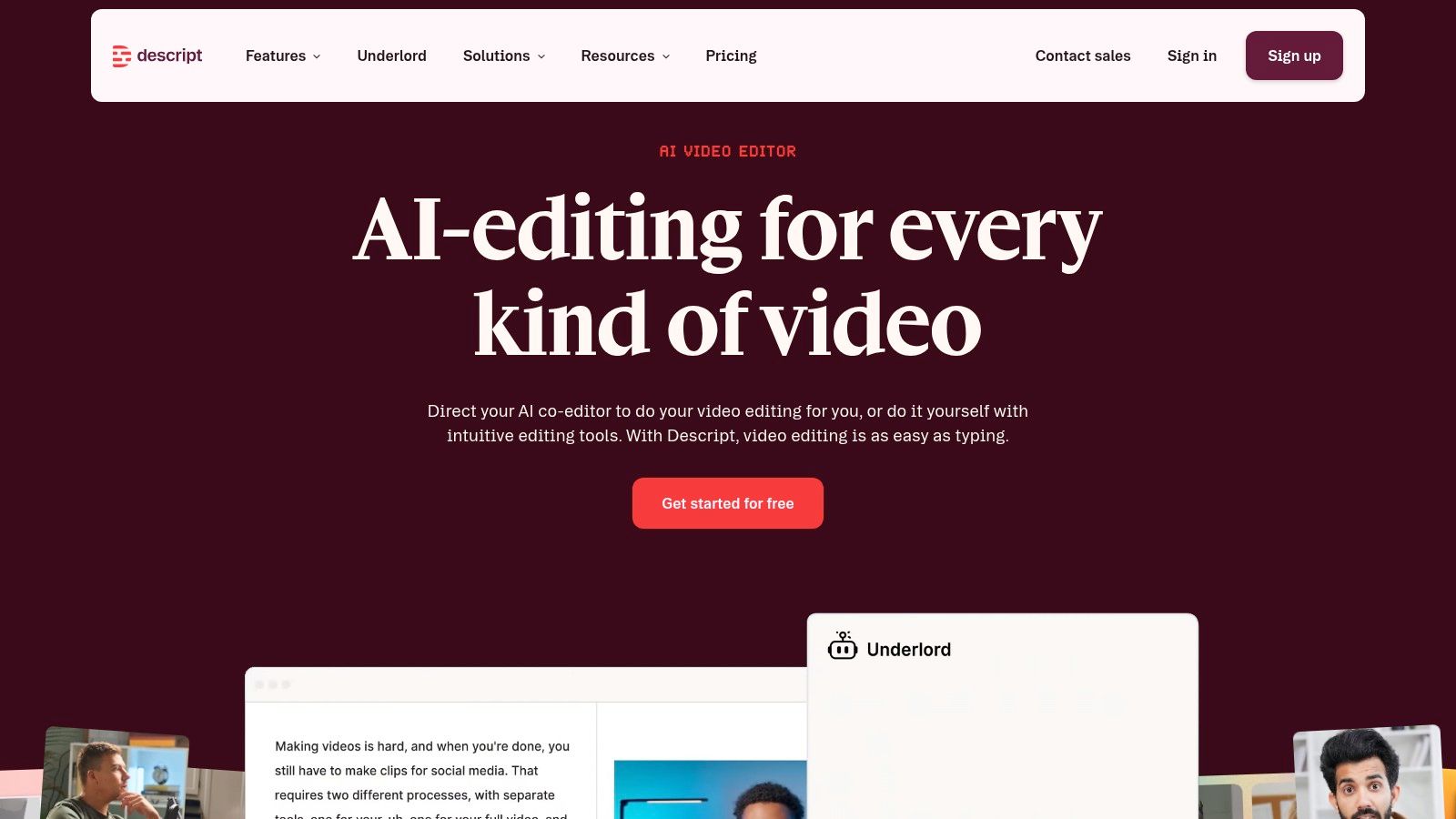
You recorded a podcast interview, a coaching session, or a sales training. Now you need clips, a full episode, and usable captions. If opening a traditional timeline makes you stall, Descript is the fix. You edit the transcript, and the video follows.
That changes the job for beginners. Instead of hunting through tracks and waveforms, you cut filler words, remove bad takes, tighten answers, and publish faster. For podcasters and educators, that is usually the difference between posting consistently and leaving raw footage untouched.
Descript fits podcasters, coaches, consultants, course creators, interview shows, and B2B teams making webinars or internal training. It is strongest when the words carry the content. If your priority is clarity, pace, and repurposing, Descript makes more sense than a feature-heavy visual editor.
It also fits the workflow angle that matters to beginners. Make the first clean edit in Descript. Pull short clips from the transcript. Then pass those clips into Taja AI to package them for multiple platforms and keep the content moving after the initial edit. That is a practical system for solopreneurs and podcast-led brands that need output, not editor cosplay.
Analysts at Research and Markets expect continued growth in video editing apps, driven by social media creation and demand for polished editing on mobile devices, according to the Research and Markets video editing app report. Descript lines up with that shift because it removes technical friction from one of the most common beginner jobs: editing people talking.
If your content is built on speech, transcript editing is often the fastest way to ship.
| Tool | Core focus | Key strengths ✨ / 🏆 | Ease of use ★ | Best for 👥 | Pricing/value 💰 |
|---|---|---|---|---|---|
| CapCut | Template‑rich social editor (mobile/desktop/web) | Large template/effects library, auto‑captions, device sync ✨ | ★★★★ | Creators making fast social clips 👥 | Free core; Pro varies by region 💰 |
| iMovie | Apple entry‑level editor (mac/iOS) | Trailers/templates, ad‑free Apple continuity 🏆 | ★★★★ | Apple users & beginners 👥 | Free on Apple devices 💰 |
| Adobe Premiere Rush | Simplified social editor with cloud sync | Motion templates, Adobe ecosystem path ✨ | ★★★ | Adobe users transitioning to Pro 👥 | Subscription; best value bundled with CC 💰 |
| DaVinci Resolve | Professional NLE with powerful free tier | Edit+Color+VFX+Audio all‑in‑one 🏆✨ | ★★ | Aspiring pros & colorists 👥 | Free (robust); Studio one‑time license available 💰 |
| Wondershare Filmora | Beginner editor with AI helpers & stock assets | Easy UI, many presets, Filmstock integration ✨ | ★★★★ | Novice creators & quick social polish 👥 | Paid tiers + add‑ons; try before buying 💰 |
| Microsoft Clipchamp | Browser‑based editor integrated with M365 | Templates, brand kits, TTS & captions ✨ | ★★★★ | Microsoft 365 users & teams 👥 | Free tier; premium via M365 inclusion 💰 |
| Movavi Video Editor | Template‑driven desktop editor | Lightweight, guided workflows for common tasks ✨ | ★★★★ | Offline beginners & simple projects 👥 | Paid license; upgrade paths can confuse 💰 |
| CyberLink PowerDirector 365 | Feature‑rich editor with frequent packs | Scales beyond basics, regular effect/AI packs ✨ | ★★★ | Users who need growth path beyond basics 👥 | Subscription (AI features may use credits) 💰 |
| VN – AI Video Editor | Free mobile/mac editor with advanced tools | Multi‑track, keyframes, LUTs, 4K export ✨ | ★★★★ | Mobile creators on a budget 👥 | Free and watermark‑free; limited Windows focus 💰 |
| Descript | Transcript‑driven audio/video editor | Edit by text, fast repurposing for dialogue 🏆✨ | ★★★★ | Podcasters, talking‑heads & repurposers 👥 | Free tier; paid for advanced features 💰 |
The perfect editing app doesn't exist. The better question is this: which app removes the most friction from your actual workflow right now?
If you're posting short vertical clips from your phone, use CapCut or VN. If you're on Apple devices and want the cleanest beginner experience, use iMovie. If you want long-term growth into serious editing, choose DaVinci Resolve. If your content is mostly spoken word, use Descript. If you need browser-based simplicity, Clipchamp is the obvious choice. That's the right way to think about a video editing app for beginners. Match the app to the output, not to some abstract idea of “best.”
The market is also moving in a direction that favors beginners. Mordor Intelligence projects the video editing market at USD 3.75 billion in 2026, growing at a 5.88% CAGR to USD 4.99 billion by 2031, with smartphone and tablet workflows projected to grow faster at 8.62% CAGR through 2031 in its video editing market outlook. That tells you something useful. Mobile-first, low-friction editing isn't a compromise. It's where many new creators start because it matches how they record and publish.
There's another misconception worth dropping. Beginners no longer have to choose between easy and powerful as sharply as they used to. As noted earlier, beginner recommendations now span built-in tools, free cross-platform editors, web editors, and simplified mobile apps. You can start with something simple and still have room to grow.
For solopreneurs, podcasters, real estate agents, and small teams, the typical workflow usually isn't “edit one perfect video.” It's record once, make the core edit, repurpose it, distribute it, and keep going. That's where pairing an editing app with a repurposing platform becomes practical. If you create a long-form video in iMovie, DaVinci Resolve, CapCut, or Descript, a tool like Taja AI can extend that into clips, captions, thumbnails, blog content, and platform-specific posts without turning you into a full-time editor.
That's the move. Pick one app from this list. Finish one video this week. Publish it. Learn from that result, not from another ten hours of comparison shopping.
If you want to turn one finished video into a broader content workflow, Taja AI helps repurpose long-form recordings into shorts, clips, captions, thumbnails, blogs, and platform-specific posts from a single upload. It's a practical next step for creators and small businesses that need to publish consistently without handling every format manually.


We are blessed to work with leading brands & Companies


We try to make easy and simple for every professionals. Get 30 days free trial - No credit card required.


© 2025 Taja AI. All rights reserved.