.jpeg)
Content Strategy for Small Business That Actually Ships
A content strategy for small business that sets one goal, picks a few channels, turns one video into many posts, and tracks real leads.
5 min read
October 23, 2026

Compare 10 content calendar free tools and templates—Sheets, Trello, Notion, schedulers—with pros, cons, use cases, and Taja AI workflow tips.
Written by:


Your Publishing Problem Is Usually a Calendar Problem
The surprising part of the content-calendar problem is how modest the publishing cadence often is. In a survey of 433 business owners, 44% said they posted weekly, while only 18% posted daily, even though respondents viewed seven posts a week as the ideal. Adobe's survey points to a familiar mismatch: wanting to publish consistently and having a repeatable process to do it aren't the same thing.
Sunday night makes that gap feel personal. You've got a useful video, a few good ideas, and a post that almost made it out on Friday. But the plan lives across DMs, drafts, and memory, so the week starts with the same question: what should go live next?
A useful free content calendar isn't just a grid of dates. It's a lightweight system for capturing ideas, moving work through production, scheduling platform-specific posts, and recording what happened after publication. For a solo creator or small business, the system should also show how one long-form idea becomes clips, captions, and posts without turning repurposing into another full-time job.
The tools below are organized by workflow job: planning, production, scheduling, and repurposing. Some are blank templates, some publish posts, and some help turn a long recording into a coordinated content package. Choose the smallest setup that makes your next publishing cycle easier, not the most elaborate one you'll abandon after a busy week.
If your content starts with video, Taja AI is built around the repurposing step rather than the empty calendar. Upload a long-form recording, and the platform analyzes your channel, niche, and brand voice to prepare a package of short clips, captions, thumbnails, blog content, and platform-specific posts. The supplied product information says it typically generates an average of 27 short-form assets and text outputs per optimized video.
That shifts the planning question from “What do I post this week?” to “Which versions of this recording belong on each channel, and when?” Taja combines an editor, brand templates, thumbnail creation, SEO tools, a content calendar, and bulk scheduling in one workflow. It supports distribution across YouTube, Instagram, TikTok, Facebook, X, and LinkedIn, so creators can organize a run of related posts without manually rebuilding every asset for each destination.
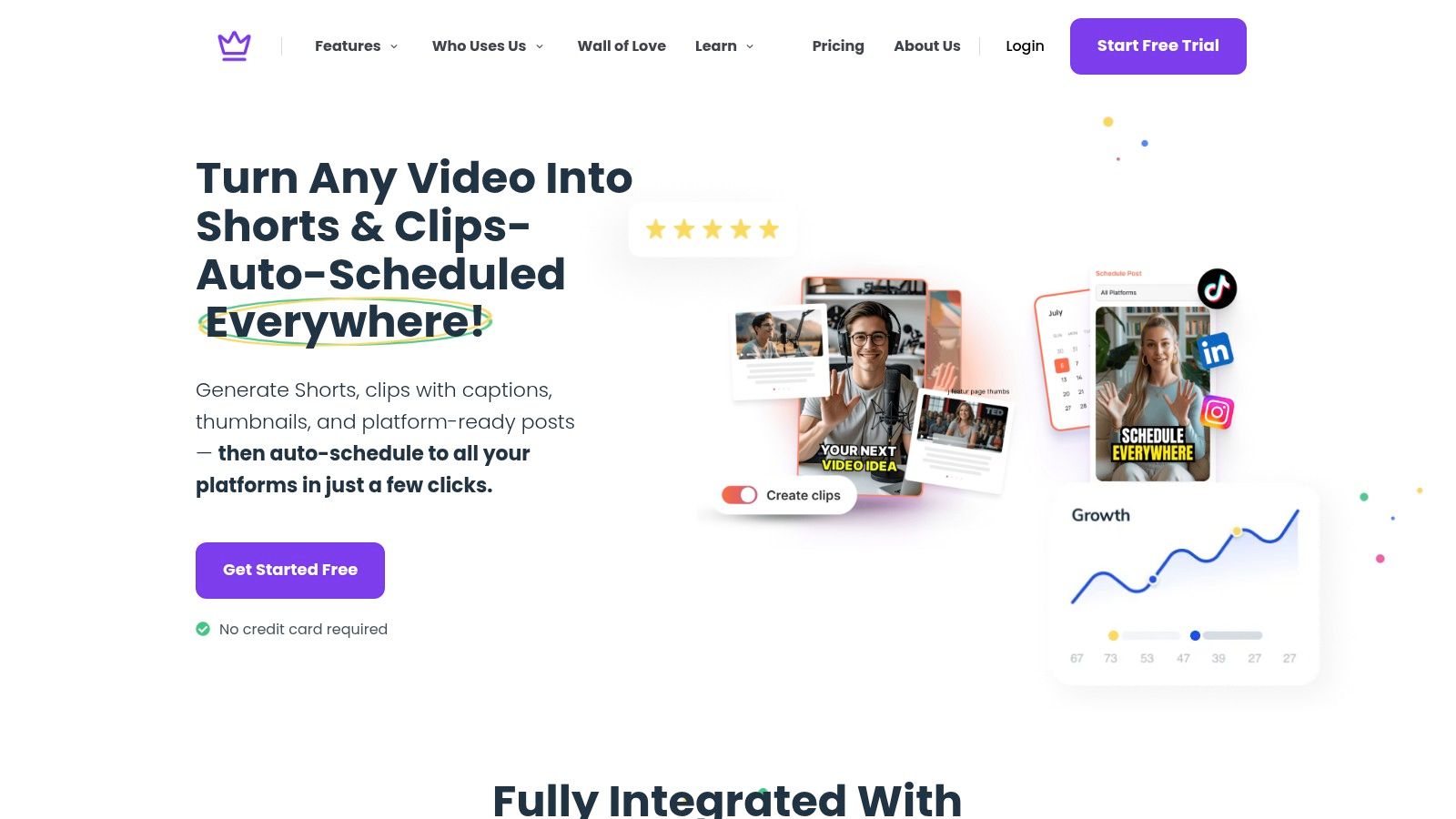
Taja is most useful when you already have a source asset, such as a podcast episode, interview, lesson, or property tour, but not enough time to turn it into a publishing queue. Its topic suggestions use keyword and performance signals, while Backlog Boost gives older videos another chance to produce useful clips and posts. The company reports that users save up to 2.3 hours per optimized video and that its users have collectively saved more than 2.6 million hours. Taja's content calendar guide explains how a calendar can support this kind of repeatable planning.
Free credits are available to start without a credit card. The supplied information doesn't specify how many credits are included or provide paid-plan pricing, so check the current offer before building a long-term workflow around it. AI-generated clips and copy also need a human pass. Review context, accuracy, captions, and platform fit before anything goes live.
Best fit: Video-first creators, educators, podcasters, real-estate professionals, and small teams that need a path from one recording to scheduled multi-channel output.
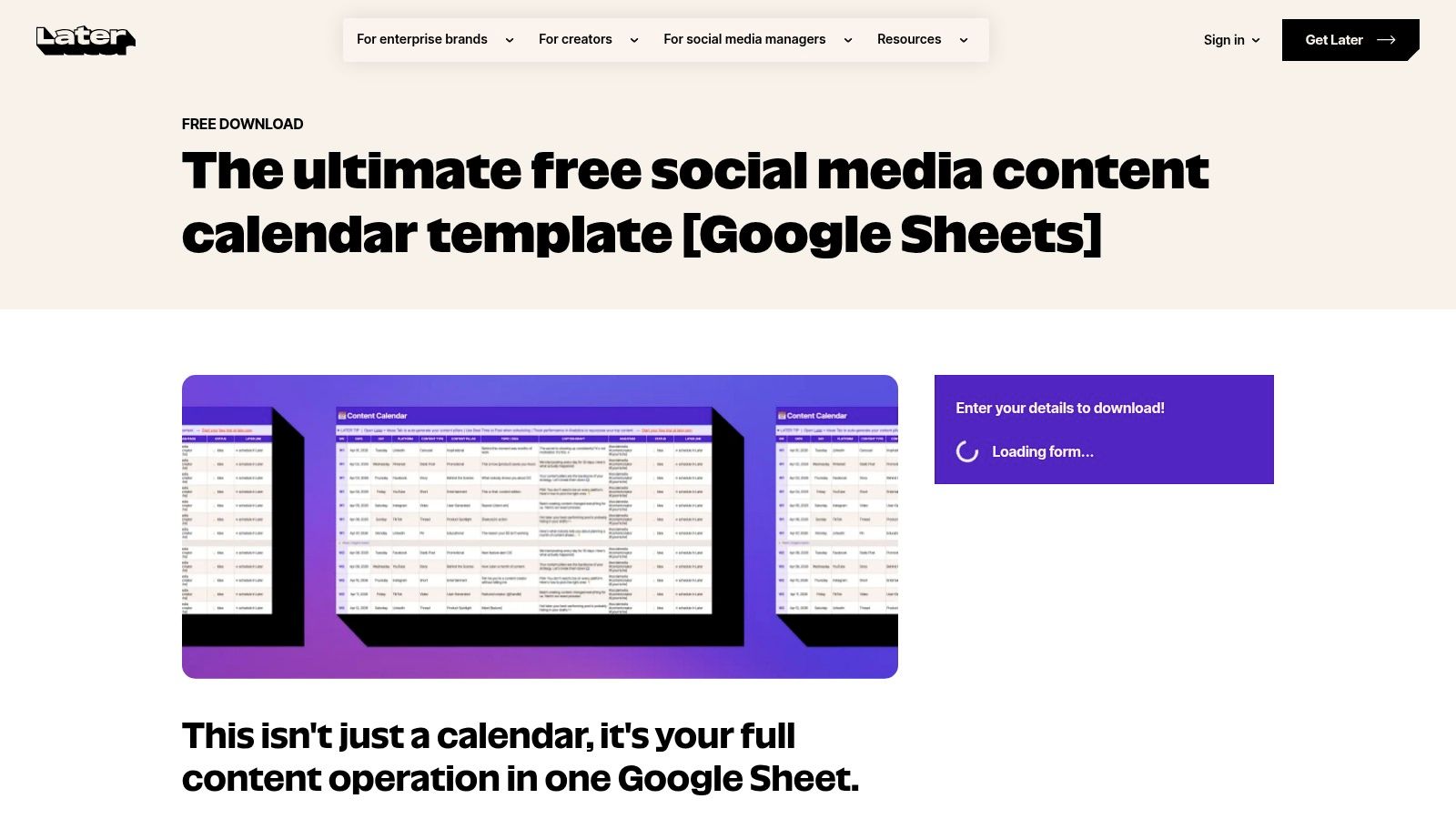
Later's Google Sheets template is a planning document, not a publishing tool. That distinction is the whole trade-off: you get a familiar spreadsheet that a small team can copy, share, and reshape, but the rows won't publish themselves. For a creator who wants a clear plan without learning another application, that can be exactly enough.
Start with columns for publish date, platform, format, topic, asset link, owner, and status. Add only fields you'll maintain. If every row asks for a fully written caption, tracking link, approval note, and multiple performance measures before anyone has drafted the post, the sheet can become more work than the content.
Later's template is designed for social media managers, teams, and creators, and can be adapted to the details your workflow needs. Keep a separate column for the source asset if you repurpose video. That lets you see whether a planned Reel, short video, and text post all came from the same recording, rather than treating each as a disconnected idea.
Useful boundary: Use the sheet to plan and coordinate. If you want automatic publishing, you'll need a separate scheduler, and Later's scheduling product has its own plans and access requirements.
The spreadsheet's strength is its low setup cost. Its weakness is manual upkeep: dates shift, assets move, and someone has to keep the file current. For a comparison of approaches to planning Instagram content, see SleekPost's review of Instagram planning options.
Best fit: A small team that wants a shared, editable plan and doesn't need the calendar itself to publish posts.
Notion works well when a calendar entry needs to contain more than a date and a title. A content item can hold its brief, draft caption, source links, reference material, and production notes on the same page. That makes it useful for teams producing a mix of videos, podcasts, blogs, newsletters, and social posts.
Free templates in the Notion marketplace give you a starting structure. Depending on the template, you can work in calendar, table, or board-style views and add fields for platform, format, owner, publication date, and status. A creator can keep a long-form episode as the parent idea, then track its related clips and copy in individual records or linked pages.
Notion's flexibility cuts both ways. It's easy to add properties and views; it's also easy to spend a planning session perfecting a workspace rather than finishing a post. Begin with a compact database and add complexity only when a real bottleneck appears.
A practical setup separates ideas from scheduled work, while keeping the source asset connected to its derivatives. Use statuses such as idea, drafted, approved, scheduled, and published, and make a filtered view for the person or channel that needs it. Notion entries don't publish social posts automatically, so you'll still need to move approved content to a scheduler or publish manually.
Visit Notion to browse the platform and its templates. Whether the free setup suits a team depends on its workspace and collaboration needs, so check the current plan details if multiple people will be maintaining the system.
Best fit: Creators and small teams who want their briefs, drafts, references, and editorial schedule in one customizable workspace.
Airtable is a good choice when a simple spreadsheet starts to feel cramped. Each planned post is a structured record, so you can store the platform, campaign, format, owner, status, and asset details together, then view the same records in different ways. A date field can power a calendar view, while a table or other view can show the production details a publishing grid hides.
That structure helps when one idea produces several deliverables. For example, a recorded interview can have separate records for a short clip, a quote post, and a blog adaptation, each with its own channel, owner, and status. Link those records to a shared campaign or source asset so you can trace the relationship without copying the same background notes everywhere.
Airtable doesn't publish social posts by itself. You're building the coordination layer, then handing approved work to a scheduler or publishing natively. That's useful if production tracking is the main headache, but it won't remove the distribution step.
The free plan can work for lightweight use, but it has record, automation, and collaborator limits. Some calendar functions, including plotting multiple date fields, are paid-only. Set up one table and the views you need before you model every possible campaign scenario. A complicated base that only one person understands isn't a reliable source of truth.
Visit Airtable to explore the platform. It's strongest when your content operation needs organized records and multiple ways to view the work, not just a monthly wall calendar.
Best fit: Individuals or small teams managing several content types and production stages who want more structure than a basic spreadsheet.
Trello is a visual production board first and a calendar second. Each card can represent an idea, recording, clip, or publishing task, while lists show where work stands. A simple board might move a post from Idea to In production to Ready, then Published. That makes blockers visible without asking everyone to open a dense spreadsheet.
Cards can hold owners, due dates, checklists, and attachments, which is handy when a video needs an edit, a caption review, and an approval before scheduling. The free plan includes up to 10 open boards and 10 collaborators per workspace, according to the supplied product details. Power-Ups can connect boards with other apps.
Trello's native Calendar view isn't included on the free plan. You can still use due dates to keep deadlines attached to cards, but if you need a true calendar view inside Trello, check the current plan requirements before adopting it. And Trello won't publish the content for you.
Boards can also become noisy once every platform and asset has its own card. Keep the board focused on production stages, and use a linked calendar or scheduler for the actual publication queue. A card should answer “What needs to happen next?” rather than becoming a scrapbook of every possible note.
Visit Trello if your team prefers moving cards through a visible workflow. It's approachable for small crews, but it's less effective as the only home for a high-volume, date-led publishing plan.
Best fit: Solo operators and small teams who need a clear production pipeline and can live without a native free calendar view.
Canva makes sense when the calendar is also a visual planning and approval document. Its free social-media templates give a team a presentation-friendly way to map planned content, while Canva Sheets can organize details such as platform, date, owner, and approval status. If the same people are creating graphics and reviewing the plan, keeping those activities close together can save handoffs.
A visual calendar is especially helpful for checking the balance of assets. You can scan a week and spot when every planned post looks like the same graphic, or when a campaign has no supporting creative. That's a different job from managing a large editorial database, but it's a useful one for small brands that need to get content approved quickly.
Free templates are planning resources, not automatic publishing. Canva's integrated Content Planner for scheduling designs is a Pro feature, so don't assume that a calendar template includes scheduled distribution. A spreadsheet or scheduler may be faster if you're tracking many posts, changing dates often, or managing detailed production states.
Canva's advantage is proximity to the creative work. Teammates can view or edit shared documents, and designers can keep planning materials near the graphics they're making. Its limitation is that a polished board can look complete even when no one has assigned an owner or confirmed the post is ready.
Browse Canva's social media calendar tools and choose a template that matches how your team reviews work. Keep the visual layer lightweight, then send approved posts to the platform or scheduler responsible for publishing.
Best fit: Visual-first teams already creating social assets in Canva who want an easy-to-share planning document.
Buffer is a practical option when you want to move an idea into a draft and then into a scheduled post without maintaining a separate spreadsheet. Its free plan supports up to three connected social channels and lets users schedule up to 10 posts per channel at a time. It also includes space for up to 100 ideas and unlimited drafts, according to the supplied product information.
That makes Buffer more than a template, but less than an all-purpose editorial system. You can keep ideas, drafts, and scheduled posts close together, then use its calendar to see what's queued. Supported platforms include Instagram, TikTok, YouTube, LinkedIn, Facebook, and X.
A permanent free tier is useful when you're testing a real publishing workflow, but the channel and scheduled-post caps matter. A creator posting to several platforms may hit the limit sooner than someone using a few carefully chosen channels. Advanced collaboration and some planning features also require a paid plan, while paid options let users add capacity per channel.
Buffer's calendar is geared toward social scheduling rather than a broad editorial program that includes every blog, podcast, or campaign task. Keep those larger projects in a separate planning tool if needed, and use Buffer for the posts it can publish. Its free plan is a better fit than a standalone spreadsheet if your main frustration is remembering to distribute approved content.
Visit Buffer to check whether its current channel support and free-plan limits fit your publishing mix.
Best fit: Solo creators and small businesses that want ideas, drafts, and a manageable social scheduling queue in one place.
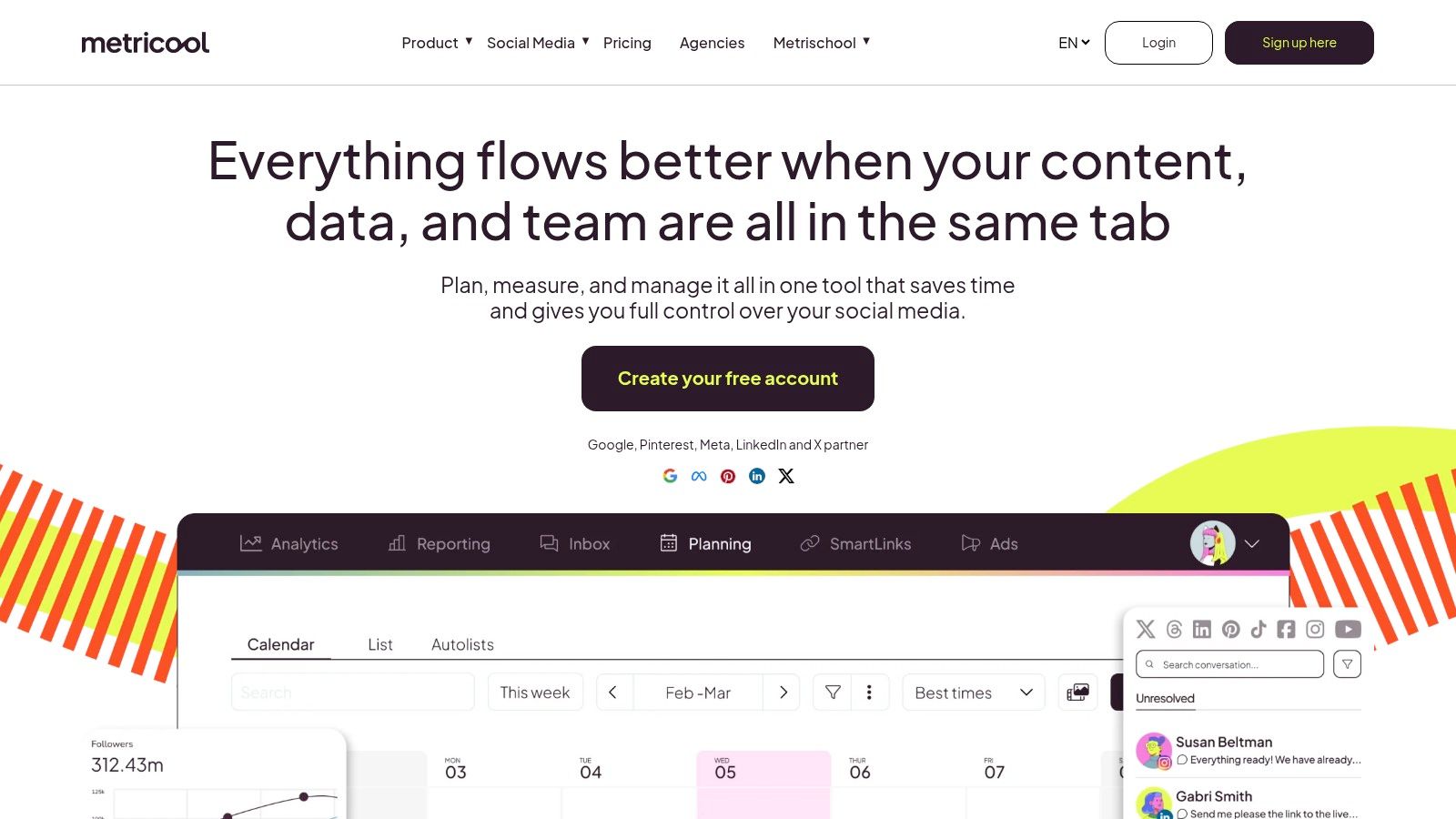
Metricool combines a social planner with introductory performance tracking. That pairing is useful for an operator who wants to see not only what's scheduled, but also how published content is doing. Its free plan includes one brand with one profile per social network, up to 20 published posts per month, and basic analytics with 30 days of history, according to the supplied details.
The analytics angle can help close a common planning loop: publish, review, and use the result to inform the next batch. Keep the measures tied to a goal. If a post is meant to generate inquiries, reach alone won't tell you whether it produced useful business activity. Record the relevant outcome in your own workflow if the platform's reporting doesn't capture it.
Metricool's free plan includes a limited AI text generator and competitor analysis, and doesn't expire or require a credit card, according to the supplied product information. The trade-off is a restrictive monthly publishing cap, especially if you cross-post because each network counts toward the limit. LinkedIn and X are excluded from the free plan, and some reports, integrations, and planning tools require a paid option.
That makes Metricool a reasonable test environment for a light multi-channel routine, not necessarily a permanent home for an active queue. Review the exclusions against your actual channels before transferring a content operation.
Visit Metricool to inspect its current network support and free-plan conditions. Choose it for the combination of planning and basic reporting, not just because it has a calendar.
Best fit: Solo operators who want scheduling and an introductory view of performance, and whose channels fit the free-plan limits.
CoSchedule is designed to organize marketing activity beyond social posts. A shared calendar can help connect publishing to campaigns and other deliverables, which is valuable when a launch includes social content alongside broader marketing work. Its free plan is available long-term, but its social scheduling capacity is limited.
The supplied details describe free scheduling for one social profile and up to 15 scheduled social messages at a time. That can be enough to test the workflow or coordinate a small campaign. It's less convincing as the sole scheduler for a team distributing content regularly across multiple channels.
Free access doesn't mean every feature is included. The free plan omits social analytics and bulk CSV scheduling, and some features require starting a trial before switching to the free plan. Check what the current signup path includes, and confirm the profile and message caps before you build your calendar around it.
CoSchedule's advantage is context: social posts can sit alongside other marketing work. Its limitation is that the free social publishing layer may not match an active multi-channel queue. Use it if campaign coordination matters more than broad free scheduling capacity, and keep repurposed assets organized by campaign so the team knows what each post supports.
For a wider look at planning platforms, see Taja's guide to content calendar software. Visit CoSchedule's Marketing Calendar to check current plan details and decide whether its project view fits your team.
Best fit: Small marketing teams that want to coordinate social publishing with other campaign work and can work within the free scheduling limits.
Meta Business Suite is the straightforward free choice if Facebook and Instagram are where your business publishes. Its planner supports content for Meta business accounts, and you can create and schedule posts within Meta's own tools. That avoids adding a separate social-scheduling subscription for its core workflow.
It's a focused tool, not a complete content operation. A blog, podcast episode, newsletter, or YouTube video won't fit naturally into a Meta-only calendar unless you track it elsewhere. Nor does the planner provide a single publishing home for every major social network.
Meta Business Suite works best when the business already manages a Facebook Page and Instagram professional account. If your team also shares clips on TikTok, LinkedIn, or YouTube, maintain a broader source of truth so those posts don't disappear from the plan. You can still use Meta's planner for the final scheduling step on its own platforms.
The boundary matters for repurposing: one recording might produce a Facebook post, an Instagram Reel, a blog, and a short for another network. A Meta calendar can handle its part, but it won't coordinate every asset or channel by itself. Taja's guide to sharing Facebook posts on Instagram covers one platform-specific distribution consideration.
Visit Meta Business Suite if Facebook and Instagram are central to your publishing routine. It's a sensible starting point for those channels, but teams with broader needs will likely pair it with an editorial calendar or cross-platform scheduler.
Best fit: Local businesses and creators focused on Facebook and Instagram who want native planning and scheduling without another core subscription.
| Tool | Core Features | Publishing & Automation | Value / Pricing | Best For |
|---|---|---|---|---|
| 🏆 Taja AI | ✨ Turns long videos into ~27 clips and text assets; SEO, thumbnails, topic ideas | Auto-schedules across YouTube, Instagram, TikTok, Facebook, X, and LinkedIn | 💰 Free credits; paid pricing not specified. Reports up to 2.3 hours saved per video | 👥 Creators and teams repurposing video at scale |
| Later Google Sheets Template | Customizable spreadsheet for dates, channels, and content details | Manual planning; no auto-publishing | 💰 Free download | 👥 Teams wanting a familiar, shareable calendar |
| Notion | Flexible calendar, table, or board with briefs and drafts | Manual planning; no auto-publishing | 💰 Free templates available | 👥 Teams needing customizable editorial planning |
| Airtable | Structured content database with calendar and multiple views | Manual planning; no native social publishing | 💰 Free plan with usage limits | 👥 Teams tracking campaigns, owners, and production stages |
| Trello | Visual cards, lists, checklists, and due dates | Manual workflow; Calendar view requires Premium or Enterprise | 💰 Free plan; calendar view is paid | 👥 Small teams managing content production stages |
| Canva | Visual calendar templates, Sheets, and design tools | Templates are manual; Content Planner requires Pro | 💰 Free templates; scheduling with Pro | 👥 Teams planning alongside social graphics |
| Buffer | Ideas, drafts, visual calendar, and social scheduling | Schedules up to 10 posts per channel across up to 3 channels on free plan | 💰 Permanent free tier; paid plans add capacity | 👥 Solo creators scheduling posts across a few channels |
| Metricool | Social planner, basic analytics, and limited AI text generation | Free plan allows up to 20 posts/month; LinkedIn and X excluded | 💰 Free plan available; post and network limits apply | 👥 Solo operators who want scheduling plus analytics |
| CoSchedule Marketing Calendar | Shared calendar for marketing projects and content | Free plan supports one social profile and up to 15 scheduled messages | 💰 Long-term free plan; broader features are paid | 👥 Marketers coordinating campaigns and social activity |
| Meta Business Suite | Planner for Facebook and Instagram business content | Create and schedule posts within Meta platforms | 💰 Free core workflow | 👥 Businesses focused on Facebook and Instagram |
The best free content calendar is the one your team keeps current. A spreadsheet can be enough if the main need is planning. Notion or Airtable can hold richer briefs and production details. Trello can make work stages visible, while Buffer, Metricool, CoSchedule, and Meta Business Suite can handle parts of distribution. Taja AI is built for creators whose recurring input is long-form video and whose challenge is turning it into a steady stream of usable assets.
Choose one primary calendar as the source of truth. Don't make the same publication date authoritative in a spreadsheet, a project board, a scheduler, and a private note. If a tool publishes posts, let it own the scheduling status. If a separate workspace holds the broader campaign plan, link to the scheduled post rather than maintaining competing copies.
A useful calendar connects the source asset to its adaptations. Track the original recording, intended audience, platform version, format, hook, call to action, owner, publish date, repurposing status, and post-publication result. Add a campaign objective so each asset has a job. Discovery content might aim to reach a new audience; a service post might aim to prompt an inquiry. Don't treat a cross-post as identical just because the footage is shared. Adjust the opening, copy, and call to action to fit the platform and audience.
The measurement loop matters as much as the schedule. Add a performance note after publication, then distinguish discovery signals such as reach and retention from business outcomes such as profile visits, form completions, calls, bookings, donations, or qualified conversations. If a post needs to generate leads, use a tracking link or a CRM field where appropriate. More posts without a clear purpose can create reporting noise instead of useful learning.
For a Taja-centered workflow, begin with one long-form upload. Review the generated clips, captions, thumbnails, and text outputs, then edit anything that needs more context or brand judgment. Put the approved versions into the calendar, assign platform-specific dates and calls to action, and schedule them from the relevant publishing workflow. After posts go live, record what earned attention and what supported the business objective. Use those notes to guide the next recording, including whether an older video is worth bringing back through Backlog Boost.
Keep the cadence small enough to survive a busy week. A calendar that holds a realistic queue beats a packed plan that depends on perfect conditions. As you refine your stack, use a separate process for choosing tools for SERP monitoring if search visibility is part of the same content program.
Taja AI turns long-form video into clips, captions, thumbnails, blogs, and platform-specific posts, then helps organize and schedule that output across social channels. Start with its free credits, review the assets before publishing, and visit Taja AI to see whether it can simplify your content calendar and repurposing workflow.


We are blessed to work with leading brands & Companies


We try to make easy and simple for every professionals. Get 30 days free trial - No credit card required.


© 2025 Taja AI. All rights reserved.