.jpeg)
Content Repurposing AI: How It Works and Where It Fits
Learn what content repurposing AI is, how the pipeline works, key use cases, metrics to track and the safeguards that keep clips accurate.
5 min read
November 6, 2026

Learn how to strategically share a Facebook post to Instagram. This guide covers linking accounts, Meta Business Suite, post optimization, and automation.
Written by:


You're probably doing one of two things right now. Either you're copying a Facebook caption, opening Instagram, pasting it in, fixing line breaks, deleting a link that won't work there, and calling it done. Or you linked your accounts once, turned on auto-sharing, and assumed that counted as a real social strategy.
Both approaches are fine for getting started. Neither is good enough if you want your content to perform.
A smart facebook post to instagram workflow isn't about pushing the same post to two apps. It's about using one core idea, then packaging it for two very different environments. That's the shift from beginner cross-posting to professional repurposing. The setup matters. The formatting matters. The caption matters. The publishing workflow matters even more when you're managing a business and don't have time to redo the same post all week.
The first step is simple and essential. Link your Facebook and Instagram accounts through Meta Accounts Center. If your accounts aren't connected properly, every advanced workflow breaks later, from scheduling to Reel distribution to permission management inside Meta Business Suite.
Once that link is in place, the bigger question is whether your current process is helping or hurting you. Most business owners assume that if the content worked on Facebook, it should work on Instagram too. That's the trap. The platforms may sit under the same parent company, but they don't reward the same behavior.
Here's the part that is frequently overlooked. Instagram users spend 192.04 seconds per site visit, compared with Facebook's 105.55 seconds, and Instagram's average reach rate is 3.50% versus Facebook's 1.65%, based on data summarized by SFGATE's breakdown of Facebook and Instagram differences. That changes the job of your content. Instagram gives you more room to win attention, but only if the post looks and reads like it belongs there.
Basic account linking solves distribution. It doesn't solve performance.
A straight repost usually carries over the wrong caption style, the wrong creative proportions, and the wrong call to action. Facebook can tolerate a more link-forward, conversational post. Instagram usually needs stronger visuals, tighter formatting, and content that invites saves, shares, and comments.
Practical rule: Use linked accounts to remove friction, not to justify lazy publishing.
A better process is straightforward:
Create one core content asset
Start with a photo set, video clip, Reel, offer graphic, or thought-leadership post.
Use Facebook and Instagram for different jobs
Facebook is strong for discussion, updates, and traffic-driving posts. Instagram is stronger for visual engagement and discovery.
Customize before publishing
Keep the topic consistent, but adjust the crop, caption, hashtags, and CTA to match the platform.
That's where most of the gains come from. Not from posting more everywhere, but from posting smarter in the places where attention lasts longer.
If your connection between platforms is messy, publishing gets messy too. The cleanest setup starts inside Meta, not through a third-party app.
Open Facebook, go to your profile or Page settings, and look for Accounts Center. You'll add your Instagram account there and confirm permissions. If you manage a business, make sure you're connecting the correct Facebook Page, not just a personal profile.
A lot of sharing problems come from connecting the wrong assets. Someone links a personal Facebook profile to an Instagram business account, then wonders why Business Suite can't publish to the Page correctly. Keep the ownership structure clean from the start.
For business use, creator use, scheduling, and analytics, your Instagram account should be a Professional Account. If it's still personal, some publishing and permissions options won't be available or will behave inconsistently.
Use this quick checklist:
Check account type
In Instagram settings, confirm the account is set to Business or Creator.
Confirm Page access
The Facebook Page should have the right admin or management permissions for the person publishing.
Verify login ownership
Don't build your workflow on an old assistant's login or a shared password no one can trace.
The setup step feels boring until a post fails to publish ten minutes before a launch.
Once the accounts are connected, move into Meta Business Suite. That's where the workflow gets easier. You can create content once, choose Facebook and Instagram as destinations, and schedule feed posts, Stories, and Reels from one interface.
For video-heavy teams, it helps to understand how Facebook formats short-form video before you publish broadly. This guide on how to post reels on Facebook is useful if you're cleaning up your setup and trying to avoid format mismatches.
Inside the planner and composer, make sure these options are available and configured:
| Area | What to check |
|---|---|
| Publishing destinations | Both the Facebook Page and Instagram account appear as selectable channels |
| Content types | Feed posts, Stories, and Reels are enabled where supported |
| Scheduling | Date and time controls are working for both platforms |
| Permissions | The right team members can draft, approve, and publish |
If one of those pieces is off, people usually blame the platform. In practice, it's often a permissions problem or a connection issue.
You don't need a complicated stack at this stage. You need a reliable connection, a professional Instagram account, and a working Business Suite environment. Once that foundation is stable, cross-posting stops being a scramble and starts becoming a repeatable system.
Meta Business Suite is the free middle ground between manual posting and full repurposing automation. If you're still jumping between apps, this is the first upgrade to make.
The biggest benefit isn't just convenience. It's control. You can draft once, select both destinations, and still avoid the biggest mistake in social publishing, which is assuming the exact same post should go live everywhere unchanged.
Inside the composer, start with the shared asset. That might be a short video, a single image, a carousel-style creative, or a promo graphic. Then choose both Facebook and Instagram as publishing destinations.
From there, treat the draft as a shared base, not a finished post.
Here's the workflow I'd use for most business accounts:
Upload the visual first
This forces you to evaluate whether the image or video works in both placements.
Write a neutral draft caption
Get the core message down before customizing platform details.
Edit per platform before scheduling
Tighten Instagram copy, remove dead-end link language, and make sure Facebook still reads naturally.
Preview every placement
Don't trust the default preview alone. Look for awkward crops, cutoff text, and thumbnail issues.
It handles the operational side well enough for most small teams. You can schedule ahead, keep campaigns organized, and centralize publishing without paying for another tool right away.
It's especially useful when you're managing a mix of content types:
That said, Business Suite won't think strategically for you. It won't magically turn a Facebook-first post into an Instagram-native one.
If the creative is wrong for Instagram, scheduling it more efficiently doesn't fix the problem.
The common mistake is treating the tool as proof that a one-post workflow is correct. It isn't. It just makes that workflow faster.
Value comes when you use Business Suite to split execution while keeping production lean. One asset. Two customized outputs. One publishing window.
A practical decision filter helps:
| If your goal is... | Use Facebook for... | Use Instagram for... |
|---|---|---|
| Traffic | Link-forward posts, explanations, event details | Teaser content that supports a bio-link or DM CTA |
| Community | Comments, group discussion, updates | Reactions, saves, shares, visual storytelling |
| Promotion | Offer framing, urgency, context | Creative presentation, social proof, behind-the-scenes |
Business Suite also helps you avoid reactive publishing. That matters because teams often confuse being active with being effective. Posting randomly from your phone throughout the week feels productive, but it usually creates inconsistent formatting and weak review discipline.
A cleaner routine works better:
That's still cross-posting. It's just disciplined cross-posting.
If your content volume is modest, that may be enough. If you're publishing lots of clips, carousels, promos, and educational posts every week, you'll eventually hit the limit of what manual customization inside Meta can handle comfortably.
Copy-pasting is the social media version of doing just enough to hit publish. It saves a few minutes upfront and costs you reach, relevance, and creative fit later.
The clearest evidence is in the caption layer. Instagram's engagement rate averages 1.60% per post, compared with Facebook's 0.09%, and the recommended approach is to rewrite Instagram captions with 15 to 25 relevant hashtags while keeping Facebook captions conversational and link-friendly, according to Evergreen Feed's guide to posting Facebook content to Instagram. If you post the same text to both, you flatten the strengths of each platform.
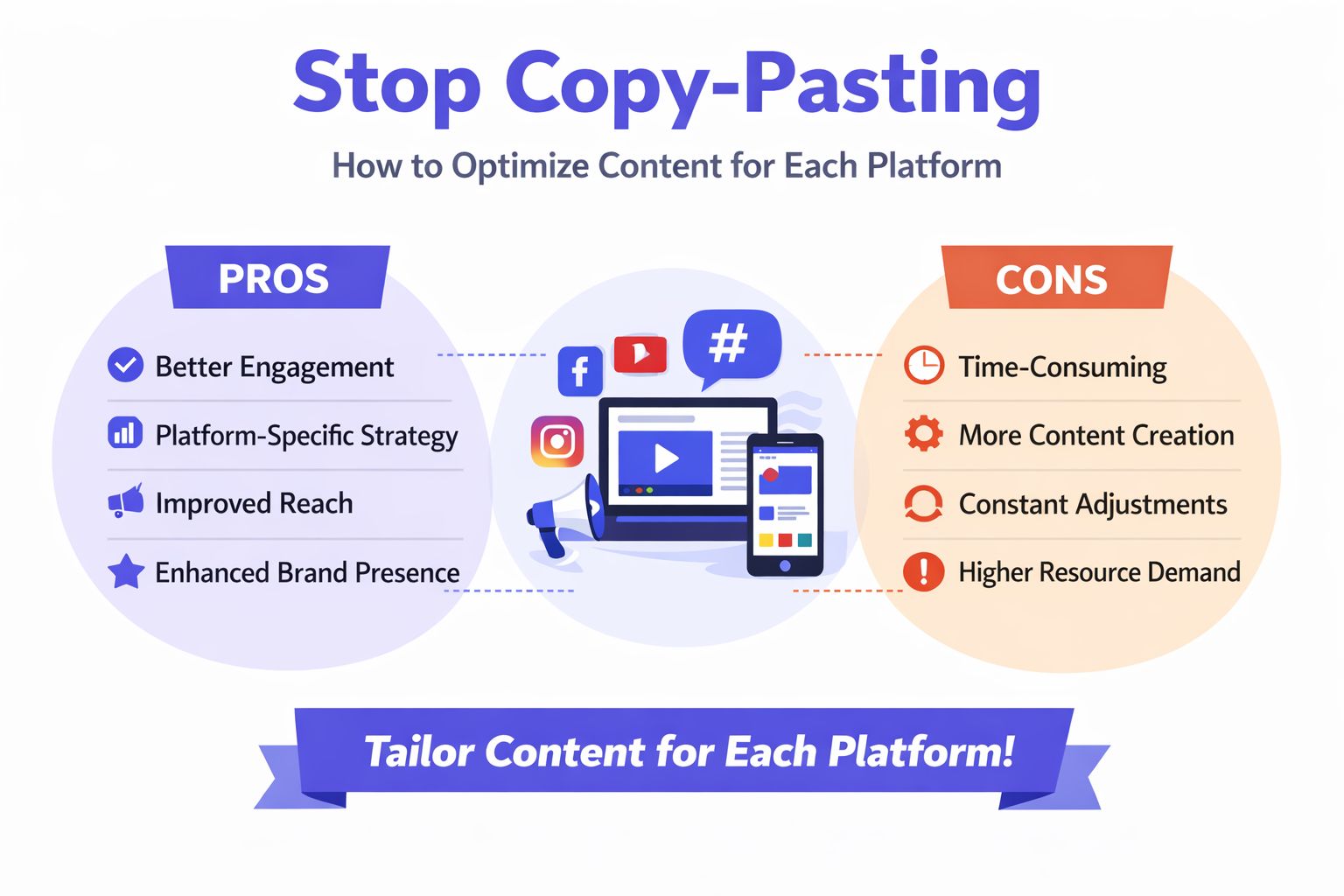
A Facebook caption can carry more explanatory weight. It can sound like a human update, include context, and support outbound behavior more naturally. Instagram needs a different rhythm. The visual has to do more of the work, and the caption should support discovery and interaction.
A useful split looks like this:
Facebook caption style
Conversational, clear, and often tied to a link, event detail, offer, or discussion prompt.
Instagram caption style
More visual, more compact, built for on-platform engagement, and supported by relevant hashtags.
Call to action difference
Facebook can push readers to click. Instagram often works better with “comment,” “save,” “share,” “DM,” or “check the link in bio.”
A caption that looks polished on Facebook can feel flat on Instagram within seconds.
Many cross-posts break at this stage. A horizontal graphic designed for Facebook can look small and unremarkable on Instagram. A vertical-first image or video usually commands more attention there.
If you're creating video assets, this reference on Instagram video format is useful when you need to adjust sizing and avoid awkward crops before publishing. The same principle applies to static posts. Don't force a Facebook-shaped asset into an Instagram-first slot and expect native performance.
For product-led brands, visual adaptation matters even more. If you sell something tactile or design-sensitive, it helps to study how specialized tools handle image presentation. This roundup that lets you compare AI tools for jewelry photography is a good example of how category-specific visuals need platform-aware treatment instead of generic resizing.
Use this before you send any facebook post to instagram:
| Element | ||
|---|---|---|
| Caption tone | Conversational, explanatory | Visual, tighter, engagement-oriented |
| Links | Works well in caption context | Usually needs alternate CTA handling |
| Hashtags | Use sparingly if at all | Use relevant hashtags for discovery |
| Visual crop | More flexible with wider layouts | Stronger when vertical-first and feed-friendly |
| CTA | Click, read, register, learn more | Save, share, comment, DM, bio link |
Three simple upgrades usually improve outcomes fast:
Reframe the opening line
Facebook can start with context. Instagram should start with the most compelling hook or image-supporting idea.
Change the CTA to fit the behavior
Don't tell Instagram users to click a link that isn't conveniently actionable in-context.
Match the post to the content type
Educational snippet, quote card, promo offer, customer story, and short clip each need different packaging.
These are the patterns I see most often on underperforming accounts:
Dead link language on Instagram
Captions say “click below” or “visit this link” when that path isn't natural.
Hashtag dumping on Facebook
It makes the post feel templated and low-context.
Overexplaining on Instagram
The caption does all the work because the creative doesn't.
Underselling on Facebook
The post looks pretty but doesn't give enough context for someone to act.
The goal isn't to make both posts completely different. The goal is to make them feel native. That's the standard.
When cross-posting fails, the problem usually isn't mysterious. It's usually one of four things: connection, permissions, content compatibility, or publishing path.
If a post drafts fine but won't publish to Instagram, start with the account connection. Disconnecting and reconnecting the Instagram account inside Meta often clears stale permissions. Then confirm the Instagram account is still set as a professional account and tied to the correct Facebook Page.
Also check whether the post itself is causing the issue. Some asset combinations, caption elements, or unsupported formats can block publishing even when the connection is healthy.
This usually points to an audio rights or compatibility issue. If the audio was added natively in one app, it may not carry over cleanly to the other destination through a shared publishing flow.
Try these fixes:
Use original exported audio
If possible, export the video with audio baked in rather than relying on app-native music layers.
Test the Reel natively
Publish directly to the target platform once to isolate whether the problem is Business Suite or the media file.
Check account type and region settings
Some music options behave differently depending on account permissions and publishing path.
When audio matters, always preview the final post on-platform instead of trusting the composer preview.
Stories are more sensitive to account setup than feed posts. If Story sharing isn't available, confirm that cross-sharing is enabled in Accounts Center and that both platforms allow story sharing from that account combination.
If it still fails, publish the Story separately. That sounds less efficient, but it's often faster than troubleshooting a feature mismatch during a campaign window.
If your account suddenly stops syncing, don't keep retrying from multiple tools at once. That tends to make permissions messier.
Use this order instead:
Complex posts should come after the connection is stable again. A plain image test post tells you more than a heavily edited Reel with custom caption formatting.
If you constantly hit sharing errors, the issue may be your process. Teams that rely on last-minute publishing, mixed ownership, and manual app hopping usually see more failures than teams using a clean scheduling workflow with approved assets and centralized access. Troubleshooting helps. A stable system helps more.
Manual cross-posting works until volume catches up with you. That's when the hidden cost shows up. Not in ad spend. In time.
Manually fixing formatting, rewriting captions, and adding hashtags takes about 10 to 15 minutes per cross-post, and for someone posting 5 to 7 times a week, that formatting tax adds up to over 100 hours annually, based on Evergreen Feed's analysis of Facebook-to-Instagram posting workflows. That's why so many small businesses start with good intentions and then stop posting consistently.
These aren't the same thing.
Cross-posting says, “Take this post and send it to another platform.” Repurposing says, “Take this source content and generate the right versions for each destination.” That shift matters most if you create long-form video, podcast clips, interviews, tutorials, listings, sermons, or educational content.
A repurposing workflow usually handles more than just scheduling:
Caption adaptation
Different copy for Facebook and Instagram
Format conversion
Vertical clips, feed-ready visuals, and platform-specific layouts
Asset multiplication
One long video becomes many usable short assets
Calendar execution
Content gets scheduled in batches instead of assembled one post at a time
You don't need automation because it sounds advanced. You need it when repetitive work is stealing time from strategy, client work, or actual selling.
Automation is especially useful when:
You publish from a recurring source
A weekly podcast, webinar, listing video, sermon, or interview gives you enough raw material to justify a system.
You manage more than one channel seriously
Facebook and Instagram alone can create a surprising amount of formatting overhead.
You keep postponing posting because prep takes too long
That's usually not a motivation problem. It's a workflow problem.
Not every social tool is built for this. Some are schedulers with a composer. Others are true transformation tools.
Look for features like these:
| Need | Why it matters |
|---|---|
| Platform-specific post generation | Prevents one-size-fits-all captions and visuals |
| Short-form clip creation | Helps turn long video into feed-ready assets |
| Built-in scheduling | Keeps production and publishing in one workflow |
| Brand templates | Reduces repetitive design edits |
| Multi-channel support | Useful when Facebook and Instagram are part of a broader content mix |
One example is Taja AI for social media marketing, which turns long-form video into multiple ready-to-publish assets and supports platform-specific publishing workflows. That's a different category from basic account linking because the tool is doing adaptation work, not just distribution.
The real upgrade isn't posting to more places. It's removing the repetitive work that keeps good content stuck in draft mode.
A professional facebook post to instagram process usually ends up looking like this:
That's how you stop treating every social post like a brand-new task. The work moves upstream. You invest once in stronger source content, then let a cleaner system handle the downstream packaging.
If your current workflow still depends on copy-paste, scattered drafts, and last-minute formatting, it's worth testing a repurposing-first setup. Taja AI can help turn one long-form video into platform-specific clips, captions, and scheduled posts so you spend less time rebuilding the same content for Facebook and Instagram by hand.


We are blessed to work with leading brands & Companies


We try to make easy and simple for every professionals. Get 30 days free trial - No credit card required.


© 2025 Taja AI. All rights reserved.

