.jpeg)
How to Get Views on YouTube Short in 2026
Learn how to get views on YouTube short with hooks, 9:16 cuts, titles, and a simple analytics check that shows what to fix.
5 min read
November 1, 2026

Learn how to transcribe Zoom recording with built-in tools, export options and AI services. Get accurate transcripts and repurpose them faster.
Written by:


You've finished a Zoom call, the recording is sitting safely on your computer or in the cloud, and someone wants the exact wording of a decision, customer objection, or training explanation. You open the recording page and discover there's no transcript. Or the captions appeared during the meeting but vanished when the call ended. The recording exists, but the searchable text you expected doesn't.
That problem usually isn't caused by a missing button. It comes from treating a recording, live captions, and a post-meeting transcript as the same output. They're separate parts of Zoom's workflow, with different requirements. Once you identify which recording you have and what was enabled before the meeting, you can choose the right route, clean the result, and turn the conversation into content people can use.
A marketing team finishes a customer interview. The host saved the meeting locally, the MP4 plays perfectly, and everyone assumes Zoom can generate the transcript afterward. It can't do that automatically from a local file. A local recording gives you audio and video files, but Zoom's native audio transcription is connected to cloud recording, with transcription enabled before the recording begins. Zoom's support documentation on audio transcription describes that product workflow directly.
Live captions create a different kind of confusion. They help participants follow a conversation while it happens, but captions displayed during a meeting aren't automatically the same as a saved transcript attached to the recording. If you need a durable, searchable document, you must either save the caption output through the available configuration or generate a separate transcript from the recording file.
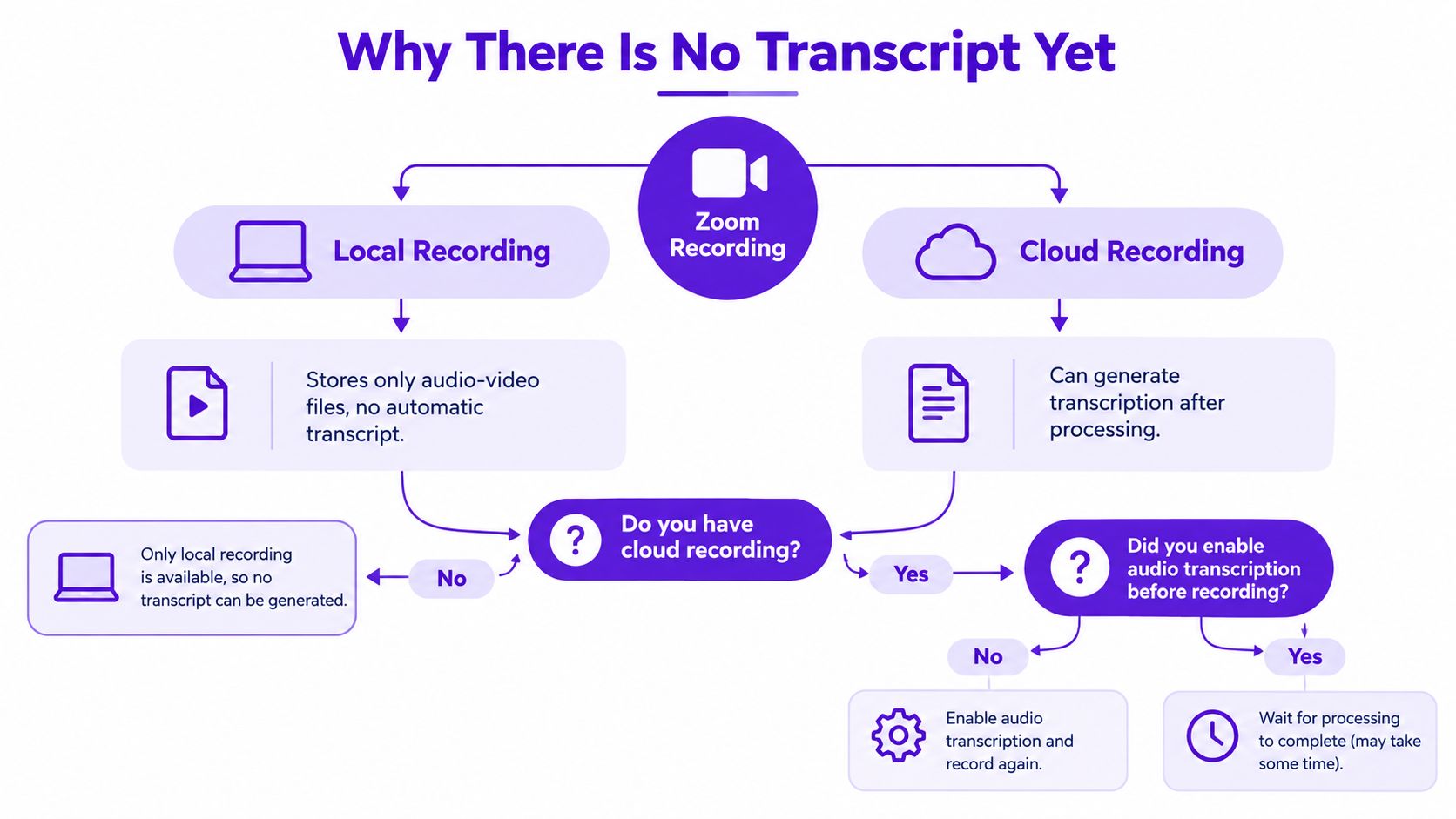
The practical mental model is simple:
That leaves three viable paths. Use Zoom's native cloud transcript when the settings were correct. Export the recording and use an automated transcription service when they weren't. Or, for future meetings, configure the workflow before anyone presses Record. If the recording is training material, you can also move beyond transcription and use an AI tool for training videos to turn long sessions into shorter learning assets.
Start with the recording location, not the transcription tool. Ask three questions:
If the answer is cloud recording plus enabled audio transcription, wait for Zoom to finish processing and retrieve the attached transcript. If the answer is local recording, download or locate the file and send it to an automated service. If you only saw live captions, check whether they were separately saved. Don't spend time searching Zoom for a transcript that the meeting settings never requested.
| Recording Situation | Correct Path | What You Get |
|---|---|---|
| Cloud recording with audio transcription enabled | Use Zoom's web portal | A processed transcript connected to the cloud recording |
| Cloud recording without audio transcription enabled | Download the recording and reprocess it | A newly generated transcript from the existing media file |
| Local recording | Upload the MP4 or audio file to an automated service | A transcript created outside Zoom |
| Live captions used during the meeting | Check saved-caption settings or reprocess the recording | Captions if saved, otherwise a separate transcript |
| You need searchable content from many recordings | Export files and use a repeatable transcription pipeline | A reviewable text archive for notes and repurposing |
The choice also depends on ownership. Native Zoom transcription is convenient when you control the host account and recording settings. File-based transcription is more flexible when you're a participant, working with an old recording, or handling locally stored interviews.
For a broader comparison of tools that turn recorded speech into text, use this video transcript generator guide as a reference point. The important decision isn't which service has the longest feature list. It's whether the service accepts the file you already have, labels speakers reliably enough for your use case, and lets you edit before publication.
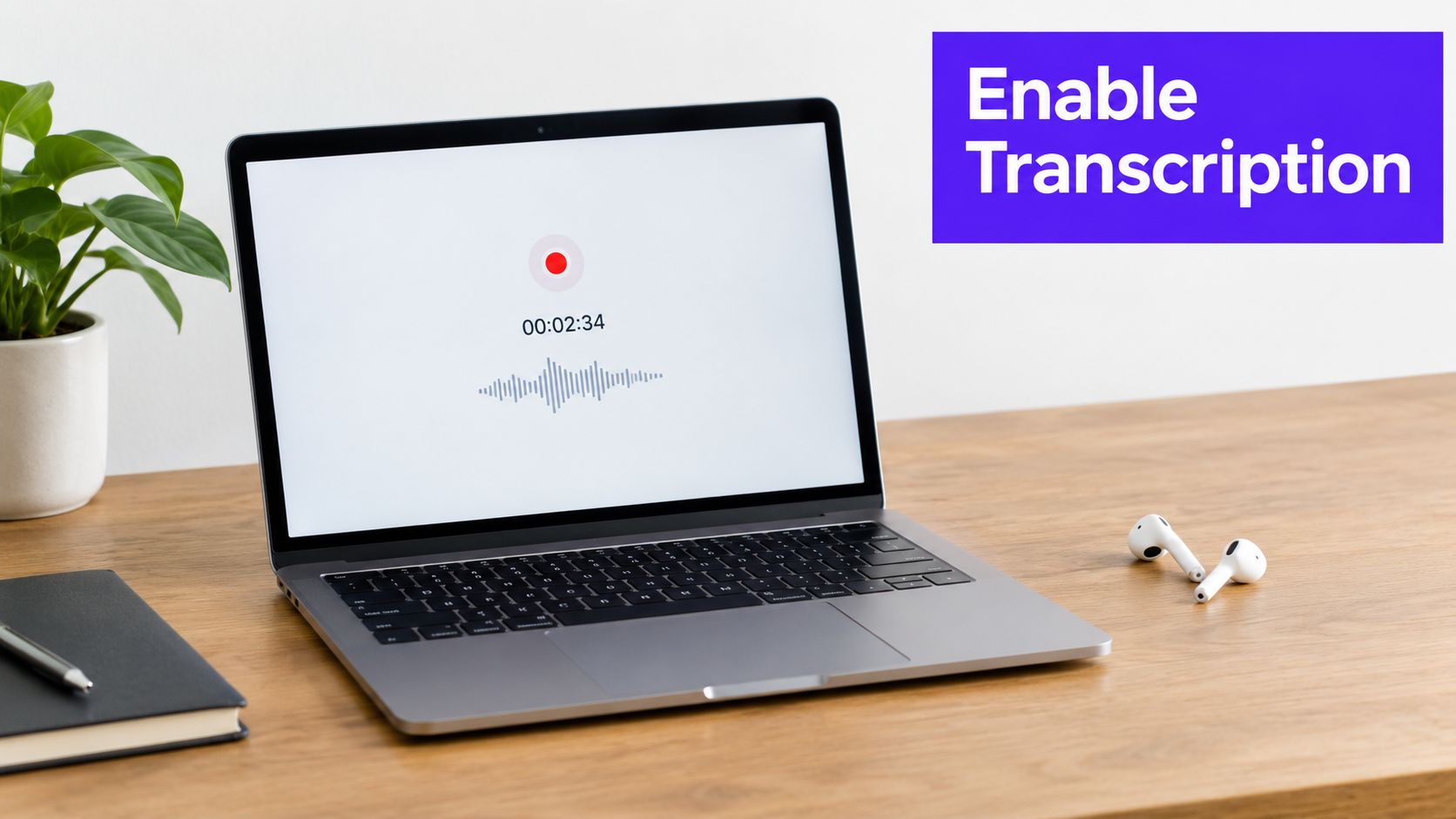
The native workflow begins before the meeting. Sign in to the Zoom web portal, open Settings, then go to Recording. Confirm that Cloud Recording is available and enabled, then turn on Audio Transcript within the cloud-recording options. Account administrators may control these settings, so a missing or locked option usually requires an admin change rather than more searching.
During the call, choose Record to the Cloud, not local recording. The transcript is generated from the cloud recording after the meeting ends. If your organization uses Zoom AI Companion and it's available for the meeting, enabling the relevant AI workflow can improve the baseline output. A University of Colorado Boulder evaluation found a substantial configuration difference, with AI Companion transcripts measured at 85% accuracy, compared with 48% without AI Companion in its testing, as documented in the university's Zoom transcription guidance.
After the meeting, open the Zoom web portal and go to the host's Recordings area. Select the relevant cloud recording, then look for the transcript or audio-transcript file alongside the video and audio assets. Zoom also exposes transcript content through recording and transcript surfaces in the portal, depending on the account interface and permissions.
Practical rule: Treat the first transcript as a searchable draft. Don't publish it untouched when names, figures, product terms, or contractual language matter.
Processing happens asynchronously, so the transcript might not appear immediately when the meeting ends. One independent guide notes that processing can take roughly twice the meeting length and, during heavy system demand, may take up to 24 hours. Plan your content workflow around the processing window instead of promising an immediate post-call article.
When the transcript appears, use the web editor to correct obvious errors, search for key terms, and download the available file if you need to work outside Zoom. Save live captions separately when your accessibility or documentation process requires them. Captions shown during the meeting shouldn't be treated as a substitute for the cloud transcript unless you've verified that the text was saved.
File-based transcription is the fallback that works for local recordings, older meetings, and cloud recordings that never produced a native transcript. Download the MP4 or audio file from Zoom, or locate the local recording on the computer that captured the meeting. If you only need text, an audio export can be easier to handle, but keeping the original video gives you a reference for speaker identity, gestures, and visual context.
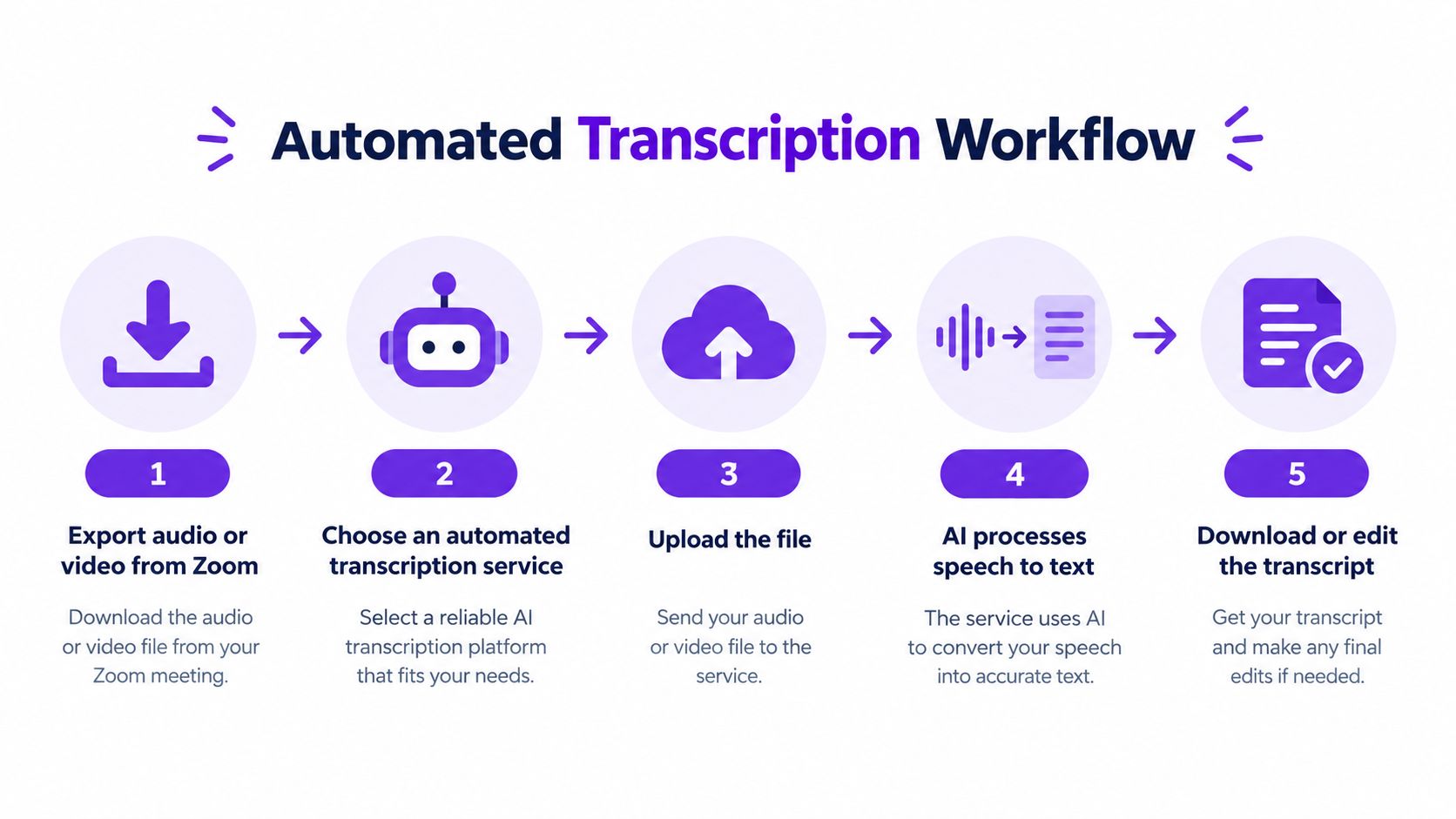
Choose a service based on the work after transcription, not just upload support. Look for speaker labeling, timestamps, editable text, export options, language handling, and clear retention controls. A basic transcript may be enough for a private search archive. A customer interview destined for publication needs stronger speaker separation and a review interface.
Zoom's native option reduces setup when the meeting was configured correctly. It keeps the transcript beside the cloud recording and avoids another upload. Its weakness is timing and dependency. If audio transcription wasn't enabled before recording, Zoom generally won't rescue a local file automatically.
Automated services accept the file after the fact. That makes them more useful for creator operations, where recordings arrive from different hosts and settings. They also vary widely in output quality. Zoom's 2024 AI Performance Report measured 7.40% word error rate, compared with 10.16% for Webex and 11.54% for Microsoft, which means even a strong benchmark result still leaves errors to correct. Zoom's AI performance report provides the comparison.
Word Error Rate, or WER, is useful because lower is better. In practical terms, a 7.40% WER implies that roughly one word in fourteen could still be wrong under the benchmark conditions, so the result is a high-quality draft, not a legal record. Names, numbers, acronyms, accents, overlapping speech, and specialist vocabulary deserve manual checking.
For the audio-specific part of the workflow, see this guide on converting an MP3 file to text. Once the transcript is stable, a broader automated content workflow guide from Sight AI can help organize the transition from raw conversation to publishable assets.
A transcript is an input file, not finished content. The fastest production workflow doesn't polish every sentence equally. It identifies the sections worth publishing, verifies those sections against the recording, and then reshapes spoken language for the destination.
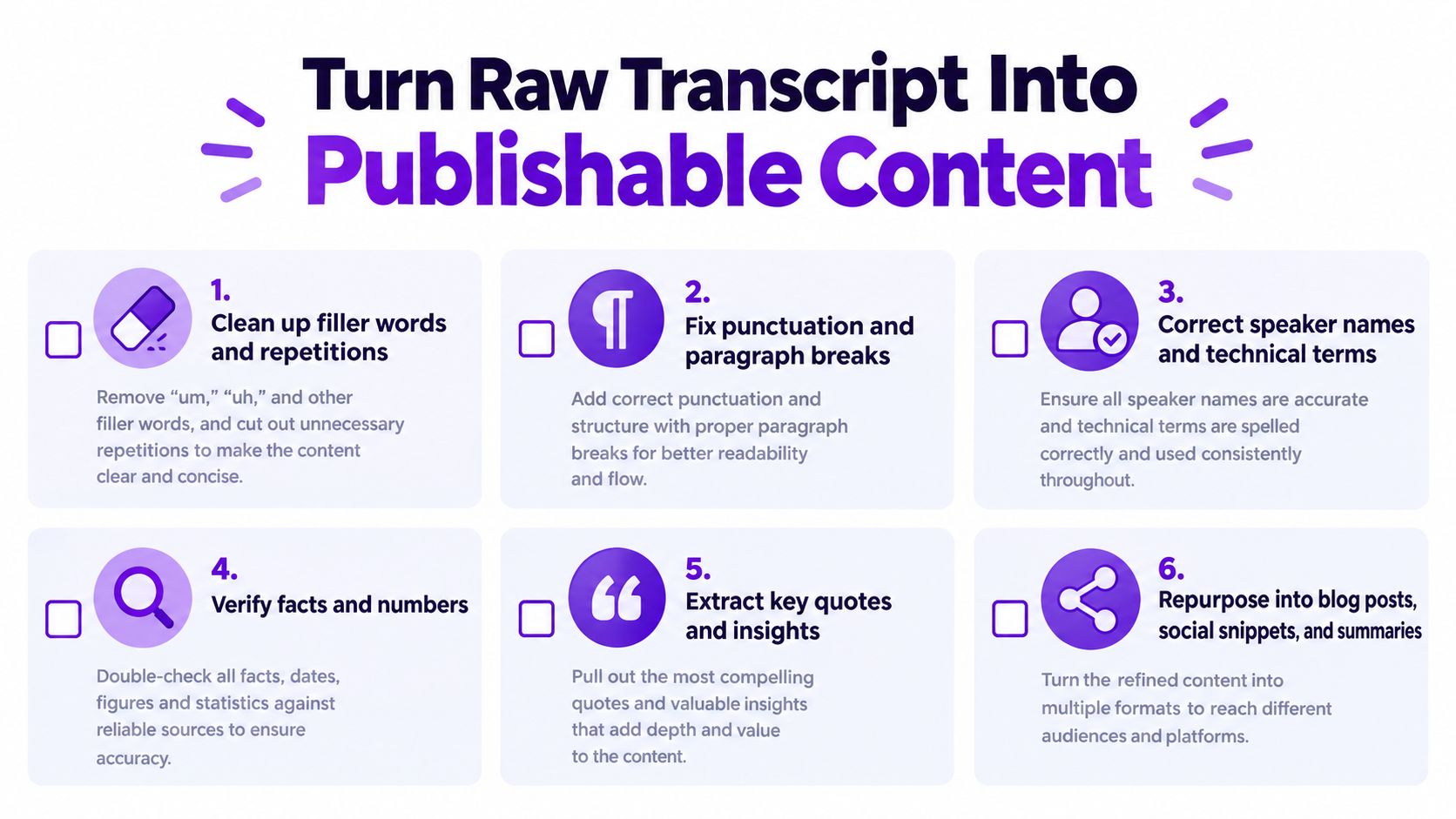
Start with proper nouns, technical terms, names, and numbers. Replace generic speaker labels with real names only when you can verify them. Mark crosstalk rather than pretending you know every word, and remove filler language only when it improves readability without changing the speaker's meaning.
Use the recording selectively. Search the transcript for a phrase, jump to its timestamp, and listen to the surrounding passage. This is faster and safer than rewatching the entire meeting, especially when you're checking a customer quote or an important instruction.
Zoom's broader transcription reporting supports this cautious approach. The benchmark results show strong comparative performance, while the University of Colorado testing shows that configuration can materially change accuracy. The practical conclusion is consistent: review the claims that carry consequences, even when the transcript looks clean.
One useful interview can produce several formats:
The same principle applies outside Zoom. If you also publish interviews or educational videos on other platforms, a workflow for transcribing Instagram videos can help standardize how you move from spoken material to searchable text.
Editorial test: If a sentence only makes sense because you remember the meeting, it isn't ready for publication.
Before sharing, run a final pass for factual accuracy, consent, speaker attribution, confidential details, and context. A polished transcript can still misrepresent someone if a qualifying sentence was removed. Repurposing works best when the editor preserves the original idea while changing the format.
Transcription creates a data-governance obligation alongside the productivity benefit. Cornell's accessibility guidance notes that Zoom cloud-recording transcripts can include participant names, so a transcript may identify people even when the recording itself isn't widely shared. If anonymity matters, edit the transcript or configure the meeting to anonymize participants beforehand, rather than trying to remove identity after publication.
Access also deserves a deliberate review. Zoom transcripts can surface alongside recordings, through transcript-focused areas, and in host searches. More surfaces make retrieval easier, but they can also make accidental exposure easier in shared workspaces. Decide who can view, edit, download, and repurpose each transcript before distributing the recording link.
Consent should cover the recording and its reuse. A participant might agree to a private meeting record but not a public article, promotional clip, or searchable archive. Set a retention policy, remove unnecessary copies, restrict shared links, and preserve an approval trail for client interviews, employee discussions, research calls, and sensitive training sessions.
Zoom now advertises transcription and translation across 46 languages, according to Cornell's accessibility guidance, which supports wider global adoption but also expands the range of privacy and speaker-identification decisions teams must manage. The sustainable setup is straightforward:
For your next meeting, check the recording destination and transcript setting before the call starts. That one habit prevents the most frustrating outcome, a perfect recording with no usable text.
Taja AI turns long-form Zoom recordings into ready-to-publish shorts, clips, captions, blogs, and platform-specific posts from one upload, so your transcript can become a complete content pipeline instead of a forgotten text file. Visit Taja AI to turn your next recorded conversation into reusable content.


We are blessed to work with leading brands & Companies


We try to make easy and simple for every professionals. Get 30 days free trial - No credit card required.


© 2025 Taja AI. All rights reserved.