.jpeg)

How to Make an Announcement That Gets Read and Shared
Learn how to make an announcement for a product, business update or event, with templates, clip repurposing, scheduling and CTA tips.
5 min read
October 29, 2026

Learn how to split a video into parts using web tools, mobile apps, desktop editors, and FFmpeg. Clear workflows, export settings, and repurpose tips included.
Written by:


You've got the raw footage open, the client wants clips by tomorrow morning, and the question isn't where the cut button lives. It's whether you need a lossless split, a frame-accurate trim, or a fast way to turn one long recording into a stack of publishable parts for different platforms. That choice decides how much quality you keep, how long export takes, and whether the file you hand off is ready for repurposing or just a temporary stop on the way there.
People still say “split” when they mean three different jobs. Sometimes they want equal-length chunks for batch upload or playlisting. Sometimes they need timestamp-precise cuts for a highlight reel. Other times they're separating a talk, interview, or webinar into logical parts that make sense as standalone clips.
Those are not the same workflow. A browser editor that chops a file into parts may be fine for social output, but it usually works by re-encoding the result or by making manual timeline cuts. A command-line split can preserve quality, but it may cut on keyframe boundaries rather than exactly where your playhead sits. If the source is a one-take recording, that difference matters more than many might expect.
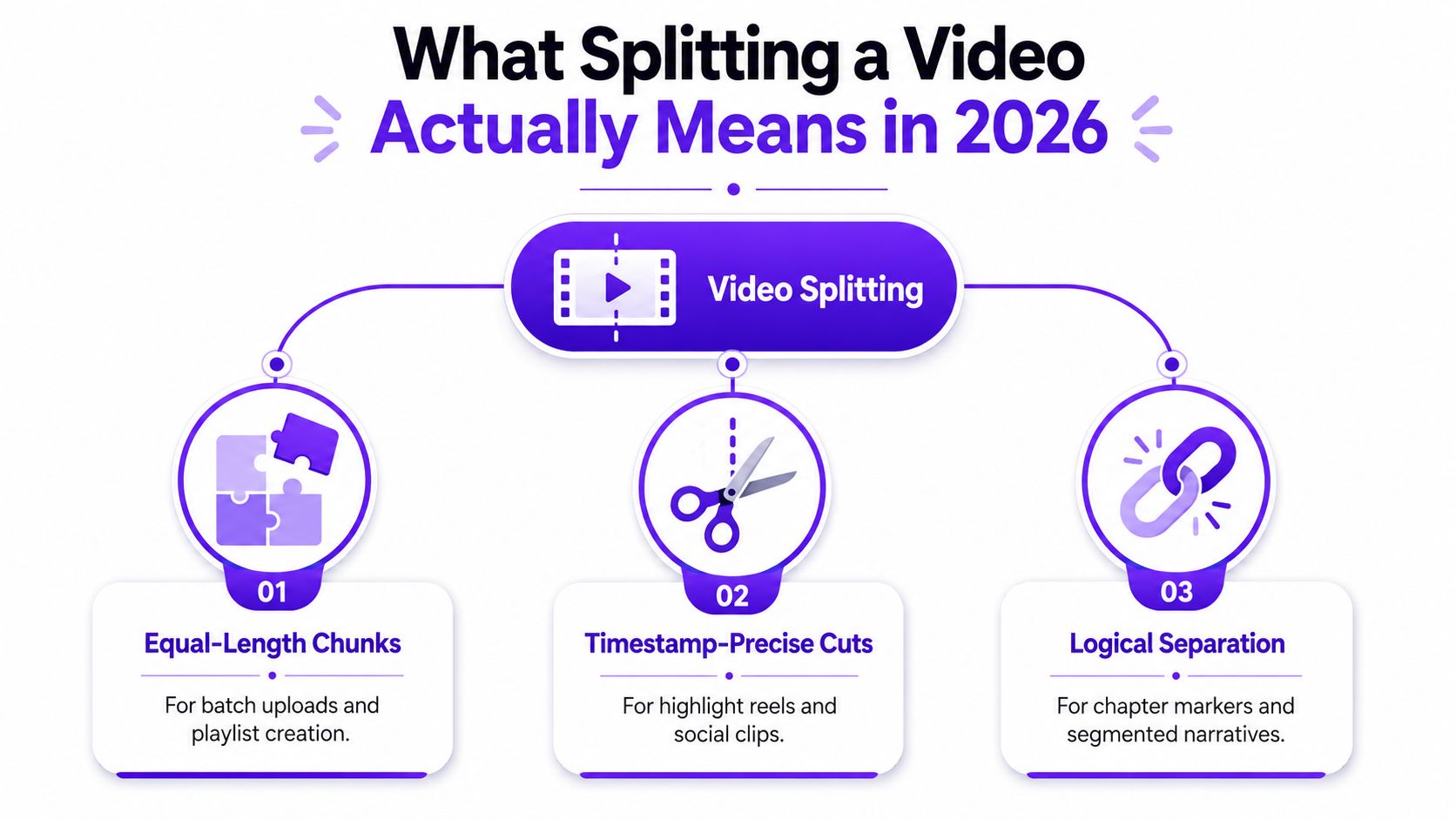
Practical rule: decide the method before you touch the timeline. The wrong split method creates more cleanup than the original video.
Ask these four things in order:
A useful mental model is simple. Lossless segment splitting is for speed and preservation, re-encoding is for flexibility, and scene-based automation is for volume. If you already know you'll resize, caption, and format the clip for multiple platforms, splitting is just the first step in a longer assembly line.
Browser splitters are useful when the job is obvious and the file isn't huge. The practical trade-off is convenience versus control. You upload, mark the cuts, export, and move on, which is perfect for a one-off clip or a straightforward social post.
Three patterns show up repeatedly in web tools. One tool supports MP4, WebM, MOV, MKV, and AVI and accepts uploads up to 2 GB. Another supports files up to 500 MB and lets you choose 2 to 10 equal segments or custom split points. A third leans into mainstream clip repurposing and ZIP downloads. That spread tells you exactly where browser tools fit, and where they start to fray.
| Tool | Max Upload | Formats | Segment Options |
|---|---|---|---|
| Digital Coding video splitter | 2 GB | MP4, WebM, MOV, MKV, AVI | Custom split points, exact timestamps |
| Another browser splitter | 500 MB | Common upload formats for web video workflows | 2 to 10 equal segments or custom points |
| Typical web editor flow | Varies by app | Usually prioritizes common social formats | Separate files or ZIP archive |
If you only need a simple split, browser tools are fast enough. If you need exact preservation, they're less compelling. Most of them are built for content that's already headed to a social platform, so the export quality and format options are shaped around convenience rather than deep control.
A practical way to think about it is this. If the source is under the smaller browser limit and you're making a handful of clips, use the web tool and get the file out the door. If you're splitting long recordings every week, or if the same source needs multiple outputs, the browser starts becoming a bottleneck. For a deeper comparison of online splitters, this guide to splitting video online is worth using as a second screen while you choose.
Mobile splitting looks easy until you realize most gallery apps only trim, they don't split into multiple outputs. That's why people think they've made several clips and then open the camera roll to find one edited file instead. The difference matters because trimming changes the endpoints of a single clip, while splitting creates separate segments you can use independently.
On iPhone, iMovie is the cleaner path when you need multiple parts from one source. Put the video in a project, place the playhead where you want the break, use the split action, then export the segments you need as separate files. That keeps the workflow inside a familiar app and gives you more control than the Photos app alone.
CapCut is often the better fit when the target is vertical social video. Its split-and-export flow makes sense for TikTok and Reels because you can cut, resize, caption, and export in one place. The main mistake I see is exporting too early in the wrong aspect ratio, then reopening the file and having to fix framing afterward.
Android creators usually have more app choice, but the same trimming trap exists. Google Photos is handy for quick endpoint edits, yet it doesn't replace a true split workflow. If you need separate clips, use a proper editor rather than assuming the gallery app will generate multiple outputs.
Keep the export settings aligned with the destination. A clip intended for a vertical feed shouldn't be exported as a wide master unless you know you'll crop it later.
For teams that want a gentler entry point, this beginner-friendly video editing app guide is a useful reference before you commit to a mobile workflow. The main habit to build is simple. Split once, export once, and avoid stacking duplicate intermediate files in your camera roll, because that clutter becomes a real problem when you're producing clips every day.
Desktop editors earn their place when timing matters. If the cut has to land on a precise frame, if the audio must stay locked, or if the parts will later be reassembled, you want a timeline that gives you dependable control. Splitting stops being a convenience feature and becomes part of the finishing process.
In iMovie, the split action is straightforward. Place the playhead, use the split command, and export the resulting pieces as needed. It's a solid choice for Mac users who need a quick desktop solution without a steep learning curve.
In Adobe Premiere Pro, the razor tool and timeline cuts give you much tighter control. That matters when you're slicing interview answers, B-roll, or creator content that needs the cut to feel invisible. Premiere is overkill for a casual one-off, but it's the right level of control when the split is one step in a longer edit with captions, transitions, or audio cleanup.
DaVinci Resolve is the stronger choice when color and finishing matter just as much as the cut itself. The blade tool lets you segment the timeline quickly, then move into the deliver page for export without leaving the project. For colorists and advanced editors, that continuity is the reason to use it.
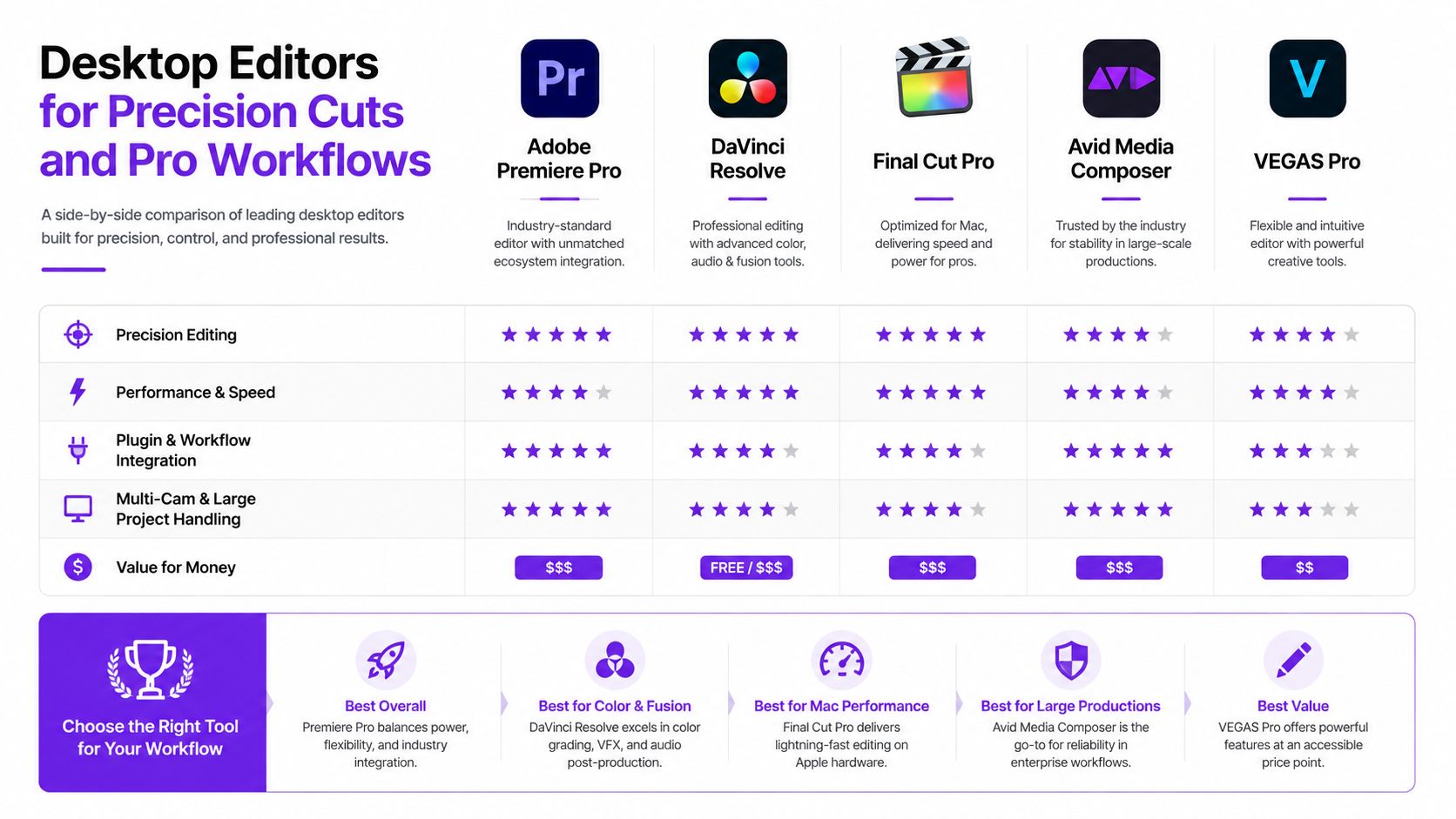
The honest rule is simple. Use iMovie when you need accessibility, Premiere when precision and workflow control matter, and Resolve when splitting sits inside a broader finishing pipeline. If you're only separating one clip for a quick post, desktop software can be more tool than task. If you're preparing a reusable source for several outputs, it earns its keep fast.
When the source matters, FFmpeg is still the reference point. Its segment muxer became the standard command-line method for cutting a video into numbered parts without re-encoding, and the common pattern is straightforward enough to memorize: ffmpeg -i input.mp4 -c copy -f segment -segment_time 60 -reset_timestamps 1 output_%03d.mp4 (FFmpeg segment muxer example). The same workflow is also shown with a 30-second segment duration in practical terminal examples, which makes clear that the split length is parameterized, not fixed.
-c copy tells FFmpeg to skip re-encoding. That's why this method is so fast, and why it's the right call when you're splitting a long interview, lecture, or archived recording that needs to stay intact. You avoid the time cost of regenerating the video stream, which is exactly why editors reach for it when the clock is tight.
The trade-off is the keyframe structure. In copy mode, cuts land on keyframe boundaries rather than arbitrary frames, so a timestamp you choose may shift to the nearest clean cut point. That's not a bug, it's the price of keeping the file lossless and fast.
A lot of mainstream guides stop at the button-click part of splitting. The more technical workflow is different. For long videos, editors often need either lossless cutting or frame-accurate transcoding, and that choice depends on whether quality or absolute cut position matters more. For a candid discussion of that gap, the Reddit thread on splitting long videos is a useful reality check (shortest way to split long videos).
If you want the file to remain re-editable, FFmpeg is the cleaner base. If you need scene-based segmentation, FFmpeg can be extended with additional flags, but the guiding principle doesn't change. Split first with the least damage possible, then decide whether you need to polish each part afterward.
Don't force arbitrary-frame cuts in copy mode and expect perfection. Either accept keyframe-aligned splits or re-encode for precision.
The split itself is only half the job. The export choice, file name, and folder structure decide whether the parts are usable two minutes later or lost in a cluttered downloads folder. That's where many workflows slow down without realizing it.
For social delivery, H.264 remains the compatibility-first choice, while H.265 is the efficiency-first choice when your ecosystem supports it. The decision is less about theory and more about where the file will be played, edited, or archived next. If the clip is going to a mixed team, compatibility usually wins.
Audio settings matter too. Keep the export clean and consistent, because a split that sounds uneven across parts will be noticed faster than a small visual flaw. If you're exporting a ZIP archive, make sure the folder structure is obvious before you compress anything, since batch deliveries get messy fast when filenames are inconsistent.
A file name like ProjectName_Part01_Highlight tells you more than a generic final_2 ever will. Good names are not cosmetic, they're operational. They help editors, schedulers, and social managers identify the right clip without opening every file.
The same logic applies to batch work. Keep raw cuts, exports, and platform-ready files in separate folders, then reuse the same naming pattern across projects. If you're managing a larger archive, this asset management guide is a useful companion because splitting gets much easier when the source files are already organized.
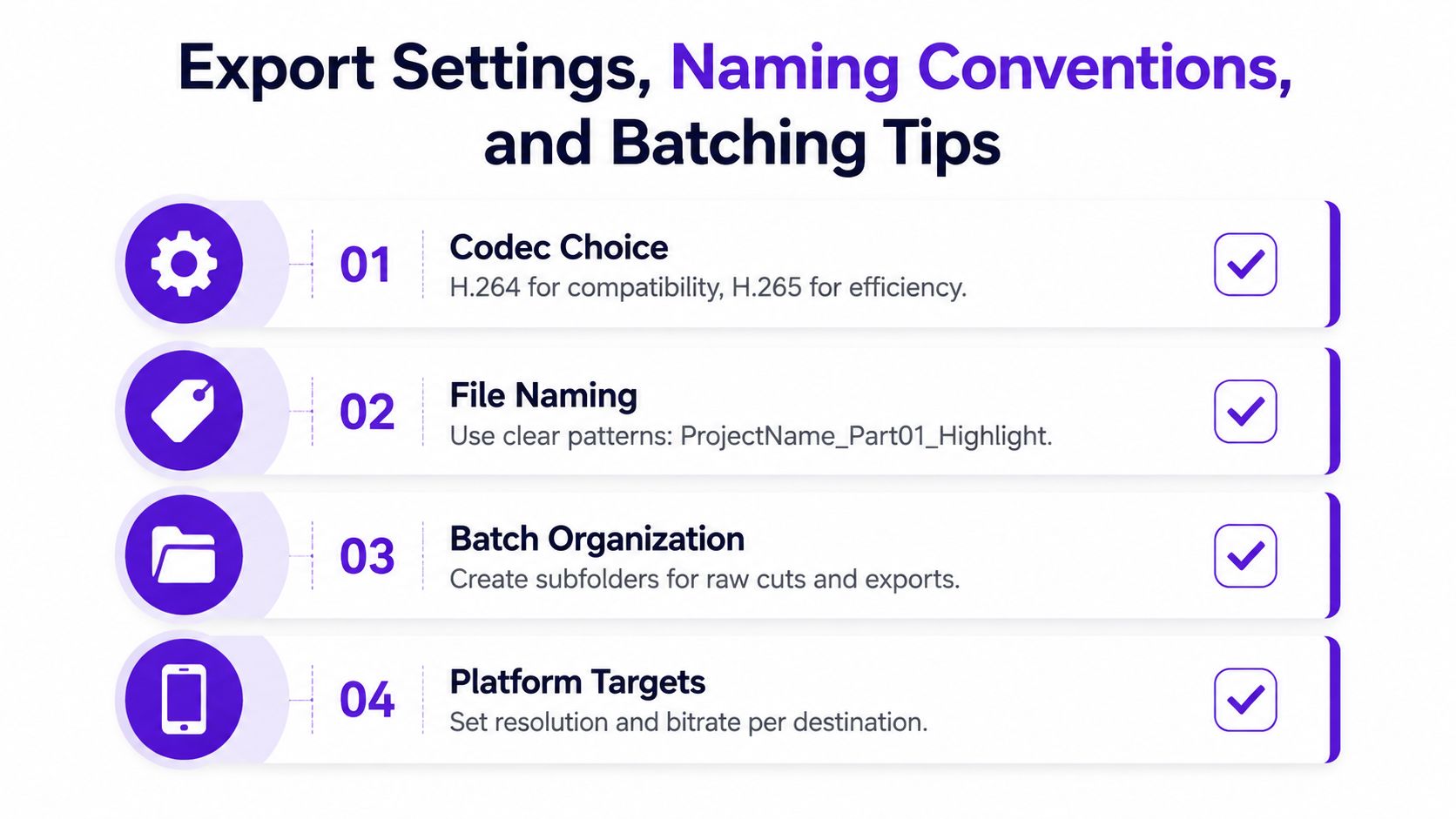
A simple batch habit saves more time than another round of micro-edits. Use one naming template, one export structure, and one review pass for the whole set. The creator who treats splitting as an organized system ships faster than the one who starts from scratch every time.
Video:
Splitting becomes useful when it feeds the next step. A clean part file can go straight into vertical reformatting, captioning, thumbnail selection, and scheduled posting. That's the payoff, because the cut itself is just the intake stage of a repurposing pipeline.
A lot of creators still split videos manually, then repeat the same work in separate tools for captions, resizing, and publishing. That approach can hold up for a small content calendar, but it gets clumsy fast once the output volume rises. Equal-length chunks are fine for batch prep, scene-based clips are better when the narrative breaks naturally, and both are stronger when the rest of the workflow is automated instead of hand-copied across apps.
A platform like Taja AI fits naturally. It takes a long-form upload and turns it into shorts, clips, captions, thumbnails, blogs, and platform-specific posts, so the split parts don't sit around as disconnected files. The point isn't just faster cutting, it's having the split, the formatting, and the distribution path live in the same system.
If you publish consistently, the winning workflow is the one that removes repeated decisions. Manual splitting works. Automated repurposing scales better.
The practical takeaway is straightforward. Split with the method that preserves the source the way you need it preserved, then push those parts into the channel-specific workflow immediately. That keeps your editing time focused on judgment, not repetition, and it gives every clip a better chance of becoming something publishable instead of something that stays buried in a folder.
If you want to turn one long recording into a steady stream of shorts, clips, captions, and platform-ready posts without rebuilding the workflow every time, try Taja AI. It's built for the point where splitting stops being a one-off edit and becomes the first step in a repurposing pipeline. Visit the site, upload one video, and see how much of the clip-making work you can hand off before your next recording session.


We are blessed to work with leading brands & Companies


We try to make easy and simple for every professionals. Get 30 days free trial - No credit card required.


© 2025 Taja AI. All rights reserved.