.jpeg)
Add Subtitles to Video Free: 5 Methods That Actually Work
Add subtitles to video free with YouTube, TikTok and free editors. Step-by-step captions, SRT export, timing rules and fixes for auto-caption errors.
5 min read
October 26, 2026

Learn how to remove background music from a video with 4 methods, from free AI tools to manual editing, preserving speech. Repurpose content easily in 2026.
Written by:


You exported a great video, added music to make it feel polished, published it, and moved on. Then the reuse requests start. You need a clean clip for Instagram, a talking-head segment for LinkedIn, a short lesson for YouTube Shorts, maybe even an audio-first version for a podcast feed. Suddenly that music bed you liked is sitting right on top of the only thing that matters now: the voice.
That's where most creators lose time. They try lowering EQ bands, slicing sections by hand, or re-editing the whole project just to rescue dialogue from a finished file. If you're figuring out how to remove background music from a video, you're usually not doing it for fun. You're doing it because one finished asset needs to become many usable ones, fast.
A messy voice track ruins repurposing faster than almost anything else.
A social clip can survive a plain background. It can survive a basic cut. It can even survive a slightly imperfect crop. It usually can't survive dialogue that sounds buried under music. Once the spoken content is hard to understand, every downstream asset gets weaker. Captions become less reliable. Shorts lose punch. Podcast edits feel amateur. Sales clips sound recycled in the wrong way.
A common scenario looks like this. You record an interview, webinar, property walkthrough, training, or founder update. During editing, you add music because the full video feels better with energy underneath it. Later, you want to break that same recording into smaller clips.
Now the problem changes. The background music that worked in the full edit starts fighting the dialogue in shorter cuts. In a thirty-second clip, there's no room for muddy audio. Every word has to land quickly.
Clean dialogue isn't just an audio preference. It's the raw material that makes repurposing possible.
That's why music removal belongs at the front of the repurposing workflow, not at the end as a repair step. If you isolate the voice early, you give yourself a stronger source file for every next step.
Creators often spend too long trying to perfect transitions while ignoring audio clarity. In practice, spoken content carries the value in interviews, tutorials, explainers, demos, and client-facing videos. If the audience has to work to understand the speaker, they leave.
For repurposing, a clean vocal track helps with more than listening:
This used to be a tedious studio task. That's no longer the default. Modern tools have pushed background-music removal into everyday creator workflows. Instead of treating it like niche sound design, more editors now treat it as standard audio repair so a video can stay usable across formats and platforms.
If you've ever wasted an afternoon trying to undo one creative decision from an old export, this is the reset. Get the voice clean first. Everything else gets easier after that.
Not every music-removal job needs the same tool. The right choice depends on what file you have, how clean the dialogue needs to be, and whether you're trying to save a single clip or build a repeatable workflow for lots of content.
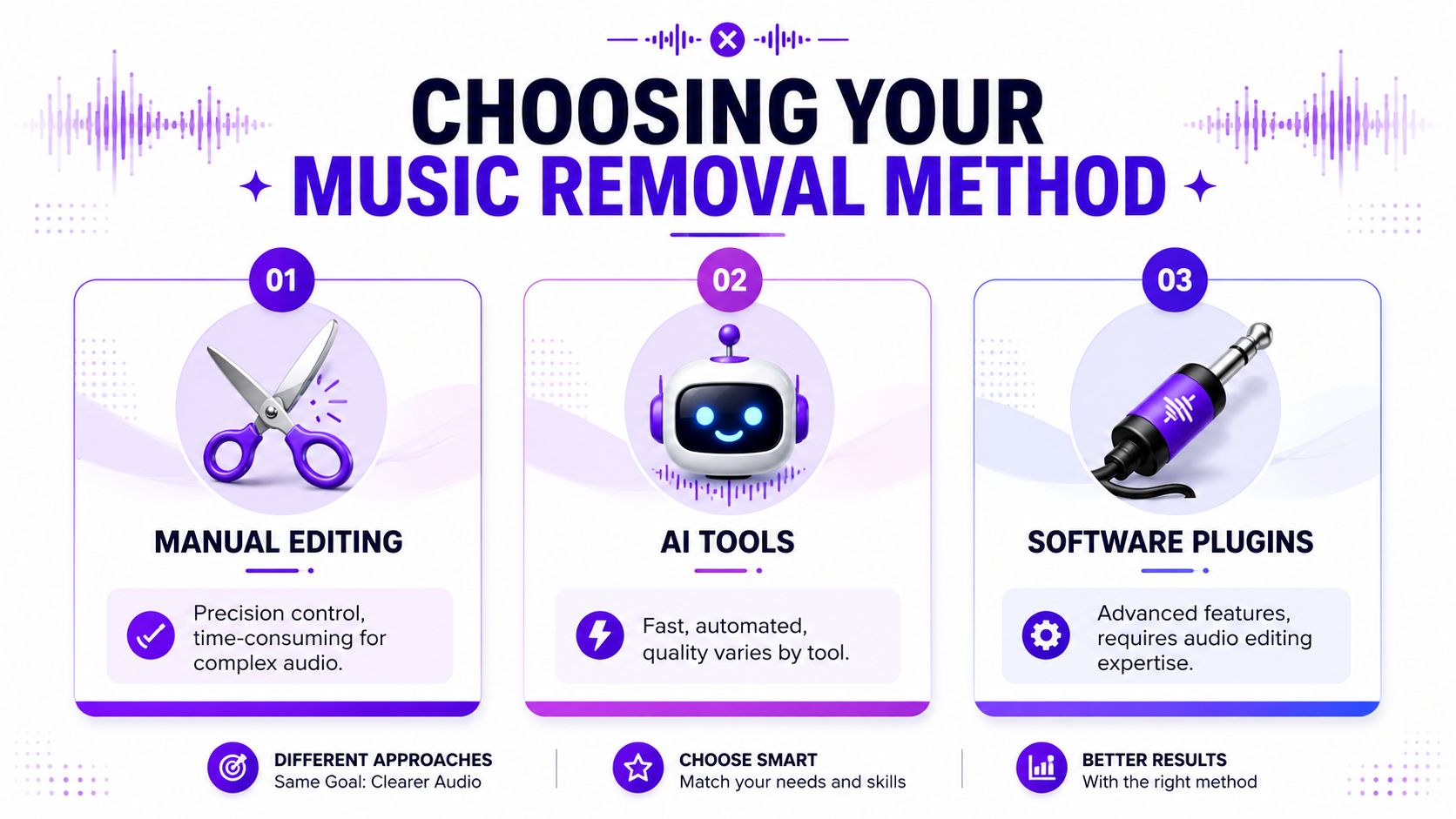
The biggest shift has been the move away from manual repair toward AI separation. A practical milestone here is that modern services now let you upload files like MP4, MOV, and WAV, automatically separate voice from music, and export a cleaned voice track in under 60 seconds through a three-step browser workflow, with support for formats including MP3, OGG, WAV, FLAC, AIFF, AAC, M4A, AVI, MP4, MKV, MOV, and M4V according to Remove.Music's overview of AI music separation.
That gives you three realistic options:
| Method | Best for | What works well | What usually goes wrong |
|---|---|---|---|
| AI stem separators | Fast cleanup from finished files | Quick upload, automatic voice/music split, low technical effort | Can leave artifacts when music overlaps speech heavily |
| Built-in editor tools | Keeping work inside your existing video app | Fewer exports, easier timeline control, good for simple fixes | Quality depends on the editor's audio tools |
| Manual audio editing | Niche repair jobs and detailed control | Useful when you need precise adjustments by ear | Slow, repetitive, and rarely worth it for batch content |
If you only have a final exported file, start with AI. It's usually the fastest path to something usable.
If you still have the project timeline and separate tracks, use your editor first. You may only need to mute or rebalance the music. If your voice and music are already baked together, integrated editor tools can still help, but dedicated separation often does a better job.
Manual editing is still valid, just not for most creators. It makes sense when you're fixing a very specific issue, layering several cleanup moves, or handling a file where automated tools keep missing the target.
Practical rule: Choose the method that preserves speech fastest, not the one that gives you the most knobs.
There's also a useful crossover here. If you remove vocals or music often for remixing, licensing cleanup, or repackaging content, this guide on how to create song instrumentals gives a good adjacent view of stem-based workflows from the other direction.
Before picking a tool, ask three things:
The best method is the one you'll use consistently when content starts piling up.
AI removers are the best option when speed matters and the original project file is gone. That's the normal situation for a lot of creators. You have an exported video, the voice is good, the music is too loud, and you need a workable vocal track today.

Most AI tools follow the same basic pattern. Upload the file, let the model separate speech from music, preview the result, then export the voice stem or cleaned track. That simplicity matters when you're processing a backlog of webinars, interviews, podcast videos, or client testimonials.
What makes this useful is not just convenience. It removes the need to rebuild edits from scratch. For repurposing work, that means you can rescue spoken content from old exports and make it usable again for clips, ads, shorts, and text-based derivatives.
A simple working sequence looks like this:
The biggest mistake with AI removal is accepting the first result because it sounds better than the original. Better isn't always good enough.
Expert guidance from LALAL.AI recommends adjusting the Noise Canceling Level between Mild, Normal, and Aggressive, then regenerating previews until music bleed is minimized. The same guide warns that aggressive settings can overcompress speech, especially when music overlaps the vocal band. You can review that workflow in LALAL.AI's guide to iterative background music removal settings.
If the voice starts sounding papery, watery, or squeezed, back off the setting even if more music disappears.
That trade-off is the whole game. A perfectly silent background with damaged speech is often worse than a tiny bit of residual music behind a natural-sounding voice.
A quick visual walkthrough can help if you want to see the process in action:
AI music removers tend to do well when:
They struggle more when the music and voice share similar frequencies, when the track is heavily compressed, or when crowd noise, effects, and music are all piled together.
For short-form content, “clean enough to understand instantly” is often the right bar. For a podcast episode or training library, spend more time previewing variations before you export.
Sometimes the best answer is already inside the editor you use every day.
That's especially true when the music and dialogue are still on separate tracks. In that case, you don't need separation at all. You just need a cleaner decision. Mute the music, lower it, or replace it. The fastest fix is often the least glamorous one.
Contemporary editors increasingly treat this as standard audio repair rather than a niche sound-design problem. Adobe Podcast offers speech and background-music separation while preserving sound quality, and Canva lets users mute or lower audio directly from a volume slider. That split reflects the two most useful paths for creators: true isolation when you need to keep dialogue, and fast muting when cleanup is enough. In real workflows, DaVinci Resolve users often set AI voice isolation to around 80% or higher to suppress music leakage, as noted in Adobe Podcast's overview of removing music from audio or video.
If your edit is still live in Canva or another simple editor, start by dragging the volume down on the music layer. That's enough for many repurposed clips.
For baked-in audio, advanced editors can help recover speech without leaving the timeline. DaVinci Resolve is the common example because its voice-isolation controls are fast to test and easy to hear in context.
A practical sequence inside your editor looks like this:
Editing note: The cleanest technical result isn't always the best content result. Natural speech wins.
For many small teams, staying in one editor is a genuine productivity gain. You avoid extra exports, extra file versions, and the familiar “where did I save that cleaned WAV?” problem.
If you're already building local-business or listing videos, a beginner-friendly video editing guide for real estate agents is a useful reference because it shows how simpler editing setups can still handle practical production needs. And if your cleanup happens in Apple's ecosystem, this walkthrough on using iMovie effectively can help you keep the process lean without adding another tool.
The main point is simple. If your editor can solve the problem well enough, use it. Save the specialty tools for the jobs your timeline can't clean up cleanly.
Removing music is easy to celebrate too early. The export sounds cleaner, the waveform looks calmer, and the job feels done. Then you listen on headphones and realize the voice sounds thin, phasey, or oddly metallic.
That's the true standard. Not whether the music is gone, but whether the speech still sounds human.
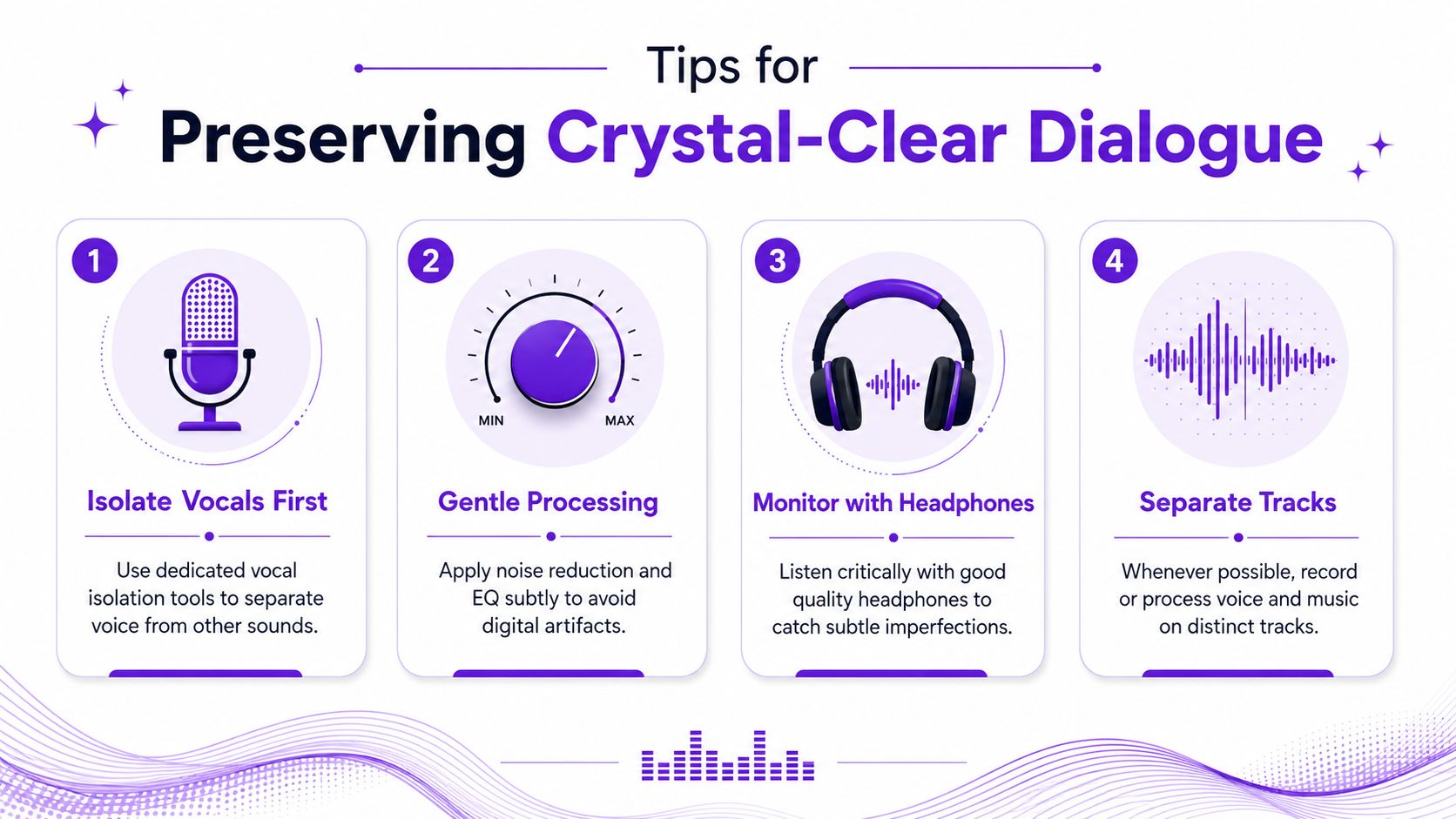
If you have multiple versions of the same video, use the least processed one. A platform download is usually a bad starting point because it has already been compressed and encoded for delivery. Every extra round of compression makes separation harder.
That doesn't mean you need perfect production files. It means you should avoid making the cleanup job harder than it has to be.
Most cleanup problems show up in the same places. Hard consonants, breaths, reverb tails, and words spoken over louder music transitions are where artifacts tend to hide.
Use headphones and check for:
A light amount of leftover music is often less distracting than aggressive processing damage.
Good dialogue cleanup sounds boring in the best way. Nothing calls attention to the tool.
A short social clip and a long podcast episode don't need the same standard.
For a quick promotional cut, "clear enough on a phone speaker" may be fine. For educational content, interviews, or long-form listening, people spend more time with the voice. Small artifacts become tiring there.
A few habits help across both:
If you want more control after cleanup, learning keyframes in Premiere Pro helps when you need to duck audio manually around important phrases instead of flattening the whole track.
Trying to EQ out the music rarely solves the full problem when voice and music live in the same file. Broad noise reduction can also make speech worse if the issue isn't noise but competing musical content.
The better mindset is selective rescue. Preserve the voice. Remove as much music as you can without wrecking intelligibility. Then decide whether the result fits the use case.
Once the voice is clean, the content opens up.
A single interview can become short clips, quote videos, captioned social posts, blog material, email snippets, internal training cuts, and audio-first assets. None of that works smoothly when the dialogue is buried under the original soundtrack. Clean audio is what turns one finished video into reusable source material.
This is why background-music removal matters beyond audio polish. It removes friction from every later step. Transcription gets easier. Clip selection gets faster. Captions need less cleanup. You can swap in platform-specific music or leave a clip dry and spoken-word focused depending on where it's going.
If you also work from voice notes, rough recordings, or field captures, this guide on transcribing voice memos on any device is useful for extending the same repurposing mindset beyond edited video.

Repurposing workflows break when the source file is messy. Strong automation starts with a file that clearly communicates what was said. That matters if you're generating captions, extracting highlights, or converting long-form speech into readable text assets.
A reliable next step after cleanup is using a strong video to text converter so the spoken content becomes searchable, editable, and ready for derivative content. That gives you a much easier path from one cleaned video to multiple formats without manually rebuilding the message each time.
The creators who get the most out of their content usually aren't creating more from scratch. They're preparing source material well, then multiplying it.
If you're learning how to remove background music from a video, don't treat it as the end of the job. Treat it as the preparation step that makes the rest of your content system work.
If you want to turn one clean long-form video into clips, captions, thumbnails, blogs, and ready-to-publish social assets without living in your editor, try Taja AI. It's built for creators and teams who want repurposing to move faster once the source audio is usable.


We are blessed to work with leading brands & Companies


We try to make easy and simple for every professionals. Get 30 days free trial - No credit card required.


© 2025 Taja AI. All rights reserved.