.jpeg)
How to Get Views on YouTube Short in 2026
Learn how to get views on YouTube short with hooks, 9:16 cuts, titles, and a simple analytics check that shows what to fix.
5 min read
November 1, 2026

Learn how to edit TikTok drafts with our complete guide. Find, edit clips, change covers, fix common errors, and use drafts strategically to scale your content.
Written by:


Your drafts folder probably looks familiar. Half-finished hooks. A product demo you meant to tighten up. A talking-head take with the right idea and the wrong first sentence. A clip with solid footage but no text, no sound, and no caption.
That folder isn’t clutter. It’s unfinished potential.
Most advice about how to edit TikTok drafts stops at button clicks. Useful, but incomplete. The essential advantage comes from treating drafts like a working content pipeline. A draft lets you test an angle, pause when the idea is raw, return when you know the audience better, and ship only when the video is ready. That matters if you’re trying to build consistency instead of posting whatever you can finish in the moment.
For small businesses especially, draft discipline is part of a broader system. If you’re using video marketing to drive growth as a real acquisition channel, drafts become your staging area for offers, testimonials, educational clips, and repurposed content. The creators who post steadily usually aren’t inventing every video from scratch each day. They’re refining assets they already captured.
A lot of creators save drafts for the same reason. The idea is good, but the video isn’t ready yet.
That’s normal. The problem starts when the drafts folder becomes a dumping ground. You open it, see too many unfinished videos, feel friction, and close the app. Good ideas die there, not because they were weak, but because they were never turned into a repeatable workflow.
A draft does more than hold an unpublished video. It gives you room to make better decisions later, when you’re not rushing.
Use drafts when you need to:
Drafts work best when you stop treating them as storage and start treating them as a production queue.
That shift changes how you edit. Instead of asking, “How do I finish this one video?” you start asking, “What stage is this asset in?” Some drafts need a trim. Some need a better cover. Some need more footage. Some should be scrapped without guilt.
Saving everything feels productive. It isn’t always.
A drafts folder full of random ideas creates decision fatigue. A drafts folder with clear intent becomes a serious advantage. The creators who get the most from TikTok usually separate idea capture from publishing judgment. They don’t force every draft to become a post. They use drafts to hold options until the strongest angle is clear.
That’s why draft editing matters. It’s not cleanup. It’s where content strategy gets applied.
Before editing anything, you need to get to the right place quickly and know what you’re looking at.
According to TikTok’s official documentation on draft mode, users access drafts by going to the profile icon in the bottom right corner and then tapping the drafts section to view saved, unpublished content.
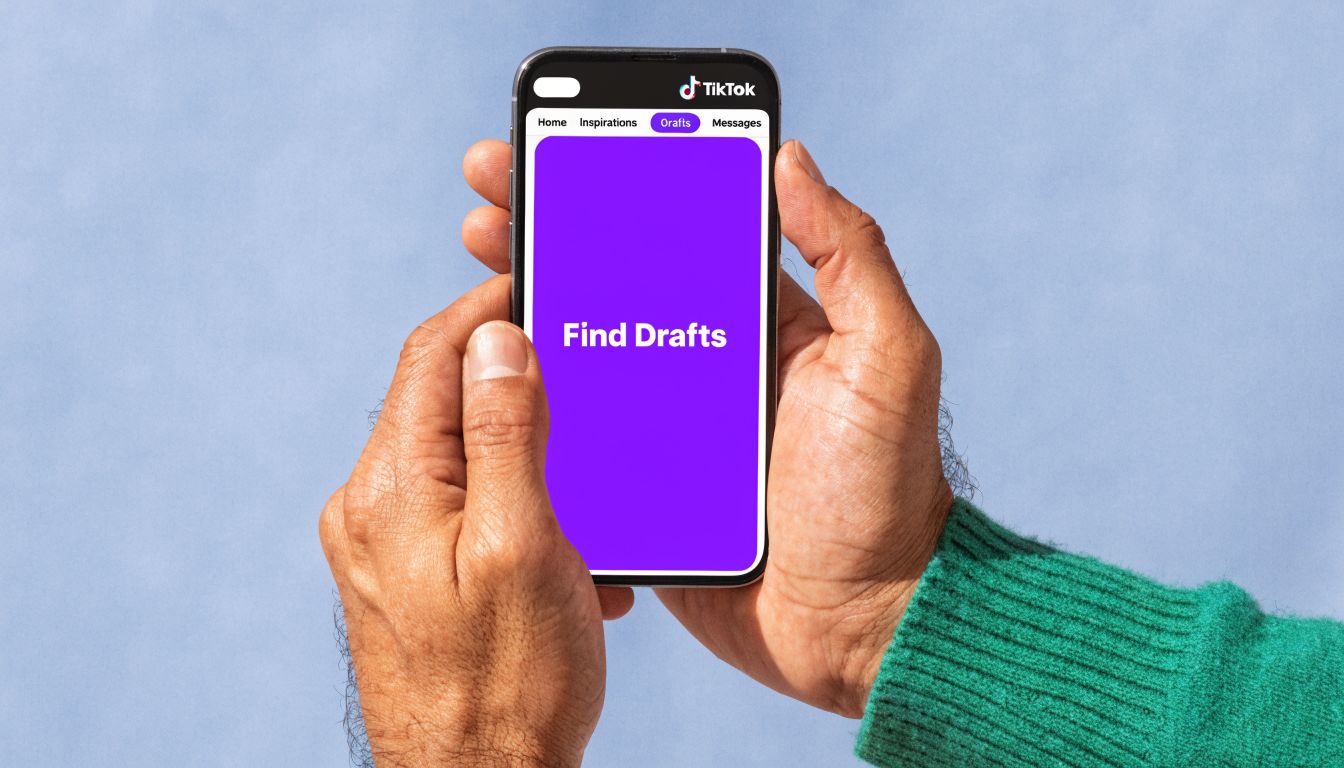
Use this sequence every time:
That’s the basic path. What matters more is how you manage what you see once you’re inside.
TikTok lets creators save work in progress and continue refining videos before publishing. That sounds simple, but your folder gets messy fast if you create often. Once you batch-record content, the drafts page becomes your command center.
A few habits help:
TikTok’s draft system also supports iterative editing and includes features around draft history and collaboration in its broader workflow support, which is useful if more than one person touches content. That matters most for teams and for creators who revisit the same concept more than once.
Practical rule: If you can’t tell within a few seconds why a draft exists, it’s already costing you time.
Here’s the blunt version.
| Approach | What happens |
|---|---|
| Saving every rough idea | Your drafts become harder to review and easier to ignore |
| Saving with intent | You return knowing whether the draft needs trimming, polish, or more footage |
| Editing one draft during random spare moments | You make slow progress and repeat the same setup decisions |
| Reviewing similar drafts together | You make faster editorial choices because context stays fresh |
The app gives you access. Your system decides whether that access is useful.
The part that trips people up isn’t usually trimming or adding text. It’s getting back into the main editor.
A common friction point is this: after you select a draft, TikTok often takes you to the posting screen first. To reach the full editing interface where filters, text, and effects are available, you need to tap the back arrow in the top-left corner, as explained in this draft editing walkthrough from OKGrow.
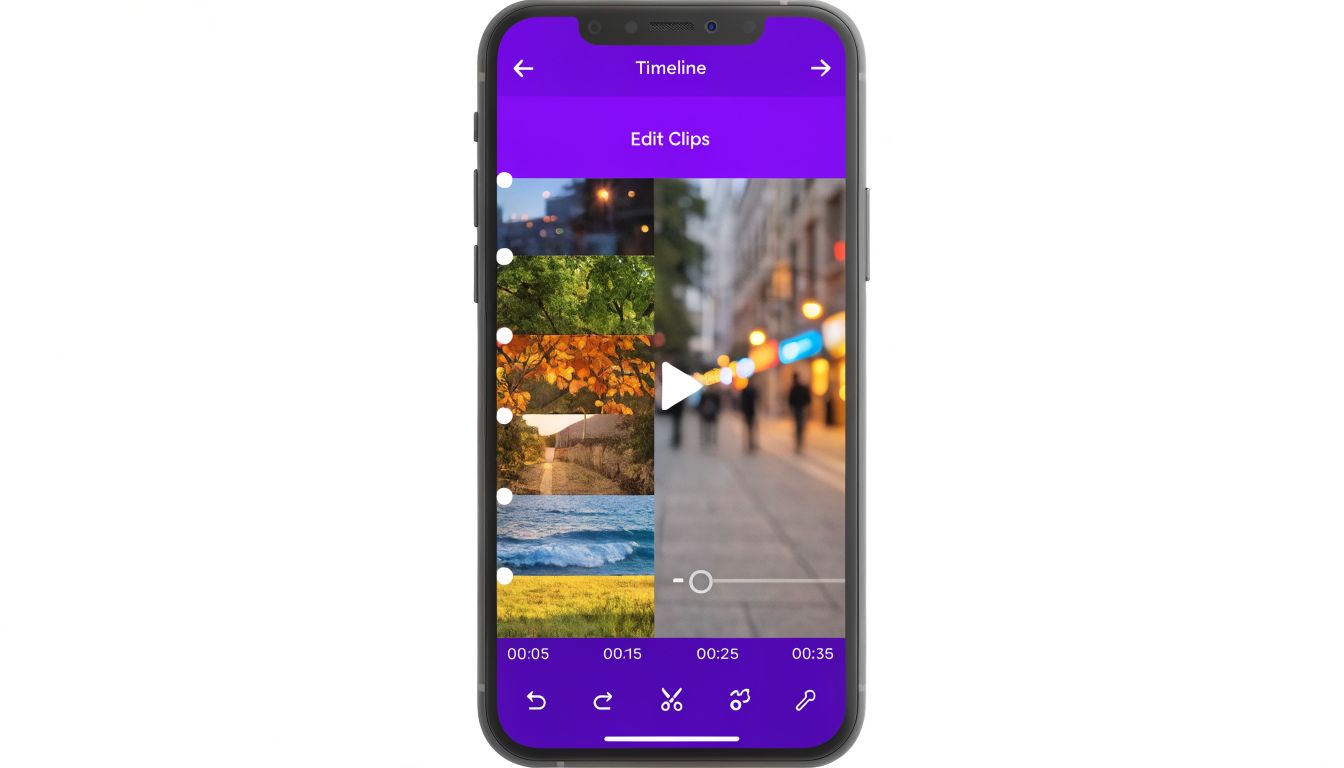
If you open a draft and only see the publishing options, don’t assume the edit tools are missing. They aren’t.
Tap the back arrow. That one move is the gateway back to the editing workspace. A lot of creators waste time because they expect to land directly inside the full editor.
Once you’re in, focus on the structural edit before the cosmetic edit.
When editing a draft, start with the timeline and sequence. At this stage, the video either keeps attention or loses it.
Work through the draft in this order:
For educational videos, move the clearest statement closer to the front. For product or service content, get to the problem or result sooner. For story clips, make sure the second clip raises curiosity instead of explaining everything too early.
One of the handiest draft features is that you can keep building the video instead of abandoning it. If a draft is close but incomplete, add footage to the existing video rather than creating a separate post that fragments the concept.
This is also where repurposing workflows come in. If you’re turning long-form footage into shorts, a tool like TikTok clip maker can help generate candidate clips, then you can use TikTok drafts as the place to review, tighten, and approve what’s worth publishing.
A visual walkthrough can help if the interface still feels clunky:
Don’t jump straight to fonts, stickers, and effects. Use this order instead:
If the clip order is wrong, polish won’t save the video.
That’s the biggest practical lesson in how to edit TikTok drafts well. Edit the bones first. Decorate second.
Once the structure is right, move to the layer that makes the video feel finished. Here, a rough draft becomes publishable.
Inside the draft editing interface, creators can use the back arrow to move between the main editing screen and the recording screen, which lets them add more footage to an existing draft, as shown in this TikTok draft editing video walkthrough. That matters because polish sometimes reveals missing context. You may realize the video needs one more shot, one clarifying line, or a tighter ending.
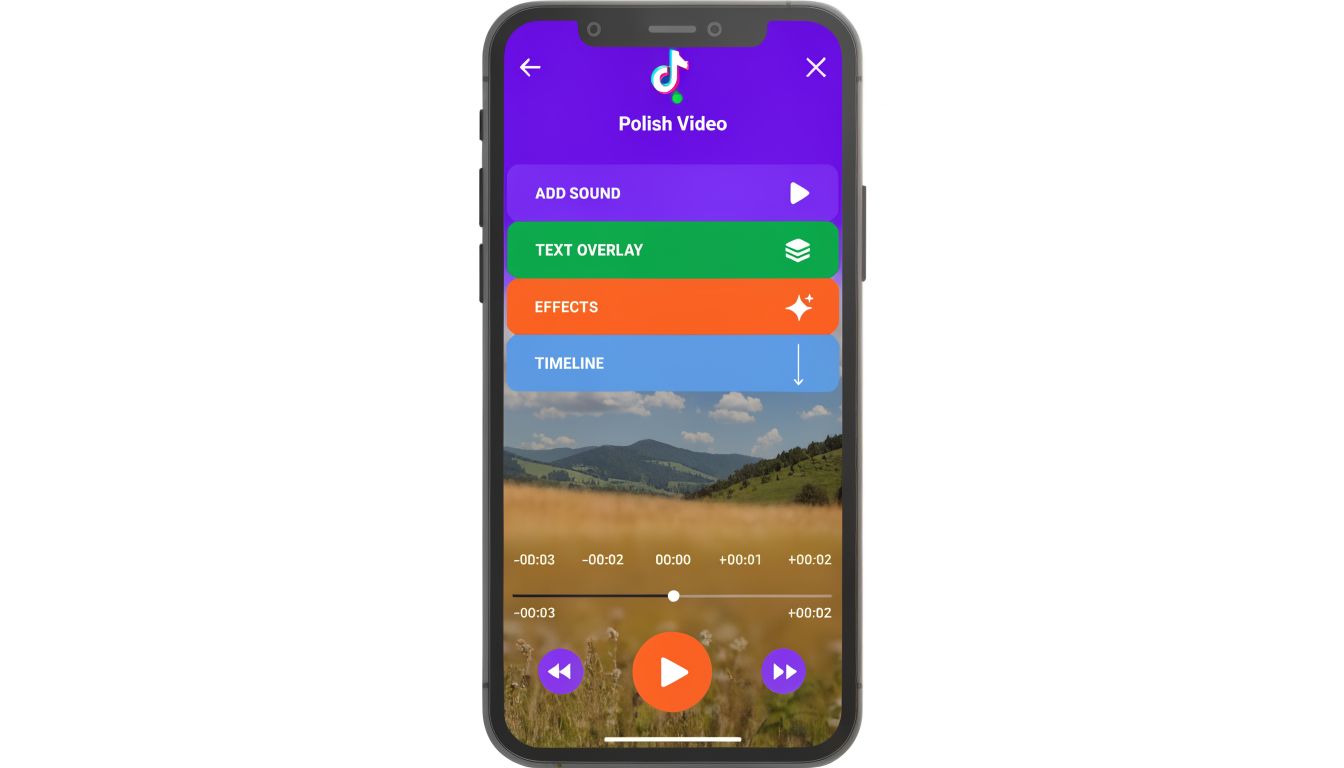
Sound should support the video, not distract from it. Text should clarify the message, not repeat every spoken word on screen unless that’s your format.
Use sound when it does one of these jobs:
Use text when it solves a viewing problem:
If your spoken delivery is already strong, keep on-screen text minimal. If the clip is visual first, text needs to carry more of the meaning.
Many creators tend to overdo it. More effects rarely means a better TikTok.
Use a quick checklist:
If you’re revising the written part of the post after the video is already done, this guide on editing a TikTok caption is useful because caption decisions affect whether the finished draft is ready to publish now or better held for later.
Clean polish beats busy polish. Viewers need a clear message faster than they need visual flair.
Before you publish from a draft, check the last-mile details:
| Setting | What to confirm |
|---|---|
| Cover | The frame is readable and relevant |
| Caption | The first line matches the video’s actual payoff |
| Hashtags | They support context, not keyword stuffing |
| Privacy | You’re posting with the intended visibility |
| Sound balance | Music doesn’t bury the voice |
A draft is ready when the video, text, and posting settings all tell the same story.
Most TikTok advice assumes you’re editing one draft at a time. That’s the wrong model for anyone who publishes consistently.
Existing guides focus heavily on single-draft editing and largely ignore the reality of creators and social media managers who batch-produce content, as noted in this analysis of TikTok draft workflow gaps. If you handle multiple videos each week, the real challenge isn’t opening a draft. It’s moving a queue of unfinished assets toward publishable content without redoing the same decisions over and over.
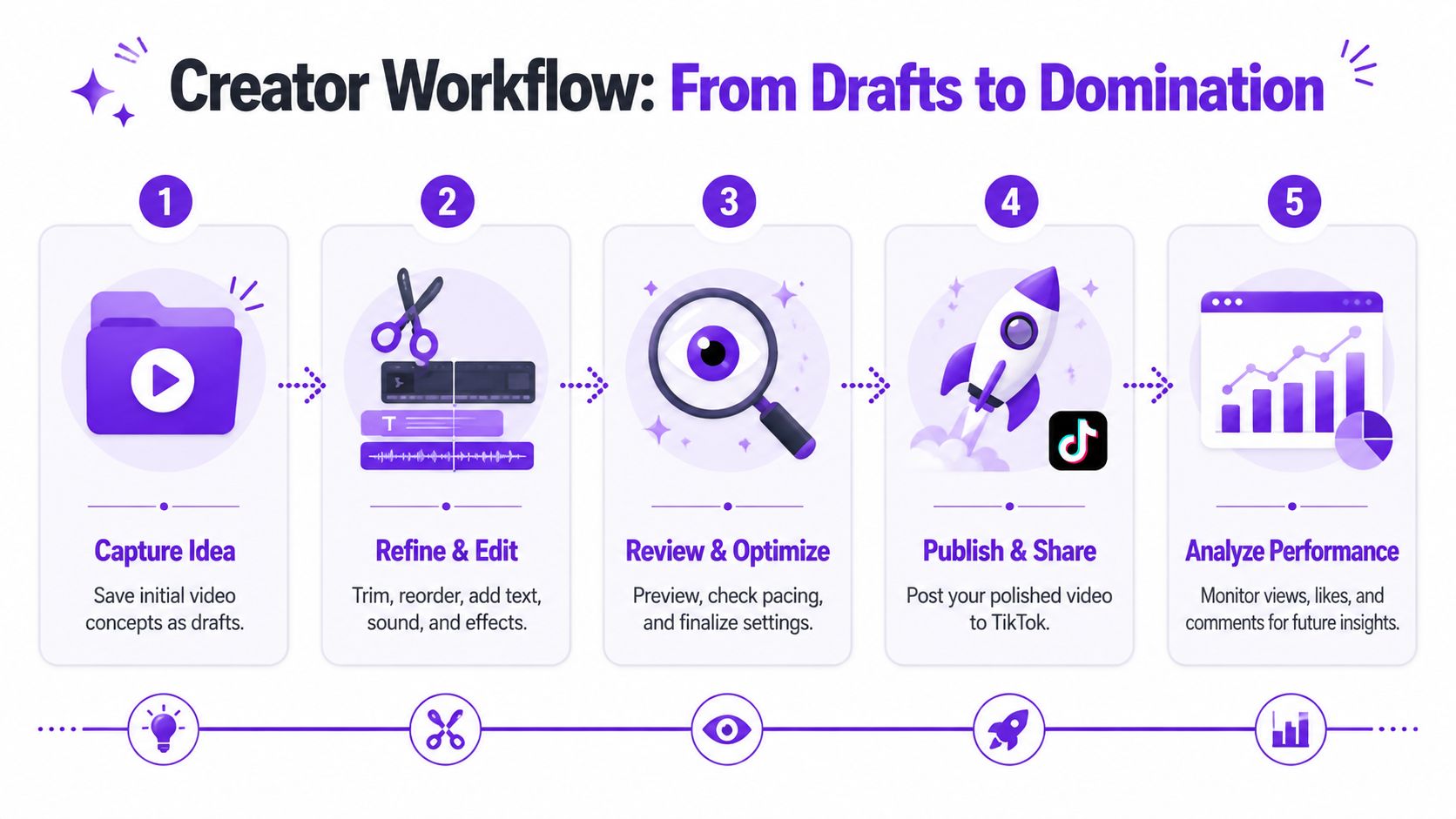
Think of your drafts folder as a pipeline with stages, not a pile of videos.
A practical workflow looks like this:
Capture ideas fast
Save rough takes, hooks, testimonials, product shots, and teaching clips as soon as you record them.
Do structural edits in a batch
Trim, reorder, and add missing clips for similar videos in one sitting.
Do polish in a second pass
Add text, sound, covers, and captions after the bones are right.
Hold for review
Watch with fresh eyes before posting. Weak drafts usually reveal themselves at this point.
Publish only the strongest
Not every draft deserves airtime.
TikTok’s native editor is convenient. It isn’t always the smartest place for every edit.
If you need more control over transitions, logo overlays, animations, or voice treatment, export the draft and use a dedicated editor. If you’re comparing options, this list of Simply Tech Today free video software is a useful place to start for lightweight tools that handle more than TikTok’s built-in editor.
For teams repurposing long videos, TikTok drafts also work well as a review layer after clips are generated elsewhere. Social video editing workflows become much easier when the draft is the final checkpoint instead of the first place every edit happens. Taja AI is one example of a tool that turns long-form video into short-form assets, which creators can then inspect and refine inside TikTok before publishing.
A few workflow choices separate smooth systems from chaotic ones:
The strongest draft workflow reduces repeated decisions. That’s what saves time, not just faster tapping.
If you want consistent output, the goal isn’t to become a better emergency poster. It’s to build a system where drafts move cleanly from idea to asset to published content.
The ugliest draft problem isn’t a bad cut. It’s lost work.
Official TikTok support confirms that drafts can be permanently lost if the app is uninstalled or if you switch devices, and the platform offers no recovery guidance or backup strategy in that documentation, as stated in TikTok’s support page on editing, posting, and deleting. That means prevention matters more than rescue.
If a draft vanishes, start with the obvious checks. Make sure you’re in the right account. Confirm the app wasn’t removed and reinstalled. If you changed devices, assume the local draft may not have carried over.
What usually works best is preventing the loss in the first place:
Not every issue is a total disappearance. Some drafts just become annoying enough to stall momentum.
| Problem | Likely response |
|---|---|
| Draft won’t save properly | Close other apps, retry, and avoid making the draft your only copy of the footage |
| Audio feels off | Recheck sound levels and consider replacing the track or using voiceover |
| Edit feels corrupted or unstable | Export what you can, rebuild the post if needed, and avoid stacking endless revisions on one fragile draft |
| Too many unfinished drafts | Cut aggressively and keep only the videos with a clear next step |
A lot of creators assume there must be a hidden restore option. Usually there isn’t.
That’s why the smartest move is operational, not technical. Save important footage outside TikTok. Keep your strongest drafts moving toward completion. Don’t let critical content sit in-app for too long without a backup path.
A draft you haven’t exported, published, or backed up is still at risk.
That sounds harsh, but it’s the right mindset. Drafts are useful. They are not reliable long-term storage.
If you’re building content from podcasts, interviews, webinars, or client videos, Taja AI can help you turn long-form footage into short-form assets, then use TikTok drafts as your review and approval layer before posting. That approach keeps the speed of AI-assisted repurposing while preserving your editorial control where it counts.


We are blessed to work with leading brands & Companies


We try to make easy and simple for every professionals. Get 30 days free trial - No credit card required.


© 2025 Taja AI. All rights reserved.