.jpeg)
Auto Generate Captions for Video in 2026
Learn how to auto generate captions for video with AI tools, accuracy tips, and platform publishing workflows that actually scale in 2026.
5 min read
October 18, 2026

Learn how to edit story on instagram on iOS and Android with step-by-step tips for stickers, text, music, drafts, highlights, and post-editing workarounds.
Written by:


You post a Story, tap through it once, and notice the problem immediately. A typo in the headline. Text sitting too high on one clip and too low on the next. Music that feels right on the first segment but awkward after Instagram splits the rest.
That's usually when questions arise concerning how to edit story on Instagram, and users discover Instagram's editing rules are much stricter than they expected. The app gives you solid creation tools before publishing, but once a Story is live, your options narrow fast. That matters even more if you're a solopreneur posting product demos, client updates, listings, tutorials, or repurposed vertical clips that run across multiple Story segments.
The part most basic guides miss is this: editing a single Story card is easy. Editing a multi-clip Story so it looks consistent is where the substantial work starts. The second blind spot is external draft fidelity. A Story that looks clean in Canva or CapCut can shift once it lands inside Instagram's 9:16 frame, especially when captions and text overlays enter the mix.
Story editing is often believed to begin when the text tool is accessed. However, it originates earlier, defined by the format restrictions Instagram applies.
Instagram Stories operate under a strict 24-hour window for editing access before the Story becomes immutable, and once that period passes, the Story moves to archive if archiving is enabled. After that, Instagram doesn't let you directly update the published visual asset, which is why quick review matters right after posting, as noted in this guide on editing Instagram Stories after posting.
On both iPhone and Android, the creation flow is broadly similar. You open the Story camera, capture or upload media, then add layers like text, stickers, music, drawings, effects, and mentions. The exact button placement can vary slightly by device version and app update, but the core workflow stays familiar.
Before you start building anything, check a few basics:
Practical rule: If a Story matters for business, review the first live version immediately. Don't assume you'll “fix it later.”
Instagram is strong for fast in-app composition. It's weaker for precision revision after the fact. That's the trade-off behind the format's speed.
If you're creating polished video Stories regularly, it helps to prep assets in advance with best video editing software, then use Instagram mainly for final placement, stickers, and publishing. That usually reduces rushed edits inside the app.
A good working mindset is simple: build carefully before publishing, then treat the live Story as mostly locked.
The fastest way to make a Story look professional is to reduce clutter. One clear visual, one message, one action. Most messy Stories happen because the creator keeps layering tools without thinking about hierarchy.
Start with your background first. Upload a photo, video, or draft clip. Then add text before stickers. Add music after that. This order makes alignment easier because your message stays visible while you build around it.

Tap the Aa text icon and type your message. Instagram lets you change font style, color, alignment, and text background. On iPhone, text controls often feel slightly smoother when dragging and scaling. On Android, the same tools are there, but some users notice small differences in snapping and placement sensitivity.
Use these practical rules when placing text:
If you're editing outside Instagram first, keep your composition simple. Re-uploaded drafts can shift, so ultra-tight text placement often becomes fragile.
Stickers work best when they do one job. Polls invite action. Location stickers add context. Mention stickers pull in collaborators. Link and question stickers can move the conversation forward, but they also eat visual space quickly.
A clean sticker workflow looks like this:
For audio-driven Stories, choosing the right clip matters as much as the visual. If you need to prep sound externally before assembling a draft, a tool for Instagram audio to MP3 conversion can help you organize reference audio before final editing.
If you're still deciding what sound fits the Story, this guide on how to find trending audio on Instagram is useful for narrowing the creative direction before you publish.
Tap the music sticker, search for a track, and choose the section that fits the card. The important part isn't just the song. It's the moment of the song. A weak snippet can flatten a strong Story.
Use music well by focusing on:
Instagram also lets you add AR filters and effects before posting. These are useful when they support the message, not when they distract from it. Beauty filters, color effects, and subtle motion overlays can help. Heavy effects often make branded Stories feel less credible.
A quick visual walkthrough helps if you want to see the interface in motion:
Good Story composition feels intentional. Viewers shouldn't have to decode what you meant.
Many creators struggle to maintain polish when Instagram automatically segments videos longer than 15 seconds, which creates text alignment problems across clips and usually forces manual re-entry or careful repositioning, as explained in this Instagram Story editing resource.
If you post talking-head clips, walk-throughs, product demos, or before-and-after sequences, this matters a lot. A Story can look solid on segment one and sloppy by segment three, even when the source video itself is good.
The mistake is treating a multi-clip Story like one continuous canvas. Instagram doesn't. It treats it as separate cards.
That means you should design with segment boundaries in mind:
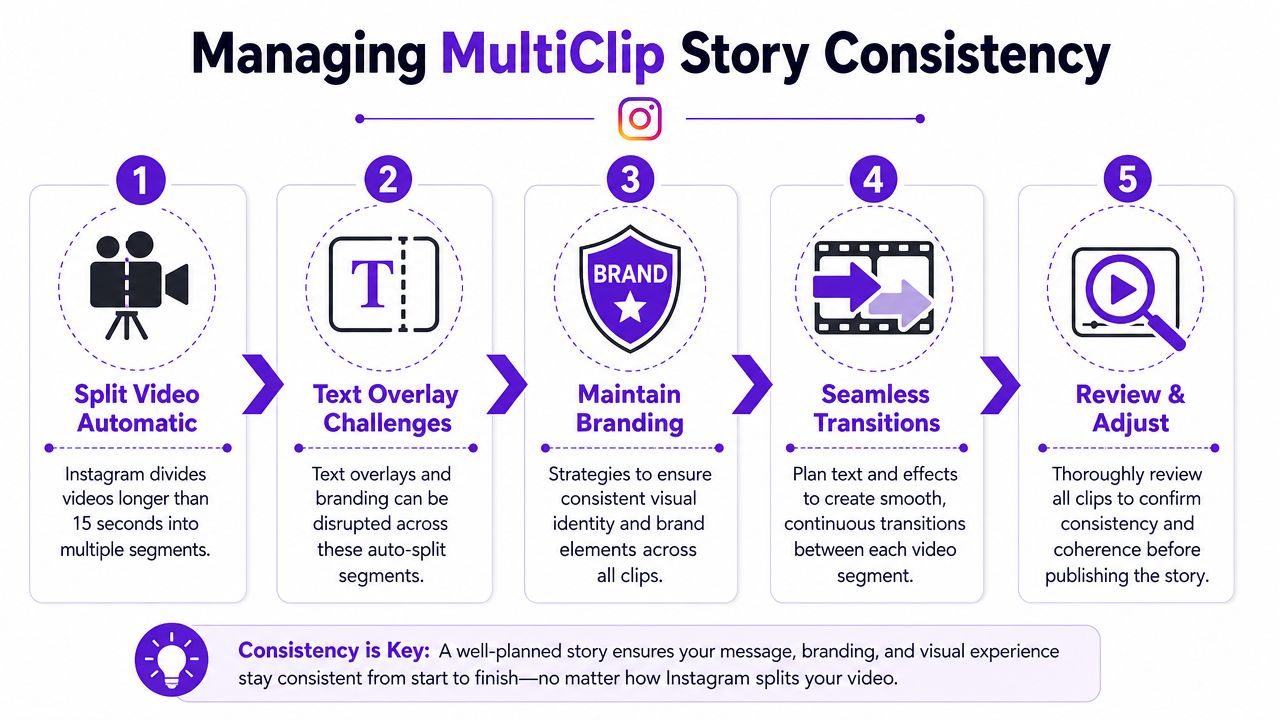
When I'm checking a long Story sequence, I look for drift in three places first: text height, caption timing, and sticker spacing. Those are the details viewers won't name, but they absolutely notice.
Try this workflow:
For creators working with outside assets, the file setup matters too. If you need a reference for proper dimensions and formatting, this guide to Instagram video format is a practical check before export.
Workflow note: Multi-clip Stories usually look better when you simplify each card, not when you try to force identical complexity across all of them.
Pinned text can help when you want words to follow movement inside a clip, but it still needs manual review after segmentation. Instagram doesn't remove the need for hands-on adjustment.
You catch a typo after the Story is already live. Or worse, clip three in a five-part sequence has the wrong CTA while the surrounding cards are fine. At that point, Instagram gives you a few control options, but it does not let you re-edit the creative layer on a published Story.
That limitation is built into the product. Instagram's Help Center explains that Stories can be deleted, shared, archived, or adjusted through available settings, but published Story media itself is not something you can freely redesign in place through the live post workflow. See Instagram's guidance on sharing photos and videos to your story.
Open the live Story, then tap the three-dot menu in the lower right. On most accounts, that menu is where the remaining post-publish controls live.
The editable items are usually administrative, not creative:
The creative layer is the part that stays locked. You cannot revise text overlays, swap stickers, move captions, replace music timing, change filters, or edit the underlying photo or video on a Story that is already published.
| Element Type | Editable After Posting | Workaround |
|---|---|---|
| Reply settings | Yes | Change Story settings from the live Story menu |
| Share settings | Yes | Adjust interaction permissions in the Story menu |
| Visibility settings | Yes | Update audience controls if available |
| Some metadata options | Sometimes | Check the three-dot menu on your device and app version |
| Text overlays | No | Delete the Story and repost a corrected version |
| Stickers | No | Rebuild the card and re-upload |
| Filters | No | Re-export or re-edit, then repost |
| Music timing | No | Recreate the Story with the correct timing |
| Images or video | No | Replace by reposting the revised media |
For solopreneurs, the primary question is rarely "Can this be edited?" The question is whether the fix is worth breaking the sequence.
If the mistake is on a standalone Story, deleting and reposting is usually simple. If it sits inside a multi-clip run, the decision gets trickier. Reposting one corrected card can reset its position in the viewing flow, change how the sequence feels, and create a visible style mismatch if the replacement came from an external draft with slightly different text sizing, export sharpness, or sticker spacing.
I usually sort post-publish mistakes into two buckets. Meaning errors get fixed. Cosmetic imperfections often stay live.
Fix it if the Story has the wrong product name, date, link direction, pricing, tagged account, or call to action. Leave it alone if the issue is minor alignment drift, a caption sitting a little high, or a decorative sticker landing a few pixels off.
If you do need to redo it, use a controlled process so the replacement matches the rest of the sequence as closely as possible:
That last check matters. External drafts often come back into Instagram with small fidelity differences, especially on Android versus iPhone, and those differences are more obvious after a repost because viewers are already comparing one card to the next.
If the error changes what the viewer understands or does next, repost it. If it only softens the polish a little, preserving sequence continuity is often the better editing choice.
You finish a five-card Story sequence, leave Instagram to grab one last logo file, come back, and the draft is gone. That is annoying on any post. It is worse on Stories because rebuilding one card often throws off the spacing, pacing, and visual continuity of the whole sequence.
Drafts help you preserve editing decisions while the Story is still in progress. Highlights help you keep the finished version working after the 24-hour window ends. Used well, both reduce rework.
Inside the Story creator, exit with intention. If Instagram offers Save Draft, take it instead of swiping the app away or force-closing. That gives you the best chance of keeping text placement, sticker order, and music or caption timing intact.
I treat drafts as temporary insurance, not permanent storage. Instagram drafts can disappear after app updates, account switches, cache clears, or long delays. For any Story that matters, keep the source assets organized in your camera roll or project folder so you can rebuild fast if the in-app draft fails.
A few habits make that rebuild less painful:
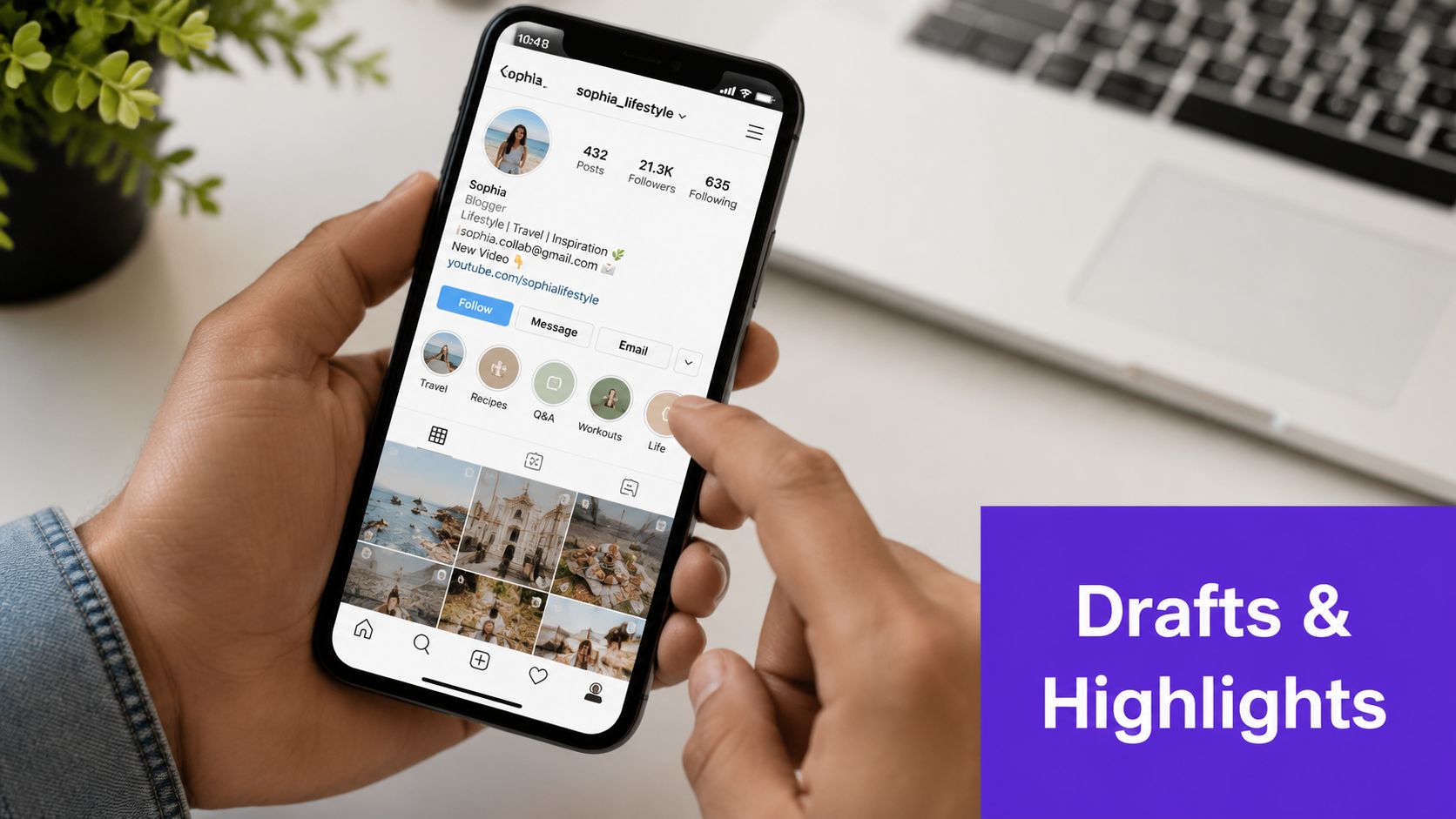
Highlights are best used as curated entry points, not storage bins for every expired Story. A good Highlight should help a profile visitor understand your offer quickly without tapping through filler.
Use simple groupings that match how people evaluate a business:
Keep the covers visually consistent, and keep titles short enough to scan on a small screen.
Before adding a Story to Highlights, review the full sequence again. This matters even more if part of it was built outside Instagram and re-uploaded later. A card can be technically correct but still feel out of place if the text scale, sharpness, or sticker spacing shifts from the clips around it. For solopreneurs using Highlights as evergreen sales material, consistency usually matters more than squeezing in every Story you posted that week.
If a Story has already expired and you would not be happy rebuilding it exactly as shown, it probably does not belong in a Highlight. Curate the strongest version, not the most complete archive.
The most common Story problems aren't dramatic. They're the annoying ones that waste time.
For repurposed video, cut your best spoken moment first and build the Story around that. Don't start with effects. Start with the strongest line.
If movement in your clip makes text harder to read, slow the action before import. This guide on how to slow down Instagram videos is useful when your footage feels too fast for Story pacing.
Clean Stories come from fewer corrections. The easiest edit is the one you prevent before upload.
If you're turning long videos into Instagram-ready Story clips on a regular basis, Taja AI can help you move faster. It repurposes long-form content into vertical assets, captions, and platform-specific drafts, so you spend less time rebuilding every Story by hand and more time polishing the parts requiring your personal review.


We are blessed to work with leading brands & Companies


We try to make easy and simple for every professionals. Get 30 days free trial - No credit card required.


© 2025 Taja AI. All rights reserved.