.jpeg)

What Is YouTube SEO and Why Videos Rank
What is YouTube SEO? See how relevance, watch time, CTR, and retention decide rankings, plus the steps and metrics that improve a video.
5 min read
November 3, 2026

Learn how to download videos on Snapchat—your own, from Memories, and others. Get clear steps for iOS, Android, and desktop for 2026.
Written by:


Snapchat is a goldmine of your most authentic, in-the-moment memories, but getting those videos off the app can feel like a complete puzzle. You’ve got amazing content trapped in there, and the clock is always ticking.
This guide is your key to unlocking all of it. We're going to break down every single method to download your Snaps, whether you're on an iPhone or an Android. I'll show you how to save your own videos as you create them, pull your entire library from Memories, and cover the only safe way to save Snaps from friends.
Whether you're a creator looking to repurpose content for TikTok, a social media manager archiving brand assets, or just someone who wants to keep your favorite moments safe, you'll find clear, actionable instructions here.
We’ll cover:
Before we dive deep, let's get a quick overview. The right download method depends entirely on whose video you're trying to save—your own or someone else's.
Here’s a quick table to make sense of the options.
| Method | Best For | Platform | Key Limitation |
|---|---|---|---|
| Save As You Create | Saving individual videos as you make them. | iOS/Android | Must be done before sending the Snap. |
| Memories Export | Bulk downloading all your saved Memories. | iOS/Android/Desktop | Can take time; you get a ZIP file. |
| Screen Recording | Saving Snaps sent by others. | iOS/Android | The sender is always notified. |
| Third-Party Apps | Nothing. They are not recommended. | N/A | High risk of scams, malware, and account bans. |
This table makes one thing crystal clear: Snapchat gives you solid options for your own content but locks down videos from others to protect their privacy. This is a good thing.
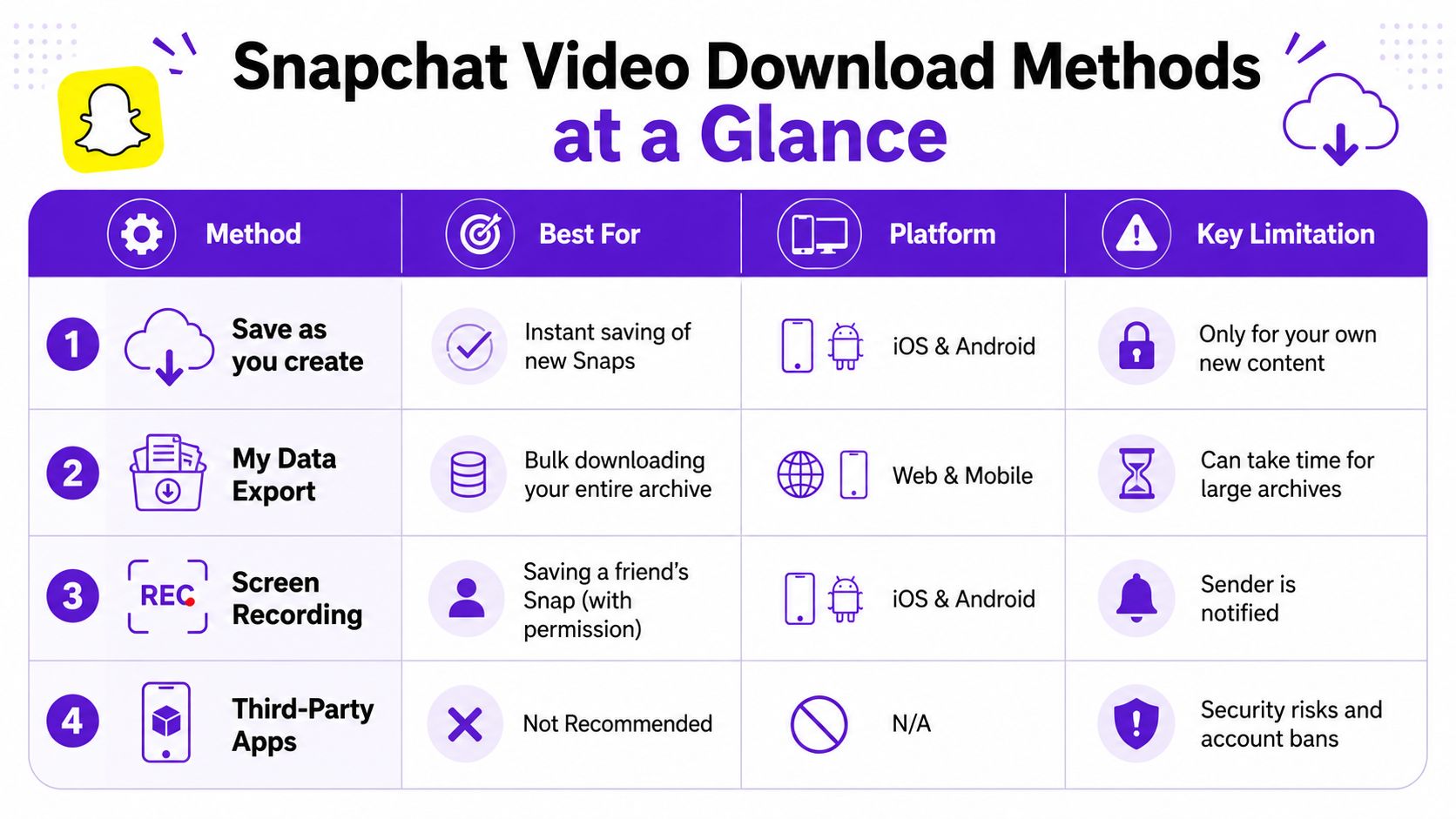
As you can see, the options for downloading your own stuff are pretty robust. For creators, combining the "Save as you create" and "Memories Export" methods gives you a complete workflow for managing your video assets.
Now, let's get into the step-by-step for each of these.
The easiest way to start building a content library is to save your videos the moment you create them. It sounds obvious, but you’d be surprised how many creators lose a perfect take because they forgot to hit one simple button.
Think about it. You just filmed a brilliant behind-the-scenes look at a new product. You don't want to dig through Snapchat's clunky export process later; you need that raw footage now so you can throw it on Instagram Stories or start chopping it up for a TikTok. Learning how to download your own content instantly is the first step to working smarter, not harder.
Here’s the biggest mistake I see people make: manually saving every single Snap they create. It’s a waste of time. Instead, you can tell the app to do it for you automatically. This is a one-time settings change that will save you countless taps and potential headaches down the road.
You just need to tell Snapchat’s “Save Button” what to do. By default, it only saves to Memories, which keeps your content locked in Snapchat's cloud. We’re going to change that.
This single tweak is a total game-changer. Now, every time you save a video Snap, it goes to both Snapchat’s cloud (Memories) for backup and your phone’s local storage (Camera Roll) for immediate access. It's the best of both worlds, giving you a secure copy and instant usability.
What if you’ve been posting a bunch of video Snaps to your Story all day and want to save them all in one go? Snapchat actually has a built-in feature for this, which is a lifesaver for batching content.
Imagine you're a real estate agent who documented a full property tour through a series of short clips. Instead of downloading each one individually, you can grab the entire tour as a single, cohesive video file.
Here's how to do it before your Story expires after 24 hours:
The app will then stitch together all the video and photo Snaps from your Story into one video file and save it straight to your Camera Roll and Memories. This is, by far, the most efficient way to save a full day's worth of content without the soul-crushing task of downloading each clip one by one.
If you’ve been on Snapchat for a while, your Memories section is probably a treasure chest of forgotten videos. We're talking years of moments, behind-the-scenes clips, and raw content. Saving one or two snaps is easy, but what happens when you want your entire archive?
Maybe you're a creator looking to repurpose years of old content, or maybe you just want a complete personal backup before you ever lose access. Either way, downloading thousands of videos one-by-one is a complete non-starter. It would take weeks.
Thankfully, Snapchat has an official, built-in way to handle this called the My Data feature. Let me be clear: this is the only secure and sanctioned method to export everything you've ever saved to Memories in one go. Don't even think about using those sketchy third-party apps.
This process bundles your entire Snapchat history—videos, photos, chat logs, and more—into a single file you can download. It's perfect for creating a bulletproof backup or feeding a massive library of content into repurposing tools like Taja AI.
The first thing to know is that this process starts on Snapchat's website, not in the app. The steps are the same whether you’re on your phone or a computer.
Now, Snapchat gets to work compiling all your data. And this is the part where you need to be patient, because it’s not instant.
Be prepared to wait. If you’re a light user, you might get the download link in your email within an hour. But if you have years of high-resolution videos saved up? It could easily take 24 hours or even longer for the file to be ready. Don't panic if it doesn't show up right away.
Eventually, you'll get an email from Snapchat with a link to a ZIP file. This is where things get a little more technical, but it's totally manageable if you follow along.
mydata.zip file onto your computer. It might be a pretty big file, so give it some time.memories_history.html. Go ahead and double-click it; it will open in your web browser. This HTML file is basically an organized, interactive menu for all your media.Inside that memories_history.html file, you’ll find a clean table listing every single Memory, complete with its creation date and a download link. From here, you can grab videos individually or even use a browser extension to download them in batches.
This export feature has become a lifeline for many of the over 800 million monthly active users on the platform, especially with Memories usage seeing a 45% year-over-year surge. If you want more detail on how the export works, Snapchat's official support pages are your best bet.
If your ZIP file is massive, you might have some trouble handling it. For Mac users trying to manage these huge files, looking into some video compression software for Mac can be a real lifesaver. The best part is that the memories_history.html file keeps all the important metadata, like when and where a snap was taken, which is crucial for organizing your new archive.
Alright, let's get into the tricky part. You want to save a video someone else sent you on Snapchat. Maybe it’s a hilarious clip you want to rewatch, or a sweet moment you want to keep. But when it's not your content, you're walking a fine line between saving a memory and straight-up invading someone's privacy.
Unlike your own content, Snapchat is built to restrict you from downloading videos from other people. And for good reason—it’s their moment, their content, their privacy.
This brings us to the one and only method that’s safe and not a violation of Snapchat’s terms: screen recording. But before you get too excited, this comes with a massive, non-negotiable catch that changes everything.
Here’s the deal, and there’s no way around this: Snapchat will always notify the other person when you screen record their Snap. The second you capture their video, a notification pops up on their end, letting them know exactly what you just did. No secret hacks, no special tricks. It's a built-in privacy feature, and it’s not going anywhere.
This notification is your most important ethical guideline. It forces a level of transparency. Since the other person will know you’ve saved their video, the only respectful way forward is to ask for their permission before you even think about recording.
A quick message like, “Hey, that video is hilarious, do you mind if I save it?” is all it takes. This simple act respects their privacy, avoids any awkwardness, and keeps your friendships intact. If they say no, you have to respect that. No questions asked.
Once you’ve gotten the green light, the process is pretty straightforward using your phone's built-in tools.
For iOS (iPhone/iPad):
For Android:
You’re going to find websites and apps out there claiming they can secretly download Snapchat videos without notifying the sender. Let me be crystal clear: avoid these at all costs. They are not just unethical; they are a direct threat to your security and your Snapchat account.
These sketchy apps often require you to enter your Snapchat login credentials, which should set off every alarm bell in your head. Handing over your username and password can lead to a whole world of hurt:
To make sure you're saving content respectfully and legally, it helps to understand how creators think about protecting their work. This external guide on preventing copyright issues offers some great insights. If you have more questions about platform features and safety, you can also check out our FAQ page at Taja.ai.
So, you followed the steps, hit download, and now your camera roll is overflowing with vertical videos from Snapchat. For most people, that's where the story ends. But for creators and business owners, that's where the real opportunity begins.
Every single one of those downloaded clips—every old Story, every forgotten Memory—is a content asset just sitting there. But let's be real. The thought of manually digging through hundreds of old Snaps to find the good stuff, then editing them for TikTok, Reels, and YouTube Shorts? It's a massive time sink. It's the kind of busy work that makes you want to give up before you even start.
What if you could just dump your entire Snapchat archive somewhere and have an AI do the hard work for you? Imagine it automatically finding your most engaging moments and turning them into dozens of optimized short-form videos, ready to post.
This isn't some far-off future concept. Modern tools are built for exactly this. It's time to stop just saving your videos and start making them work for you again.
This is precisely what tools like Taja AI were designed to solve. With features like ‘Backlog Boost,’ you can breathe new life into that entire folder of downloaded Snapchat videos. The process is dead simple: you upload your old content, and the AI starts mining for gold.
It’s not just picking clips at random, either. The AI analyzes everything to pinpoint moments with viral potential, then automatically generates all the assets you need to publish them:
This completely flips the script on why you'd download your Snapchat videos in the first place. What used to be a simple backup becomes the first step in a scalable content machine, saving you hours of painful editing and brainstorming.
Ever since Snapchat rolled out its 'My Data' export tool back in 2018, its value for creators has exploded. By mid-2025, over 150 million data download requests had been processed globally, with a staggering 68% of those specifically targeting Memories videos. That's a huge signal that creators are desperate to repurpose content across platforms.
Once your downloaded Snapchat videos have been repurposed into fresh shorts, you've got to think about the platform-specific details. For example, a clip that works for a 1-minute TikTok might need to be trimmed for Instagram. Knowing the sweet spot for video length is crucial, and this Instagram Stories video length guide is a great resource for nailing those specs.
This automated workflow—from downloading your archive to scheduling dozens of optimized posts—is a complete game-changer. It turns old, forgotten clips into new assets that can grow your audience, saving you hours of work and transforming a simple download into a powerful growth strategy. To see how it all works, you can learn more about how to repurpose video content with an AI generator in our detailed guide.
Alright, even with a step-by-step guide, you probably still have a few questions buzzing around. I get it. The process isn't always straightforward.
Let's clear up the most common headaches people run into when trying to download their Snapchat videos. No fluff, just direct answers so you can get your content saved.
Patience, my friend. If you're a long-time Snapchat user, you could have years of content—tens, maybe even hundreds of gigabytes—stashed away in your Memories. Asking Snapchat to bundle every video, photo, and chat log you've ever created into one neat ZIP file is a serious task.
It’s pretty normal for the download link to take up to 24 hours to land in your inbox. If you've been on the platform since the beginning, don't be shocked if it takes even longer. It’s not broken; it’s just a sign their servers are working hard to pull together your massive archive. Pro tip: check your spam folder before you panic.
This is a great question, and the short answer is no, not really. When you use the official "My Data" feature, you're getting the video file exactly as it was saved to Memories. Snapchat isn't compressing it further; you're getting the source file.
However, don't expect the download to magically improve a grainy video. The quality is locked in the moment you record it. If you shot a video in a dark room on an old phone, that's what you'll get. The export process preserves quality; it doesn't enhance it.
Key Takeaway: The "My Data" export is your best shot at getting the highest quality version of your own videos. Other workarounds, like screen recording, will always degrade the quality because you're literally recording your screen, not grabbing the original file.
Let me be crystal clear: no. Snapchat's entire platform is built on privacy and disappearing content. There is no official, sanctioned, or ethical way to save a video someone sends you without them getting a notification.
If you screen record a Snap, they know. That notification is a core privacy feature. Any app, tool, or website promising to get around this is almost certainly a scam designed to steal your data or compromise your account. It's not worth the risk. Just ask for their permission to record.
Ready to turn those downloaded Snapchat videos into a powerful content engine? Taja AI can take your entire archive and automatically generate optimized clips, titles, and captions for every platform. Stop letting your content collect dust and start reaching new audiences. Try it for free at https://www.taja.ai.


We are blessed to work with leading brands & Companies


We try to make easy and simple for every professionals. Get 30 days free trial - No credit card required.


© 2025 Taja AI. All rights reserved.