.jpeg)

Auto Generate Captions for Video in 2026
Learn how to auto generate captions for video with AI tools, accuracy tips, and platform publishing workflows that actually scale in 2026.
5 min read
October 18, 2026

Find the best video compression software mac for your workflow. We review 10 top tools for quality, speed, and social media exports in 2026.
Written by:


Your 20GB 4K export looked great inside Final Cut or Premiere. Then you tried to upload it, send it to a client, or schedule it for social, and the problem appeared. The file is too big, the platform rejects it, AirDrop crawls, cloud storage starts filling up, and one bad export setting turns sharp footage into mush.
That is where most creators lose quality. Not in the edit. In the last step.
On Mac, compression is not just about shrinking a file. It is about choosing the right codec, the right bitrate strategy, and the right tool for the way you work. A solo YouTuber clipping podcasts needs something different from an agency exporting review cuts all day. A Final Cut Pro editor should not use the same workflow as someone batch-processing dozens of social videos overnight.
Mac users have a strong codec foundation to work with. Apple’s video stack moved from MPEG-2 to H.264 and now hardware-accelerated HEVC on modern Macs, with HEVC cutting 4K file sizes by 40 to 60 percent compared with H.264 in some workflows, according to Compresto’s overview of video compression on Mac. The software you choose decides how much of that advantage you keep.
Below are the tools that matter. Not every app is for every editor. Some are built for pro delivery, some for fast social exports, and some for people who would rather script the whole process than click through a UI.
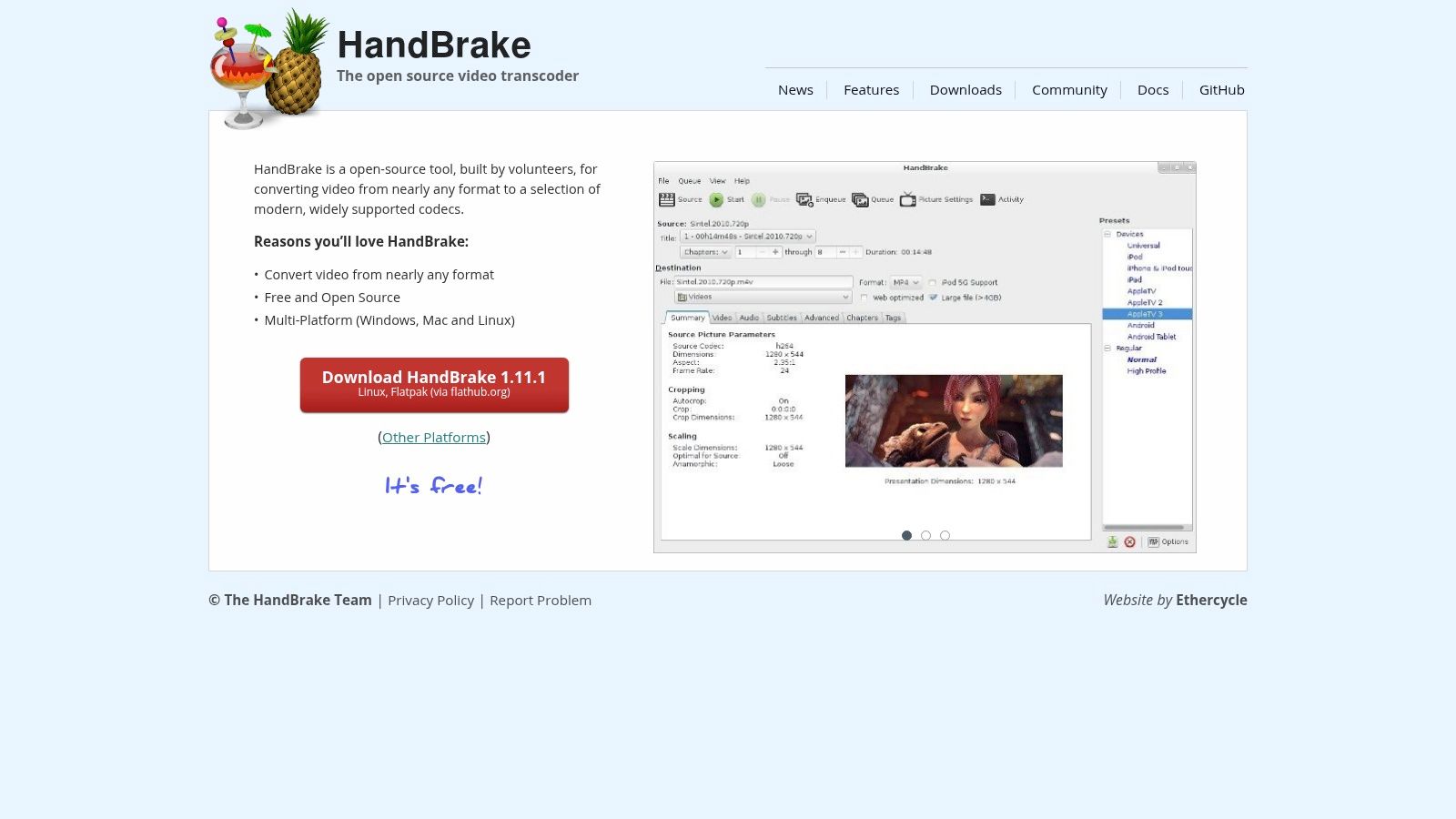
HandBrake remains the default recommendation for one reason. It gives you real control without charging you for it.
If you need dependable video compression software mac creators can trust for both long-form and short-form delivery, HandBrake is still the safest place to start. It supports H.264, HEVC, and AV1, includes strong presets, and lets you fine-tune constant quality, target size, filters, audio, and batch queues without feeling like a toy app.
HandBrake is strongest in the middle ground. It is not the fastest route for high-end broadcast packaging, and it is not the simplest drag-and-drop app for total beginners. It is best for creators who want repeatable output and are willing to spend a little time building presets.
Use it for:
Its Apple VideoToolbox support is useful on supported Macs when speed matters more than squeezing every last bit of efficiency from software encoding.
HandBrake works best when you stop chasing exact file sizes and start using constant quality. Most creators get better-looking results that way.
Pros are obvious. It is free, stable, and widely documented. The downside is that it can overwhelm people who just want “make this smaller” with no codec decisions.
It also is not a downloader, and it is not designed for DRM-protected sources. If your workflow starts with protected media or platform ingestion, look elsewhere.
Website: HandBrake
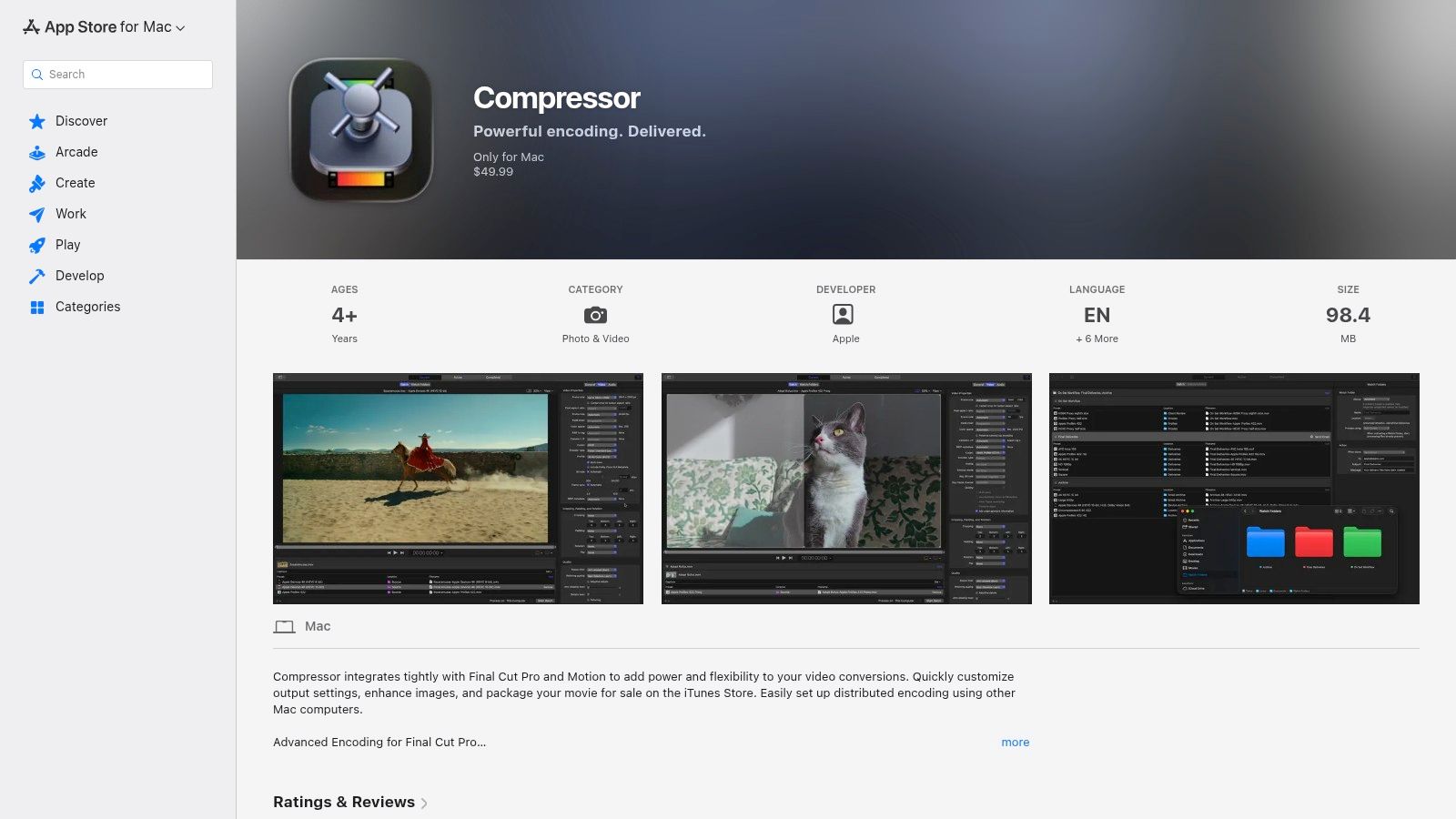
A common Mac workflow looks like this: edit in Final Cut Pro, export a clean master, then turn that master into platform-specific deliverables without reopening the timeline five times. Apple Compressor is built for that job.
Consistency is a particular strength of this tool. Compressor lets Final Cut users create house presets, batch out multiple versions, automate recurring jobs with watch folders and droplets, and keep delivery settings standardized across editors. That matters for solo creators posting weekly and for agencies pushing review cuts, client approvals, social versions, and archive files from the same source.
Compressor makes the most sense in Mac-based post pipelines where Final Cut Pro is already the center of the workflow. It is less about one-off file shrinking and more about repeatable delivery.
Use it for:
I recommend Compressor when the bottleneck is not editing. It is delivery. If files need to leave the Mac in the same format every time, Compressor saves more time over a month than a simpler converter that only handles ad hoc compression.
Compressor is stronger than cheaper Mac converters in the parts of the job that break casual tools. That includes metadata-aware exports, caption support, surround audio options, HDR workflows, custom destinations, and better control over Apple-centric codecs and containers.
There is a trade-off. Compressor is a poor value if you do not work in Final Cut Pro or Motion. The interface is functional, not friendly, and pure compression speed is not always enough reason to buy it if HandBrake or FFmpeg already cover your needs.
For Mac creators who live in Final Cut, though, it fits cleanly. Solo YouTubers can build repeatable presets for YouTube, Instagram, and review copies. Agencies can set benchmark outputs once and stop arguing over export settings on every project.
Website: Apple Compressor on the App Store
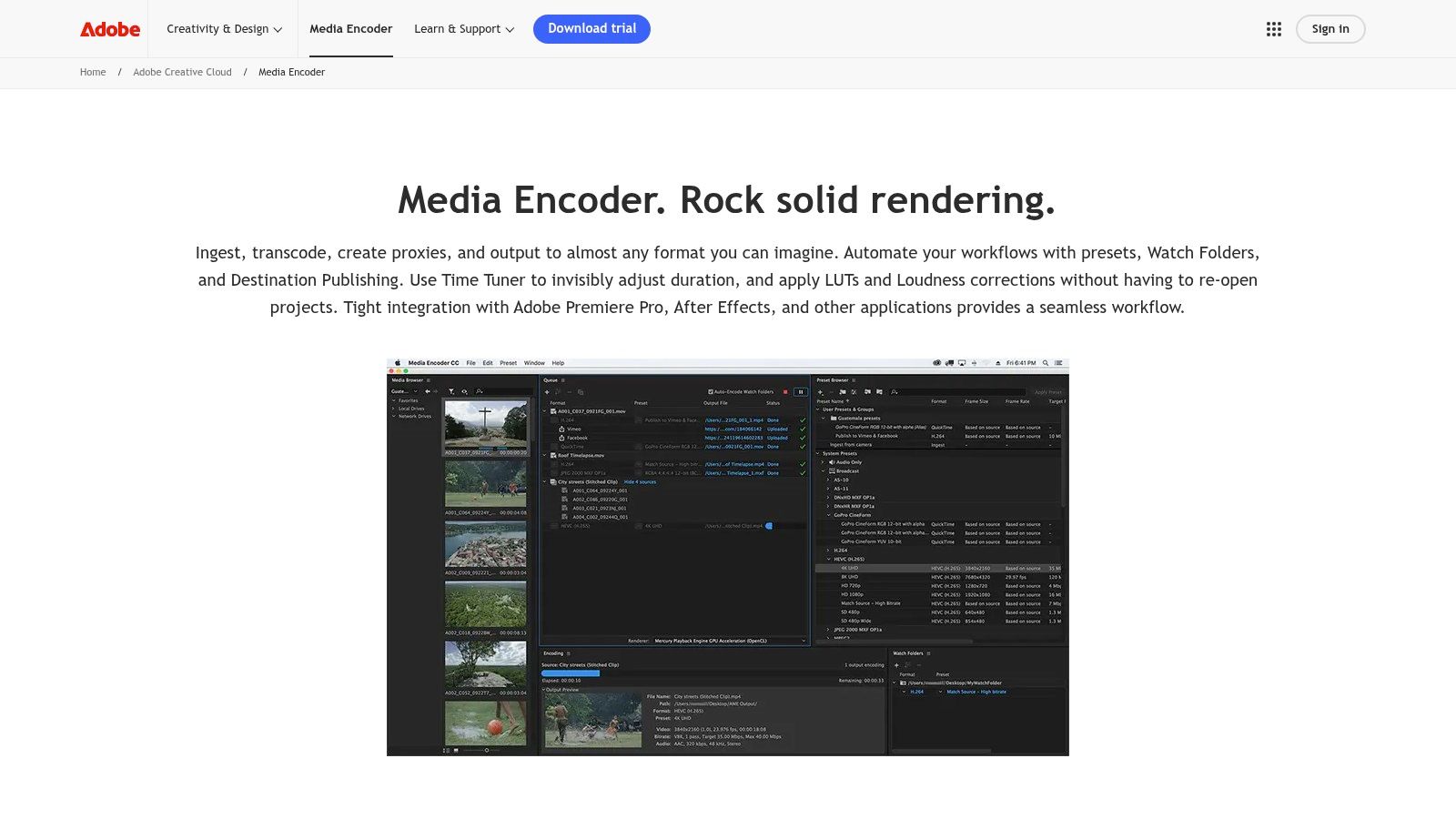
A common Mac shop problem looks like this: the editor is still cutting in Premiere Pro, the motion designer is updating lower thirds in After Effects, and delivery files for YouTube, Instagram, and client review still need to go out before end of day. Adobe Media Encoder solves that bottleneck better than simpler Mac converters because it sits inside the Adobe workflow instead of beside it.
For Adobe-based teams, a key advantage is throughput. Timelines move out of Premiere without locking the edit. After Effects comps can queue while the next revision is already in progress. On a busy week, that matters more than shaving a minute off a single encode.
Media Encoder fits best in three Mac creator workflows:
Its strongest features are practical, not flashy. Watch folders help with recurring exports. Presets reduce team-to-team variation. Proxy generation keeps MacBooks responsive on heavier projects. Basic loudness normalization and LUT support also save time when review files need to look and sound close to final without another pass in the NLE.
There are trade-offs. Media Encoder can feel slow to launch, and for one-off compression of a finished file, it is often more tool than you need. If the job is just shrinking a single MP4 for email or a quick upload, HandBrake, Shutter Encoder, or Permute will usually get there faster with less friction.
The best results come from treating it as a delivery hub. I usually recommend H.264 high-bitrate masters for general client review, a lighter H.264 preset for Slack or Frame.io links, and vertical presets saved separately for Reels, Shorts, and TikTok so nobody is rebuilding export settings every week.
If your Mac workflow already lives in Creative Cloud, Media Encoder earns its place. If Adobe is not the center of your pipeline, it is hard to justify as a dedicated compression tool.
Website: Adobe Media Encoder
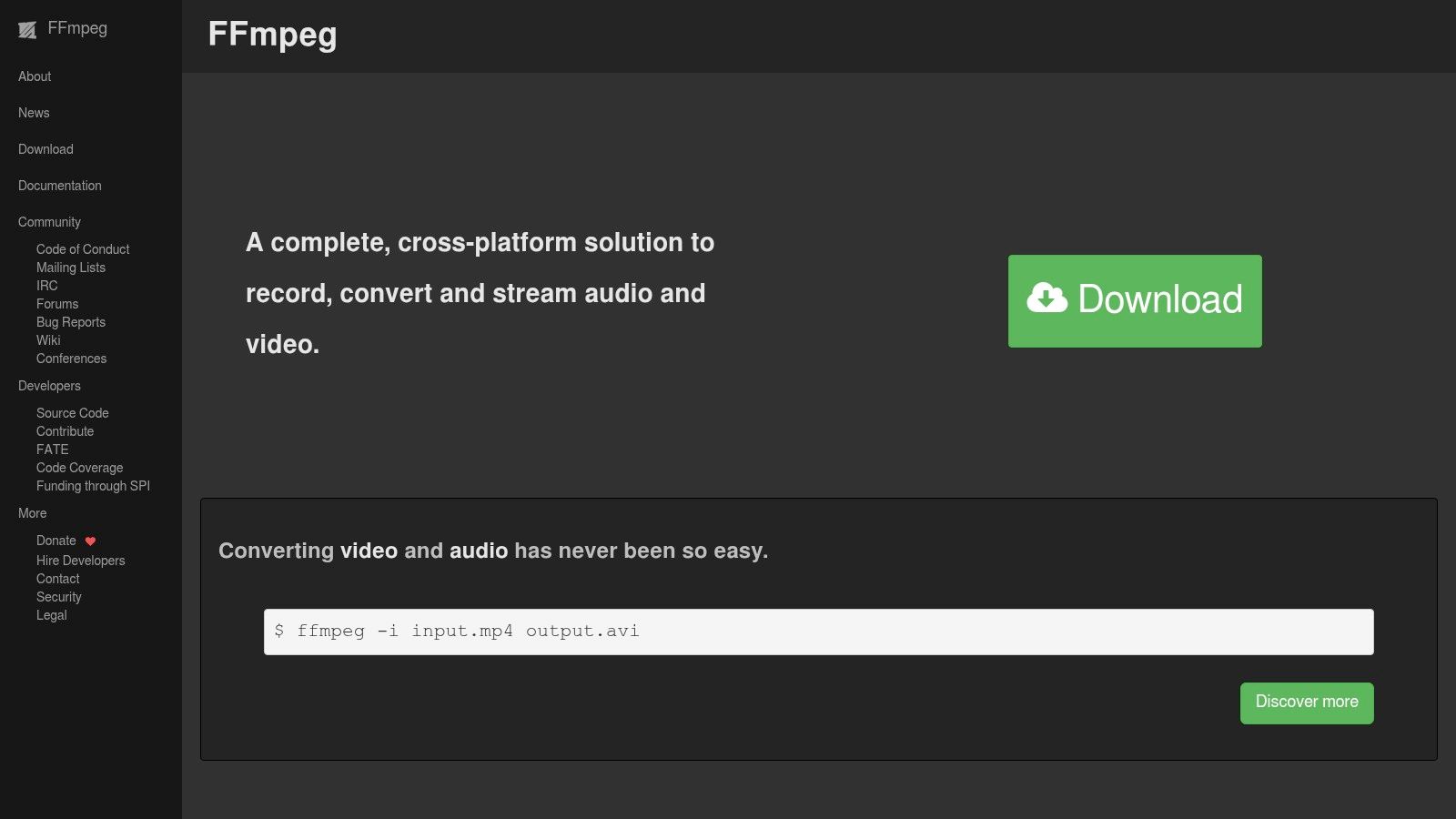
FFmpeg is the most powerful tool on this list. It is also the least forgiving.
If you are comfortable in Terminal, FFmpeg gives you deeper control than almost any GUI app on Mac. You can script batch jobs, normalize formats, cut files, remux without re-encoding, target specific codecs and profiles, and wire compression into larger content pipelines.
FFmpeg is ideal when video compression is no longer a one-off task and starts becoming infrastructure.
That includes:
FFmpeg separates from every beginner-friendly app on the list in this regard. It can become part of a repeatable production machine.
If you compress the same type of file every week, FFmpeg pays off. One solid script is better than repeating the same clicks forever.
The primary challenge: There is no native Mac GUI here. You need to know your commands, filters, and encoding logic. That learning curve is steep, and quality-size trade-offs are easy to mess up if you do not understand codec behavior.
Still, for power users, nothing else offers this much flexibility for free.
Website: FFmpeg
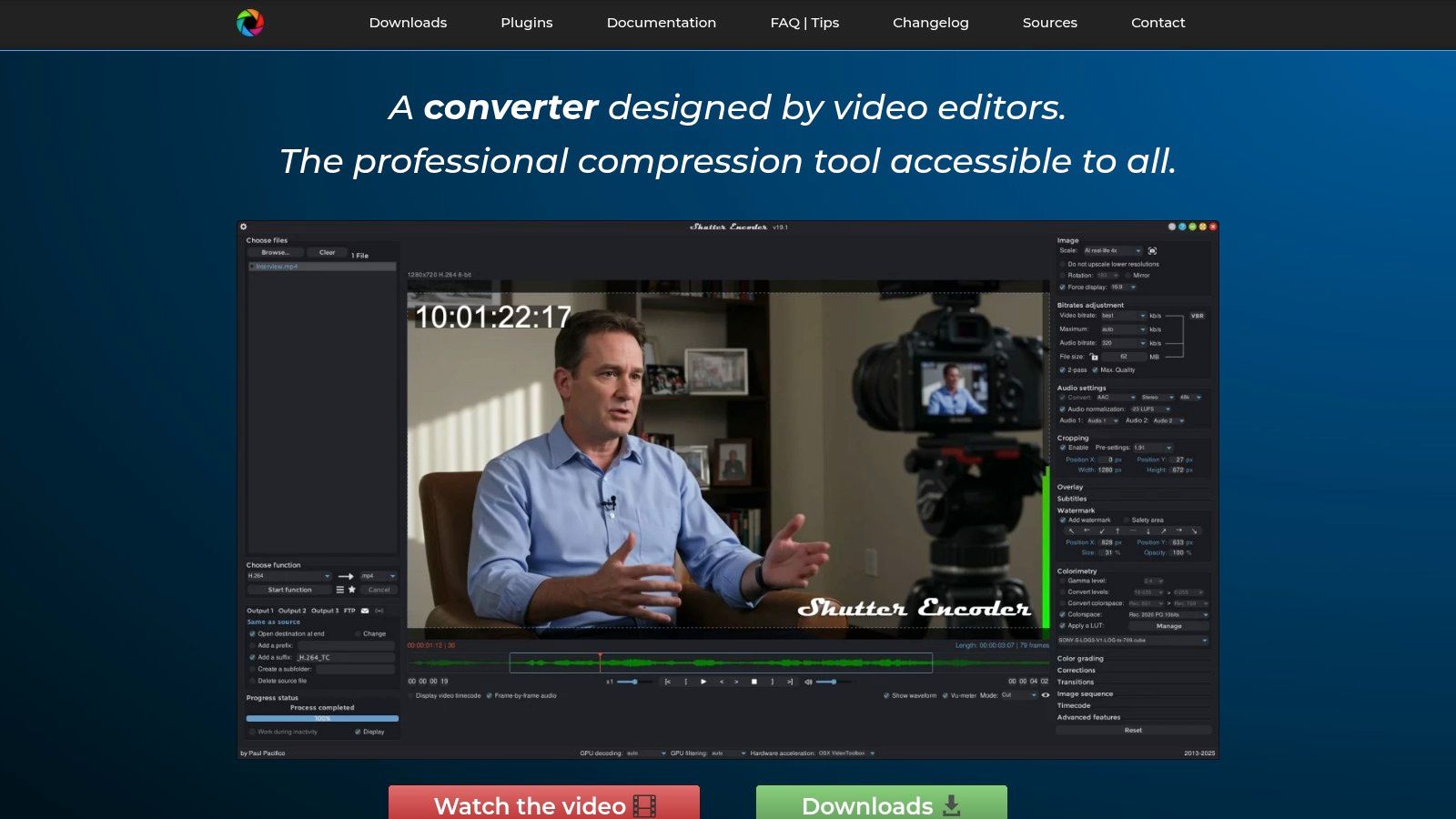
A client needs review cuts by 5 p.m., each file needs burned-in timecode, and nobody wants to reopen Premiere just to make smaller H.264 exports. Shutter Encoder is built for that kind of job.
It gives Mac editors a practical middle ground between one-click consumer converters and command-line tools. You still get serious control, but the workflow suits people who spend their day shipping deliverables, not writing commands.
Shutter Encoder stands out when compression is tied to post-production tasks instead of simple file shrinking. It handles standard transcodes well, but its real value shows up in jobs that need a little more care before delivery.
Useful capabilities include:
For solo YouTubers on Mac, that means turning one master export into YouTube, Instagram, and review versions without bouncing between three apps. For agency teams, it is a strong utility for assistant editors and producers who need fast, repeatable outputs without touching the main edit timeline.
Shutter Encoder is a good fit for creators who have outgrown basic converters but do not need full broadcast encoding infrastructure.
A few practical examples:
That workflow focus is why the tool has a loyal following among Mac users handling frequent deliverables. MacXDVD also points to batch processing as a weak spot in many Mac compression tools, especially for creators managing repeated export jobs across long-form projects, in its roundup of Mac compression software: https://www.macxdvd.com/mac-dvd-video-converter-how-to/best-video-compression-software-mac.htm
The interface is functional, not polished in the Apple sense. Some options feel dense, and a few advanced behaviors still reflect the FFmpeg engine underneath. That matters if you expect every setting to be explained clearly inside the app.
Still, Shutter Encoder earns its place because it solves real post workflows on Mac with very little friction.
Website: Shutter Encoder
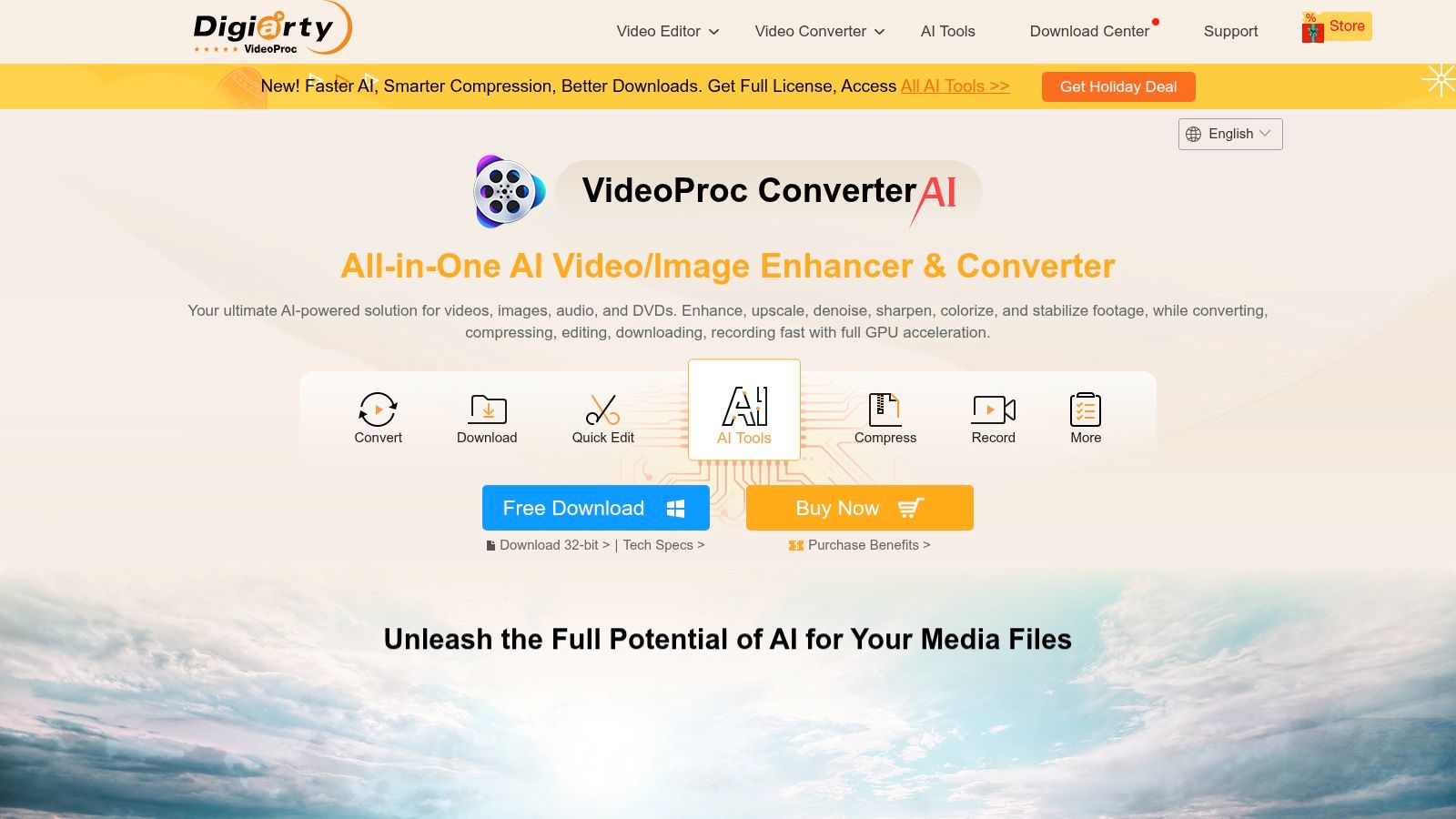
A common Mac workflow problem looks like this. The edit is finished, the client wants cutdowns in an hour, and the source exports are too heavy for fast upload or review. VideoProc Converter AI is built for that job.
It suits creators who care more about getting clean, smaller files out quickly than tuning every encoder setting by hand. On a MacBook used for editing, approvals, and publishing, that can be the right trade-off.
VideoProc makes the most sense for fast-turn social and client-delivery work, especially when one person is handling the whole chain from export to upload.
A few good use cases:
The appeal is speed. The app combines compression, format conversion, trimming, and a few utility features in one place, which cuts down app switching on busy delivery days.
The target-size and preset-driven workflow is easy to use, and hardware acceleration helps on routine exports. If the goal is “make this file smaller and keep it usable,” VideoProc gets there with less setup than FFmpeg or Compressor.
The limitation is precision. Advanced users will notice the gap quickly. You get fewer codec-level controls, less visibility into rate-control behavior, and less confidence for demanding outputs where repeatability matters.
That makes VideoProc a practical utility, not a finishing tool I would choose for mezzanine files, archive masters, or tightly spec'd broadcast delivery. Some of the AI-labeled features also sit behind higher tiers, so the value depends on whether you need convenience or deep control.
Website: VideoProc Converter AI
A common Mac workflow looks like this. The edit is approved, the client wants a smaller review file, the social manager needs vertical versions, and nobody on the team wants to open a full NLE just to make delivery copies. Movavi fits that job well.
It is built for fast, preset-driven conversion on Mac, not for codec experimentation. That makes it a practical choice for solo creators, in-house marketers, and account teams that need usable exports quickly without digging through encoder settings.
Movavi makes sense when the priority is speed and low training overhead. I would put it in front of teams that need to turn masters into platform-ready files with minimal setup.
It works well for:
That workflow fit matters. If the person handling exports is not an editor, a clean preset system saves time and avoids bad choices.
Movavi covers the everyday compression tasks, but the ceiling shows up fast. You do not get the same level of rate-control tuning, codec visibility, or repeatable spec matching you would expect from HandBrake, Compressor, FFmpeg, or Media Encoder.
For that reason, I would use it for distribution copies, review links, and social deliverables. I would not use it for archive masters, mezzanine files, or delivery work where exact encoder behavior matters.
That split lines up with how many Mac creator workflows already run. HEVC often handles final delivery because file sizes stay manageable, while ProRes stays in the edit and handoff stage because quality holds up better through revisions, according to 360iResearch’s discussion of codec hierarchy in video compression workflows. Movavi is aimed squarely at the delivery side of that workflow.
Website: Movavi Video Converter for Mac
You exported a clean master on your Mac, then caught one small problem after delivery. The first two seconds need to go. The file is in the wrong container. A broadcaster wants a quick deinterlace pass. That is the kind of job Avidemux handles well.
Avidemux fits the Mac workflow gap between full encode tools and one-off utility fixes. I would not build a YouTube or agency delivery pipeline around it, but I would absolutely keep it installed for cleanup work that should take two minutes, not twenty.
It is a practical choice for narrow, technical tasks:
Stream copy is the feature that gives Avidemux real value. If the codec is already acceptable and the problem is only the wrapper or cut points, you can avoid another compression pass and keep image quality intact.
That makes it useful for assistant editors, solo creators, and agency teams who get handed mismatched files all day. It is also handy for social teams working from approved masters who need a quick fix before publishing, not a full re-export from Premiere or Final Cut.
Avidemux does not give you the polished preset workflow you get in HandBrake, Compressor, or Media Encoder. Codec control is serviceable, not deep. Batch work and repeatable spec matching are also weaker than what I would want for high-volume delivery.
So the role is clear. Use Avidemux for repair jobs, rough utility work, and fast technical corrections. Use something else for platform-targeted compression where exact bitrate behavior, preset management, and benchmark exports for YouTube Shorts, Instagram Reels, or client delivery packages need to stay consistent.
Website: Avidemux
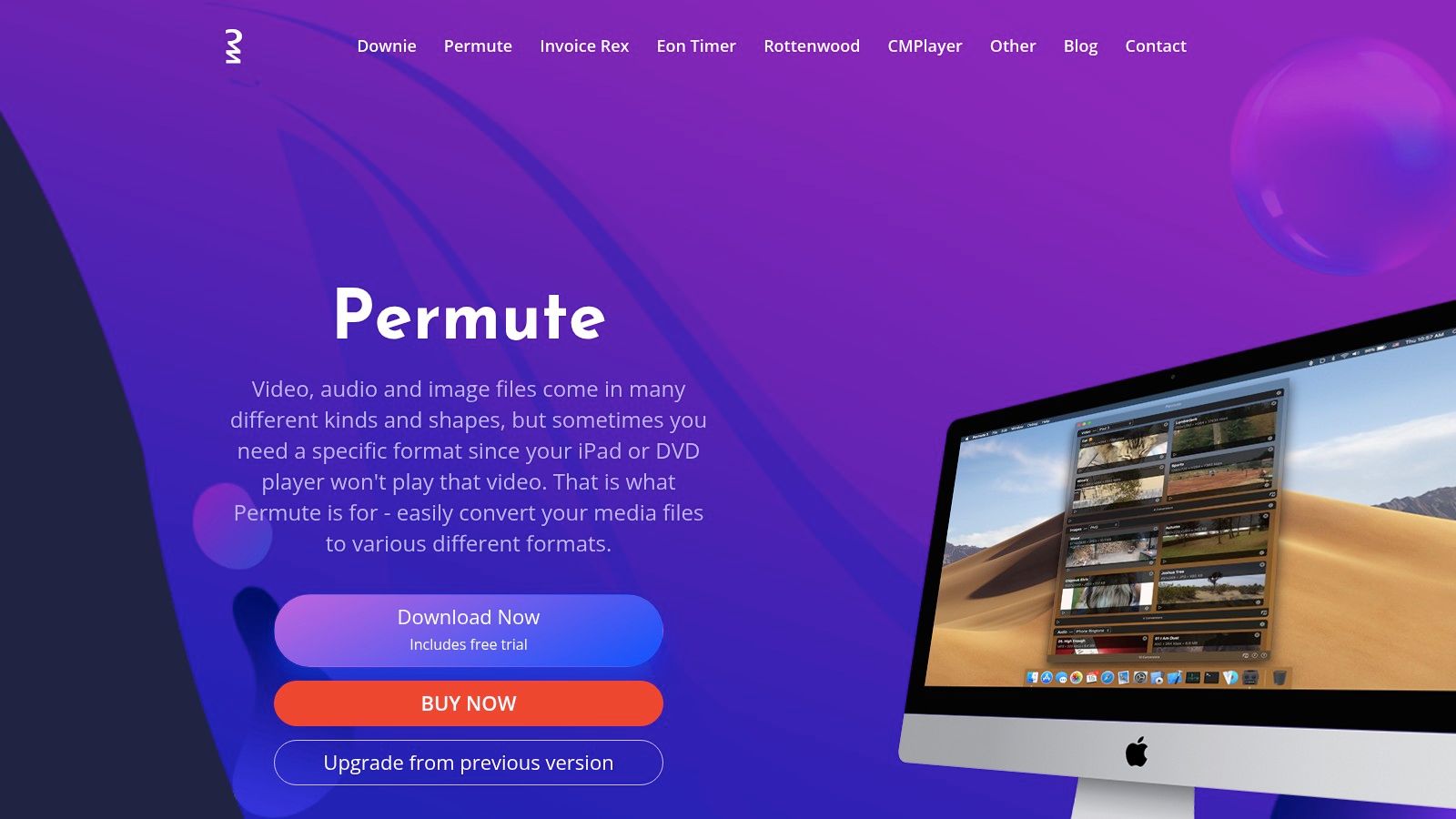
Permute 3 is for Mac users who want compression to feel like a Mac app, not a video engineering project.
It is polished, drag-and-drop, and simple enough that you can hand it to a teammate without writing instructions.
Permute is a strong fit for:
It is especially useful when compression is not your main work. You edited the piece already. Now you just need a smaller, platform-friendly version and you want that task done fast.
Permute is the tool I suggest when someone says, “I do not care about advanced settings. I just need reliable exports that look good.”
You give up depth. HandBrake and FFmpeg both offer more serious control over quality, codec settings, and edge-case workflows.
But for many Mac users, less control is the point. If your team keeps choosing bad settings because the app offers too many options, a simpler tool can produce more consistent results.
Website: Permute 3
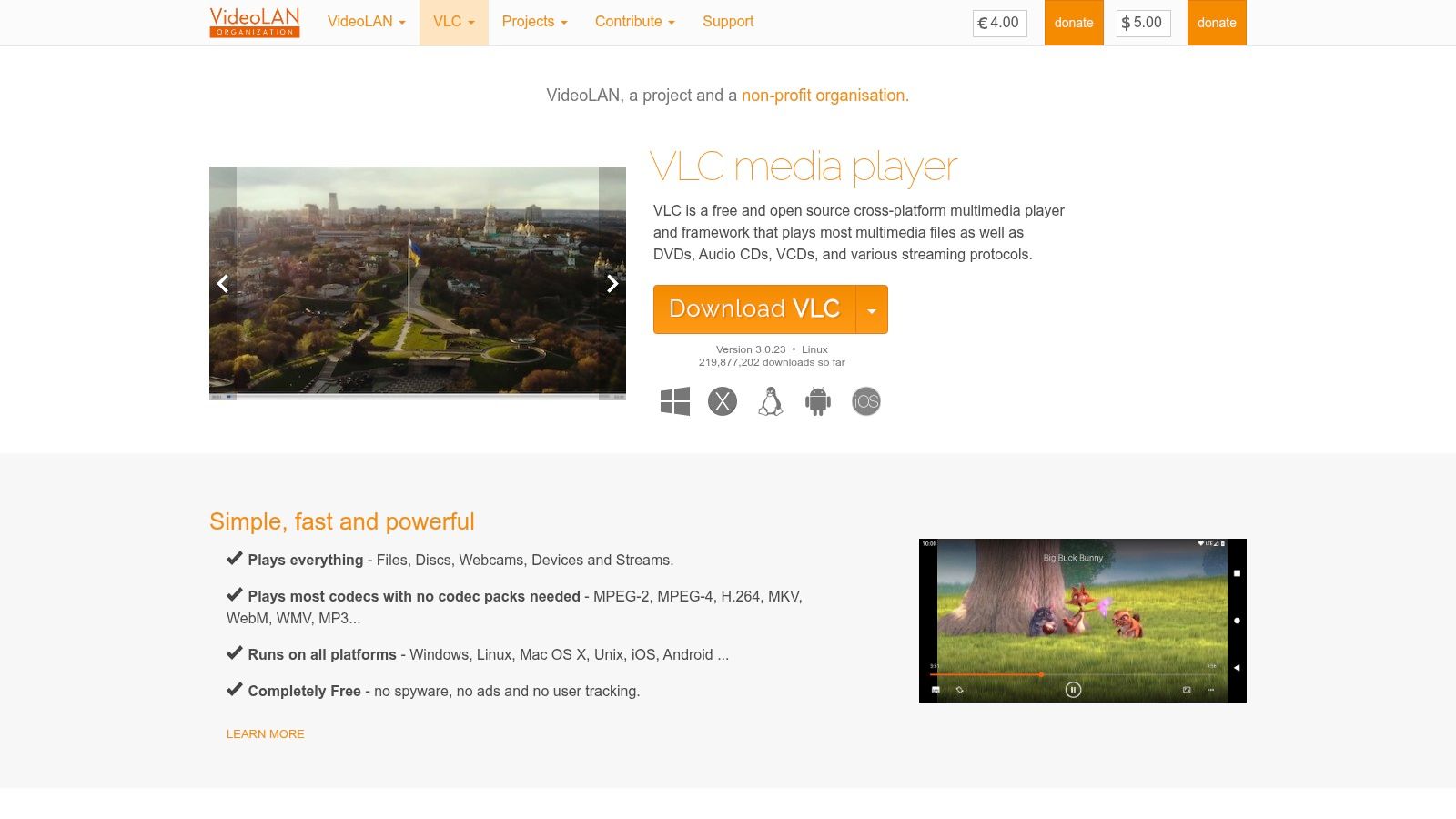
A client sends a file in a strange container 20 minutes before review. You open VLC first, because it is already on the Mac and it can often get you out of trouble fast.
That is a key value here.
VLC works best as a utility compressor for quick re-encodes, compatibility fixes, and simple MP4 exports. Solo creators can use it to turn an oversized clip into something uploadable without opening a full editing app. Small agency teams can use it at the intake stage, especially when client footage will not play cleanly in Premiere Pro, Final Cut, or Resolve.
It is a practical choice for:
The trade-off is control. VLC can compress video, but it is not built for precise quality targeting, repeatable preset management, or batch workflows across a content pipeline. If you need benchmark exports for YouTube, Instagram Reels, or client handoff at scale, HandBrake, Compressor, and FFmpeg are better picks because they give you tighter control over codec settings, bitrate behavior, and automation.
I keep VLC in the same category as a good cable adapter. It is not the center of the workflow. It saves the workflow when something awkward shows up.
Website: VLC media player
| Tool | Key features ✨ | Quality/Control ★ | Best for 👥 | Price/Value 💰 | Standout 🏆 |
|---|---|---|---|---|---|
| HandBrake | ✨ Presets, hardware accel (Apple VT), batch, QC controls | ★★★★☆ (high control, learning curve) | 👥 Creators & pros who need codec tuning | 💰 Free, open-source | 🏆 Excellent quality/size control with modern codecs |
| Apple Compressor | ✨ Presets/droplets, watch folders, Apple silicon optimizations, HDR | ★★★★☆ (fast Mac exports, utilitarian UI) | 👥 Final Cut/Pro workflows & broadcast delivery | 💰 Paid (one‑time/App Store) | 🏆 Optimized for Apple silicon & pro formats |
| Adobe Media Encoder | ✨ Watch folders, proxy gen, LUTs, Premiere/AE integration | ★★★★☆ (preset-driven, seamless CC handoffs) | 👥 Adobe-centric editors & agencies | 💰 CC subscription required | 🏆 Best for Premiere/After Effects pipelines |
| FFmpeg | ✨ All codecs/containers, filters, GPU accel, scriptable | ★★★★★ (ultimate control, CLI only) | 👥 Power users, devs, server automation | 💰 Free, open-source | 🏆 Broadest codec support & automation power |
| Shutter Encoder | ✨ FFmpeg GUI, timecode burn-in, LUTs, batch queue | ★★★★☆ (pro features in a GUI) | 👥 Editors wanting FFmpeg features without CLI | 💰 Donation-supported (free) | 🏆 Pro FFmpeg capabilities with GUI convenience |
| VideoProc Converter AI | ✨ Compressor mode, AI upscaling/denoise/interpolation, recorder | ★★★★☆ (fast, consumer-friendly) | 👥 Creators shrinking 4K for social quickly | 💰 Freemium/paid license | 🏆 AI-assisted upscaling & frame interpolation |
| Movavi Video Converter | ✨ 180+ presets, SuperSpeed, basic editing, AI upscale | ★★★☆☆ (easy but fewer pro options) | 👥 Beginners & non-technical creators | 💰 Paid (trial limits/watermark) | 🏆 Guided presets for social exports |
| Avidemux | ✨ Cut/filter/encode, stream copy, scripting, job queue | ★★★☆☆ (lightweight & fast) | 👥 Quick trims and simple recompression tasks | 💰 Free, open-source | 🏆 Fast stream-copy to avoid re-encoding |
| Permute 3 | ✨ Drag‑and‑drop presets, Apple silicon accel, batch | ★★★★★ (very simple Mac-native UX) | 👥 Mac users wanting one-click conversions | 💰 Paid (perpetual / Setapp) | 🏆 Polished Mac experience & reliability |
| VLC media player | ✨ Convert/Stream wizard, broad format & protocol support | ★★★☆☆ (handy for quick fixes) | 👥 General users needing ad-hoc conversions | 💰 Free, open-source | 🏆 Universal player with basic conversion tools |
You finish a cut on your Mac, need a YouTube master, three vertical social versions, and a client review file before the day ends. The right compression tool is the one that fits that job without adding friction.
Apple Compressor suits Final Cut Pro shops that export the same deliverables every week. It is the cleanest option for watch folders, captions, batch presets, and repeatable outputs across a Mac-based post workflow. For solo editors and in-house teams living in Apple’s ecosystem, it saves time because it stays close to the edit instead of forcing another handoff.
Adobe Media Encoder fits Adobe teams for the same reason. If projects move between Premiere Pro, After Effects, and multiple editors, Media Encoder keeps the queue organized and reduces export bottlenecks. Agencies usually care less about squeezing the absolute smallest file and more about getting approved deliverables out on schedule with fewer manual steps.
HandBrake remains the best default pick for independent creators who want strong compression without paying for another subscription. It handles the everyday work well: shrinking 4K footage for YouTube, exporting smaller review copies, and building reusable presets for podcast clips, tutorials, and course content. The trade-off is speed and interface polish. It is powerful, but it expects you to understand your settings.
FFmpeg is for creators and teams that want repeatable output at scale. If you process client batches, archive footage on a schedule, or standardize exports across a content pipeline, command-line automation beats manual exports. Shutter Encoder covers much of the same ground for editors who want FFmpeg-grade control in a GUI.
The rest of the field is about fit.
Permute 3 is the fastest answer for Mac users who want drag, drop, convert, done. VideoProc is useful for quick social exports and all-in-one utility work. Movavi is easier for beginners who want preset-driven output. Avidemux is handy for trims, stream copy, and narrow repair jobs. VLC is still the tool already installed on many Macs when you need a one-off conversion and do not want to open anything else.
Codec choice still matters more than branding. HEVC usually makes sense for final delivery on modern Macs because Apple hardware handles it efficiently and the file savings are often worth it. H.264 is still the safer choice for broad compatibility, fast approvals, and older client systems. ProRes is the editing format, not the upload format, unless a platform or client specifically asks for it.
Keep a high-quality master or mezzanine file for archive and revisions. Export platform-specific copies for delivery. Save presets for YouTube, Instagram Reels, TikTok, and client review links so each project starts from a tested baseline instead of guesswork.
Once the file is compressed and ready to publish, Taja AI helps turn one finished video into shorts, captions, thumbnails, blogs, and platform-specific posts from a single upload. For solopreneurs, podcasters, educators, agencies, and local businesses, it extends the workflow after export instead of replacing your editor.


We are blessed to work with leading brands & Companies


We try to make easy and simple for every professionals. Get 30 days free trial - No credit card required.


© 2025 Taja AI. All rights reserved.