.jpeg)

10 Facebook Video Best Practices for Creators in 2026
Facebook video best practices for creators: master hooks, specs, captions, distribution, Reels, Stories, boosting, and analytics in 2026.
5 min read
October 22, 2026

Find the best cut and paste pictures app for your needs. We compare 10 top mobile and desktop tools for creating thumbnails, social posts, and product shots.
Written by:


Stop wasting time on bad cutouts and amateur graphics. You already have the photo you need. The problem is that your subject is trapped on the wrong background, your edges look rough, and the final design feels cheap the second you post it.
That costs clicks, inquiries, and sales. A messy cutout on a YouTube thumbnail gets ignored. A sloppy product composite makes your store look unreliable. A weak promo graphic tells customers you're improvising instead of running a business.
The right cut and paste pictures app fixes that fast, but only if you match the right cutter to the right paster. This is a common point of failure: they use a lightweight background remover for a job that needs layer control, or they open Photoshop for a task that should've taken two taps on a phone.
This category matters because mobile photo editing has become mainstream. Statista notes that Facetune reached 4.66 million downloads in Q3 2022 and peaked at almost 15 million downloads in Q2 2020, while Lensa AI passed 5.8 million downloads globally by early December 2022 and briefly became the highest-grossing photo and video editing app in the U.S. according to Statista's photo and image editing app overview. Users clearly want simpler ways to make polished visual edits.
This guide gives you the best tools for specific jobs. Not vague “best for everyone” advice. If you need faster social posts, cleaner e-commerce images, or better thumbnails, start with the tool built for that exact workflow.
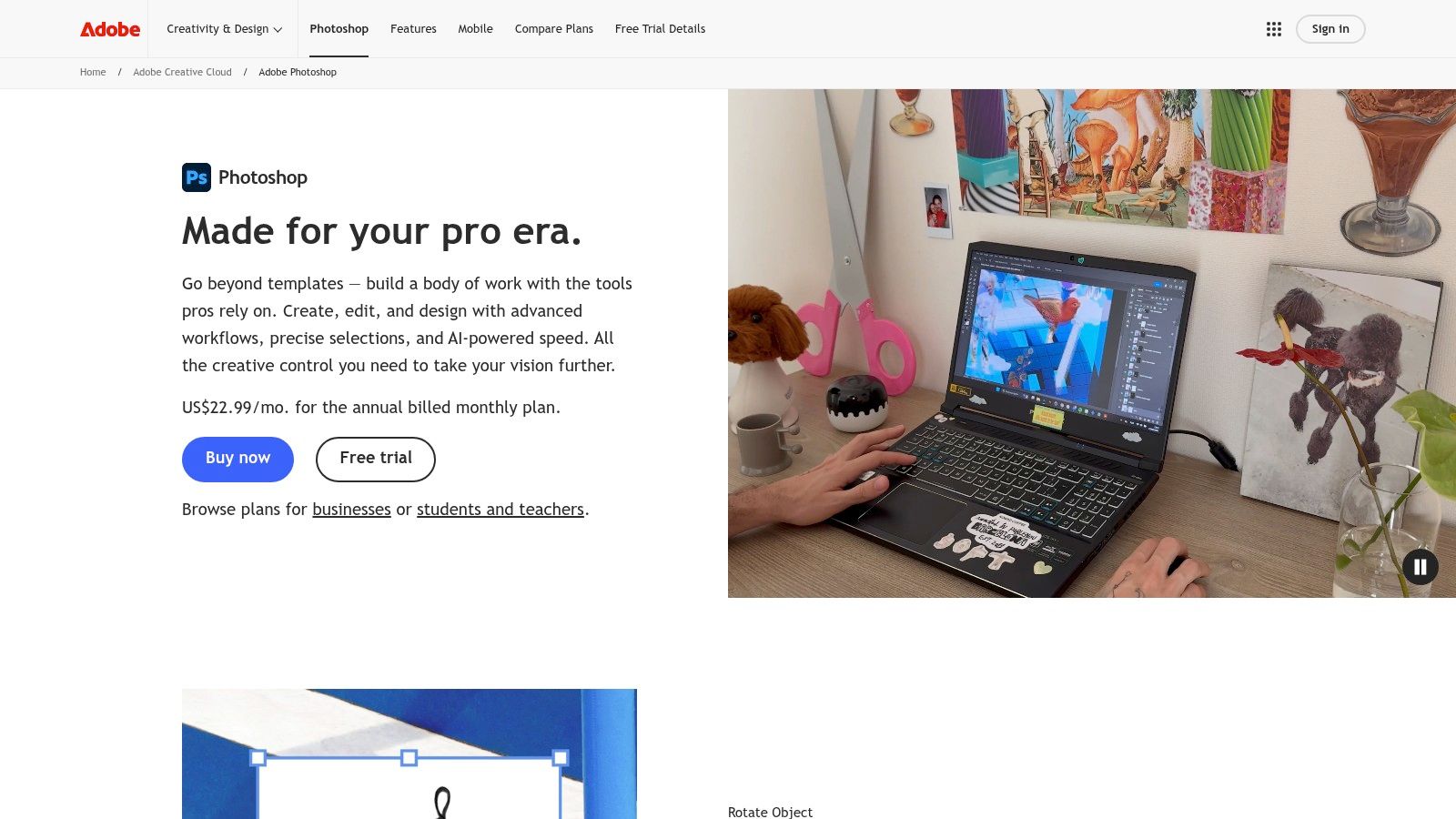
If your revenue depends on image quality, use Adobe Photoshop. This is the cut and paste pictures app for people who can't afford fake-looking edges, bad shadows, or broken composites.
Photoshop wins when the subject is difficult. Hair, transparent objects, reflective packaging, uneven lighting, awkward backgrounds. One-click tools like Remove Background and Select Subject get you started, then masks, layer controls, and edge refinement let you finish the job properly.
Use Photoshop when you need precision before design. That usually means product hero images, paid ad creative, website banners, brand photography, and thumbnail source files that will be reused across campaigns.
It's also the best choice when your cutout is only one part of a larger workflow. You can paste in a new backdrop, fix gaps with generative fill tools, adjust color so the subject matches the scene, and export layered assets for future edits.
Practical rule: If you're zooming in to fix edge halos, you've already outgrown simple background remover apps.
A strong workflow looks like this:
Photoshop isn't casual. It takes time to learn, and the subscription won't make sense for everyone. But if you want pro-grade results, this is still the standard.
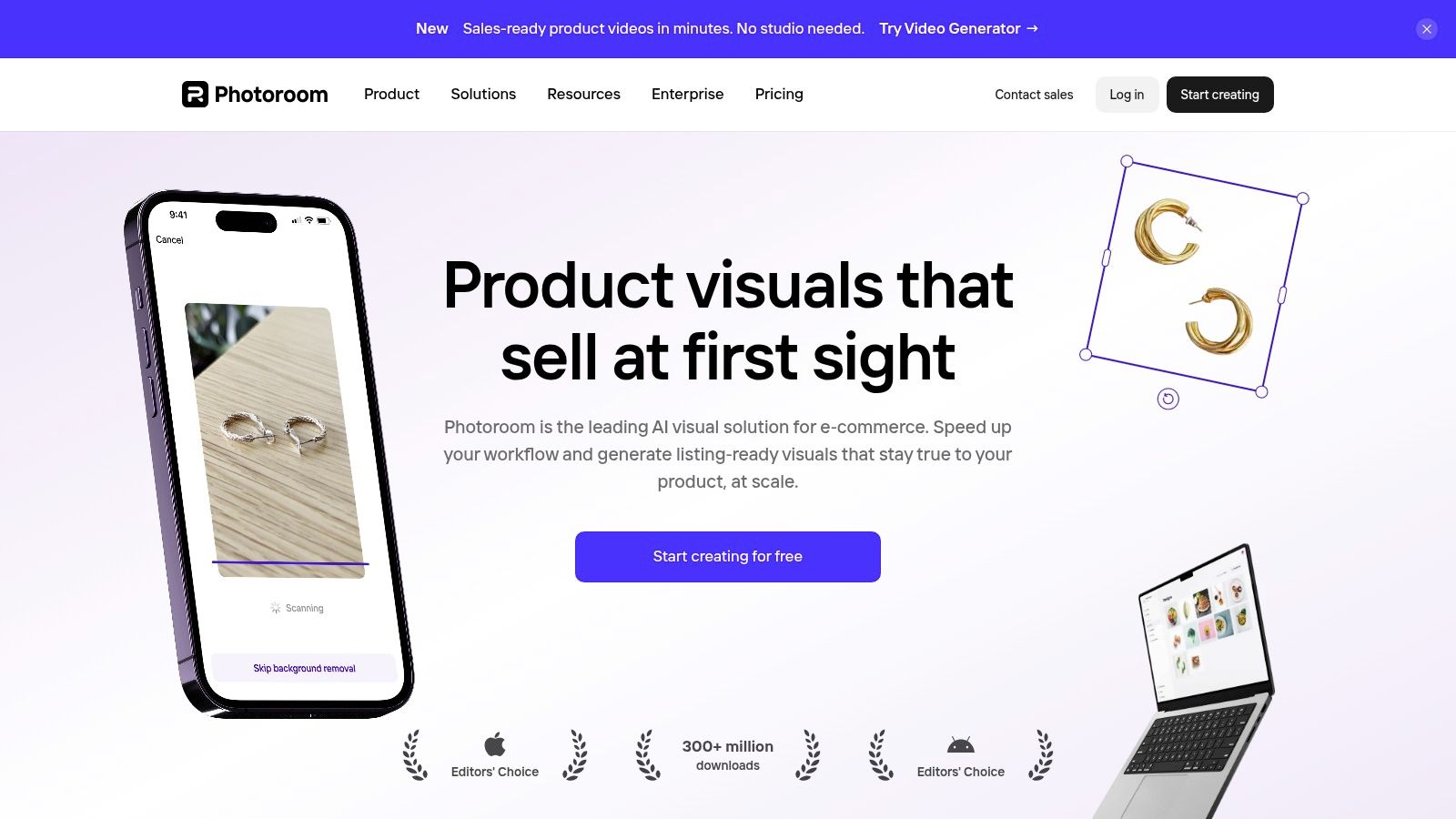
PhotoRoom is the fastest option on this list for sellers and service businesses. If you shoot products on your phone and need them cleaned up, pasted into a clean scene, and posted the same day, PhotoRoom is the tool.
Its strength is speed, not deep editing. You open an image, remove the background, drop the subject into a template or fresh canvas, and export. That's the right move for marketplace listings, promo graphics, menu items, beauty products, handmade goods, and local inventory posts.
PhotoRoom works best as your cutter and quick-layout app. Pair it with the place you publish.
The photo editing app market is large and still expanding. One market report values the global category at USD 6.8 billion in 2025 and projects it to reach USD 17.4 billion by 2034, with Android holding 42.3% platform share in 2025 and Asia Pacific accounting for 38.5% of revenue, based on DataIntelo's photo editing app market report. That matters because PhotoRoom is built for the mobile-first editing behavior driving that demand.
PhotoRoom's downside is obvious. It can feel limiting when you need nuanced compositing or heavy brand customization. But if you're selling products and speed matters more than perfection, this is one of the easiest wins available.
Canva is the safest recommendation for non-designers. If your real problem isn't cutting out the image but turning that cutout into something publishable, Canva is the better pick than a standalone remover.
It handles the second half of the job well. You remove a background, paste the subject into a thumbnail, Reel cover, flyer, story graphic, lead magnet, or promo post, then export in the right size without touching a complicated editor.
Canva is the paste platform for creators who need volume. It's the app you open when the cutout is only one ingredient in a complete design.
Use it for:
Your problem usually isn't “How do I erase this background?” It's “How do I turn this into a usable asset in five minutes?”
Canva also makes sense if you're moving away from generic template dependence and into more specialized thumbnail workflows. If that's your bottleneck, this breakdown of why AI thumbnail makers are taking over from Canva for some creators is worth reviewing.
The weakness is edge quality on harder subjects. Canva is fine for many jobs, but it's not the tool I'd trust for complex masking. Use it when layout speed matters more than surgical image editing.
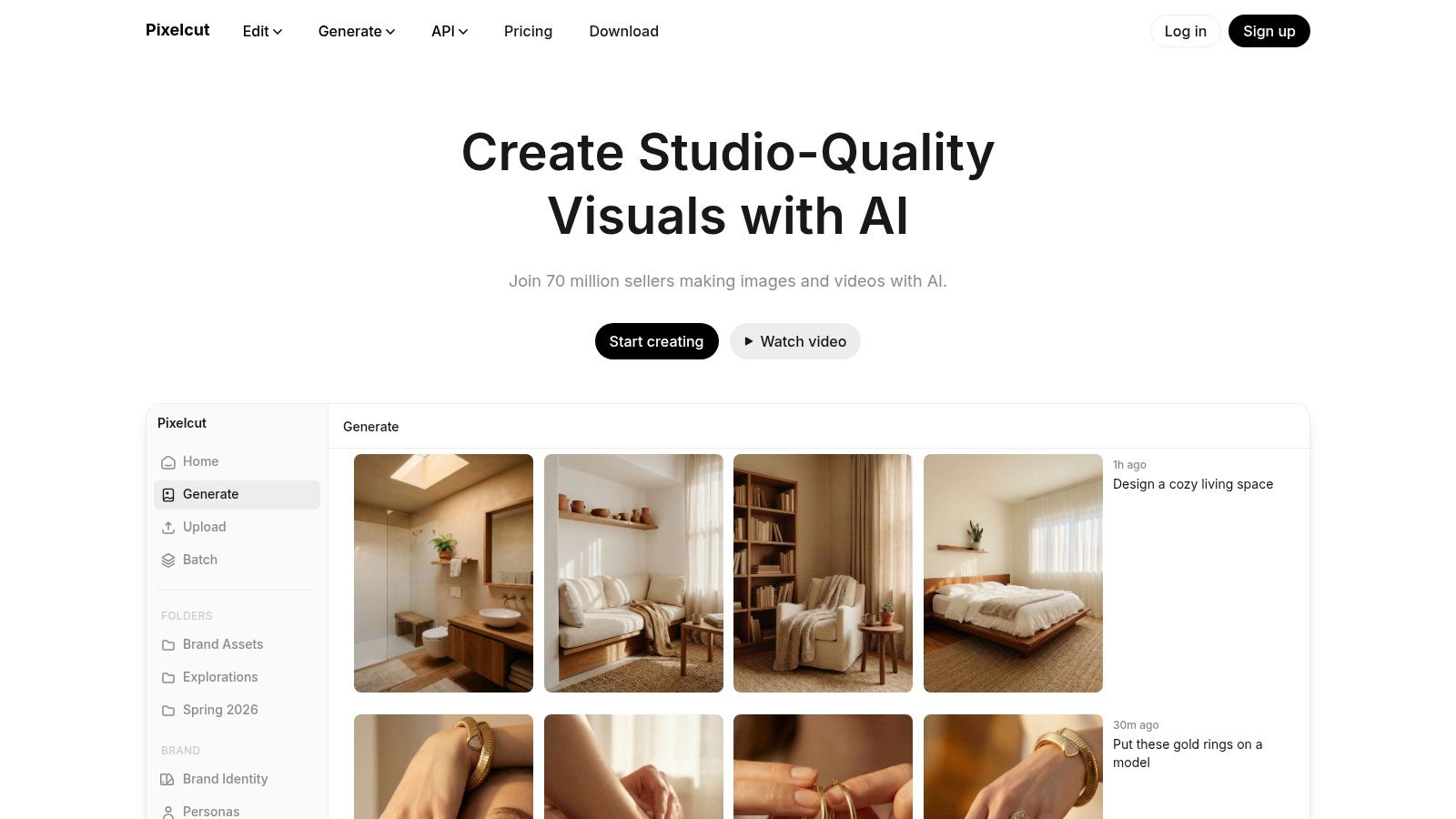
Pixelcut is built for modern product content. If PhotoRoom feels too marketplace-focused and Canva feels too design-template-heavy, Pixelcut lands in the middle.
It's strong when you need clean product isolation plus fast scene building. That makes it useful for direct-to-consumer brands, resellers, food businesses, beauty brands, and solo operators managing both store content and social promotion.
Pixelcut is the right cutter for product-first visuals. It gives you fast background removal, lets you add shadows and simple scene elements, and helps you produce polished images without building a full Photoshop workflow.
The best pairing is straightforward:
Independent market research also shows a durable editing category even at the lighter end of the market. One report places the photo editor app segment at USD 301.92 million in 2023 and forecasts USD 476.47 million by 2032 at a 5.2% CAGR, according to Credence Research's photo editor app market report. That fits Pixelcut's lane well. It serves users who don't need a legacy design suite. They need convenience, consistency, and output.
Pixelcut isn't where I'd go for advanced retouching. It is where I'd go to produce better product visuals quickly, then move on.
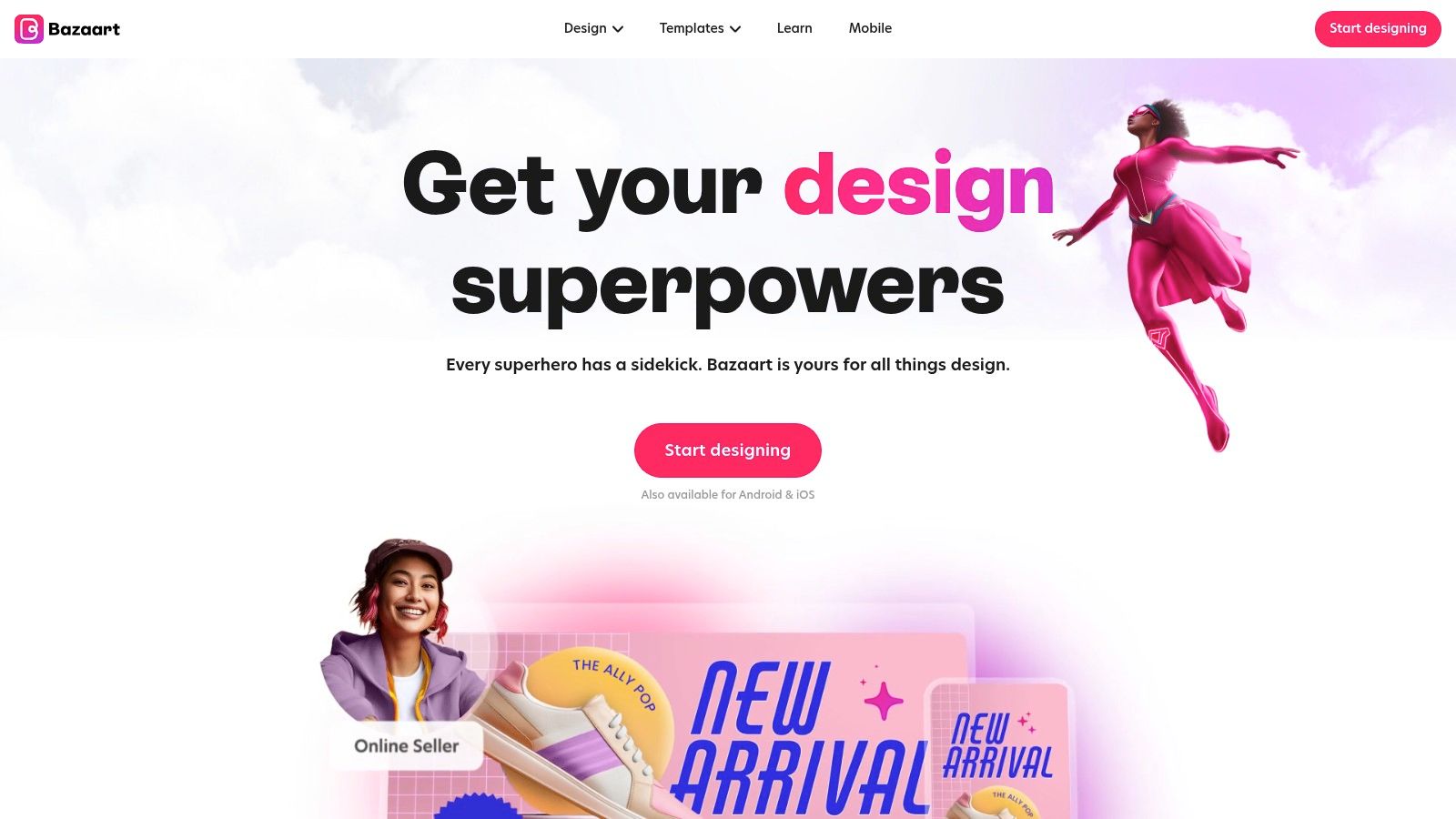
Bazaart is for creators who care about style as much as speed. If your graphics need personality, layered visuals, cutout-driven collages, and strong typography, Bazaart is a smart choice.
This isn't the app I'd choose for technical retouching. It is the one I'd choose for fast visual storytelling on mobile, especially when you're building posters, promo art, story graphics, mood-driven thumbnails, or branded quote posts.
Bazaart gives you enough layer control to make cut-and-paste editing feel intentional instead of improvised. You can isolate a subject, blend in shapes, text, textures, and graphic elements, then export a finished piece that doesn't look like it came from a template mill.
That's useful for:
Workflow note: Use Bazaart when the cutout itself is part of the visual style, not just a technical step.
Its limitation is professional depth. You won't get the same granular control you'd get in Photoshop, and some advanced assets sit behind paid plans. But for creators building sharp, layered social graphics from a phone or browser, Bazaart gets the job done fast.
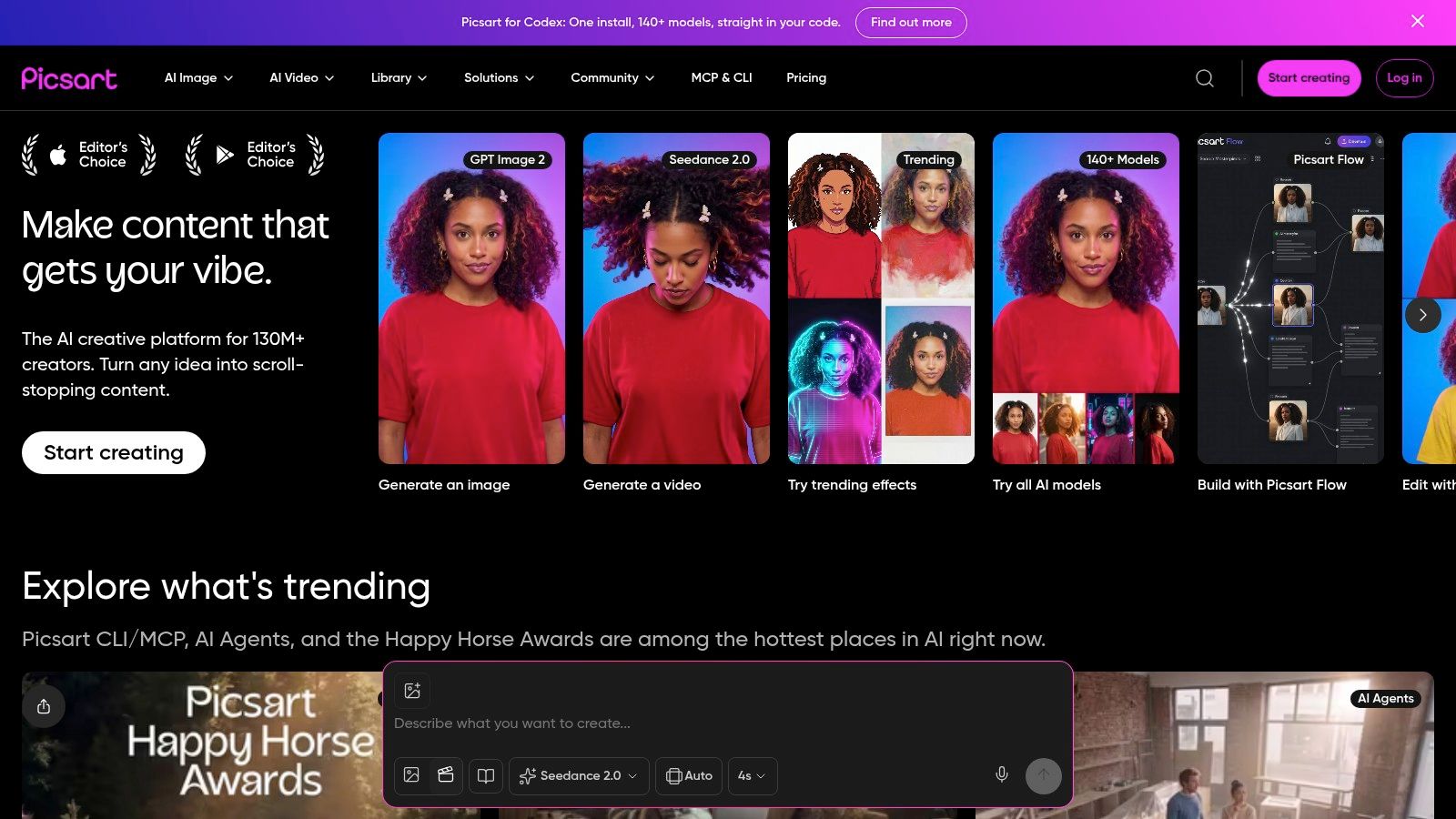
Picsart is what you use when your team needs range. Not elegance. Picsart packs cutout tools, text, effects, stickers, and creative editing into one platform, which makes it useful for high-output social work.
If you're a social media manager, a small in-house team, or a founder making content daily, that breadth matters. You don't have to keep jumping between three apps to get one post out the door.
Picsart fits fast-moving content environments where quantity matters. You need to remove a background, add text, build a stylized promo, then publish before the moment is gone.
It's a strong option for:
Google Play's listing for Dexati's Cut Paste Photos describes the category as competing on asset breadth, highlighting “100's of photo editing features,” “100's of photo filters,” and “1000's of Photo Stickers” in the app listing. CapCut's resource page also describes AI-based isolation of people and objects for quick collages and product visuals. Together, those category signals point to a shift from manual cutouts toward fast, accessible, asset-rich editing workflows for non-designers, as outlined in CapCut's overview of cut and paste picture apps.
Picsart fits that pattern well. The downside is clutter. If you want a focused tool, it can feel busy. If you want one place to do fast creative production, it makes sense.
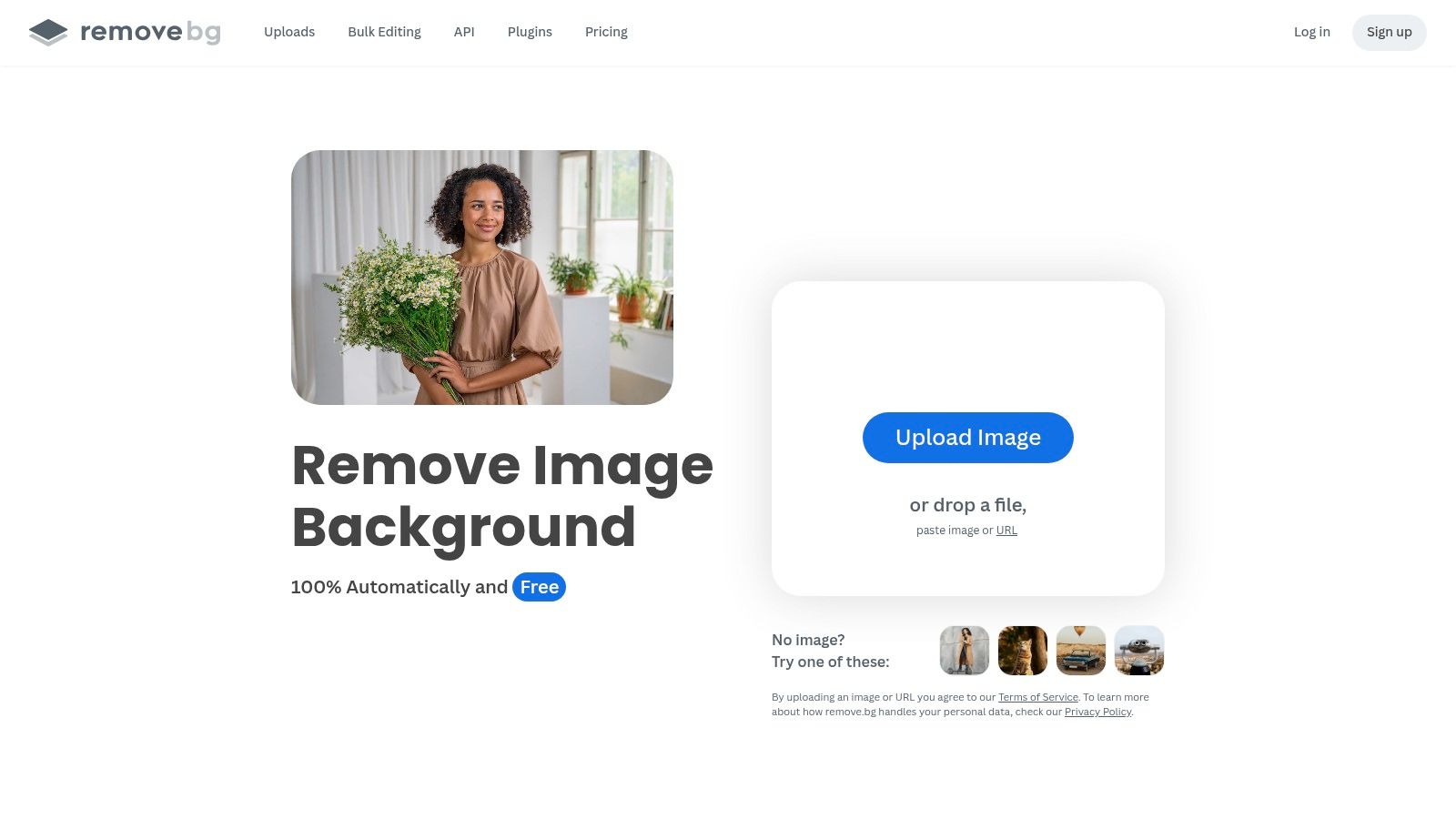
remove.bg does one job and does it fast. If your bottleneck is background removal, not design, use remove.bg.
This is a cutter, not a full visual studio. That's exactly why it belongs in a serious workflow. You don't need every app to do everything. You need some tools to do one step well so the rest of your system moves faster.
remove.bg works best upstream. Cut first. Paste somewhere else.
Fast cutters save time only if you stop asking them to be design apps.
The tradeoff is obvious. Low-resolution free outputs and paid access for better exports mean this isn't your all-in-one creative home. But if you produce a lot of people, product, logo, or object cutouts and want them clean enough to slot into the next tool quickly, remove.bg is an easy recommendation.
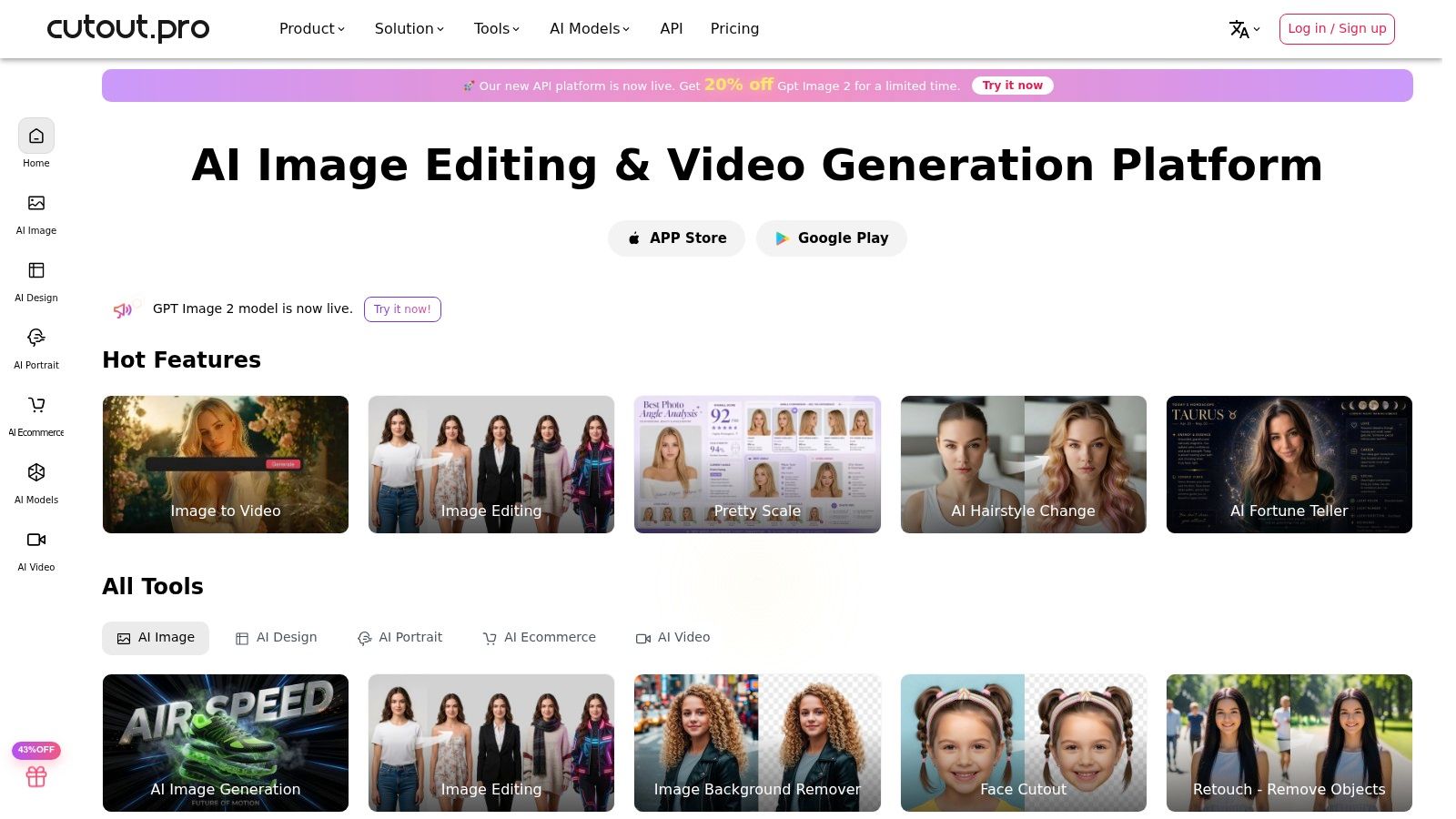
Cutout.pro makes sense when your workflow is messy and varied. If one day you're removing a product background, the next day cleaning up a portrait, and the next day handling simple video background removal, Cutout.pro gives you a broader AI utility stack under one roof.
That flexibility matters for agencies, freelancers, and small teams that don't want separate subscriptions for every narrow task.
Cutout.pro is the practical option for multi-task visual cleanup. It's not as polished as a dedicated design app, but it covers a lot of ground.
It works well for:
The credit model won't appeal to everyone. Some users hate variable usage systems because cost predictability gets harder. But if your volume spikes unpredictably and you need a utility-focused AI editing account rather than a polished design studio, Cutout.pro is a reasonable fit.
If you want mobile precision instead of one-tap automation, use Superimpose X on the App Store. This is one of the few iPhone and iPad apps that respects layered compositing.
Most mobile editors want to finish the job for you. Superimpose X assumes you want control. That's why it stands out.
Superimpose X is the right cut and paste pictures app for people who understand that auto-remove isn't always enough. You get masking tools, layer blending, distort controls, and PSD export for desktop handoff.
That makes it ideal for:
It has a learning curve. Good. That usually means the tool wasn't stripped down for the lowest common denominator.
If you shoot and edit on iOS, and you're frustrated by simplistic apps that flatten everything into a quick effect, Superimpose X gives you room to work properly.
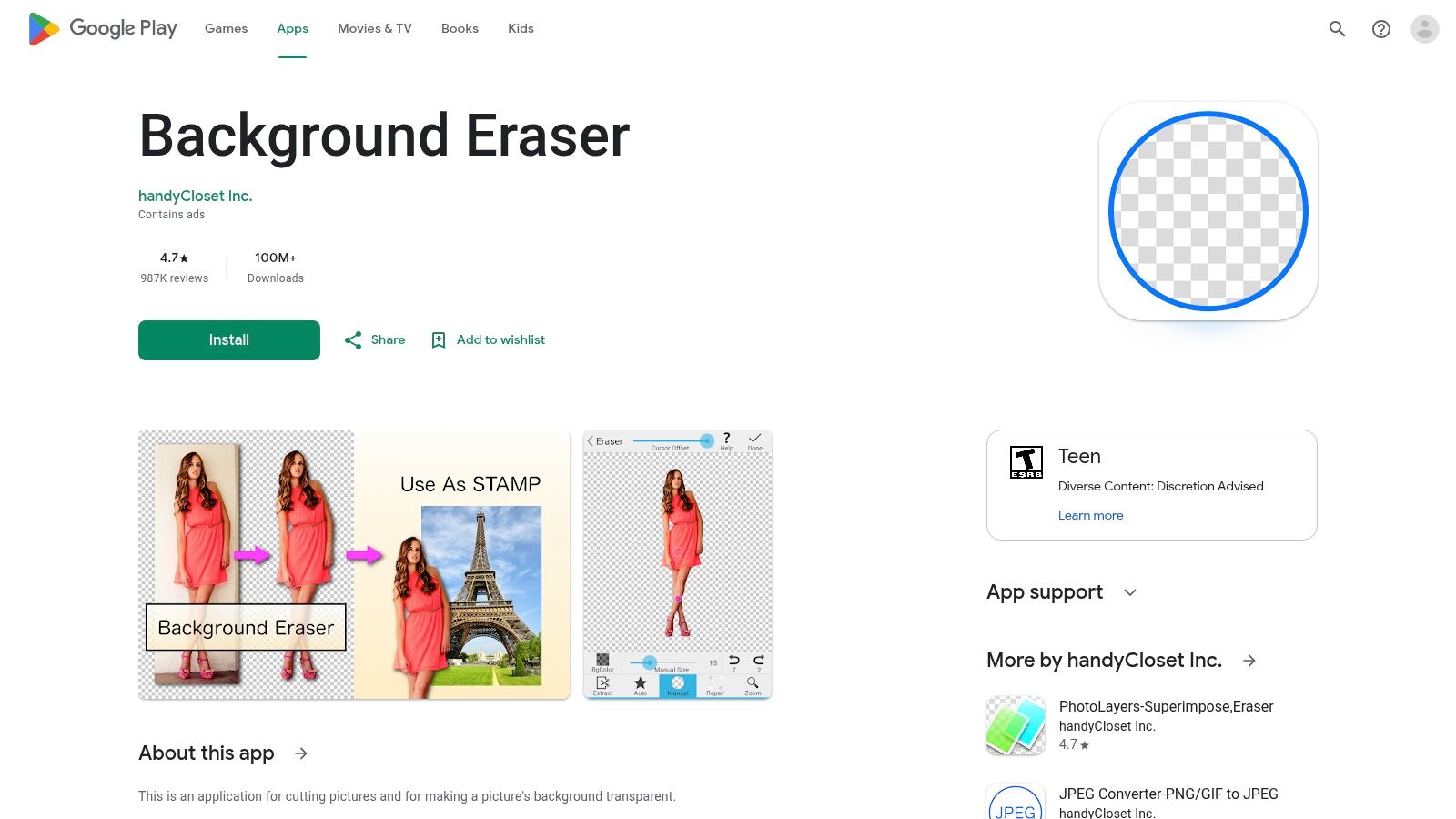
Background Eraser by handyCloset is the Android workhorse on this list. If you want a small, direct, no-nonsense app that cuts subjects out and exports transparent PNGs, use Background Eraser on Google Play.
This app doesn't pretend to be a full creative suite. That's why it's useful.
Background Eraser should be your cutter, not your entire workflow. Remove the background on-device, export the PNG, and do the paste step somewhere built for layout.
That pairing works especially well for:
There's also a privacy angle that too many roundups ignore. App coverage often talks about AI cutouts, layers, and backgrounds, but skips a more practical question. Can you use a cut and paste pictures app safely for sensitive photos without cloud processing or account creation? That gap shows up across mainstream app listings and feature-driven coverage, as discussed in this look at privacy and data handling questions around cut-and-paste photo apps.
If you're editing family photos, real-estate images, or internal business assets, that question matters. Background Eraser is worth considering precisely because lightweight on-device workflows can reduce unnecessary complexity.
| Tool | Core features ✨ | Quality ★ | Best for 👥 | Pricing 💰 | Standout 🏆 |
|---|---|---|---|---|---|
| Adobe Photoshop | Layers, masks, one‑click Remove Background, generative fills, cross‑platform | ★★★★★ | Pro designers & Creative Cloud teams | 💰 Subscription (premium) | Industry‑leading control for precision composites |
| PhotoRoom | Auto background remover, templates, batch tools, mobile‑first, API | ★★★★☆ | Sellers, social teams, mobile creators | 💰 Freemium (export limits) | Fast cut → paste → template workflow |
| Canva | One‑click remover, huge template library, brand kits, collaboration | ★★★★☆ | Marketers, small teams, non‑designers | 💰 Freemium / Pro plans | All‑in‑one design + easy team collaboration |
| Pixelcut | AI remover, scene builder, shadows, batch & API, web + mobile | ★★★★ | Ecommerce sellers & creators | 💰 Paid tiers (platform variances) | Product‑focused scene builder for listings |
| Bazaart | AI remove, layer & mask editing, large asset library, social exports | ★★★★ | Stylized social creators & thumbnail makers | 💰 Freemium / Premium | Rich assets + collage/compositing workflow |
| Picsart | Cutout, stickers, text, effects, web + mobile, APIs/SDKs | ★★★★ | Social managers & small creative teams | 💰 Freemium / Subscription | Broad creative toolset and integrations |
| remove.bg | One‑click cutouts, hair/edge handling, bulk, plugins & API | ★★★★★ | Automation workflows, e‑commerce & agencies | 💰 Credit/subscription for HD & bulk | Fast, consistent background removal engine |
| Cutout.pro | Background/object removal, retouch, image/video, API, credit model | ★★★★ | Users needing a multi‑tool AI toolkit | 💰 Credit‑based pricing | Versatile suite covering many AI image/video tasks |
| Superimpose X | Multi masking modes, up to 24 layers, PSD export, non‑destructive | ★★★★☆ | Pro mobile editors on iPhone/iPad | 💰 Paid iOS app | Powerful manual compositing on mobile |
| Background Eraser (handyCloset) | Auto/magic/color erase, fine brush, PNG export, small footprint | ★★★★ | Android users needing quick transparent PNGs | 💰 Free (ad‑supported) | Lightweight, fast on‑device cutouts |
Choosing a cut and paste pictures app isn't about chasing one perfect tool. It's about building a workflow that matches the way you produce content. The fastest creators and sharpest small businesses don't use the same app for every job. They use the right cutter, then move the asset into the right place to publish.
If you make YouTube thumbnails, your best setup is usually Photoshop or Superimpose X for difficult cutouts, then a layout or publishing workflow built around repeatable branding. If you sell products online, PhotoRoom and Pixelcut are the practical winners because they remove friction from product cleanup and scene creation. If you need quick graphics for social, Canva, Bazaart, and Picsart let you move from cutout to finished post without getting buried in technical edits.
That distinction matters because the category is crowded and growing. Many tools promise “AI editing,” but that label doesn't tell you whether the app is built for precise masking, fast catalog output, branded social design, or utility-only background removal. That's where bad choices waste time. A creator opens a heavy desktop editor for a simple promo post. A shop owner relies on a lightweight remover for a hero image that needs real compositing. The wrong tool creates extra work every time.
Start with your highest-frequency task. Not your occasional task. If you publish daily social graphics, optimize for speed and templates. If you run paid ads or product pages, optimize for edge quality and control. If you handle mixed workloads, split the process. One app cuts. Another app designs. A third platform publishes.
That's also why visual production shouldn't live in isolation from the rest of your content system. The images you cut out often end up in thumbnails, shorts, posts, ads, and repurposed assets. If you're tightening the full pipeline, it helps to look at broader AI-powered content creation tools that connect image work to publishing.
Taja AI can fit into that broader workflow if your cutouts are feeding video thumbnails, clips, and repurposed content. It includes thumbnail generation and can add stock visual elements during video creation, which makes it relevant after the image-editing step, not instead of it.
Master one workflow. Then scale it. That's how you stop making amateur graphics and start publishing assets that look deliberate.
If you're tired of building content piece by piece, Taja AI helps turn one long-form video into shorts, captions, thumbnails, blogs, and platform-ready posts from a single workflow. It's a practical next step for creators and small businesses that want their visuals, publishing, and repurposing process to move faster without adding more manual work.


We are blessed to work with leading brands & Companies


We try to make easy and simple for every professionals. Get 30 days free trial - No credit card required.


© 2025 Taja AI. All rights reserved.