.jpeg)
Create Youtube Shorts from Youtube Video
Create youtube shorts from youtube video. Create YouTube Shorts from a YouTube video with this practical 2026 guide. Learn clipping, captions, thumbnails
5 min read
October 17, 2026

Learn how to copy transcript from YouTube on desktop and mobile. This guide covers the easy native method, browser extensions, and tips for repurposing.
Written by:


You publish a YouTube video. It performs well for a day or two, then attention drops and the next upload takes over.
Many creators treat that moment like the end of the asset. It is usually the beginning.
If you can copy transcript from youtube, you can turn one long video into written content, clip ideas, captions, email drafts, talking points, and searchable blog posts. The transcript is the raw material. Everything else comes from that.
The practical shift is this. Stop thinking of transcript extraction as a housekeeping task. It is the first move in a content system.
A single long-form video already contains your structure, phrasing, stories, objections, and strongest lines. That means the hard part is often done before you ever open a doc.
The transcript gives you a usable version of that work. Instead of rewatching your own video and pausing every few seconds to jot notes, you get the whole conversation in text form. That changes how fast you can repurpose.
For solopreneurs, this matters because time disappears in the gaps between publishing and promotion. For small teams, it matters because someone still has to turn the video into posts, emails, and web copy. A transcript closes that gap.
When I look at a transcript, I am not looking for a perfect document. I am looking for assets hiding in plain sight:
Tip: The transcript is not the final output. It is the fastest way to identify what deserves a second life.
This is why teams that repurpose consistently do not start with design. They start with text. Once the words are visible, the rest of the workflow gets simpler.
If your goal is to turn one upload into a week of content, a transcript-first workflow makes that realistic. A platform like generate content from video builds on that exact idea by treating the source video as the starting point for multiple downstream assets.
For a single video, the fastest path is usually inside YouTube itself.
YouTube’s built-in transcript feature, available since its 2012 accessibility expansion, lets users copy transcripts from many videos longer than 1 minute. The feature, powered by Google’s speech-to-text AI, reaches 85-95% accuracy for clear audio and was updated in 2023 with the Toggle timestamps option for cleaner text extraction, as noted by Tactiq’s YouTube transcript guide.
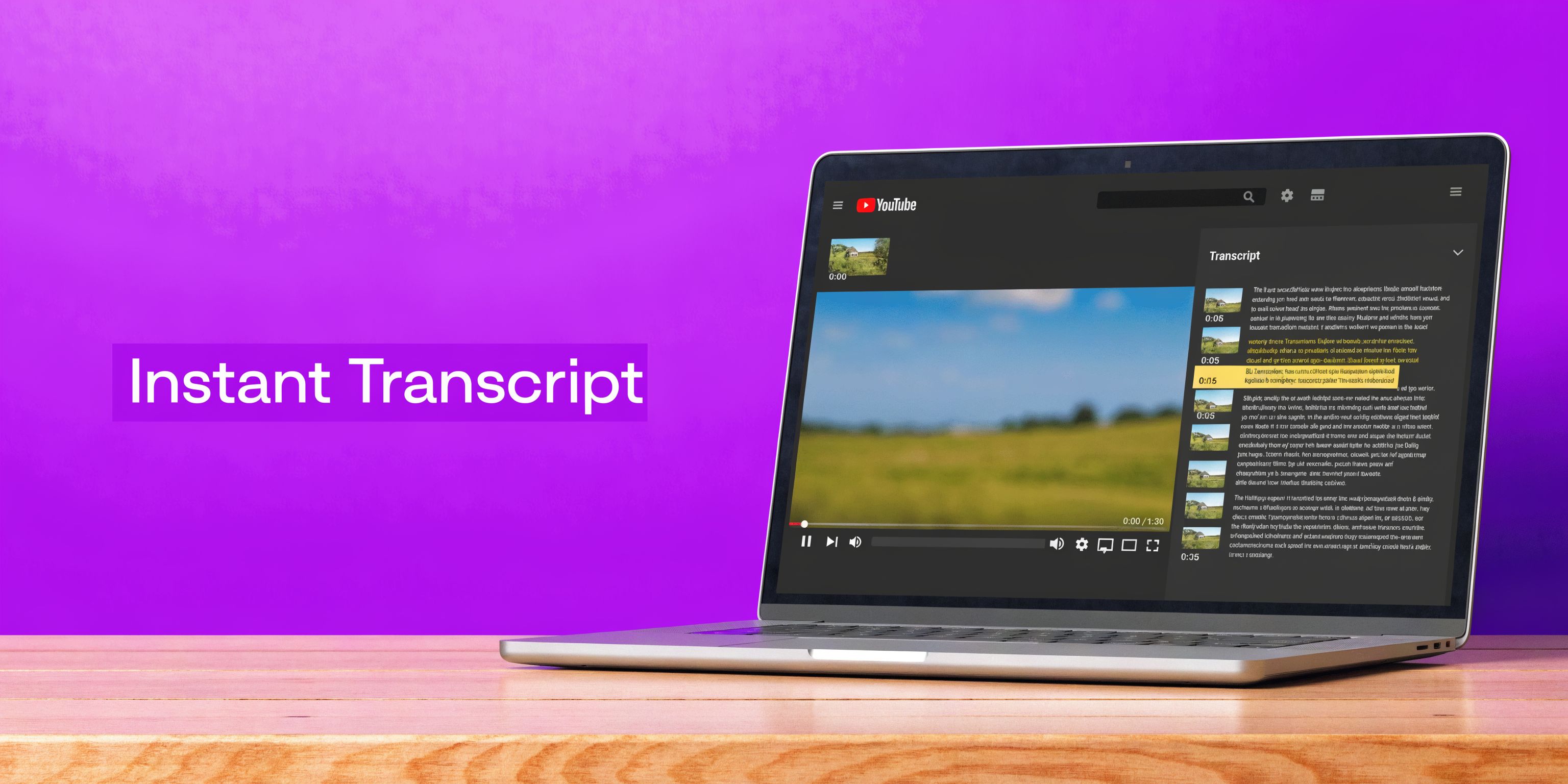
Open the video in a desktop browser. Then follow this sequence:
That one timestamp toggle is a detail frequently missed. If you skip it, cleanup takes longer than it should.
Native YouTube is strong when:
It is not ideal if you need export formats, batch processing, or cleaner paragraph formatting.
A short walkthrough helps if the menu location changes on your interface:
| Situation | Native YouTube result |
|---|---|
| One video with captions | Fast and reliable |
| Hour-long interview | Usable, but copy formatting may need cleanup |
| Multiple videos in a batch | Slow and repetitive |
| Need TXT, DOC, or subtitle exports | Limited |
Key takeaway: If you only need to copy transcript from youtube once or twice, the native method is usually enough. If this becomes a weekly habit, the copy-paste loop becomes the bottleneck.
Mobile is where the simple task turns annoying.
With mobile accounting for a significant portion of YouTube traffic, the lack of a native copy transcript button in the app creates a workflow problem. Searches for mobile workarounds rose 150% in early 2026, and manual copying on a phone can take 20-40 minutes for a single podcast episode, according to this mobile transcript workaround video.
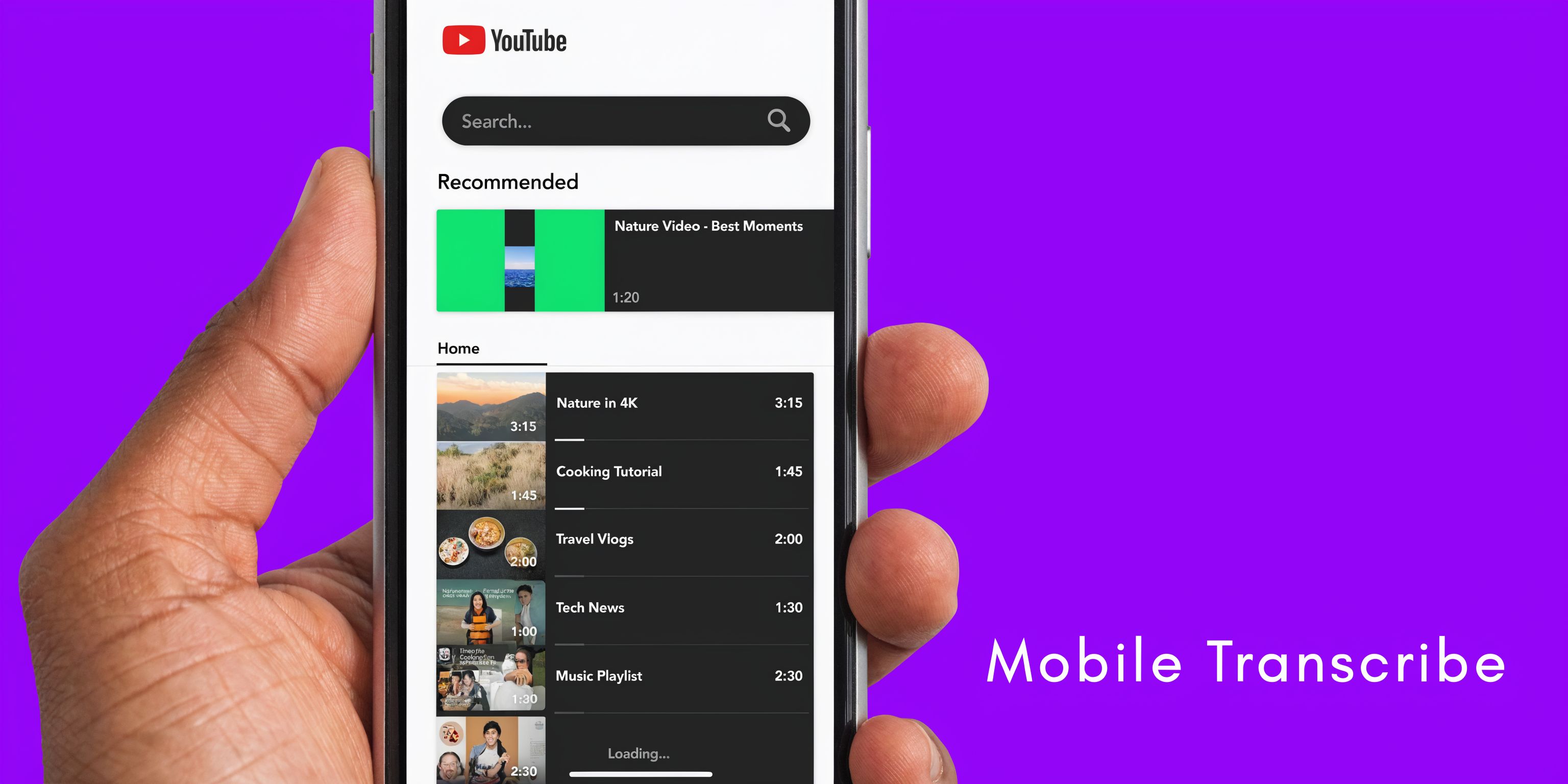
The YouTube app is the problem. Not your phone.
Use your mobile browser instead of the app.
On Chrome or Safari:
Trying to drag-select a huge transcript inside the app usually leads to lost selections, broken formatting, and wasted time. It feels possible for the first few lines, then becomes tedious fast.
If you handle content on the go, the browser workaround is the most reliable manual option. If that still feels clunky, this is the point where a third-party transcript tool starts making sense.
Tip: On mobile, focus on getting the text out first. Clean paragraph breaks after pasting into a notes app or document editor.
Native YouTube is fine for occasional use. It becomes inefficient when transcript extraction is part of a larger repurposing workflow.
That is why transcript tools have expanded so quickly. Demand for AI content repurposing has driven a significant surge in the use of YouTube transcript tools since 2020. Leading extractors such as NoteGPT can generate a full transcript in under 10 seconds and report 4.9/5 ratings on the Chrome Store for batch downloads in 100+ languages, according to Firecrawl’s review of YouTube transcript extractors.
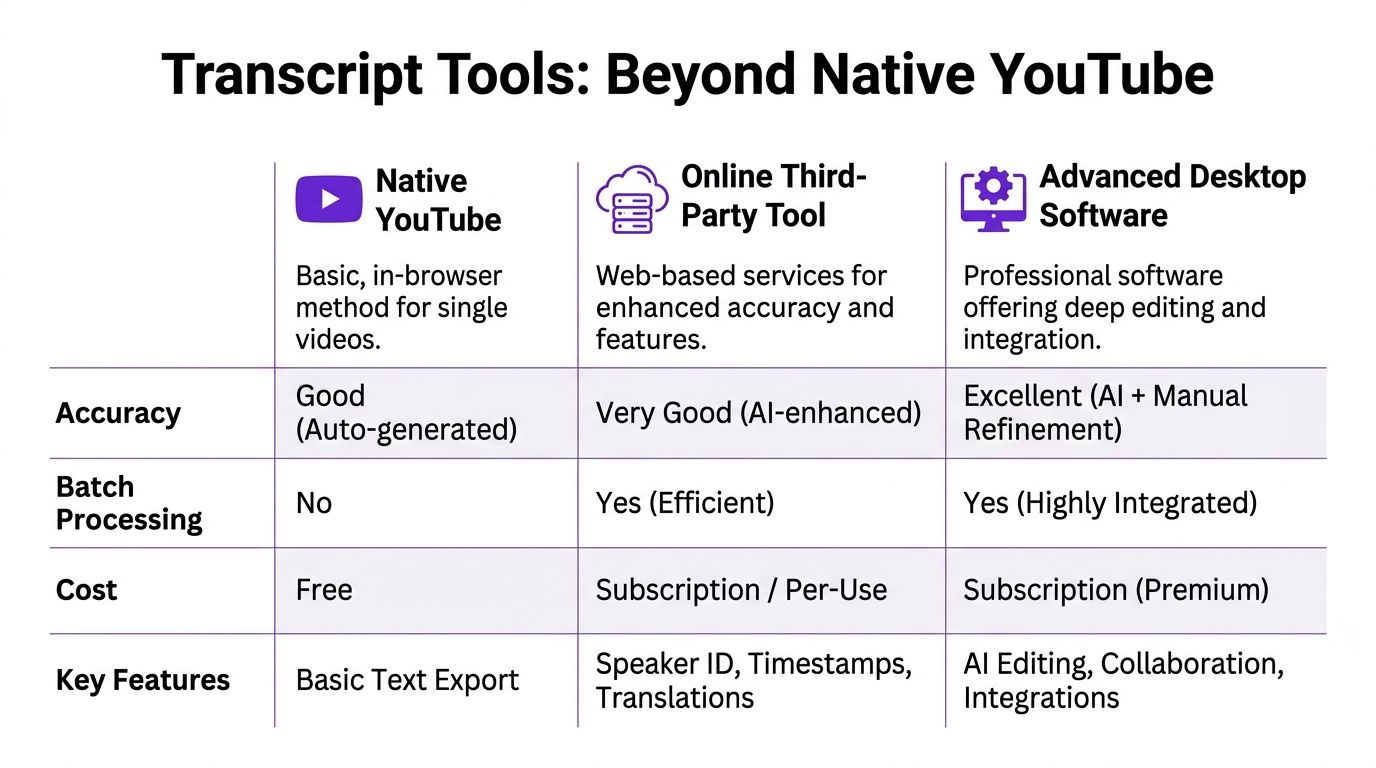
Extensions fit the creator who wants fewer steps. Tools like NoteGPT and Kome.ai are useful when you are already in the browser and want transcript extraction without opening another workflow.
Good fit:
Weak spot:
Web-based tools are the practical middle ground for most solopreneurs. Paste the URL, generate the transcript, then copy or export.
These tools tend to help most with:
If you want a broader breakdown of AI-assisted extraction, Mastering YouTube AI Transcript Generation is a useful reference because it frames transcript generation as part of a larger AI workflow, not just a one-click utility.
If you process videos regularly, you start caring less about “How do I copy this transcript?” and more about “How do I stop doing this manually?”
That is where dedicated workflow systems come in. Some teams connect transcript extraction to storage, labeling, and downstream repurposing. In that setup, transcript retrieval is not the endpoint. It is the trigger for the next steps.
One example is Taja’s AI content repurposing tool, which uses the video transcript as the base layer for generating downstream content assets rather than treating the transcript as a standalone file.
| Need | Best type of tool |
|---|---|
| One-off transcript | Native YouTube |
| Fast browser convenience | Extension |
| Better formatting and exports | Web app |
| Ongoing repurposing workflow | Integrated platform or automation setup |
The mistake is choosing based on novelty. Choose based on repetition. If you do this every week, optimization matters more than free access.
The most common transcript problem is simple. The option is missing.
That usually means the video does not have usable captions available to pull from. The “Transcript unavailable” error affects millions of videos, especially in education and podcasting, because much long-form content may lack pre-existing captions. Emerging AI tools like Google’s NotebookLM, which has seen 5x usage growth since 2025, can generate transcripts from a YouTube URL even when native captions are missing, as discussed in this NotebookLM transcript tutorial.
If Show transcript does not appear, check these possibilities:
Your next move is straightforward. Try an AI tool that can generate a transcript from the URL itself rather than extract an existing caption track.
Auto-generated text often breaks awkwardly. Speaker changes blur together. Punctuation can be rough.
This does not make the transcript useless. It just changes how you use it.
For repurposing, focus on:
Key takeaway: You do not need a perfect transcript to build good repurposed content. You need a readable one.
Some videos have multiple caption tracks. If the transcript looks off, check whether another language version is available before you start editing around mistakes.
This matters most for interviews, educational channels, and multilingual creators. A wrong track can make a transcript look broken when the issue is just a language mismatch.
A good mental checklist is simple: available captions, transcript access, language track, then fallback AI generation.
Once the transcript is in a doc, the significant work gets faster.
Automated repurposing workflows can process a 40-minute video transcript in about 10 seconds, compared with 2-3 minutes for manual copy-pasting. For a business handling 60 videos, that can save up to 180 minutes, based on Octoparse’s breakdown of YouTube transcript extraction workflows.

A transcript becomes useful when you break it into jobs.
For busy creators, this is often enough:
If you want a broader creative framework, these content repurposing strategies are useful because they help you match transcript material to the right channel and format.
The most impactful move is not “get the transcript.” It is building a repeatable path from transcript to publishable assets. If you already create long-form video, you also already have more content than you think. A practical next step is this guide on how to repurpose YouTube videos for Shorts, which shows how to turn source videos into smaller, channel-specific pieces.
If transcript copying is still living as a manual task in your workflow, Taja AI is worth looking at. It uses the uploaded video transcript as the foundation for turning long-form content into clips, captions, blog drafts, and other ready-to-publish assets from one source video.


We are blessed to work with leading brands & Companies


We try to make easy and simple for every professionals. Get 30 days free trial - No credit card required.


© 2025 Taja AI. All rights reserved.